
6-Contributor
March 11, 2021
Question

Mathcad Prime 7.0 Combo Box doesn't support unit with exponents?

  • March 11, 2021
  • 3 replies
  • 10867 views

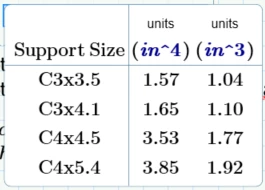
Does Mathcad Prime 7.0's Combo Box support units with exponents?  I am trying to enter steel properties in and when I type in^4 and in^3 that is exactly how it looks instead of in⁴ or in³.
 

brandesm_0-1615506216677.png


3 replies

23-Emerald I
March 12, 2021

No, the combo box does not support units at all.  (Why would you ever need units?)

The built-in table in Prime is better.

Fred_Kohlhepp_0-1615552800088.png


15-Moonstone
March 12, 2021

Not sure that I understand. Here is the example from  Prime 7 help.

rgunwaldsen_0-1615556135860.png

I would think the place to put the exponent would be in the data, not the units?

23-Emerald IV
March 12, 2021

But would it accept square metres as a unit?

(Combo-box is a Premium feature, not accessible in Express)


Luc

23-Emerald I
March 12, 2021

A work around:

Fred_Kohlhepp_0-1615565481518.png


25-Diamond I
March 12, 2021

Have not downloaded P7 so i can't try myself.

Which unit do you get as finial result for the variables, if you put in^4 or the like in the box as was shown in the initial post? From the pic it looked like the in^4 are still labelled as unit and the OP did nor mention any error message he got, so I assumed it was just the ugly display he was moaning about.

brandesm6-ContributorAuthor
6-Contributor
March 12, 2021

No, it creates an error.

brandesm_0-1615568475946.png

If I leave off the exponent and enter it as a straight length, it works fine.  So it is recognizing the in^4 as a unit, but it's not recognizing the ^4 as an actual exponent.  If I didn't have any error messages, I wouldn't have to come here looking for a solution.

14-Alexandrite
April 14, 2021

This oversight is a problem.  I made a work around.  I defined temporary units hidden in a collapsed area.

RantEng_0-1618424274818.png

These units are equivalent, will work, and are never seen.


Bob

16-Pearl
May 6, 2021

So I've played around with this quite a bit now.  The thing to remember is that this component is dumb.  It works, but it's dumb.  It has no idea that it lives inside a Mathcad Prime document.


  1. Unit expressions are just text strings that attempt to get translated to a unit.  The "string" can have no math in it, so units like (m/s), (Pa*s), (BTU/lb/ft²) will not work unless you define those "strings" as units.  (By the way, you can get a square (²) by typing double quotes, entering the expression using <Alt>0178 to get the ² symbol and then deleting one of the quotes.)

  2. Interestingly, using the double-quote method in 1, you can also enter affine temperature units, °F & °C, using <Alt>0176 for the ° symbol and these units are already defined.
     
  3. The values for the choices are similarly just text strings that get translated to numeric values.  They can also contain no math.  Unfortunately, the translation to a numeric value also does not understand any form of exponential notation.  So, you can't enter a value of 5.6E-6, but have to enter 0.0000056 as the value.  Like I said...

If you understand all this going in, it is quite functional and you can hide your "string" unit definitions in a collapsible area or keep commonly used "string" units in another worksheet that can be referenced before the Combo box (or after if you define them globally).  It also allow you to hide the assignment expression/matrix, which is a throwback to legacy behavior and makes a very clean combo box.  You can also use Math Formatting to shade the text and background color.


It's not ideal and in desperate need of a better translator for the units and values, but it is functional.  I've attached a Prime 7.0 file with examples for making the "unit" strings more readable.

14-Alexandrite
May 6, 2021

Wow!  You just gave me the hint on how to type math characters that I couldn't type before:  For example y-bar: a y with a horizontal bar over it:

RantEng_0-1620324605861.png

I had to cheat here.  Open MS Word and type the letter and the ascii code.  In this case y0304.  Then Alt-x that puts character 0304 over the y.  Now  your trick with the quotes and paste this between the quotes.  Now delete the quote.


Bob