

Java SDK Tutorial Part 1
Use our developer toolkit to connect Java-enabled devices and build an application.
GUIDE CONCEPT
This project will introduce complex aspects of the ThingWorx Java SDK and help you to get started with development.
Following the steps in this guide, you will develop your own IoT application with the ThingWorx Java SDK.
We will teach you how to use the Java programming language to connect and build IoT applications to be used with the ThingWorx Platform.
NOTE: This guide's content aligns with ThingWorx 9.3. The estimated time to complete all parts of this guide is 60 minutes.
YOU'LL LEARN HOW TO
- Establish and manage a secure connection with a ThingWorx server, including SSL negotiation and connection maintenance
- Enable easy programmatic interaction with the Properties, Services, and Events that are exposed by Entities running on a ThingWorx server
- Create applications that can be directly used with your device running the Java programming language
- Basic concepts of the Java Edge SDK
- How to use the Java Edge API to build a real-world application
- How to utilize resources provided in the Edge SDK to help create your own application
Step 1: Completed Example
Download the Java_SDK_Extra_Samples.zip attached to this article and extract the contents.
In this tutorial we walk you through a real-world scenario for a power grid network. The Java_SDK_Extra_Files.zip file provided to you contains the following files and Entities as a completed version of the scenario we will cover. Please keep in mind, the Java SDK can also be utilized for Android development and general Java development.
| Name | Description |
| PowerGrid | Source code for an extensive example of a power grid network |
| Delivery Truck | Source code for the delivery truck application |
| ExampleClient | Source code for examples on how to do different tasks |
| FileTransfer | Source code for a file transfer application |
| Tunneling | Source code for a tunneling application |
| SimpleThing | Source code for simple connections and examples |
| SteamSensor | Source code for a steam sensor that provides configuration during runtime |
Once you complete your Java environment setup and import the JavaExampleEntities.xml file into ThingWorx Composer, you will be able to utilize these Entities:
| Feature | Entity Type | Description |
| Generator1 | Thing | Used with the power grid edge example |
| Generator2 | Thing | Used with the power grid edge example |
| Generator3 | Thing | Used with the power grid edge example |
| Consumer1 | Thing | Used with the power grid edge example |
| Consumer2 | Thing | Used with the power grid edge example |
| Consumer3 | Thing | Used with the power grid edge example |
| DeliveryTruck_1 | Thing | Used with the delivery truck edge example |
| DeliveryTruck_2 | Thing | Used with the delivery truck edge example |
| DeliveryTruck_3 | Thing | Used with the delivery truck edge example |
| FileTransferExample | Thing | Used with the file transfer edge example |
| TunnelExample | Thing | Used with the tunnel edge example |
| SimpleThing_1 | Thing | Used as a simple edge example for coding and connectivity |
| SimpleDataShape | Data Shape | Used as a simple edge Data Shape example for coding and connectivity |
| DeliveryTruckShape | Data Shape | Used as a Data Shape with the delivery truck edge example |
| EdgeExample | Model Tag | Used as a Model Tag for tagging all entities; enables quicker searches |
| DeliveryTable | Data Table | Used as a Data Table with the delivery truck edge example |
| Default_user | User | User created to be used with the SDK examples |
| PTC | Organization | An Organization that helps with security in edge examples |
| Admin_key | Application Key | An Application Key used for the Admin |
| Default_key | Application Key | An Application Key used for the Default User; this is the recommended key to use |
Step 2: Environment Setup
You can use the Java SDK with any IDE of your choice. The steps below demonstrate how to use the Eclipse IDE as an example.
If you have not already done so, install a Java Development Kit (JDK) from Corretto or OpenJDK in order to compile and run Java code and download the ThingWorx Java SDK. The download will include the JARs necessary to run the SDK.
The Eclipse Java IDE is a centralized location to store the code, resources, and files utilized by this guide. Download and install the latest Eclipse Java IDE from the Eclipse website.
Create Java Project
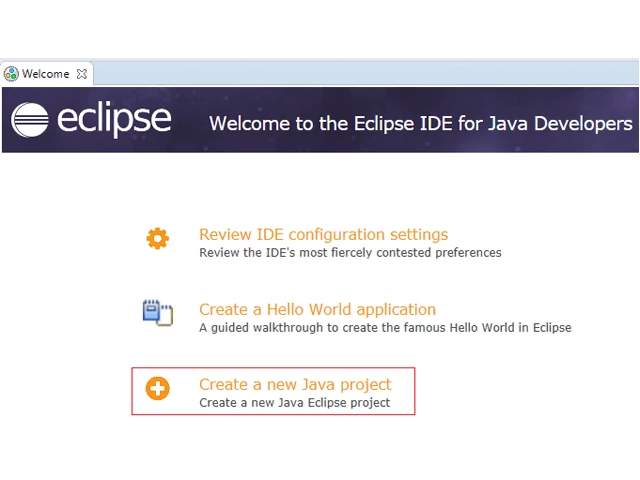
- When the Eclipse Welcome window appears, click Create a new Java Project.
- In the New Java Project setup wizard, enter ThingWorx Development as the project name. Java 1.8 is the supported and recommended JDK.
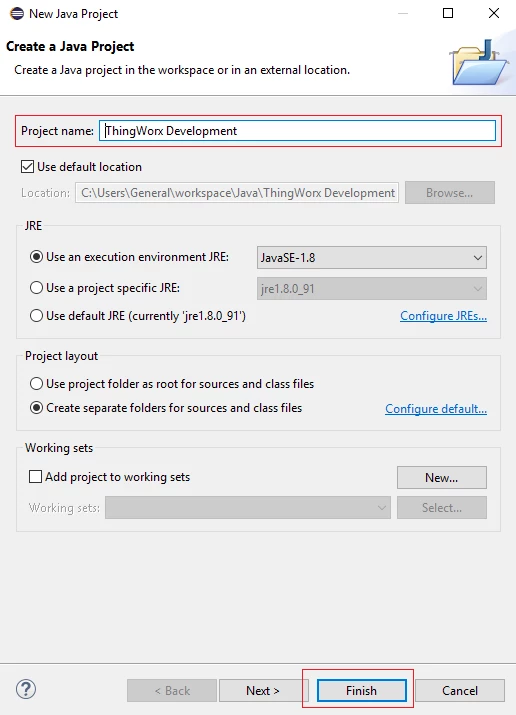
Click Finish.
Set Up User Library
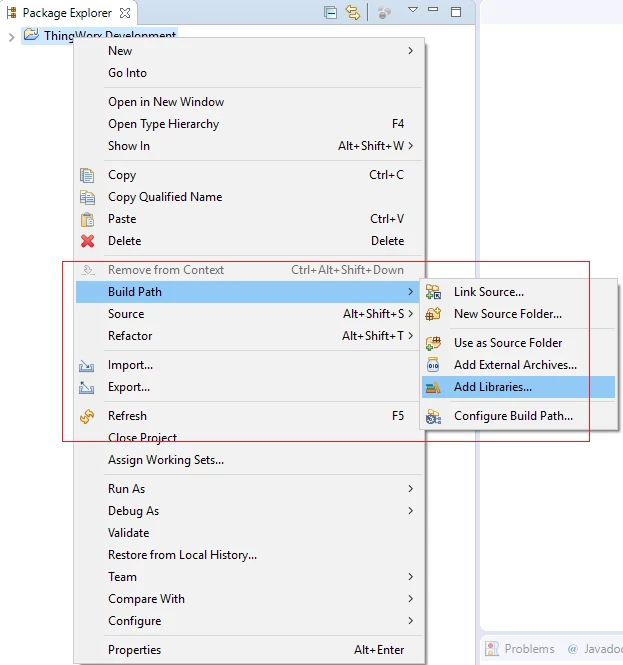
- Right click the newly created ThingWorx Development project in the Package Explorer.
- Expand the Build Path selection and select Add Libraries.
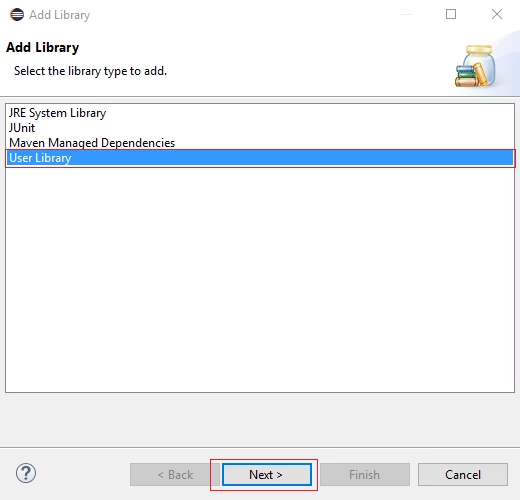
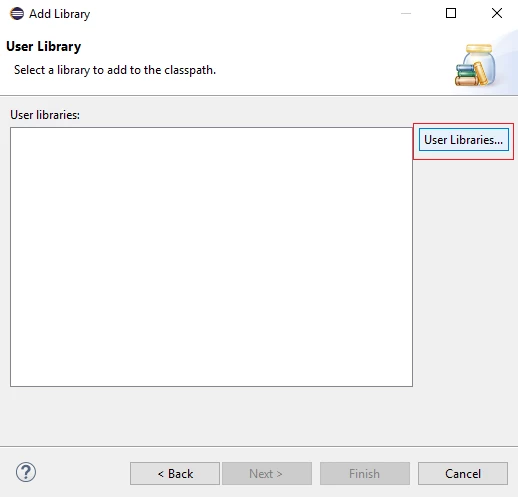
Click User Library. Click Next.
Click User Libraries.
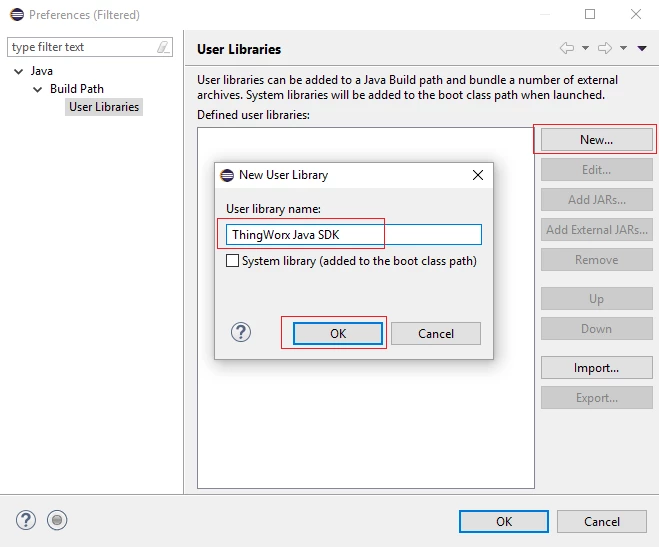
- Click New, enter ThingWorx Java SDK as the library name. Click OK.
Set Up Javadoc
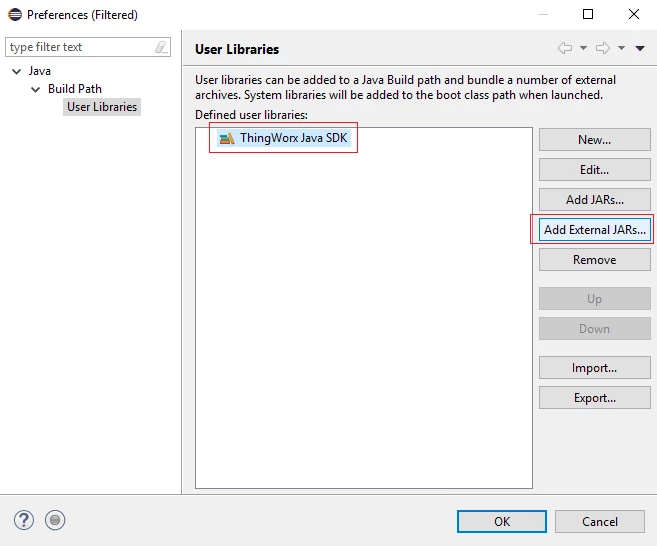
- With the ThingWorx Java SDK selected, click the Add External JARs button.
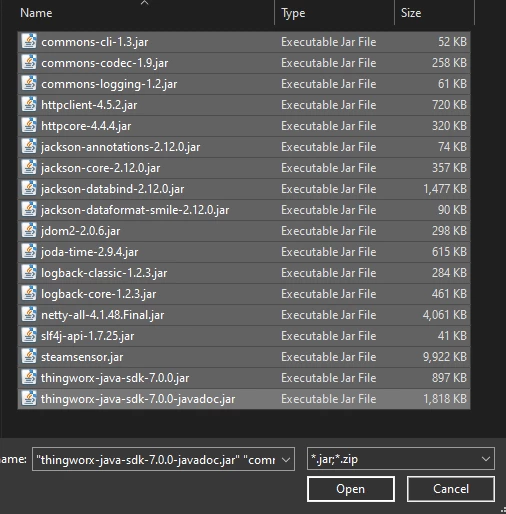
- In the pop-up window, navigate to the location in which you unzipped the ThingWorx Java Edge SDK.
- Navigate to the lib folder, select all of the JARs, then click Open.
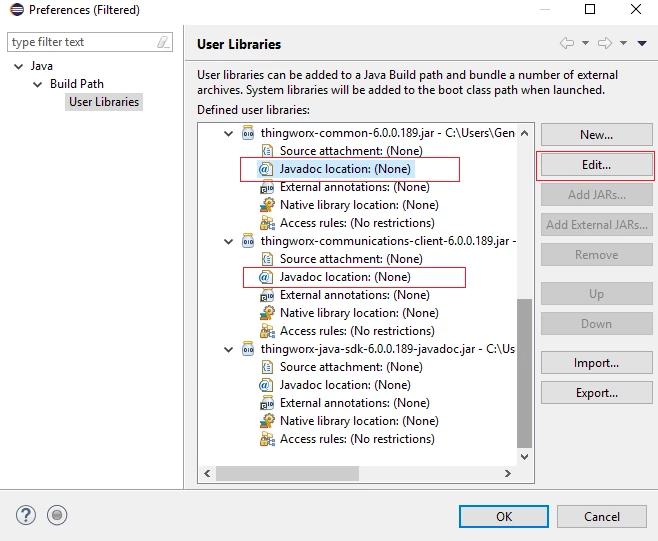
- Within the ThingWorx Java SDK library, expand the thingworx-common-xxxx.jar folder and select Javadoc location.
- Click Edit.
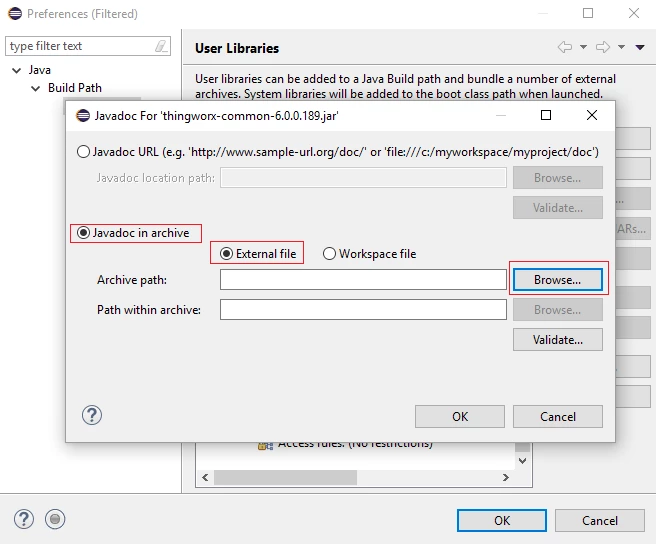
Select the Javadoc in archive and External file radio buttons, then click Browse.
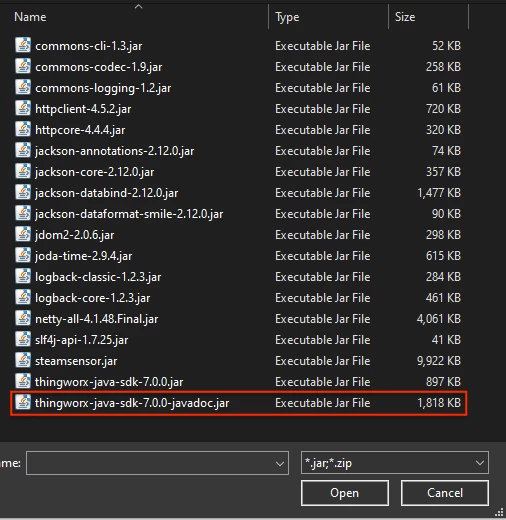
- In the pop-up window, navigate to the location in which you unzipped the ThingWorx Java Edge SDK. Navigate to the lib folder, highlight the thingworx-java-sdk JavaDoc JAR File, then click Open.
- Click OK.
- Repeat steps 1-8 for the thingworx-communications-client JAR’s Javadoc location field shown in step 10.
- Confirm that your setup looks like this:
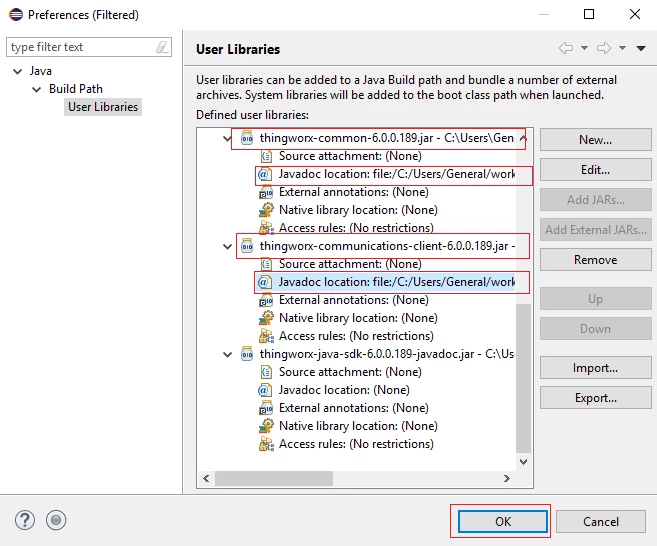
Click OK.
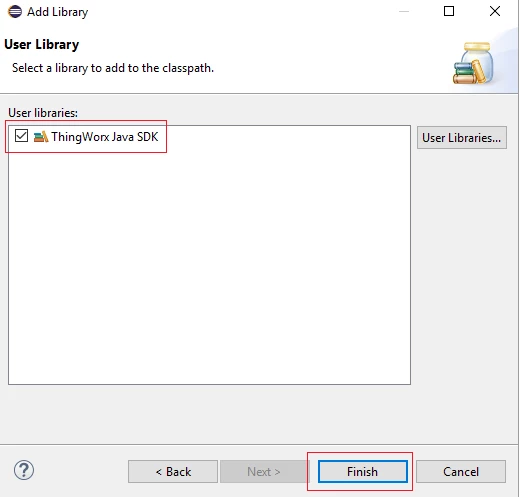
- Select the checkbox for the ThingWorx Java SDK library, then click Finish.
Import Sample Files
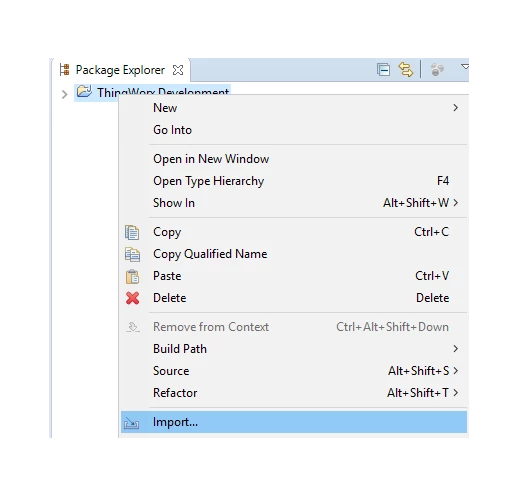
- Right click the ThingWorx Development project and click Import.
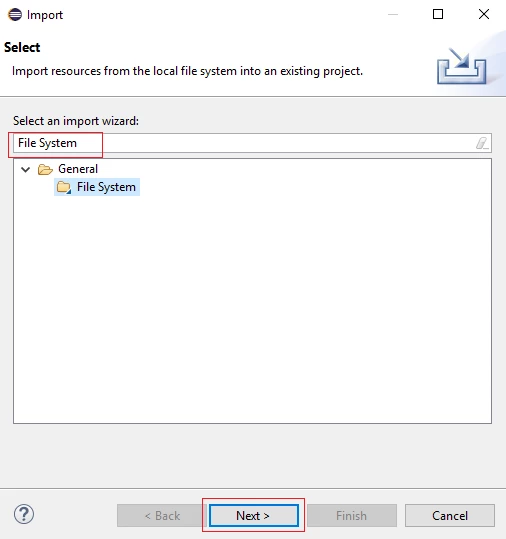
- In the Import wizard, type File System into the filter. Click Next.
- In the pop-up window, navigate to the location in which you unzipped the ThingWorx Java Edge SDK. Navigate inside the samples folder and select the src folder.
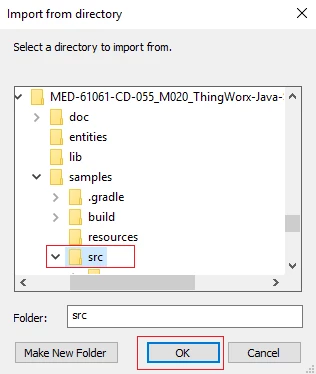
- Click OK.
- Select the checkbox for the src folder, then click Browse.
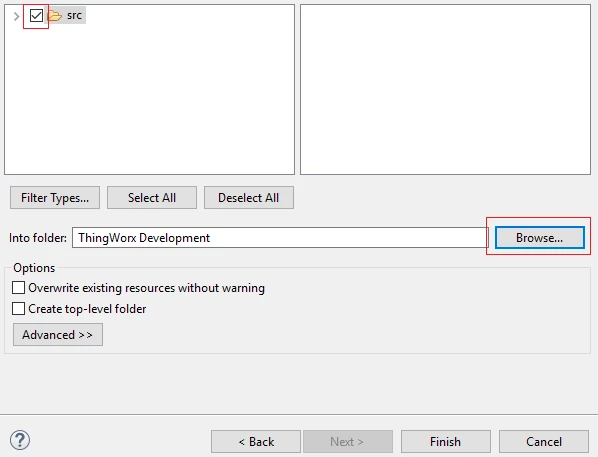
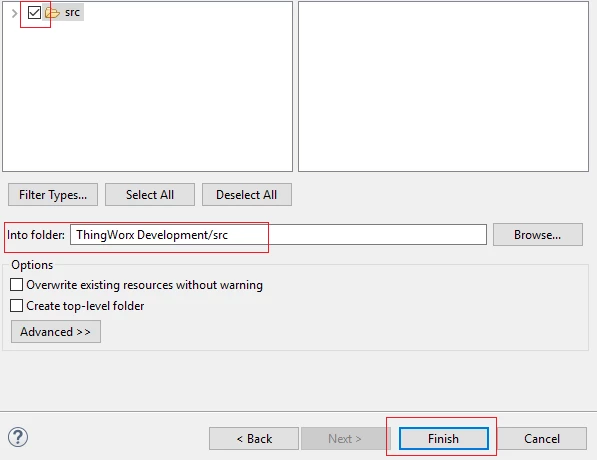
- Type ThingWorx Development/src into the text box.
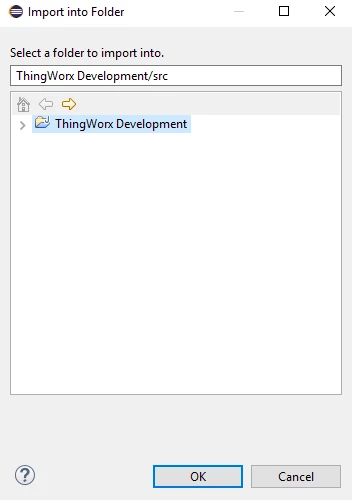
- Click OK.
- Click Finish.
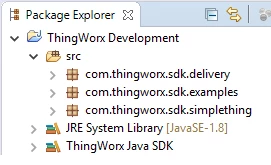
- Expand the ThingWorx Development project.
Click here to view Part 2 of this guide.