

Load Testing through C SDK Remote Device Simulation in ThingWorx

Load Testing through C SDK
Remote Device Simulation in ThingWorx
As discussed in the EDC's previous article, load or stress testing a ThingWorx application is very important to the application development process and comes highly recommended by PTC best practices. This article will show how to do stress testing using the ThingWorx C SDK at the Edge side. Attached to this article is a download containing a generic C SDK application and accompanying simulator software written in python. This article will discuss how to unpack everything and move it to the right location on a Linux machine (Ubuntu 16.04 was used in this tutorial and sudo privileges will be necessary). To make this a true test of the Edge software, modify the C SDK code provided or substitute in any custom code used in the Edge devices which connect to the actual application.
It is assumed that ThingWorx is already installed and configured correctly. Anaconda will be downloaded and installed as a part of this tutorial. Note that the simulator only logs at the "error" level on the SDK side, and the data log has been disabled entirely to save resources. For any questions on this tutorial, reach out to the author Desheng Xu from the EDC team (
Background:
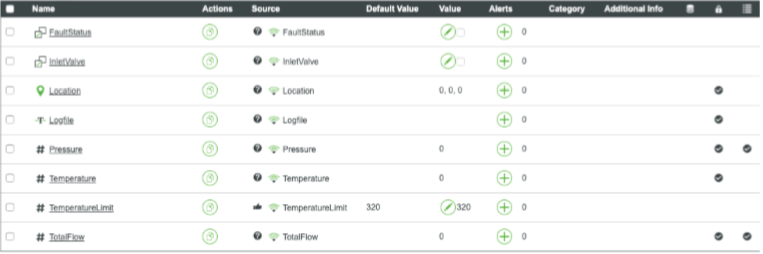
Within ThingWorx, most things represent remote devices located at the Edge. These are pieces of physical equipment which are out in the field and which connect and transmit information to the ThingWorx Platform. Each remote device can have many properties, which can be bound to local properties. In the image below, the example property "Pressure" is bound to the local property "Pressure". The last column indicates whether the property value should be stored in a time series database when the value changes. Only "Pressure" and "TotalFlow" are stored in this way.
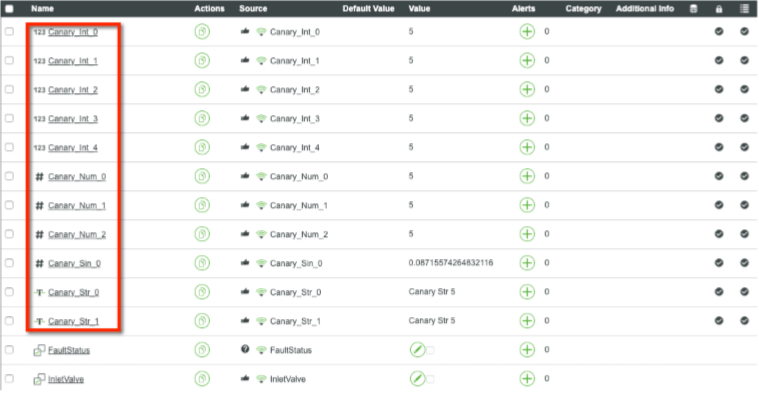
A good stress test will have many properties receiving updates simultaneously, so for this test, more properties will be added. An example shown here has 5 integers, 3 numbers, 2 strings, and 1 sin signal property.
Installation:
- Download Python 3 if it isn't already installed
- Download Anaconda version 5.2
Sometimes managing multiple Python environments is hard on Linux, especially in Ubuntu and when using an Azure VM. Anaconda is a very convenient way to manage it. Some commands which may help to download Anaconda are provided here, but this is not a comprehensive tutorial for Anaconda installation and configuration.- Download Anaconda
curl -O https://repo.anaconda.com/archive/Anaconda3-5.2.0-Linux-x86_64.sh - Install Anaconda (this may take 10+ minutes, depending on the hardware and network specifications)
bash Anaconda3-5.2.0-Linux-x86_64.sh - To activate the Anaconda installation, load the new PATH environment variable which was added by the Anaconda installer into the current shell session with the following command:
source ~/.bashrc - Create an environment for stress testing. Let's name this environment as "stress"
conda create -n stress python=3.7 - Activate "stress" environment every time you need to use simulator.py
source activate stress
- Download Anaconda
- Install the required Python modules
Certain modules are needed in the Python environment in order to run the simulator.py file: psutil, requests.
Use the following commands to install these (if using Anaconda as installed above):conda install -n stress -c anaconda psutil conda install -n stress -c anaconda requests - Unpack the download attached here called csim.zip
- Unzip csim.zip and move it into the /opt folder (if another folder is used, remember to change the page in the simulator.json file later)
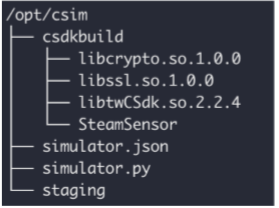
- Assign your current user full access to this folder (this command assumes the current user is called ubuntu ) :
sudo chown -R ubuntu:ubuntu /opt/csim
- Unzip csim.zip and move it into the /opt folder (if another folder is used, remember to change the page in the simulator.json file later)
- Move the C SDK source folder to the lib folder
- Use the following command:
sudo mv /opt/csim/csdkbuild/libtwCSdk.so.2.2.4 /usr/lib - You may have to also grant a+x permissions to all files in this folder
- Use the following command:
- Update the configuration file for the simulator
- Open /opt/csim/simulator.json (or whatever path is used instead)
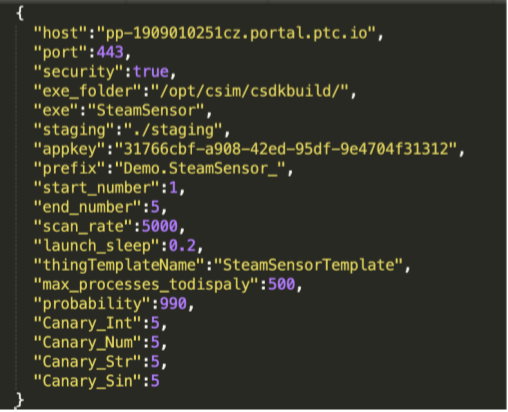
- Edit this file to meet your environment needs, based on the information below
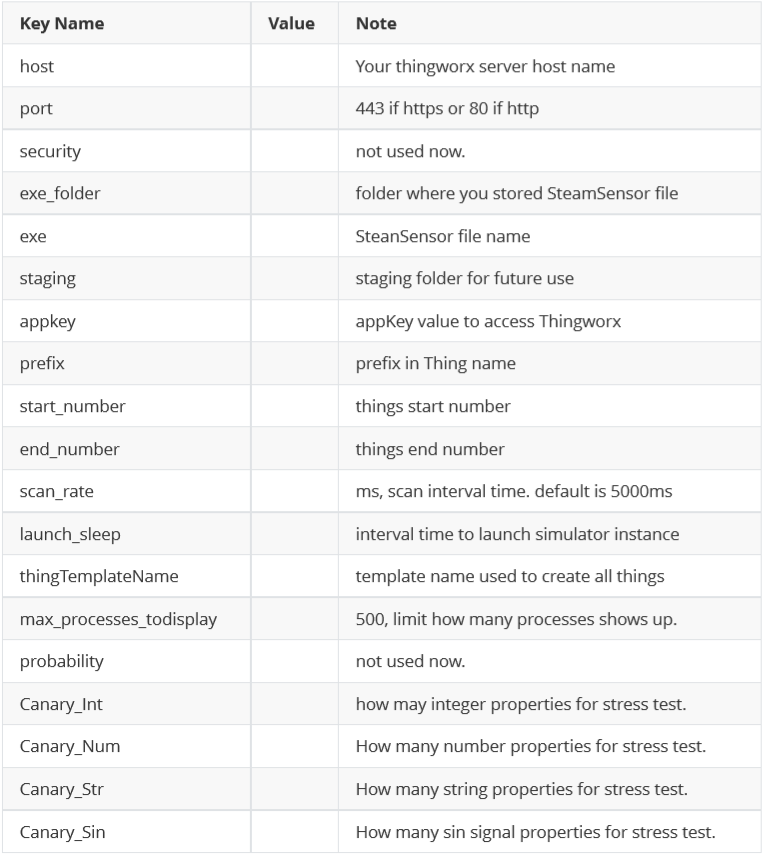
- Open /opt/csim/simulator.json (or whatever path is used instead)
- Familiarize yourself with the simulator.py file and its options
Use the following command to get option information:python simulator.py --help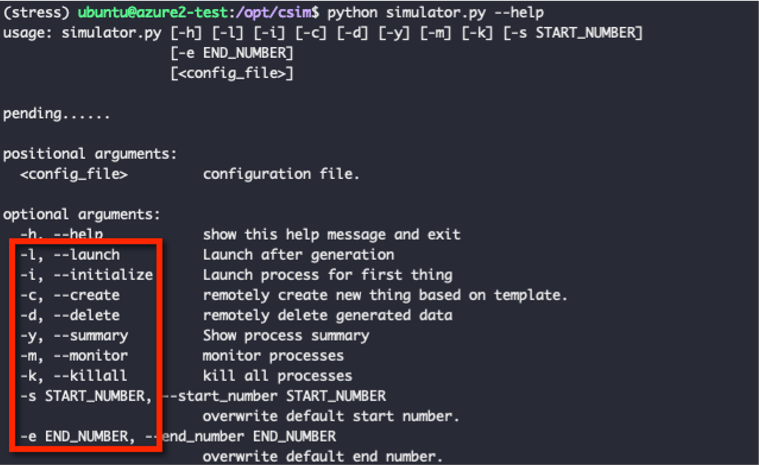
Set-Up Test Scenario:
- Plan your test
Each simulator instance will have 8 remote properties by default (as shown in the picture in the Background section). More properties can be added for stress test purposes in the simulator.json file.
For the simulator to run 1k writes per second to a time series database, use the following configuration information (note that for this test, a machine with 4 cores and 16G of memory was used. Greater hardware specifications may be required for a larger test):- Forget about the default 8 properties, which have random update patterns and result in difficult results to check later. Instead, create "canary properties" for each thing (where canary refers to the nature of a thing to notify others of danger, in the same way canaries were used in mine shafts)
- Add 25 properties for each thing:
- 10 integer properties
- 5 number properties
- 5 string properties
- 5 sin properties (signals)
- Set the scan rate to 5000 ms, making it so that each of these 25 properties will update every 5 seconds. To get a writes per second rate of 1k, we therefore need 200 devices in total, which is specified by the start and end number lines of the configuration file
- The simulator.json file should look like this:
Canary_Int: 10 Canary_Num: 5 Canary_Str: 5 Canary_Sin: 5 Start_Number: 1 End_Number: 200
- Run the simulator
- Enter the /opt/csim folder, and execute the following command:
python simulator.py ./simulator.json -i - You should be able to see a screen like this:
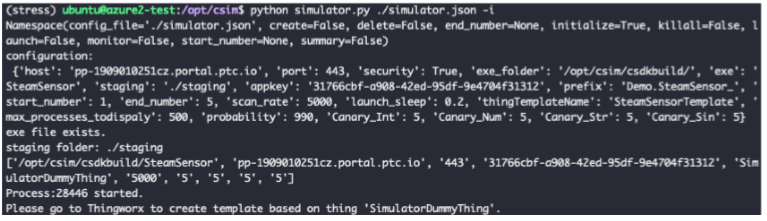
- Go to ThingWorx to check if there is a dummy thing (under Remote Things in the Monitoring section):
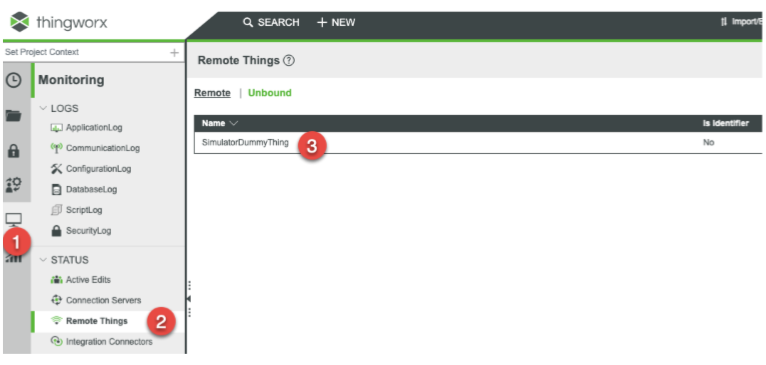
This indicates that the simulator is running correctly and connected to ThingWorx
- Enter the /opt/csim folder, and execute the following command:
- Create a Value Stream and point it at the target database
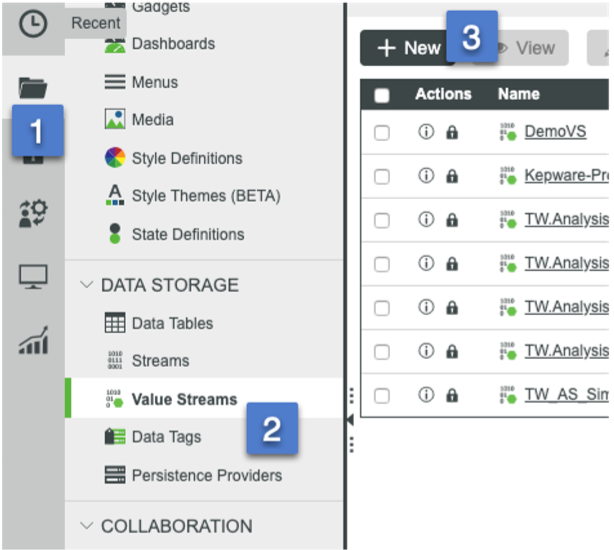
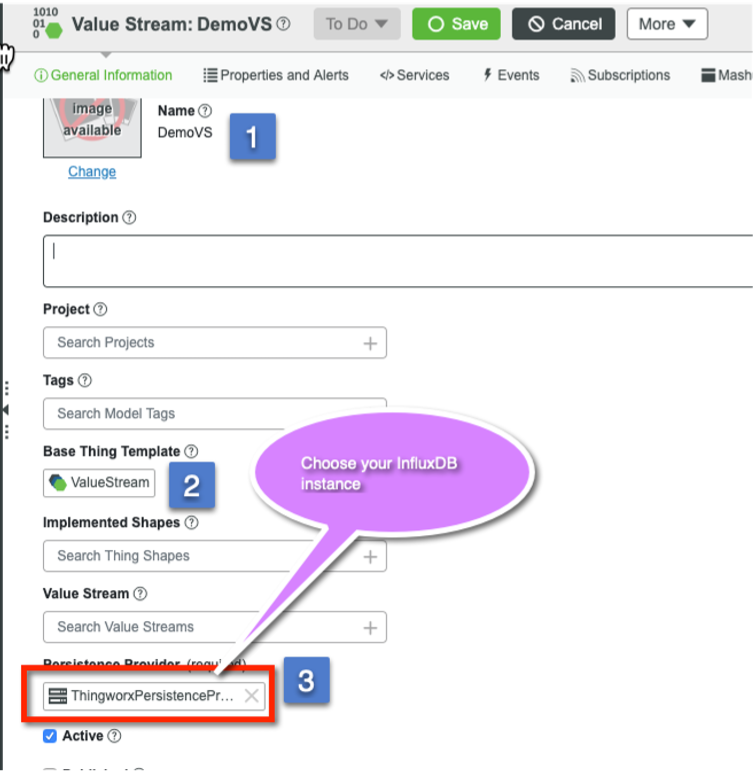
- Create a new thing and call it "SimulatorDummyThing"
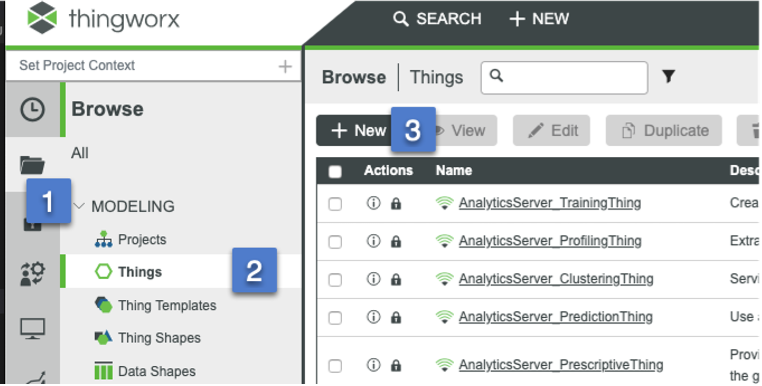
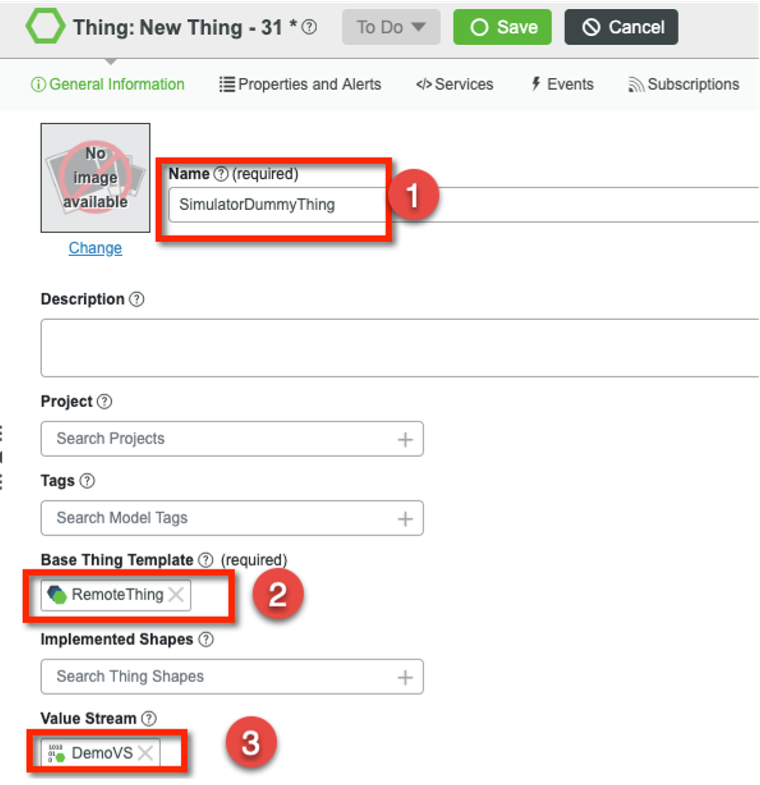
Once this is created successfully and saved, a message should pop up to say that the device was successfully connected - Bind the remote properties to the new thing
- Click the "Properties and Alerts" tab
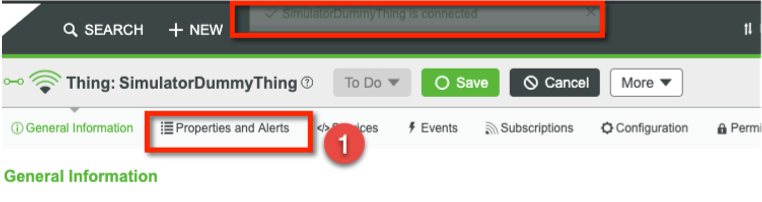
- Click "Manage Bindings"
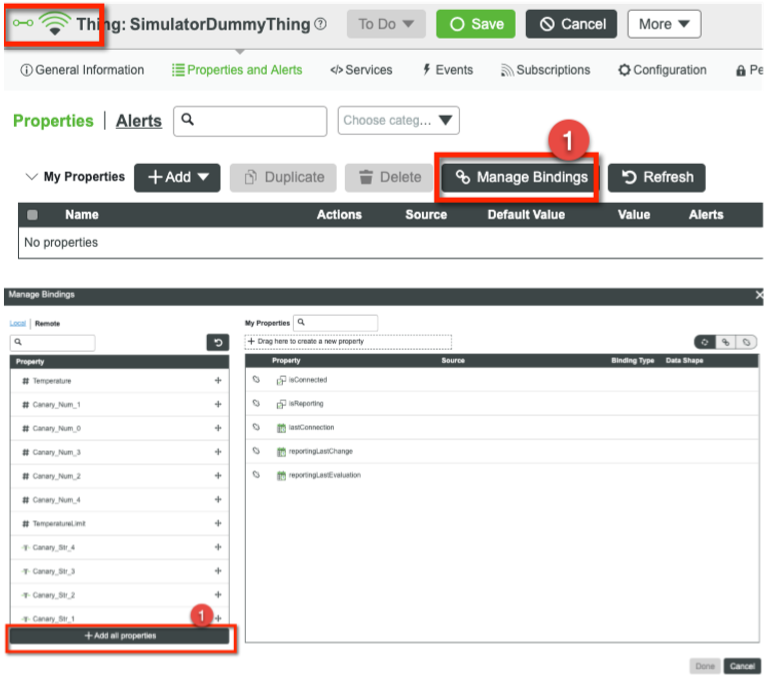
- Click "Add all properties"
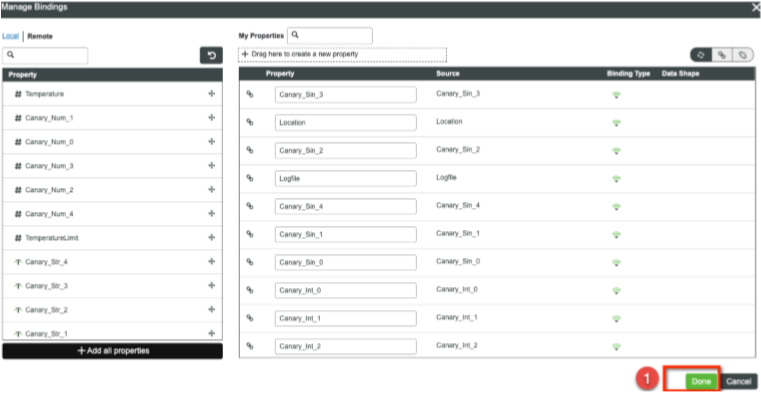
- Click "Done" and then "Save"
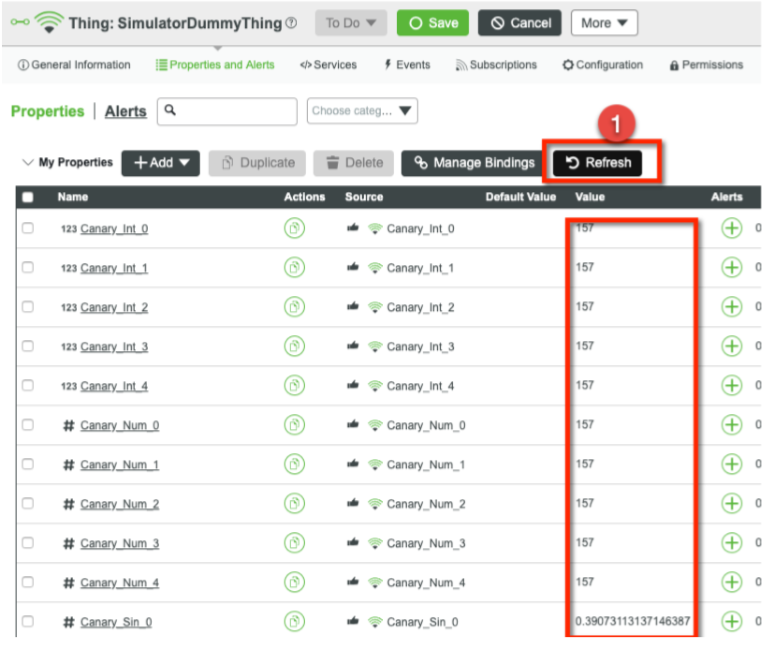
- The properties should begin updating immediately (every 5 seconds), so click "Refresh" to check
- Click the "Properties and Alerts" tab
- Create a Thing Template from this thing
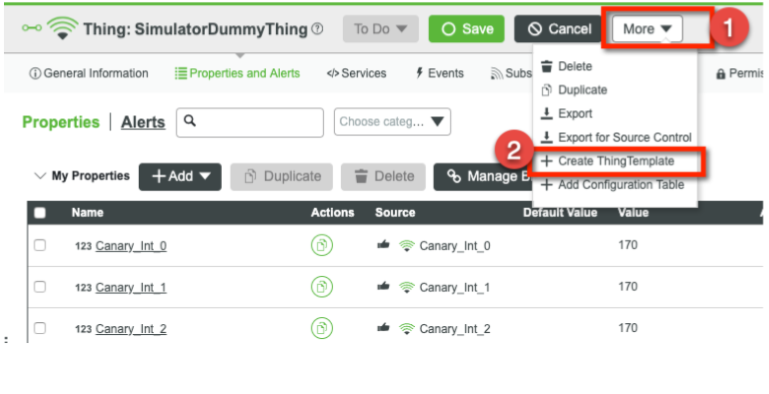
- Click the "More" drop-down and select "Create ThingTemplate"
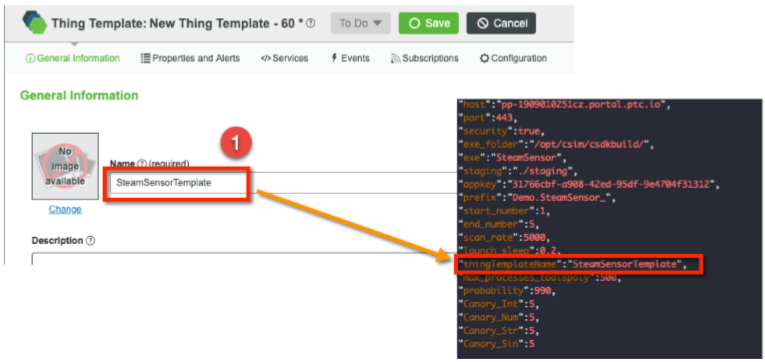
- Give the template a name (ensure it matches what is defined in the simulator.json file) and save it
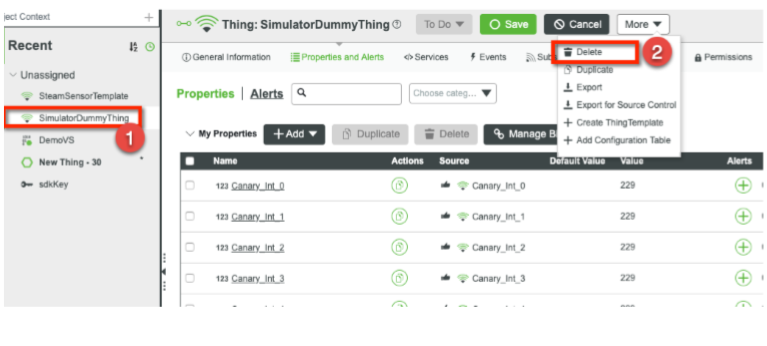
- Go back and delete the dummy thing created in Step 4, as now we no longer need it
- Click the "More" drop-down and select "Create ThingTemplate"
- Clean up the simulator
- Use the following command:
python simulator.py ./simulator.json -k - Output will look like this:

- Use the following command:
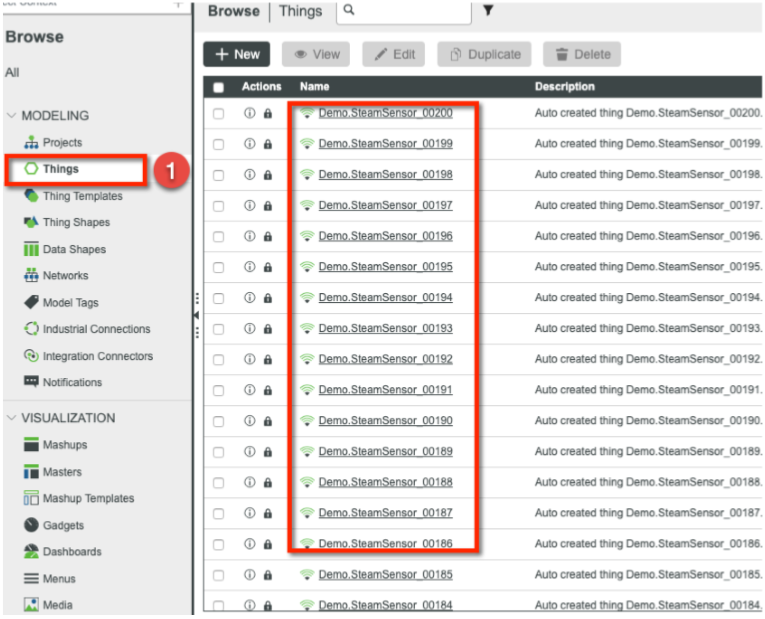
- Create 200 things in ThingWorx for the stress test
- Verify the information in the simulator.json file (especially the start and end numbers) is correct
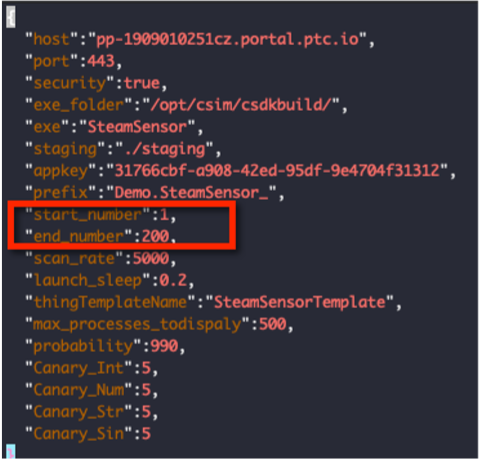
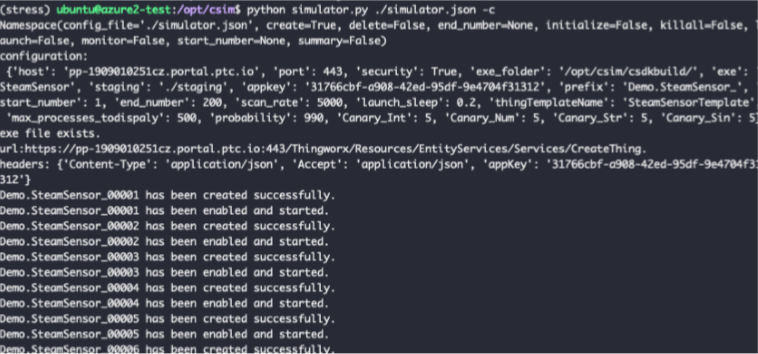
- Use the following command to create all things:
python simulator.py ./simulator.json -c - The output will look like this:
- Verify the things have also been created in ThingWorx:
- Now you are ready for the stress test
- Verify the information in the simulator.json file (especially the start and end numbers) is correct
Run Stress Test:
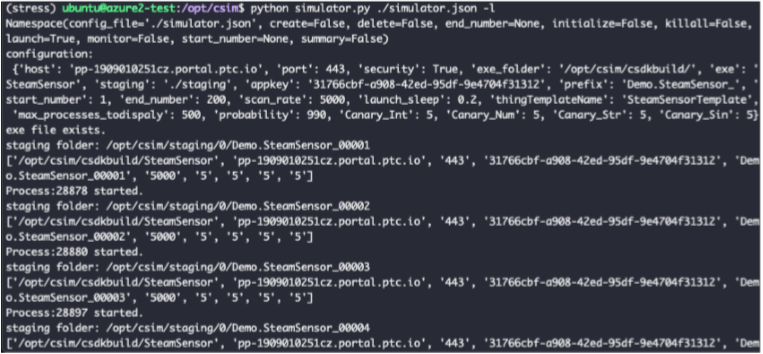
- Use the following command to start your test:
python simulator.py ./simulator.json -lor
python simulator.py ./simulator.json --launch - The output in the simulator will look like this:
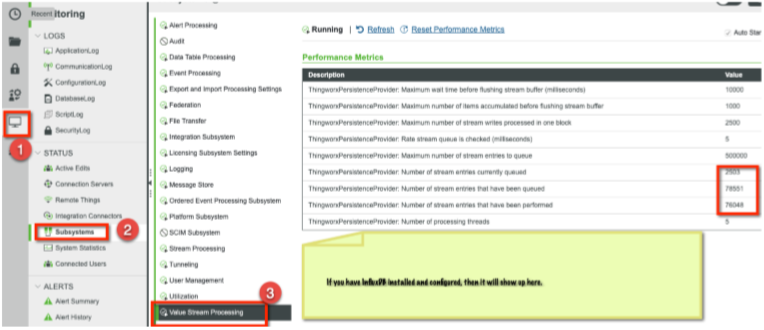
- Monitor the Value Stream writing status in the Monitoring section of ThingWorx:
Stop and Clean Up:
- Use the following command to stop running all instances:
python simulator.py ./simulator -k - If you want to clean up all created dummy things, then use this command:
python simulator.py ./simulator -d - To re-initiate the test at a later date, just repeat the steps in the "Run Stress Test" section above, or re-configure the test by reviewing the steps in the "Set-Up Test Scenario" section
That concludes the tutorial on how to use the C SDK in a stress or load test of a ThingWorx application. Be sure to modify the created Thing Template (created in step 6 of the "Set-Up Test Scenario" section) with any business logic required, for instance events and alerts, to ensure a proper test of the application.