

Methods for Data Storage Part 3
- 0 replies
- 987 views
- Translate All
Step 3: Streams (cont.)
Store to Stream
Now that the Stream, the Thing (and its Properties), and the Thing's Service are all in place, we can execute the Service (along with some Property changes) to demonstrate that the values are getting archived externally to the Stream.
At the top, click Properties and Alerts.
- Note the previously-created Index_Property and Value_Property.
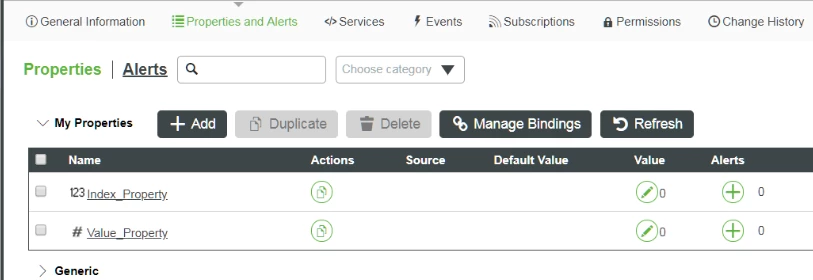
- Note the previously-created Index_Property and Value_Property.
- For Index_Property's Value column, click the "pencil" icon for Set value of property.
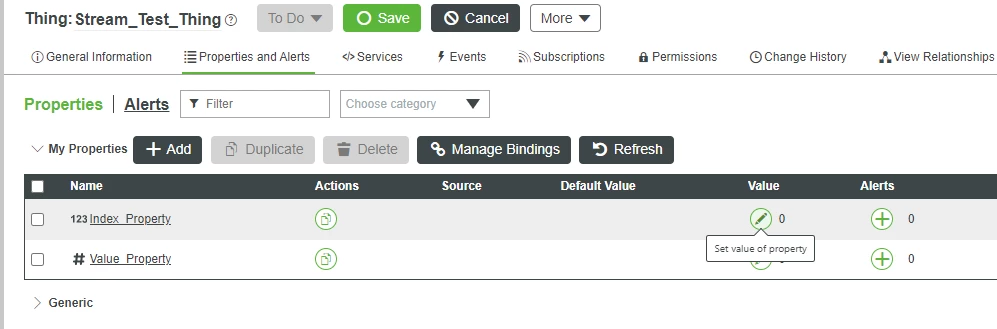
- In the slide-out on the right, enter 1.

- At the top-right, click the "Check" button for Set.
- For Value Property, click the "Pencil" icon for Set value of property.
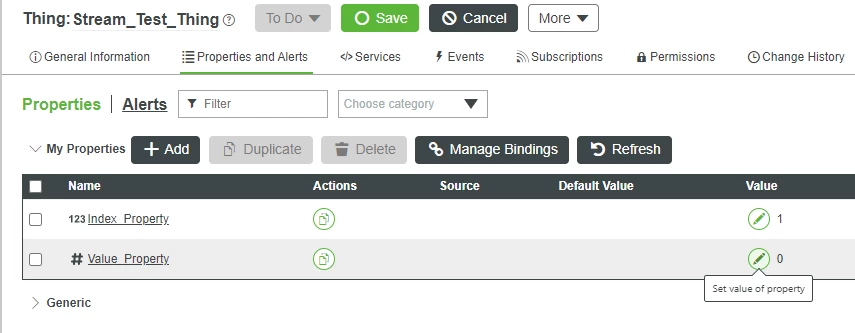
- In the slide-out on the right, enter 10.
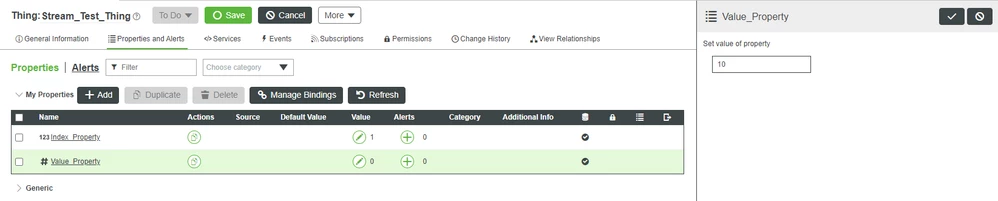
- At the top-right, click the "Check" button for Set.
- At the top, click Save.
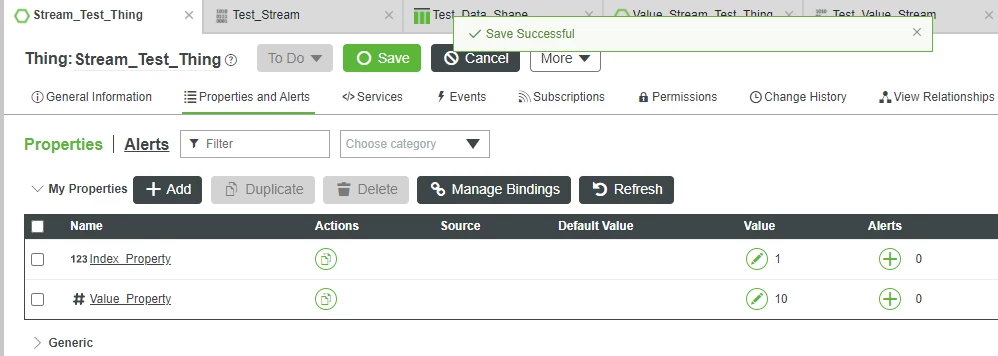
With the Thing's Properties set to new values, you can now call your custom Service to store those values to the external Stream (along with an auto-generated timestamp).
- At the top, click Services.
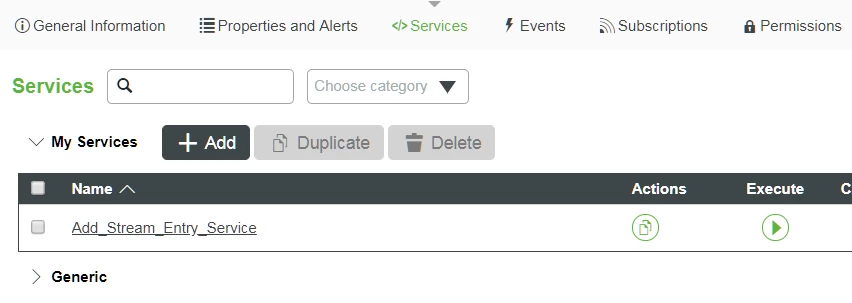
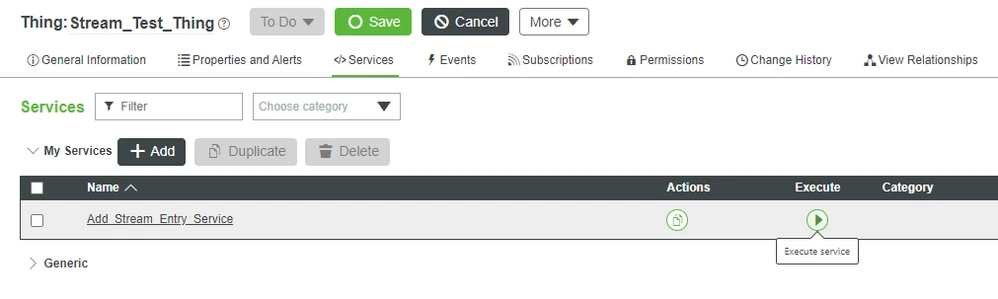
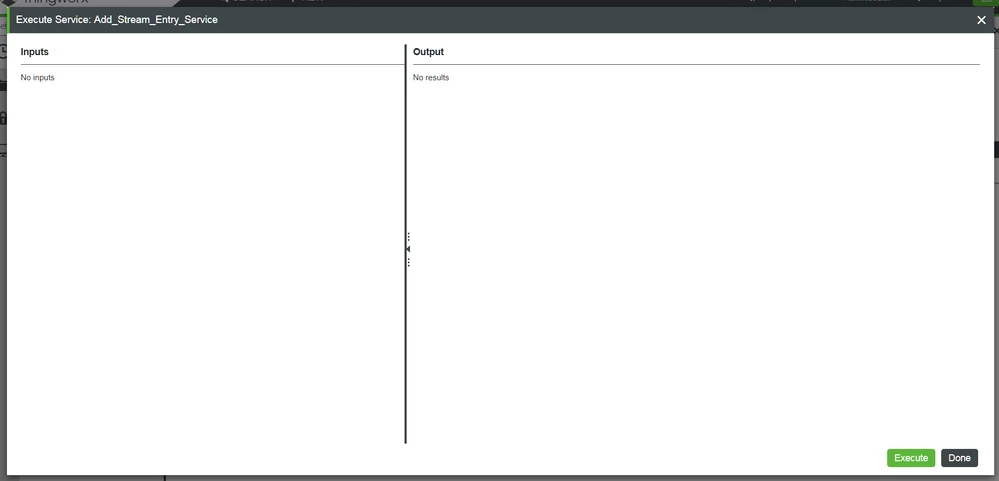
- On the Add_Stream_Entry_Service line, click the "Play" button for Execute Service.
- At the bottom-right of the pop-up, click the Execute button.
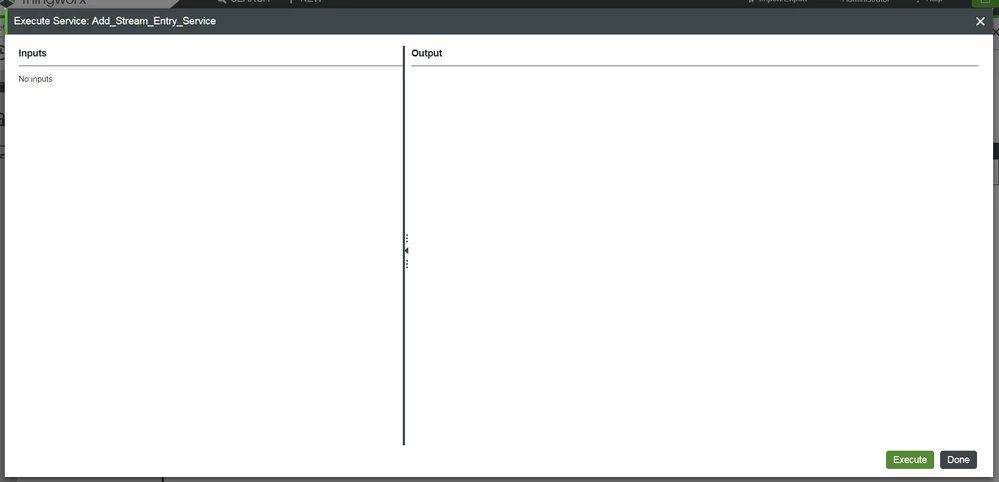
- At the bottom-right, click the Done button.
Retrieve from Stream
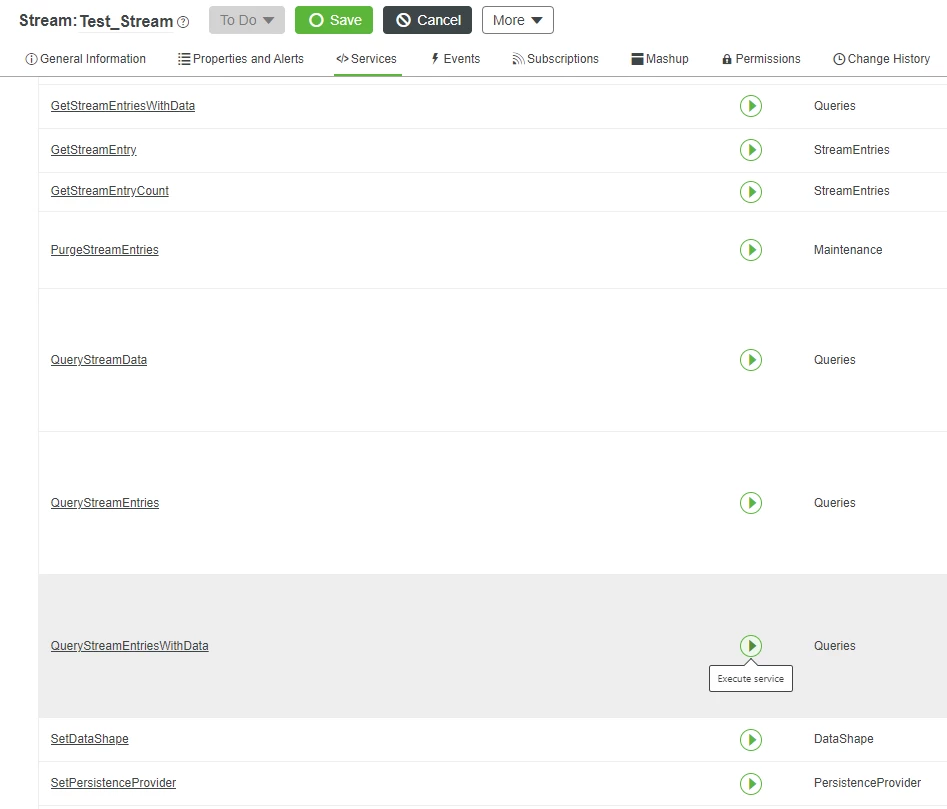
To confirm that our Thing's custom Service is correctly logging our Property values, we'll now use a built-in Service of the Stream to retrieve the stored values.
This same QueryStreamEntriesWithData Service could alternately be used to populate various Mashup Widgets to view the data in a more convenient format.
- Return to the Test_Stream Entity.
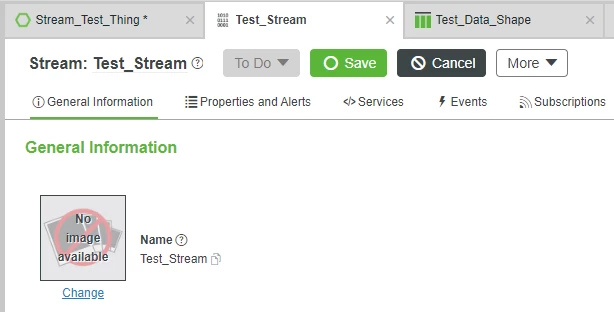
- On the top, click Services.
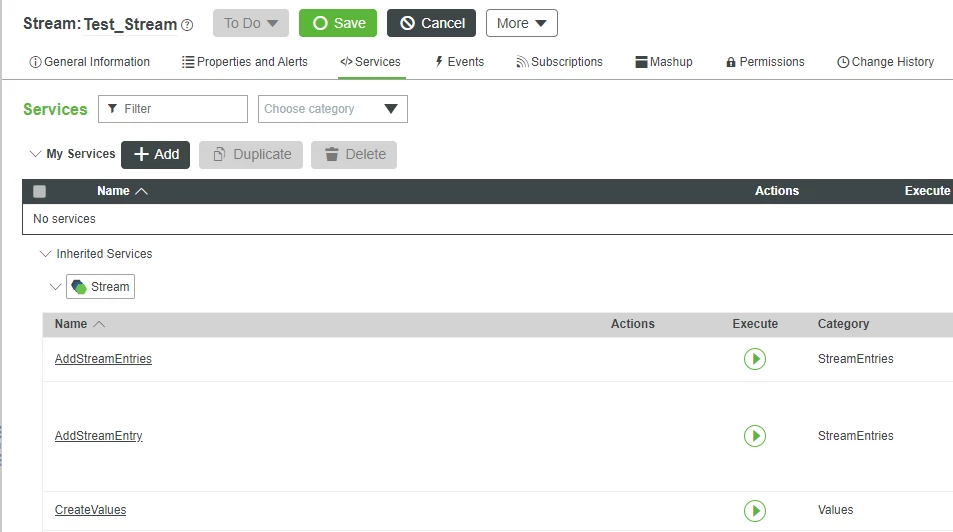
- Scroll down and locate the QueryStreamEntriesWithData Service's Execute service button.
At the bottom-right of the pop-up, click Execute.
- Note that you should see a single entry, showing the Index_Field at 1, the Value_Field at 10, and a timestamp of when the information was pushed to the Stream.
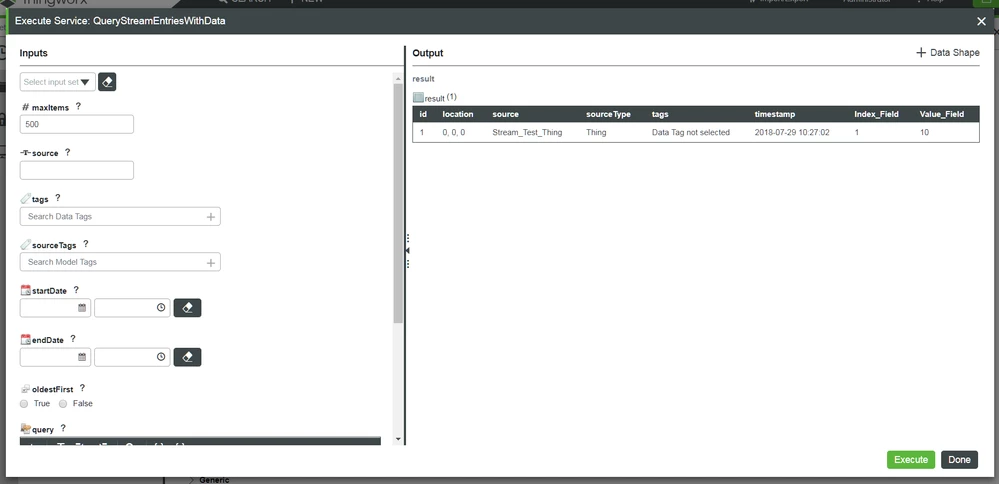
- Note that you should see a single entry, showing the Index_Field at 1, the Value_Field at 10, and a timestamp of when the information was pushed to the Stream.
- At the bottom-right, click Done.
To further confirm external storage to the Stream, you may repeat the previous steps to confirm additional Property Value Storage with timestamping.
Furthermore, you could create a Mashup utilizing either the Time-Series Chart or a Grid to display the data stored within the Stream.
Step 4: Data Tables
Just like with Streams, you also need a Data Shape to format a Data Table.
In this example, we'll actually use the exact same Data Shape we previously created for the Stream.
Create Data Table
Both Data Tables and Info Tables may be appropriate for your non-time-series mass data storage needs.
However, a Data Table is not tied to a Thing as an Info Table Property would be.
If your non-time-series information is coming from multiple different sources, then it would generally be appropriate to use a Data Table.
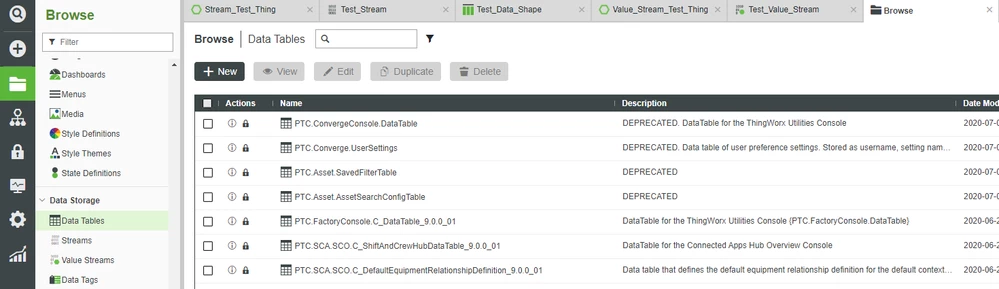
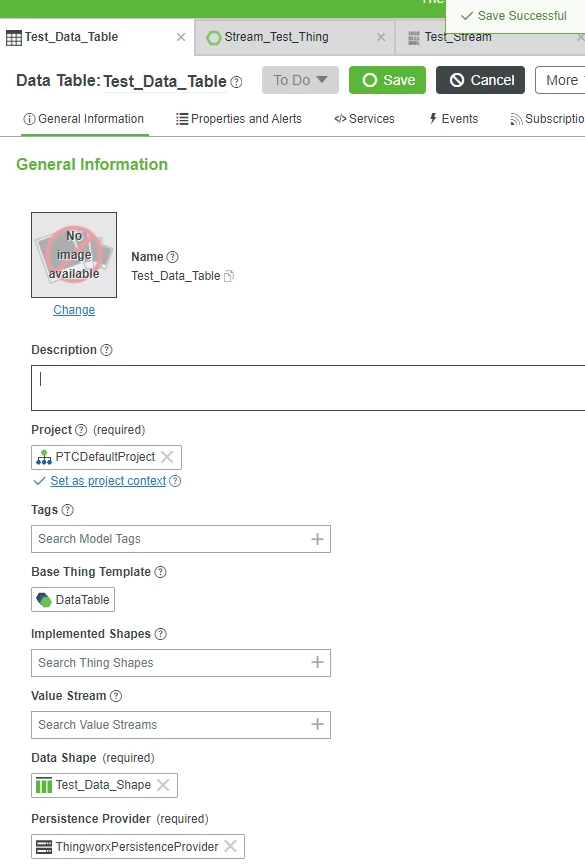
- On the ThingWorx Composer Browse tab, click Data Storage > Data Tables, + New.
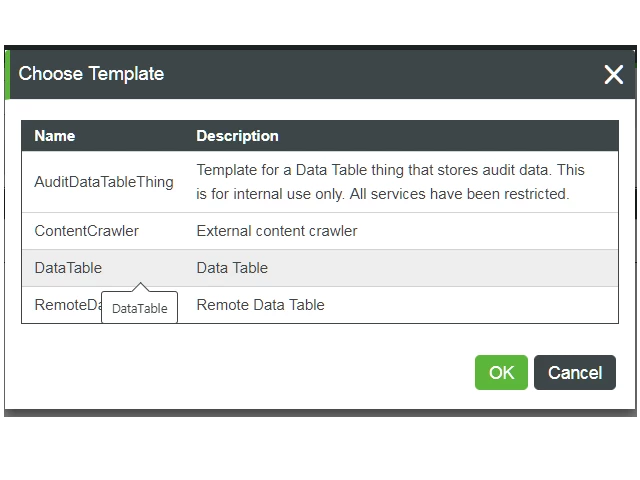
- On the Choose Template pop-up, select DataTable, and click OK.
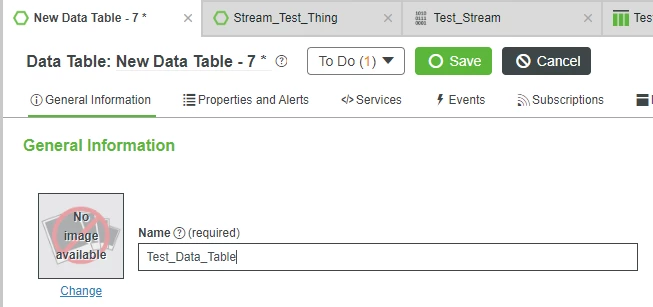
- In the Name field, enter Test_Data_Table
- If Project is not already set, search for and select PTCDefaultProject.
In the Data Shape field, search for and select Test_Data_Shape.
- This is the same Data Shape we previously created for the Stream. We're just reusing it for formatting the Data Table.
- This is the same Data Shape we previously created for the Stream. We're just reusing it for formatting the Data Table.
- At the top, click Save.
Create Thing
Now that we have a Data Table, let's create a Thing with some Properties that we'll eventually log to the external Data Table.
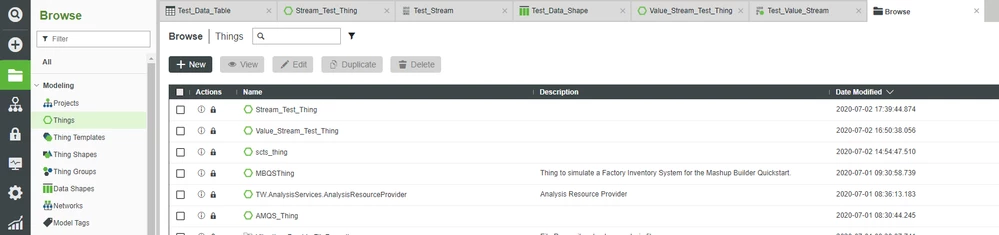
- On the ThingWorx Composer Browse tab, click MODELING -> Things, + New.
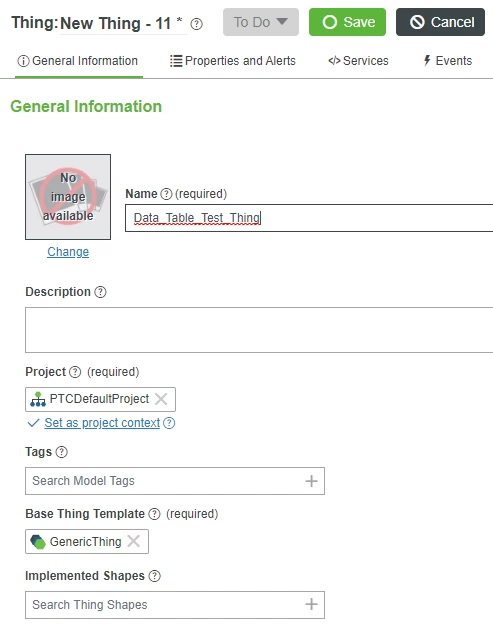
- In the Name field, enter Data_Table_Test_Thing.
- If Project is not already set, search for and select PTCDefaultProject.
- In the Thing Template field, search for and select GenericThing.
- At the top, click Properties and Alerts.
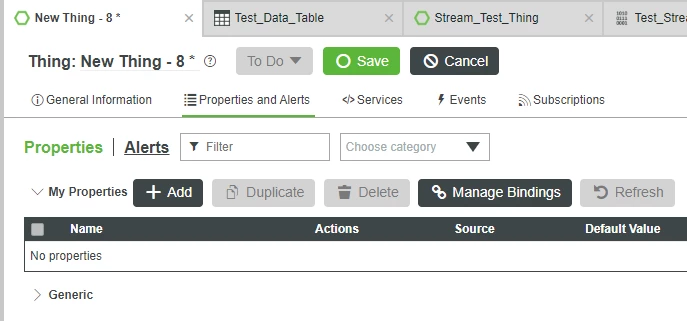
- Click + Add.
- In the Name field, enter Index_Property.
- Change the Base Type to Integer.
- Check the Persistent checkbox.
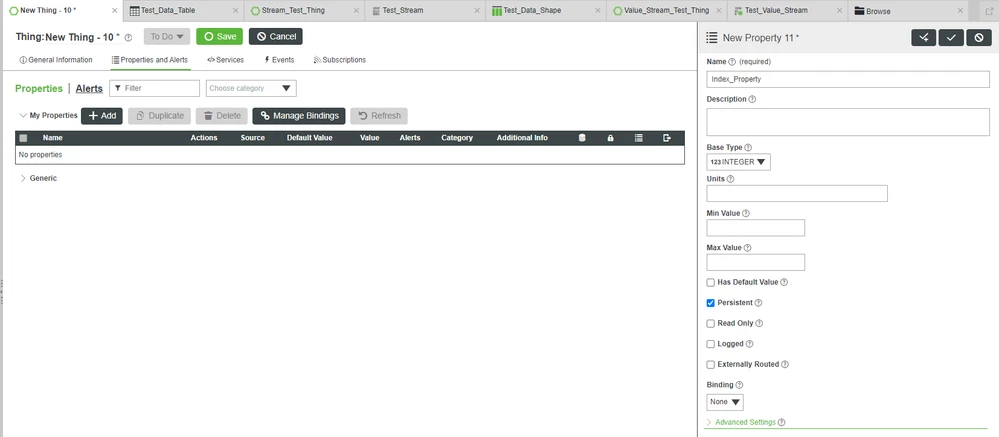
- At the top, click the "Check with a +" button for Done and Add.
- In the Name field, enter Value_Property.
- Change the Base Type to Number.
- Check the Persistent checkbox.
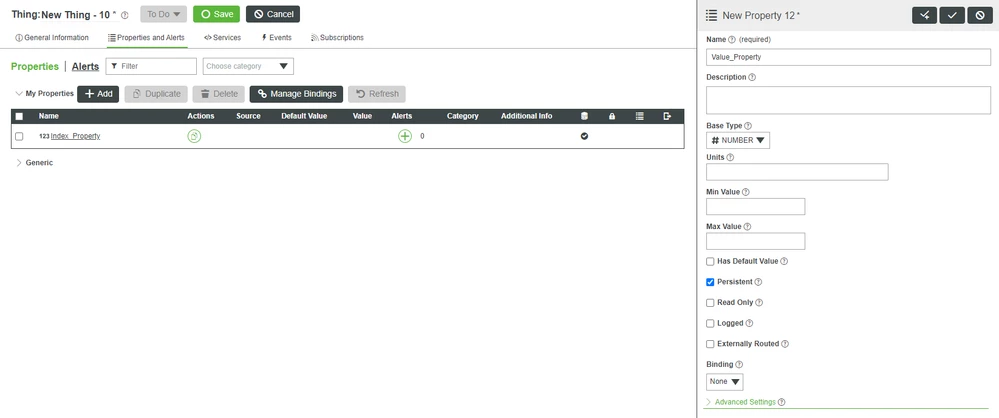
- At the top-right, click the "Check" button for Done.
Create Service
We now have both a Data Table and a Thing with Properties that we want logged.
Now we need to create a Service which does the logging.
- At the top, click Services.
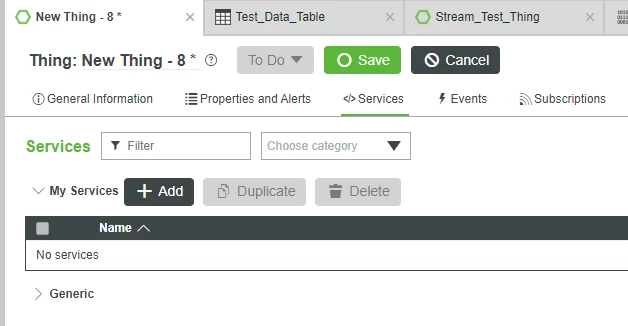
- Click + Add.
- In the Name field, enter Add_Data_Table_Entry_Service.
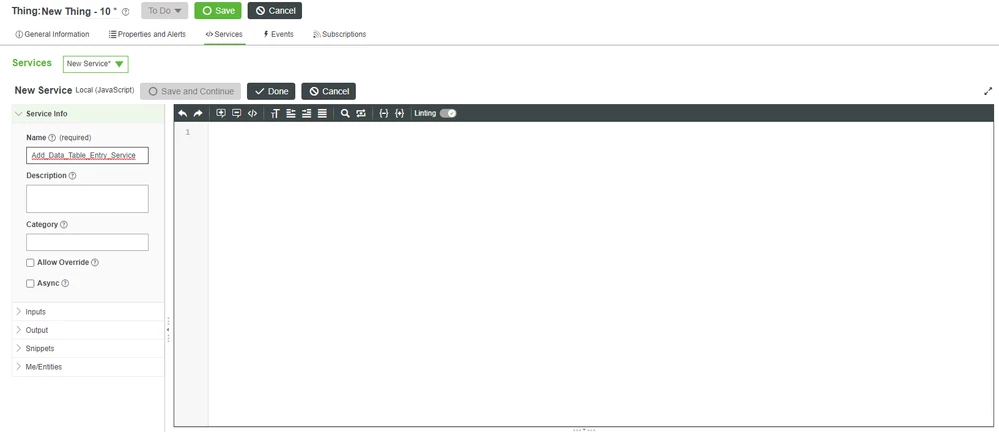
- Under New Service on the left, click the Snippets tab.
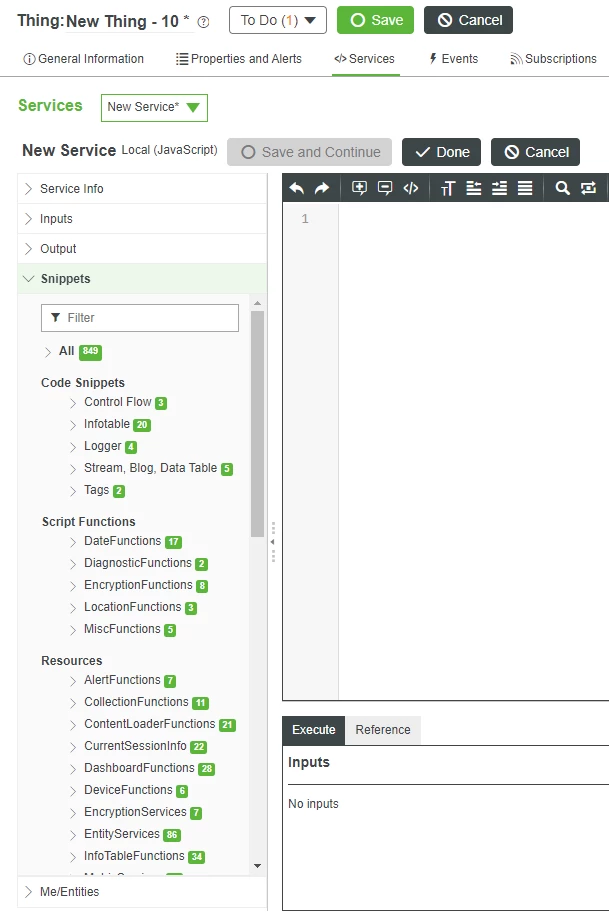
- In the Filter field, type data table.
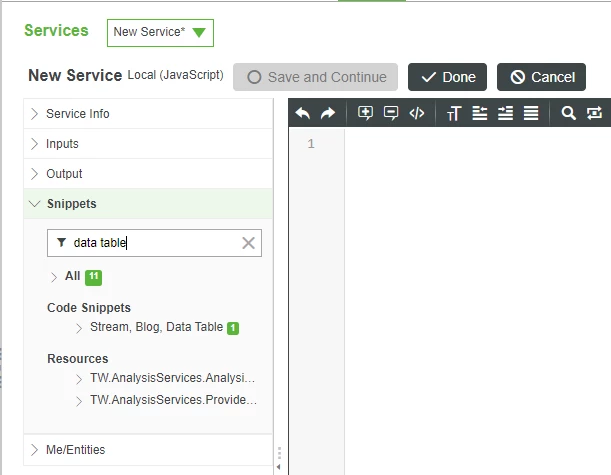
- Expand the Stream, Blog, Data Table section.
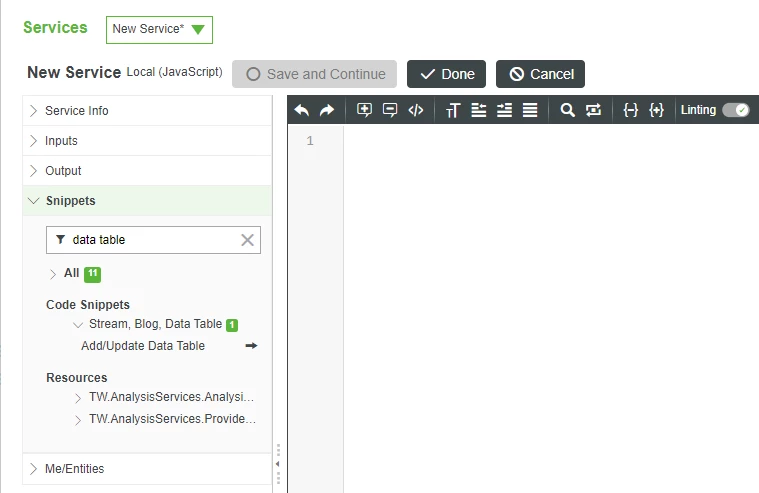
- A pop-up will open.
Beside Add/Update Data Table, click the right arrow.
- A pop-up will open.
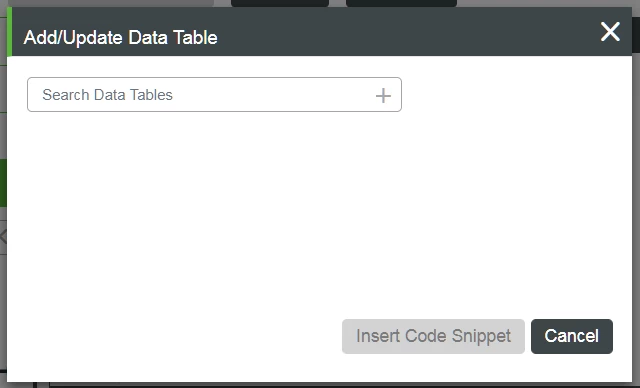
- In the Search Data Tables field, type test.
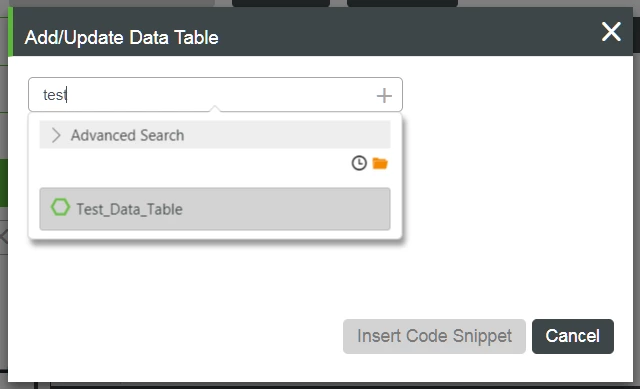
- Select Test_Data_Table.
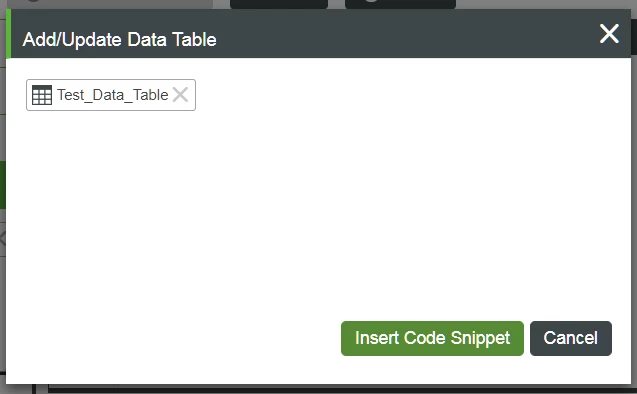
- Note that a section of Javascript code has now been added to the Script window.
Click the green Insert Code Snippet button.
- Note that a section of Javascript code has now been added to the Script window.
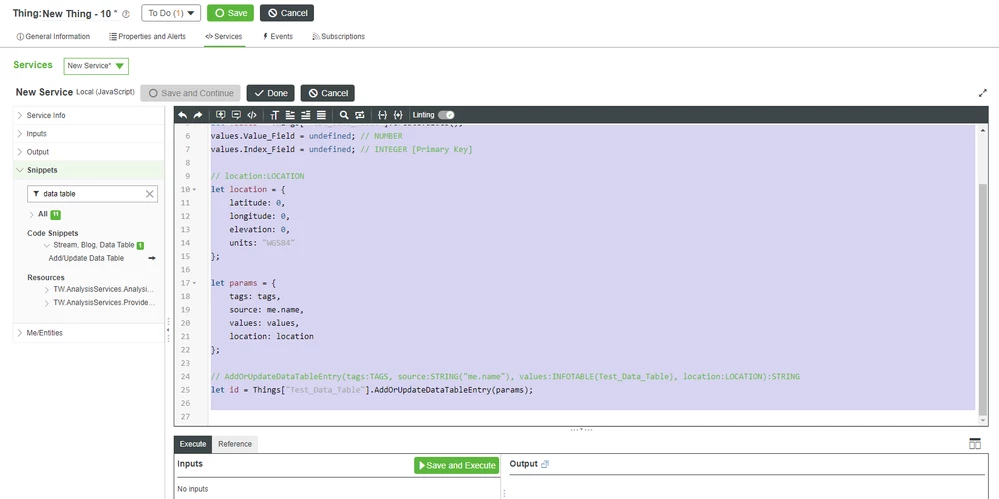
Modify Snippet
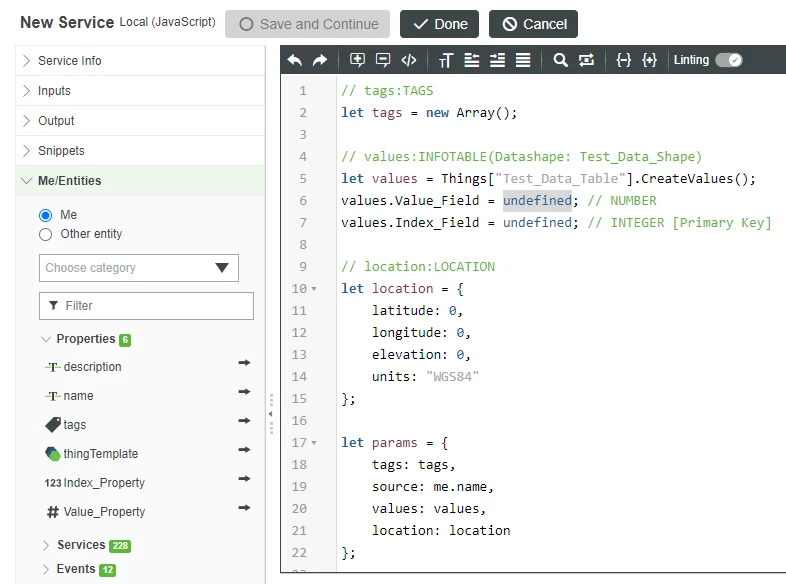
- On the 6th line of code, double-click undefined to select it.
- On the left, expand the Me/Entities tab.
Under the Me/Entities tab, expand Properties.
- Note that this is not the Properties and Alerts at the top of Composer
- Note that this is not the Properties and Alerts at the top of Composer
Click the right arrow beside Value_Property.
- Note that undefined has been replaced by me.Value_Property.
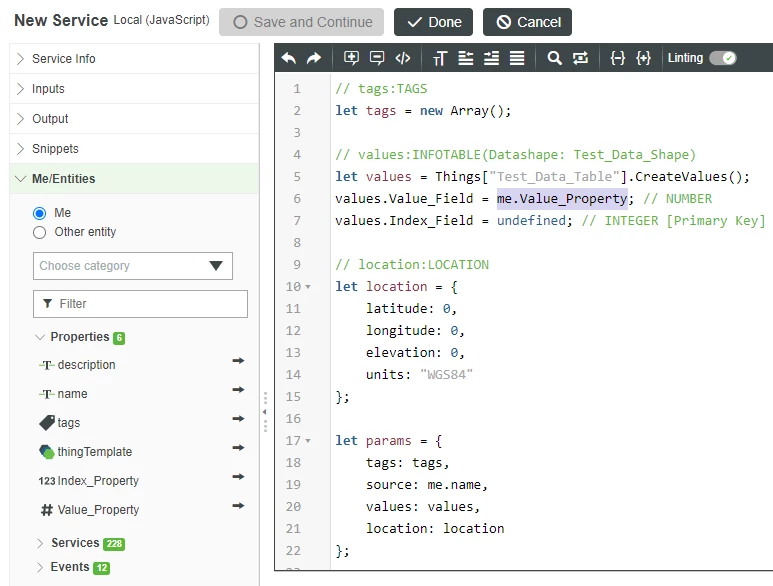
- Note that undefined has been replaced by me.Value_Property.
- On the 7th line of code, double-click the remaining undefined to select it.
Click the right arrow beside Index_Property.
- Note that the second undefined has been replaced by me.Index_Property.
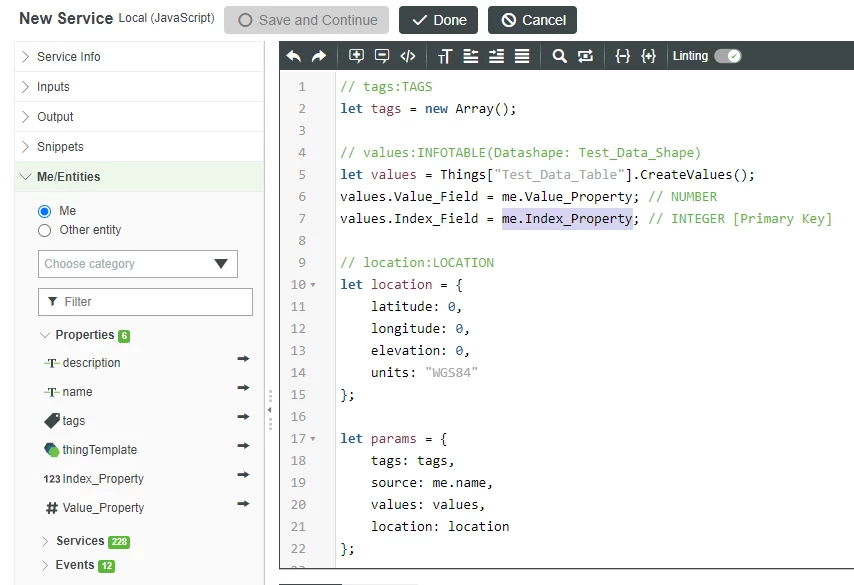
- Note that the second undefined has been replaced by me.Index_Property.
- Click Done to stop editing the custom Service.
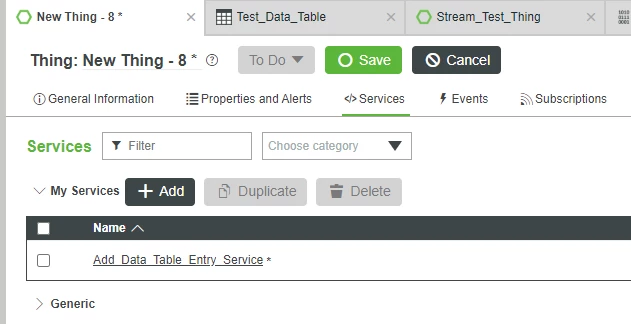
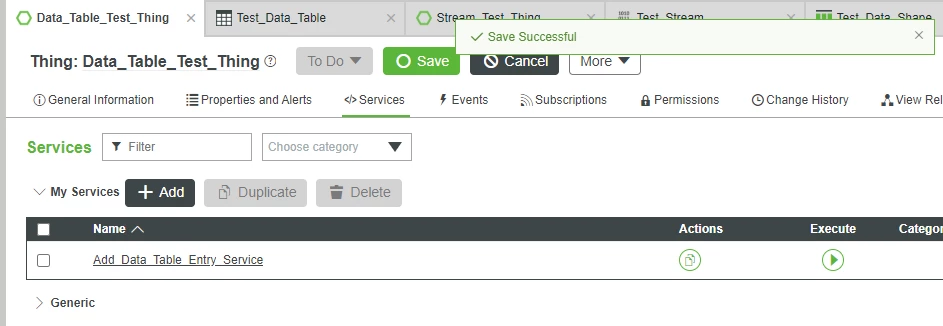
- At the top, click Save.
Click here to view Part 4 of this guide.