


Using the DBConnection Building Block to create and access tables
{
"twxAdminUserName" : "Administrator",
"twxAdminPassword" : "someG0odP4ssworrd",
"twxURL" : "https://yourServer/Thingworx",
"databaseUser": "twadmin",
"overrideComponentDeploymentState": false,
"databasePassword": "twadminDbP4ssword",
"databaseJDBCString": "jdbc:postgresql://localhost:5432/thingworx",
"databaseThing": "PTC.DBConnection.PostgresDatabase"
}
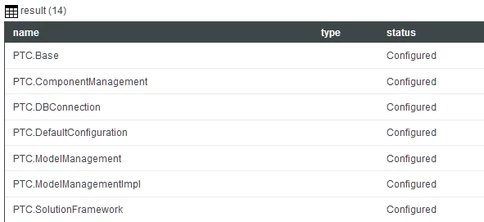
Step 2: Create a database
We wouldn't want our tables to be in the same database as ThingWorx has its tables in, so let's create a new database called dbcdemo. I use pgAdmin for this, but the tool doesn't matter:
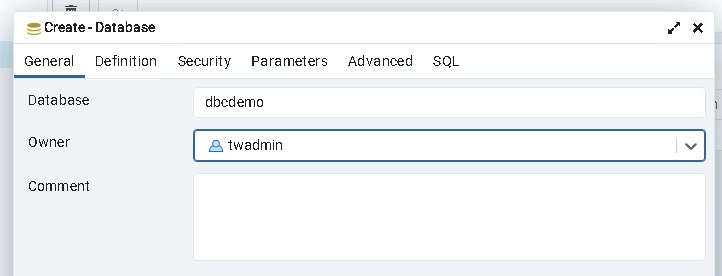
I'll be using the twadmin account to access this but of course you can create a dedicated user for this.
Step 3: Create a Building Block
Now the Solution Framework (SF) comes in. To create a Building Block (everything we create from now on will go into this Building Block) you have to create a couple of entities with specific names and inheritance, luckily with SF this is very easy. Open and view mashup PTC.SolutionFramework.Main_MU, Click on "Create" and create a new Standard Building Block (remember the naming conventions).
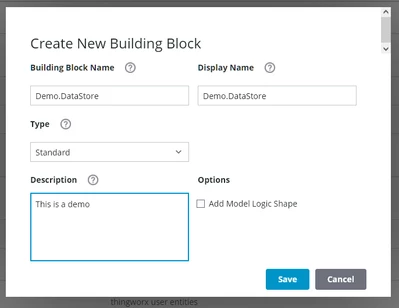
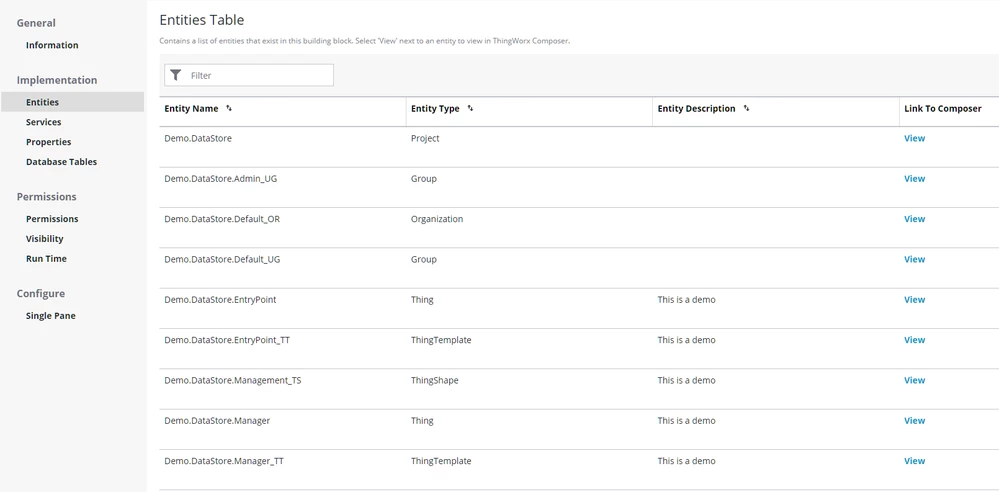
You can check the created Entities in Solution Framework, or in Composer where you will find a new Project entity with the name of your Building Block.
Step 4: Create DataShape.
For each table, we need a corresponding DataShape in ThingWorx with the fields corresponding to the table columns. Make sure your ID field (here: uid) is marked as "primary key" and is of type LONG - this way, the population of this field is done automatically. For this example I would want a table storing usage data of certain assets, so my let's name it AssetUsage and assign it some data fields:
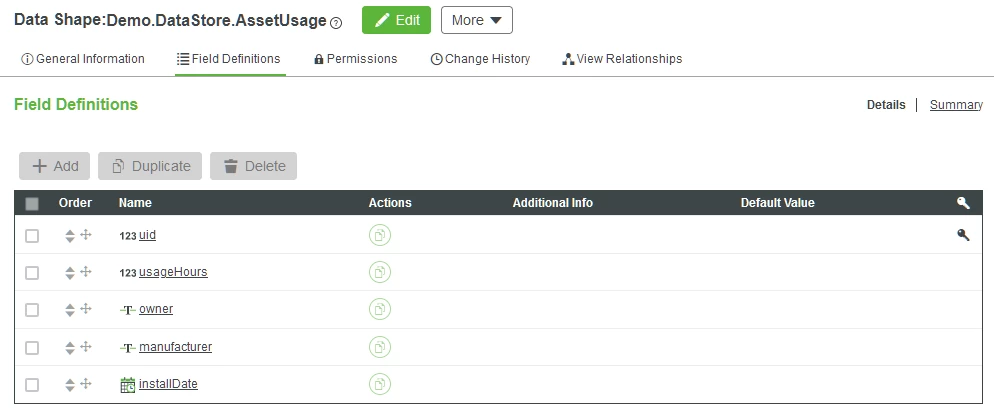
The database tablename is derived from the DataShape's name by converting to lowercase and removing all prefixes, so make sure the DS name will result in a unique table name. Also the "_DS" we would append per naming convention would be reflected on the DB table, so you'll have to decide between compliance and aesthetics. Here, I ignored the recommended _DS suffix. Note that only some data types are currently supported.
Step 5: Extend the Building Block
As we want to use services defined in the DBConnection Building Block in our own Building Block Manager, we add the ThingShape PTC.DBConnection.DBManagement_TS to the template of our manager, Demo.DataStore.Manager_TT. This way we will have generic CRUD services added (to create, update, delete and query rows).
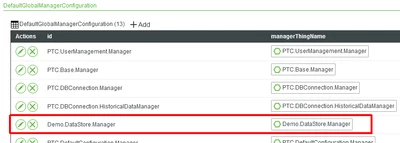
For good housekeeping we also register the Building Blocks manager with the global configuration. We don't need this strictly, but we stay consistent and it won't come back to haunt us later:
In PTC.Base.Manager, add the manager for the new BB to the configuration table DefaultGlobalManagerConfiguration.
Step 6: Configure which database to use
We need to tell ThingWorx to use our new dbcdemo database, and not the ThingWorx database. We do this by creating a new thing "Demo.PostgresDB", using PTC.DBConnection.Database_TT as a template. Set the db connection string accordingly:
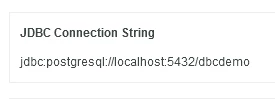
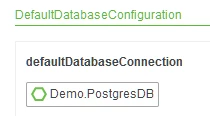
Don't forget to set username and password as well. Save the thing and check the "isConnected" property is true. Now that we have an entity for the connection, we tell the system to use it by setting it in
PTC.DBConnection.Manager in configtable "defaultDatabaseConnection"
Step 7: Define table properties for database
Since the database table can have more configuration than we can specify in the datashape, we provide that information in JSON by overriding the GetDBInfo service of Demo.DataStore.Manager with this:
result={ "dbInfo": [{ "dataShapeName": "Demo.DataStore.AssetUsage"}] };
This is the minimal content, but if you want to define not-null constraints or indexes for columns, this would be the place to put the information.
Step 8: Create the table & test drive
Now that we've set everything up, we can run the CreateTables service of the manager entity of our new Building Block, Demo.DataStore.Manager to actually create the table in the database. You should see something like this afterwards on the DB:
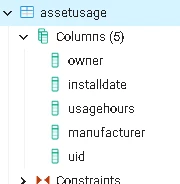
Now let's test it by running the Create service to insert some rows and then query those rows. For dataShapeName refer to the newly created one for AssetUsage, and for infoTable, add some rows with sample data, but leave uid field blank.
Once you execute the service, you will get the inserted rows as a result:
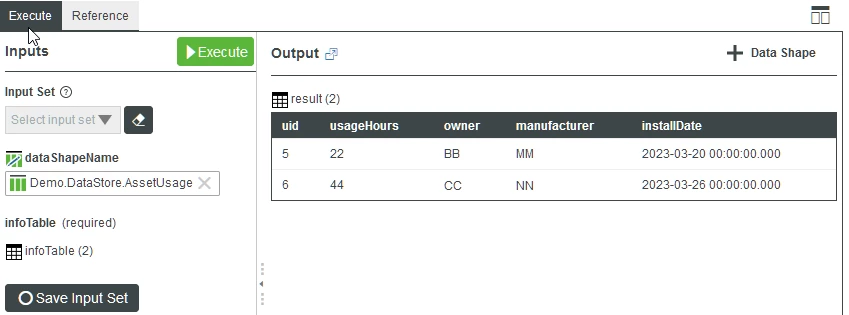
As you can see, uid fields were populated automatically.
To query the data, run the Query service of the manager thing. If you just provide the datashape it will return all rows:
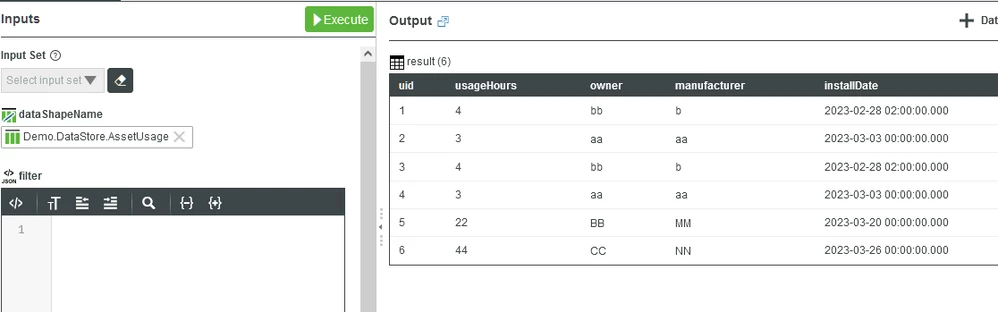
For more sophisticated queries, use the filter field:
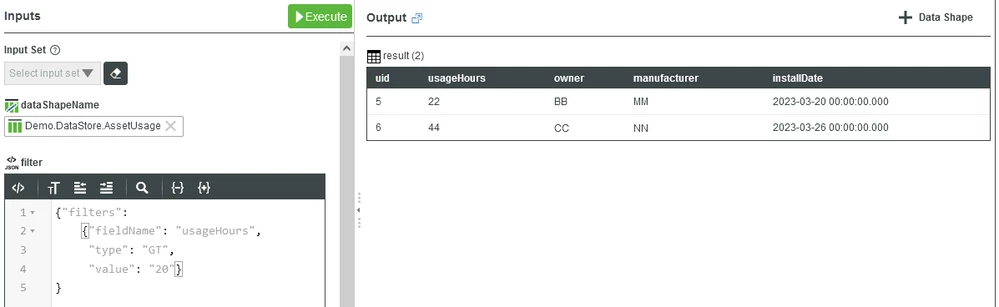
The nice thing is that unlike the QueryPropertyHistory class of services, the filters are transformed to SQL and applied on database level.
And that's it! We've now created a table, inserted and queried data. The next step could then be to create a ThingShape to put table-specific CRUD services into, e.g. GetAssetUsage, AddAssetUsage etc, as you might have not just one table.
There is much more to explore, e.g. tables with foreign key relationships, indexing and so on, but here we made a first step. Watch for a follow-up posting - with the latest release of the Solution Framework the process has become much easier, but it requires a newer ThingWorx version.