

When will those “Invisible at Runtime” widgets truly disappear?

Today on Ask Kaya, I have a riddle.
I was effective and trendy, but now I can be annoying. I sometimes tend to look out of place and I get in others’ space. I look easy to learn, but few have truly mastered my intricacies. Am I the floss dance?
No, I’m not the floss dance. I’m the expression and validator widgets.
It’s time to say goodbye to those pesky widgets that were super useful but super annoying. Yep, those widgets that littered your design canvas but were “Invisible at Runtime.”
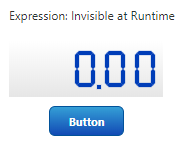
I’m talking about expressions, validators, status messages and event routers. In our next release, expression and validator widgets will no longer appear on the canvas at build time.
You may remember from the previous post titled “Ask the Expert: What are the top three features in ThingWorx 8.4 that I might not know about?” In the post, we discussed the concept of Data Helpers, now known as “Functions.”
What do Functions do?
Functions give you the ability add custom logic and bindings to improve UI application functionality. Before we describe how to configure them, let’s first explain what they are.
An expression widget runs any expression you give it. That piece of logic might be something like result = a + b. While an expression can run any type of logic—not just numbers—you must specify the output base type to be the same as the input base type.
Expressions can also be used to run a different service based on an event. For example, a user may write an expression to run a service if a value changes. They may not care about the value itself but rather just want to know that the value changed.
A validator widget is similar to an expression widget; the key difference is that a validator only outputs a Boolean. When their result is true, you bind to one service, when false, another. Unlike an expression widget, the validator widget does not have to have matching input and output datatypes because the output datatype will always be Boolean.
The input for a validator can be anything. You can create a scenario in which a validator widget outputs a status message that reads “the value is within the acceptable range” when the validator returns true or “the value is outside of the acceptable range” when the validator returns false.
Ready for the extra good stuff? We’re introducing a new editor for you to create, add and configure expressions and validators.
How can I use Functions?
Let’s walk through an example using the following these steps.
Create a new Mashup.
You’ll see a new tab called “Functions,” which, on default, appears in the bottom right panel.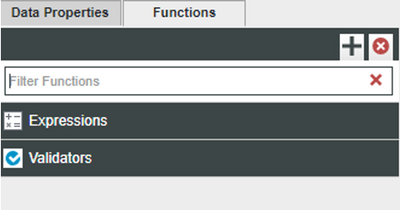
Click the “+” arrow in the top right of the “Functions” panel. Choose “expression.”
Use the new Functions editor to write your expression. In this example, we’ll say that result = a + b;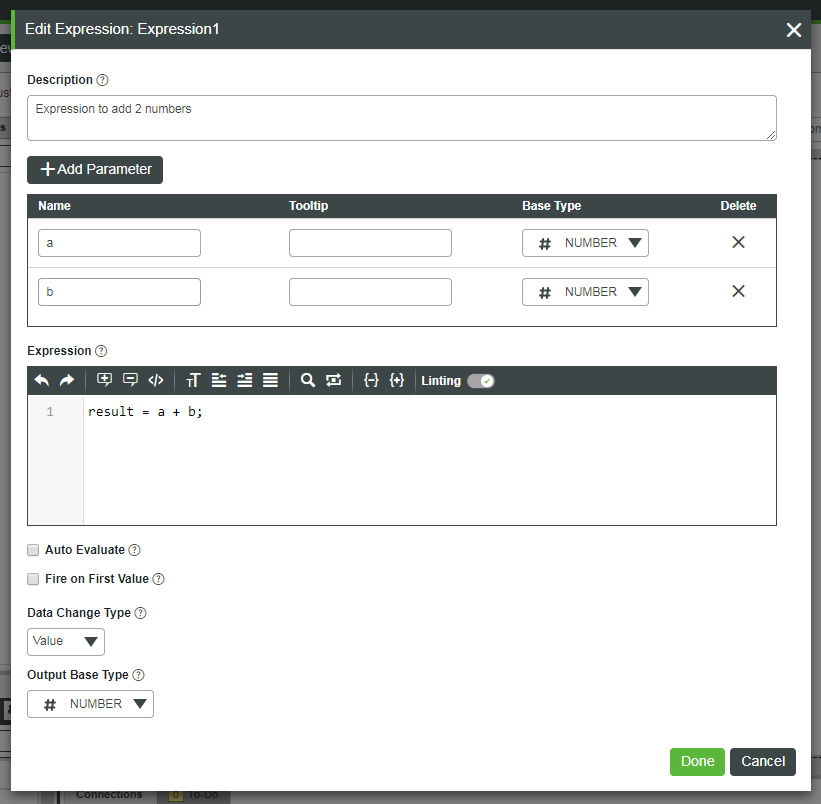 New Functions Editor
We’ll then set the default values for a and b to be 2 and 3, respectively, to output a result of 5.
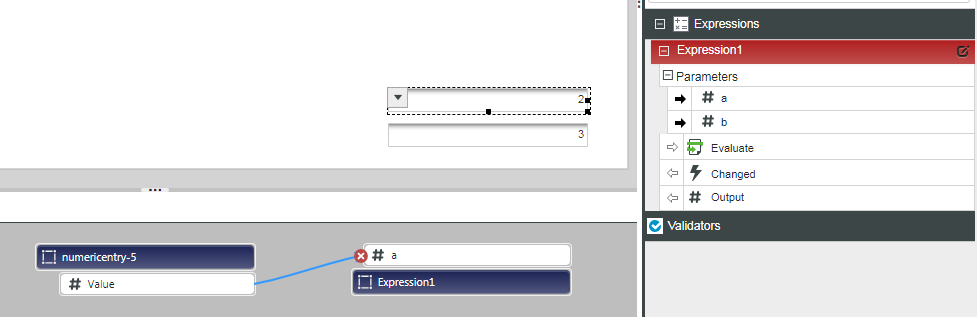
Expressions are just as powerful as they were before, but they no longer take up space on your mashup during design time, and they can now be configured in our brand new editor! (To spread the joy even more, the same holds true for validator widgets.)
Reach out with any questions or thoughts below!
Stay connected and keep floss dancing,
Kaya