1-Visitor
January 12, 2021
Solved

need help fixing overlapping lines

  • January 12, 2021
  • 3 replies
  • 11177 views

Hello PTC community. I am asking for assistance in making an extruded figure for a geneva cam.

I spent a while figuring out dimensions since instructions were not clear to me and now I am struggling with extruding my sketch. I have attached the instruction's reference image as well as my creo part. The error I am getting is that there is overlapping geometry and my sketch is not looking symmetrical.


Note: the center for the three arcs (of Radius R2) is at the origin.


Could someone please fix my mistake and point out a simple way of fixing the geometry?

Much appreciated, thank you.

Best answer by tbraxton

You have some good recommendations from the previous posts. I agree in general keeping sketches simple is a good rule to live by as Steve mentioned.


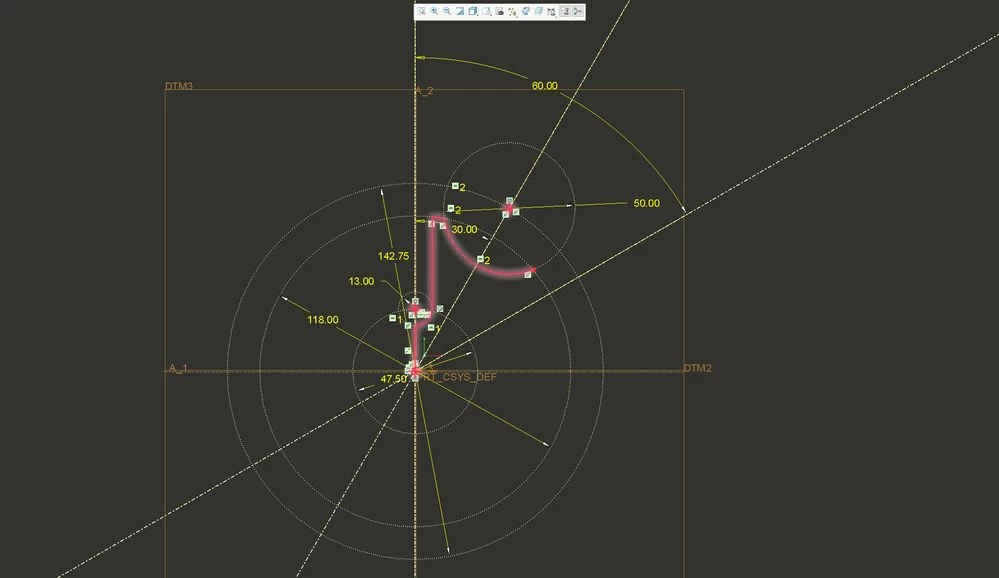
Having said that you can generate complex shapes with simple sketches by using construction geometry to manage design intent within sketcher. This geneva cam is a good example of how to exploit the part symmetry by using a simple sketch (3 arcs and two straight lines in this example) and constraining them using construction geometry.


Simplified sketch to create cam partSimplified sketch to create cam part


Here is a video illustrating how to exploit the part symmetry and create the solid model from the single sketch above as the starting point. I am not asserting that this is the best way to model this cam (it depends on your design intent) but it is illustrative of the application of construction geometry to use a simple sketch to create a more complex one and it be robust for modification of the model. The construction geometry for the sketch is indicated at the beginning of the video upon entering the sketcher.

3 replies

kdirth
21-Topaz I
21-Topaz I
January 12, 2021

That message typically means you have two lines on top of each other.  You can use the overlapping geometry tool in sketcher to highlight the overlap.  I am using 4.0 and it doesn't always highlight just the overlap and some trial and error is usually needed.

kdirth_0-1610459668876.png

The other useful tool is to turn on Highlight Open Ends (next button down).  This highlights ends of entities that are not paired with another end.


I am unable to open your file as it was created in a student version of CREO.


There is always more to learn.
1-Visitor
January 12, 2021

Sorry I did not realize that everyone may not be able to see what I have with my student's version. And thank you, I was able to use the two features for highlighting the overlapping geometry and open ends, I was able to fix the open ends but I'm stumped how there is overlapping geometry when I used the snip tool to cut away excess.

23-Emerald III
January 12, 2021

I usually try to delete (and undo) each entity until I find the overlap entity.

Sketcher can be a challenge when it decides something is wrong. If I can't find a problem pretty quick, I usually kill that sketch and re-create it.

Also, keeping your sketches simple helps. Use multiple features instead of one complicated sketch that your are trying to do everything with.


tbraxton
22-Sapphire II
22-Sapphire II
January 12, 2021

Since I can not open your model I am not sure this is the issue. If the issue is sketcher symmetry then this applies, if the picture you posted represents your desired shape then this does not apply.


I strongly suggest gaining an understanding for the use of construction geometry in sketcher. This will save you a lot of difficulty once you employ it.  


I would suggest using construction geometry in the sketch (centerline). I would sketch 1/8 of the cam rather than 1/4 as you have shown. Once you have that done you can mirror the sketch entities to get 1/4 of the CAM and impose symmetry on the sketch.


Use centerline to mirror sketch insuring symmetryUse centerline to mirror sketch insuring symmetry


1-Visitor
January 12, 2021

Thank you, this was very helpful. I ended up creating many geometry lines to mirror the sketch around and get a good end product!

tbraxton
22-Sapphire II
tbraxton22-Sapphire IIAnswer
22-Sapphire II
January 12, 2021

You have some good recommendations from the previous posts. I agree in general keeping sketches simple is a good rule to live by as Steve mentioned.


Having said that you can generate complex shapes with simple sketches by using construction geometry to manage design intent within sketcher. This geneva cam is a good example of how to exploit the part symmetry by using a simple sketch (3 arcs and two straight lines in this example) and constraining them using construction geometry.


Simplified sketch to create cam partSimplified sketch to create cam part


Here is a video illustrating how to exploit the part symmetry and create the solid model from the single sketch above as the starting point. I am not asserting that this is the best way to model this cam (it depends on your design intent) but it is illustrative of the application of construction geometry to use a simple sketch to create a more complex one and it be robust for modification of the model. The construction geometry for the sketch is indicated at the beginning of the video upon entering the sketcher.

1-Visitor
January 12, 2021

Thank you so much, this has been very helpful.