1-Visitor
April 10, 2015
Solved

Creo parameters in Windchill

  • April 10, 2015
  • 2 replies
  • 8417 views

I would like to add Creo designated parameters to show up the column display in Windchill. I have found where to add the parameters in Manage Global Attributes screen in the Type and Attribute Managment Utility. What else do I need to do?

Best answer by LoriSood

Bryan,

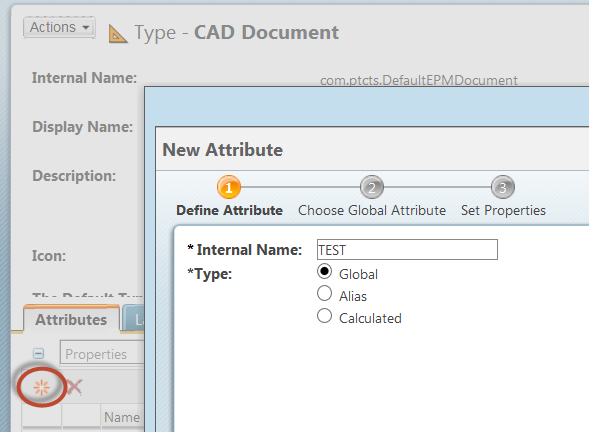
Once you have created the attribute in the Attribute Manager, you need to add it to the CAD Document type in the Type Manager
4-17-2015 6-17-59 PM.png

Specify the same name as the Creo Parameter (in all upper case letters) as the Internal Name in order to do implicit mapping. On the Choose Global Attribute screen, select the attribute you created in the Attribute Manager and then set the attribute properties (display name, etc.) on the third step.

This will get the attribute to appear in the table view manager, and the attribute will map to the Creo parameter the next time the CAD file is checked in.

2 replies

12-Amethyst
April 10, 2015

Bryan Claerhout wrote:

I would like to add Creo designated parameters to show up the column display in Windchill. I have found where to add the parameters in Manage Global Attributes screen in the Type and Attribute Managment Utility. What else do I need to do?

They have to be designated parameters in the Creo model.

1-Visitor
April 10, 2015

They are set as designated. I would like to set up a custom view in Windchill, but I cannot choose the parameter in the column display when setting up the view, because they do not show up.

12-Amethyst
April 10, 2015

Bryan Claerhout wrote:

They are set as designated. I would like to set up a custom view in Windchill, but I cannot choose the parameter in the column display when setting up the view, because they do not show up.

Huh. That used to be very easy to do. I remember being able to search for global attribute values as well, but can't see how to do that anymore either. I see our EPMDocs have three parameters showing up on the Information page, but I'd have to guess that's a legacy of previous versions.

1-Visitor
April 13, 2015

Maybe this will help. I'd like to know how to get custom parameters to show up in the red box, below.

parameters.jpg

LoriSood23-Emerald IAnswer
23-Emerald I
April 17, 2015

Bryan,

Once you have created the attribute in the Attribute Manager, you need to add it to the CAD Document type in the Type Manager

4-17-2015 6-17-59 PM.png

Specify the same name as the Creo Parameter (in all upper case letters) as the Internal Name in order to do implicit mapping. On the Choose Global Attribute screen, select the attribute you created in the Attribute Manager and then set the attribute properties (display name, etc.) on the third step.

This will get the attribute to appear in the table view manager, and the attribute will map to the Creo parameter the next time the CAD file is checked in.

1-Visitor
April 20, 2015

Thanks Lori! That worked.