

Operationalize an Analytics Model Guide Part 2
- 0 replies
- 1284 views
- Translate All
Step 5: Create Event
Events are automatic analysis jobs which are submitted based on a pre-defined condition.
In this step, we'll configure an Analysis Event which will execute automatically whenever there is a datachange in our simulated engine.
- On the ThingWorx Composer Analytics tab, click ANALYTICS MANAGER > Analysis Events.
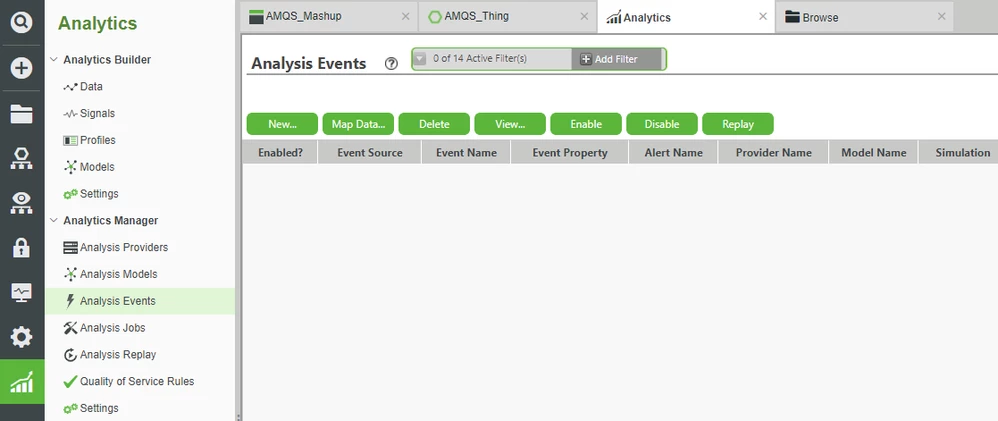
- Click New....
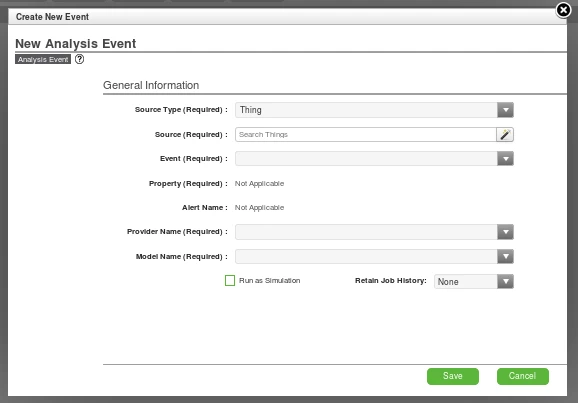
- In Source, search for and select AMQS_Thing.
- In Event, select DataChange.
- In Property, select FlipFlop.
- In Provider Name, select Vibration_Provider.
- In Model Name, select the published Model.
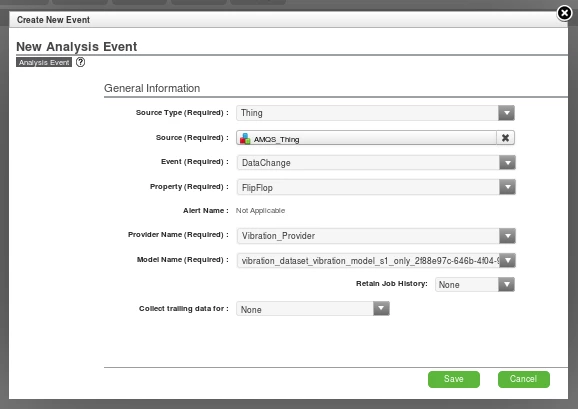
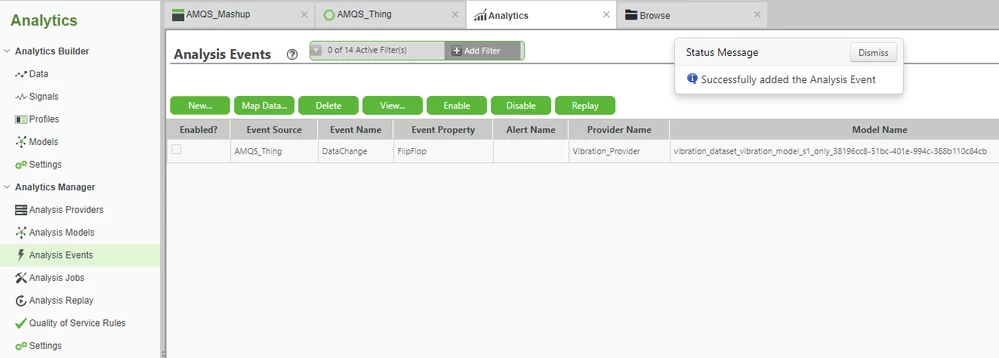
- Click Save.
Map Event Data
Map the Properties of AMQS_Thing, to the fields required to evoke an Analysis Job.
- Select the previously-created Event, and click Map Data....
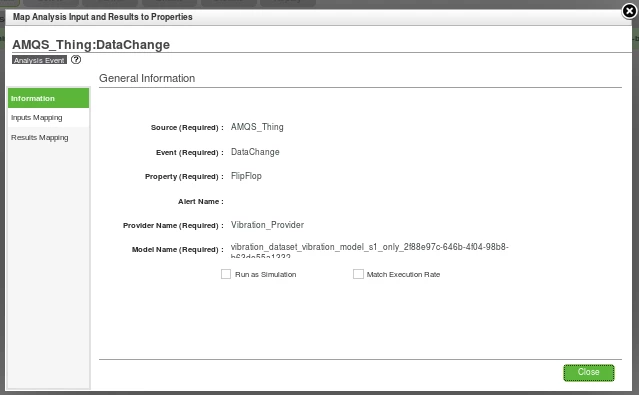
- Click Inputs Mapping.
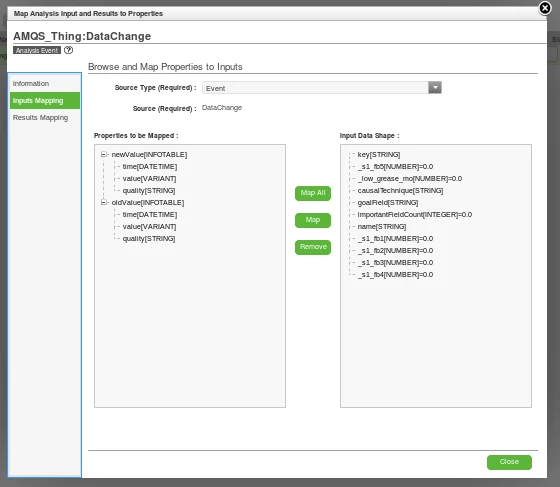
- In Source Type, select Thing.
- In Source, search for and select AMQS_Thing.
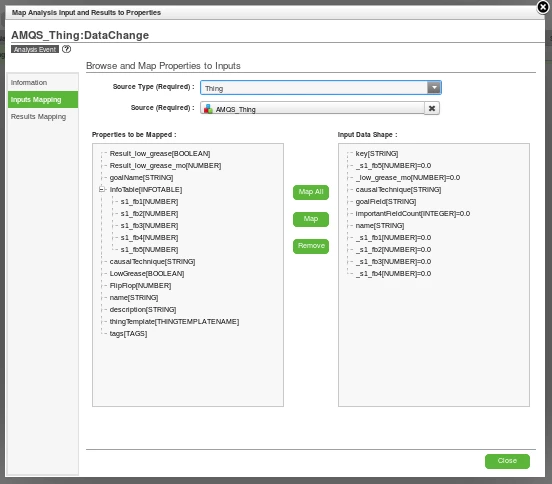
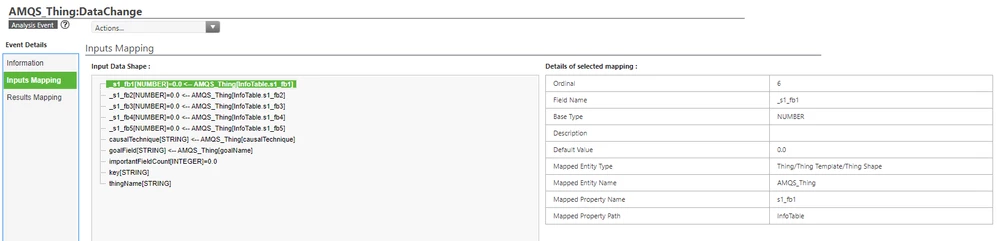
- On the left, select s1_fb1, one of the sub-fields of AMQS_Thing's InfoTable Property.
- On the right, select _s1_fb1, the first frequency band required for the Model to make a prediction.
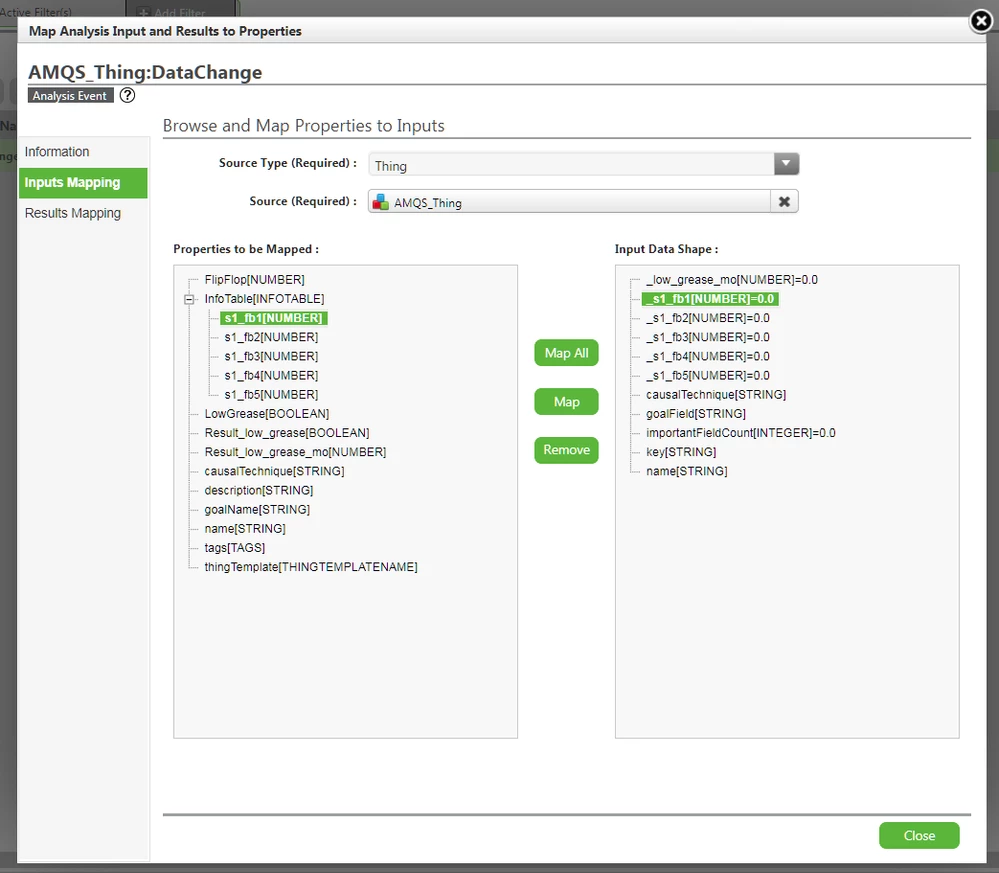
- Click the Map button in the center.
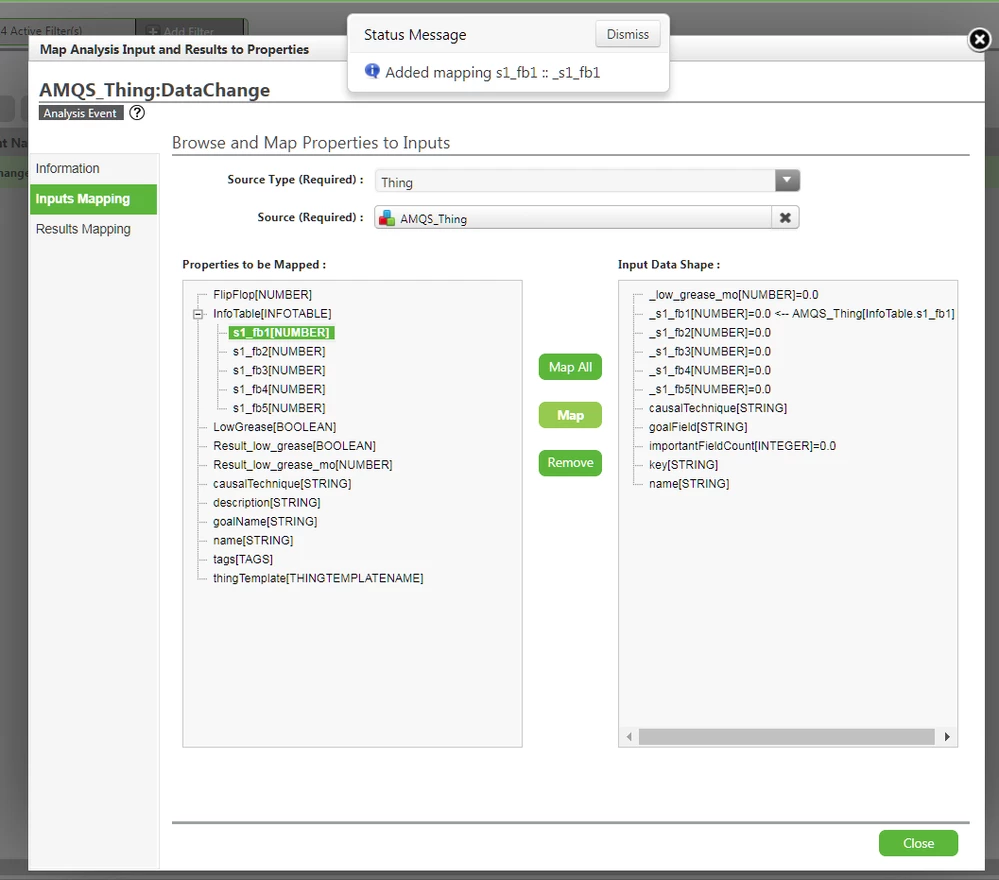
- Repeat this mapping process for for s1_fb2 through s1_fb5.
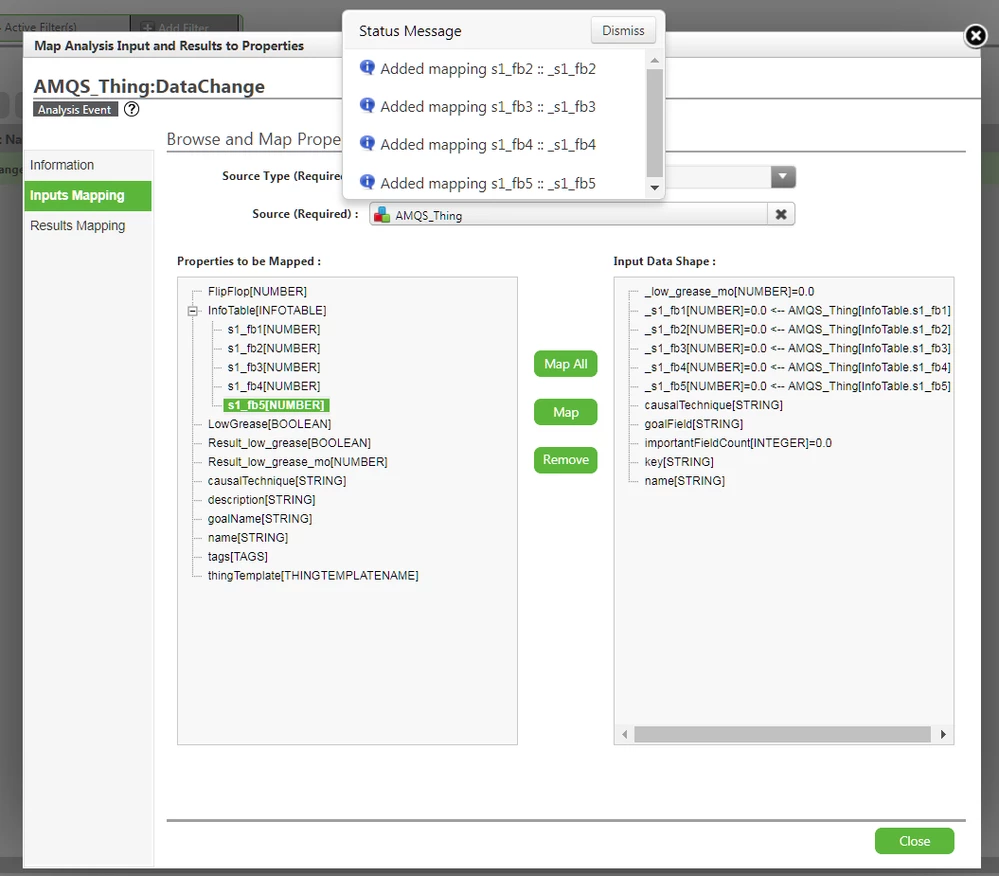
- Map causalTechnique in the same manner.
- This is a String Property in AMQS_Thing with a Default Value of FULL_RANGE, the same technique we used in our earlier true/false testing.
Map goalName to goalField in the same manner.
- This is a String Property in AMQS_Thing with a Default Value of low_grease, the same goal we used in our earlier testing.
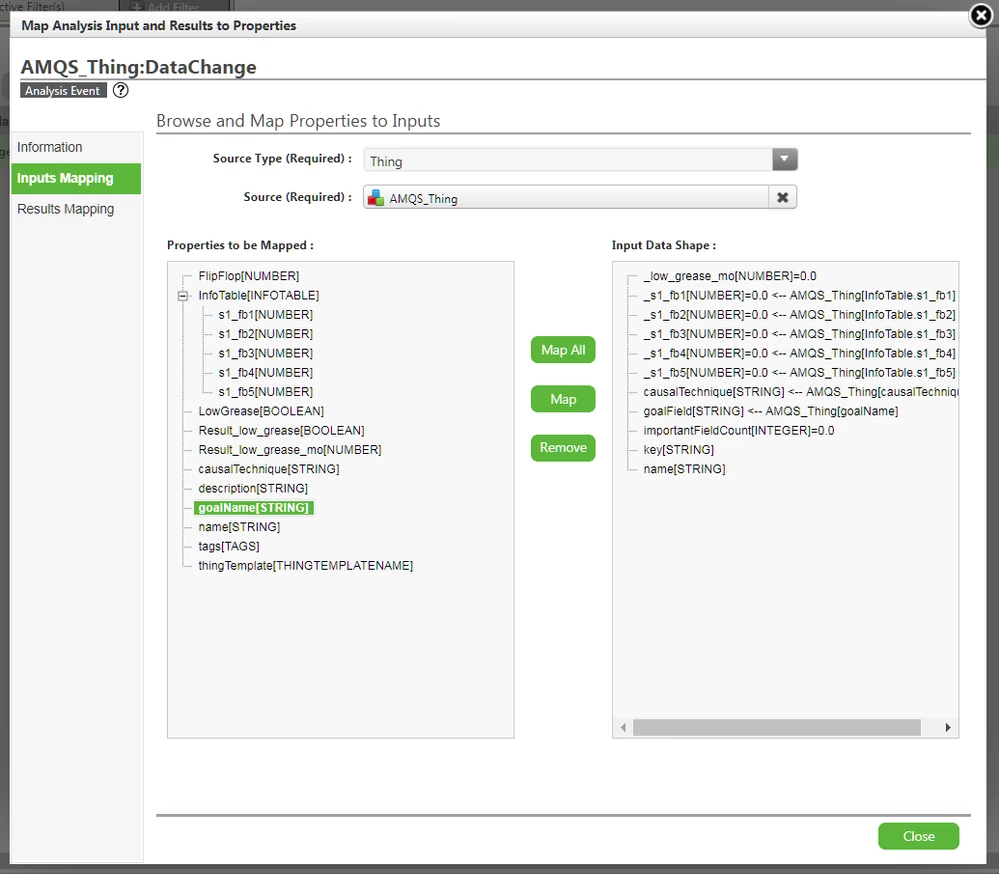
- This is a String Property in AMQS_Thing with a Default Value of low_grease, the same goal we used in our earlier testing.
- Click Results Mapping on the left.
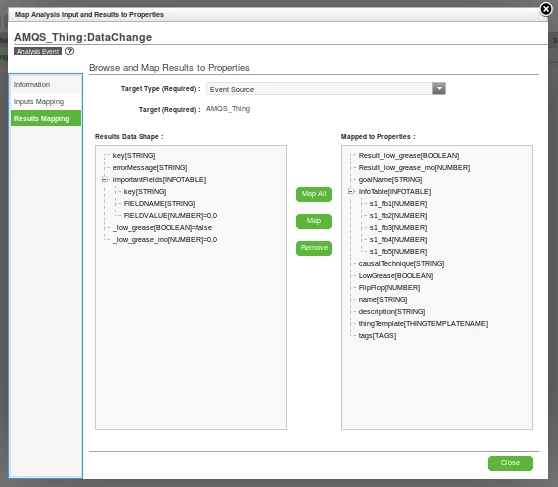
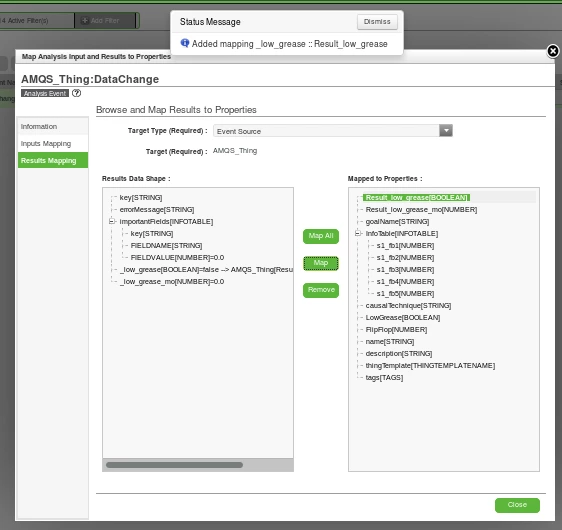
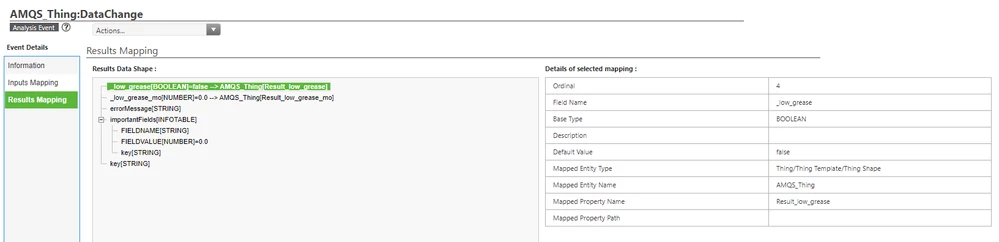
- Map _low_grease to Result_low_grease.
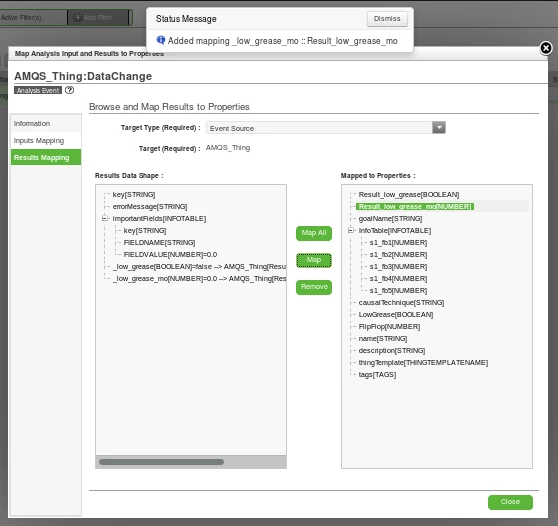
- Map _low_grease_mo to Result_low_grease_mo.
- Click Close to close the mapping pop-up.
Enable Event
Now that we've done the mapping from Foundation to Analytics, let's confirm that everything is correct.
If so, we'll then Enable the Analysis Event so that it can automatically generate and process Analysis Jobs.
- Select the mapped Analysis Event.
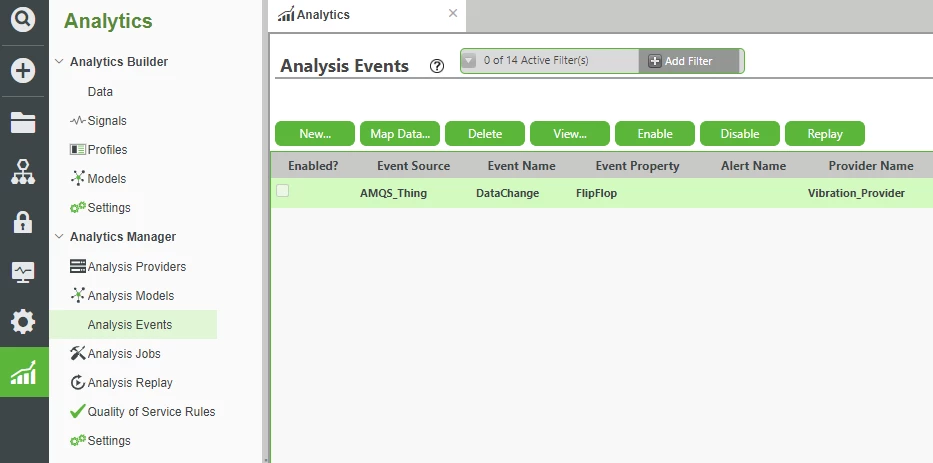
- Click View....
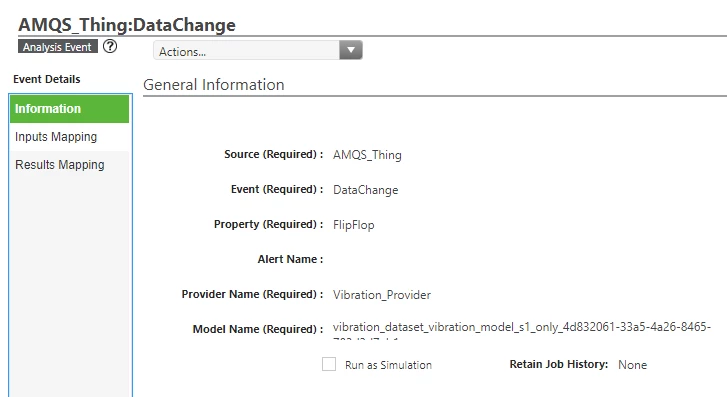
- Click Inputs Mapping and confirm that all mappings are correct.
- Click Results Mapping and confirm that all mappings are correct.
- At the top-left, expand the Actions... drop-down.
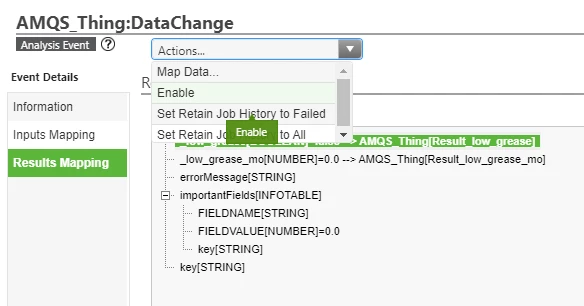
- Select Enable.
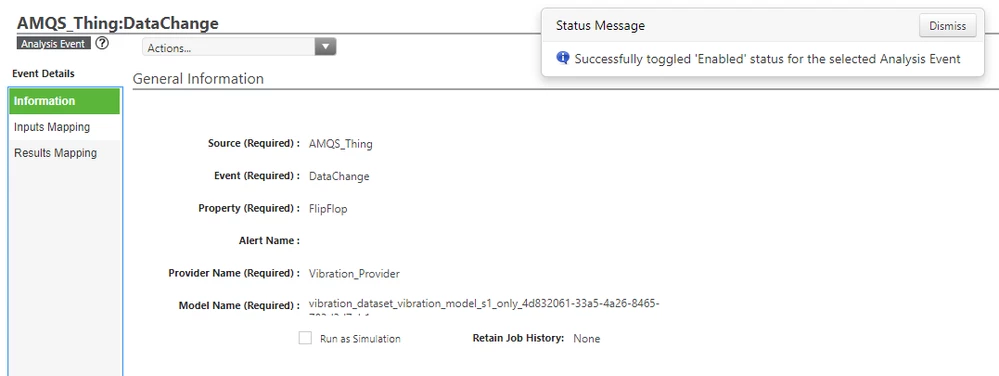
Now that you have enabled the Analysis Event, whenever AMQS_Thing's InfoTable Property changes, the new data will be submitted to Analytics Manager.
An Analysis Job will automatically run, with a predictive score sent back and stored in AMQS_Thing's Result_low_grease (Boolean) and Result_low_grease_mo (Number) Properties.
Step 6: Test Model
In this step, we'll confirm that the automatic analysis of information coming from remote devices is operational.
- On the ThingWorx Composer Analytics tab, click ANALYTICS MANAGER > Analysis Jobs.
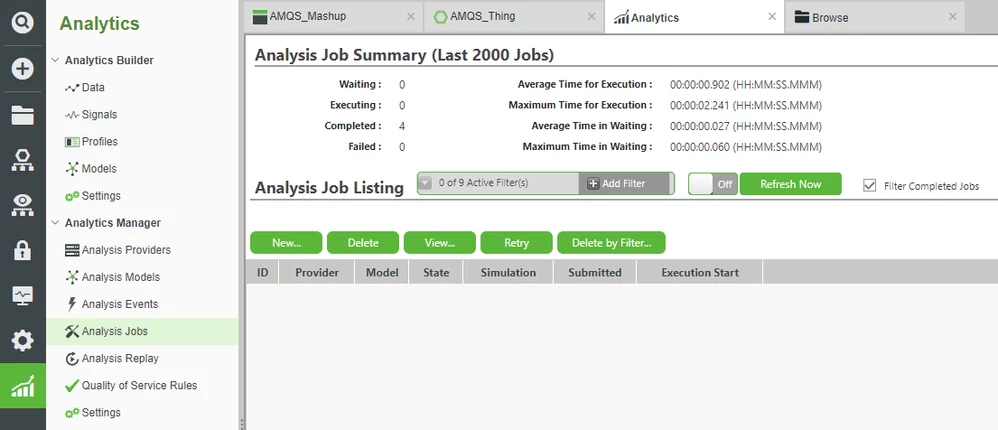
- Uncheck Filter Completed Jobs.
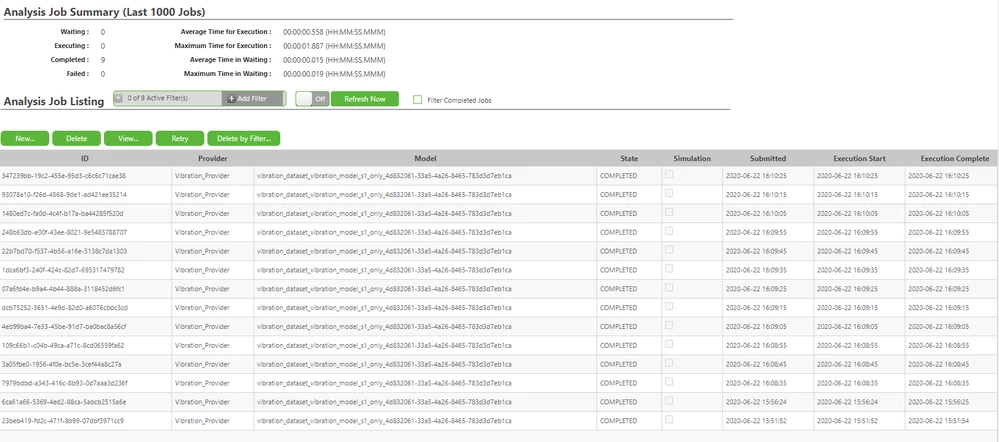
- Select a Job and click View....
- Click Results.
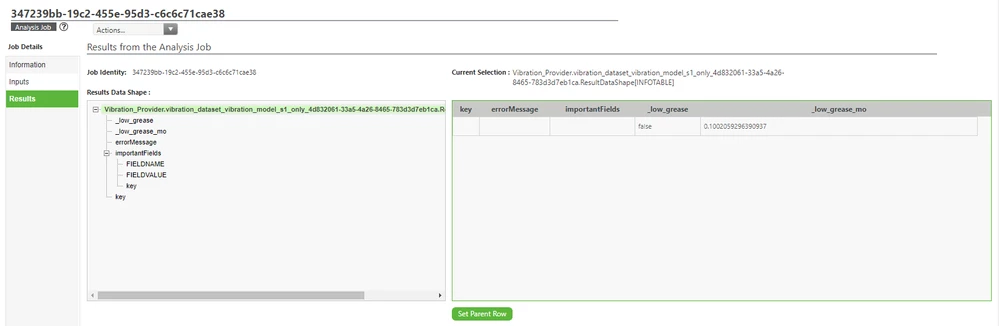
NOTE: You will see true or false, just as when you manually tested the Model, so you know that Analytics Manager is now automatically submitting and completing jobs with a resulting prediction.
Test Mashup
Follow these steps to confirm that the results are being sent back to ThingWorx Foundation in a way in an actionable way.
- Return to the AMQS_Mashup browser tab.
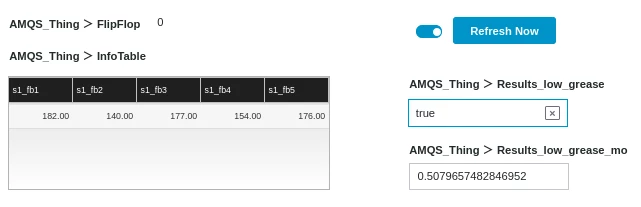
- Wait at least ~20 seconds to see multiple cycles of good and bad data (which should generate a false or true result from Analytics Manager).
- Note the Text Field Widgets on the right now have data.
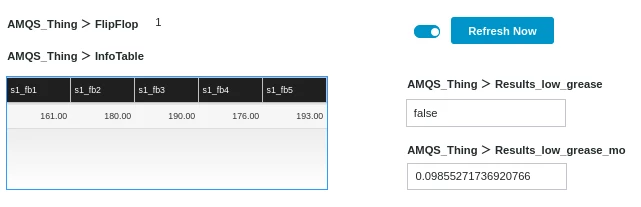
- This analytical result is coming from Analytics Manager, and is the exact same output you saw in ANALYSIS JOBS.
Using this technology, you could create a paid customer service, where you offered to monitor remote engines, in return for automatically shutting them down before they experience catastrophic engine failure.
For that example implementation, you would utilize the AMQS_Thing.Result_low_grease BOOLEAN Property to trigger other actions.
For instance, you could create an Alert Event which would be triggered on a true reading.
You could then have a Subscription which paid attention to that Alert Event, and performed an action, such as sending an automatic shutdown command to the engine when it was experiencing a likely low grease event.
NOTE: We recommend that you return to the ThingWorx Composer Analytics > ANALYTICS MANAGER > Analysis Events tab and Disable the Event prior to continuing. Since the simulator generates an Event every ~10 seconds, this can create a large number of Events, which can fill up your log.
Step 7: Next Steps
Congratulations. You've completed the Operationalize an Analytics Model guide.
In this guide you learned how to:
- Define an Analysis Provider that uses the built-in Analytics Server Connector
- Publish a Model from Analytics Builder to Manager
- Create an Analysis Event which takes data from ThingWorx Foundation and decides whether or not a failure is likely
This is the last guide in the Design and Implement Data Models to Enable Predictive Analytics learning path.
Learn More
We recommend the following resources to continue your learning experience:
| Capability | Guide |
| Build | Implement Services, Events, and Subscriptions Guide |
Additional Resources
If you have questions, issues, or need additional information, refer to:
| Resource | Link |
| Community | Developer Community Forum |
| Support | Analytics Manager Help Center |