
Solved

First, are you sure that you have access to a ProToolkit license? This is separate from a normal Creo Parametric license. If you have access to your company's license server, you can check if you have licenses with code 14 (ProToolkit) and 294 (Object Toolkit). If you do not have these licenses, you will not be able to unlock the DLL.
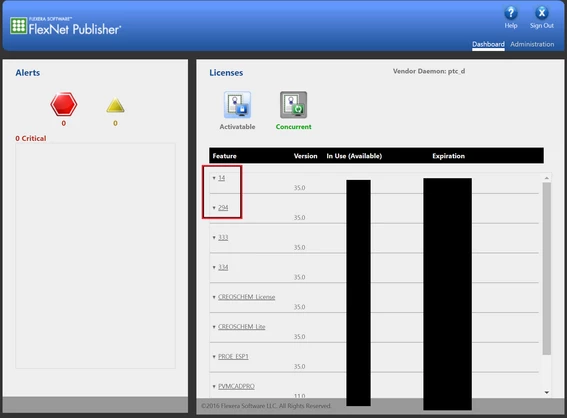
You can also quickly test if you have access to those licenses by adding them to your ".psf" file. Located at (something along the lines of)
C:\Program Files\PTC\Creo 4.0\M010\Parametric\bin\parametric.psf
You can change the line
ENV=CREOPMA_FEATURE_NAME=PROE_ESP1 ()
to instead say
ENV=CREOPMA_FEATURE_NAME=PROE_ESP1 (14 294)
When changed this way, Creo will check out the Toolkit license to you alone so that you can use it during your Creo session (super helpful for debugging).
If the above works, and you DO have access to a Creo license, then I would suggest that you check your "protk_unlock.bat" is pointing to the correct license server. In Creo 4, this is around line 50 in the .bat file.
if NOT "%PTC_D_LICENSE_FILE%" == "" set PTC_D_LICENSE_FILE=<XXXXXX>;%PTC_D_LICENSE_FILE%
 if "%PTC_D_LICENSE_FILE%" == "" set PTC_D_LICENSE_FILE=<XXXXXX>
	 set ZIP_EXEC=%PRO_DIRECTORY%\%PRO_MACHINE_TYPE%\obj\zip.exe
 "%PRO_DIRECTORY%\%MC%\obj\protk_unlock" %*
 :ptc_end
 exit /B %ERRORLEVEL%
Compare that line with the line in your parametric.psf file in the same directory:
ENV=PTC_D_LICENSE_FILE-=<XXXXXX>
If you're still having a problem at that point, there could be other reasons as well.... for example, if you use a function/method that requires an additional license ("Toolkit for 3D Drawings", or "Toolkit for Mechanica" are two common examples).
Hope this helps!
Thanks,
James Sullivan
Enter your E-mail address. We'll send you an e-mail with instructions to reset your password.