

Visualize an Allen-Bradley PLC Part 1
- 0 replies
- 929 views
- Translate All
Learn how to create a web application to monitor and control an Allen-Bradley PLC.
GUIDE CONCEPT
This guide will create a ThingWorx Foundation Mashup GUI to monitor and control an Allen-Bradley PLC connected via ThingWorx Kepware Server.
YOU'LL LEARN HOW TO
- Create a Mashup
- Add Widgets
- Access backend data via Mashup Data Services
- Tie data to Widgets
- Create a simple web application that monitors and controls a PLC
NOTE: The estimated time to complete all parts of this guide is 30 minutes.
Step 1: Learning Path Overview
Assuming you are using this guide as part of the Rockwell Automation Learning Path, then you have now completed each of the following installations:
- Connected Components Workbench
- ThingWorx Kepware Server
- ThingWorx Foundation (for Windows)
You've also connected an Allen-Bradely PLC to Connected Components Workbench and then to ThingWorx Kepware Server.
You have propagated that information further from ThingWorx Kepware Server into Foundation.
In this final step, we'll create a simple Mashup to visualize the interface from Foundation to ThingWorx Kepware Server to the PLC.
NOTE: Both Rockwell Automation's Connected Components Workbench and ThingWorx Kepware Server are time-limited trials. If significant time has passed while persuing this Learning Path, you may need to reinitialize them. Consult the Troubleshooting step of this guide for more information.
Step 2: New Mashup
A Mashup is a Graphical User Interface (GUI) to interact with your application.
In this step, you will create a new, blank Mashup. You will later populate it with Widgets (graphical elements) and tie those elements to data.
- In the top-left of ThingWorx Composer, click the Browse folder icon.
- Click VISUALIZATION > Mashups.
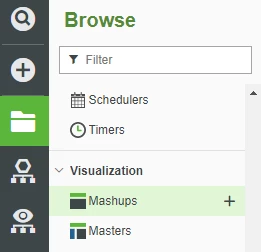
- Click + New.
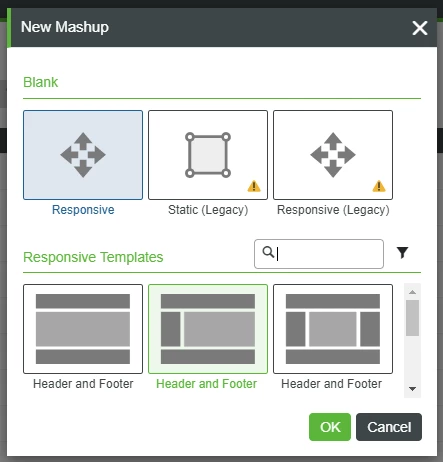
Select Responsive, then click OK.
- A new Mashup tab will open.
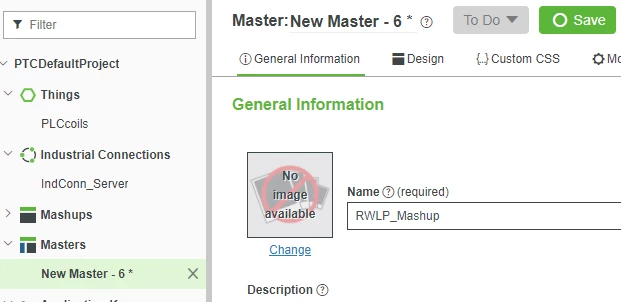
- In the Name field, enter RWLP_Mashup.
- If Project is not already set, click the + in the Project text box and select the PTCDefaultProject.
- At the top, click Save.
Step 3: Add Widgets
Widgets are drag-and-drop, stand-alone, graphical elements which you can add to your Mashup to represent certain pieces of backend data.
In this step, you will add a pair of Checkboxes to represent the PLC functionality.
At the top of the RWLP_Mashup tab, click Design.
- It may take a few moments for the Mashup Builder interface to load.
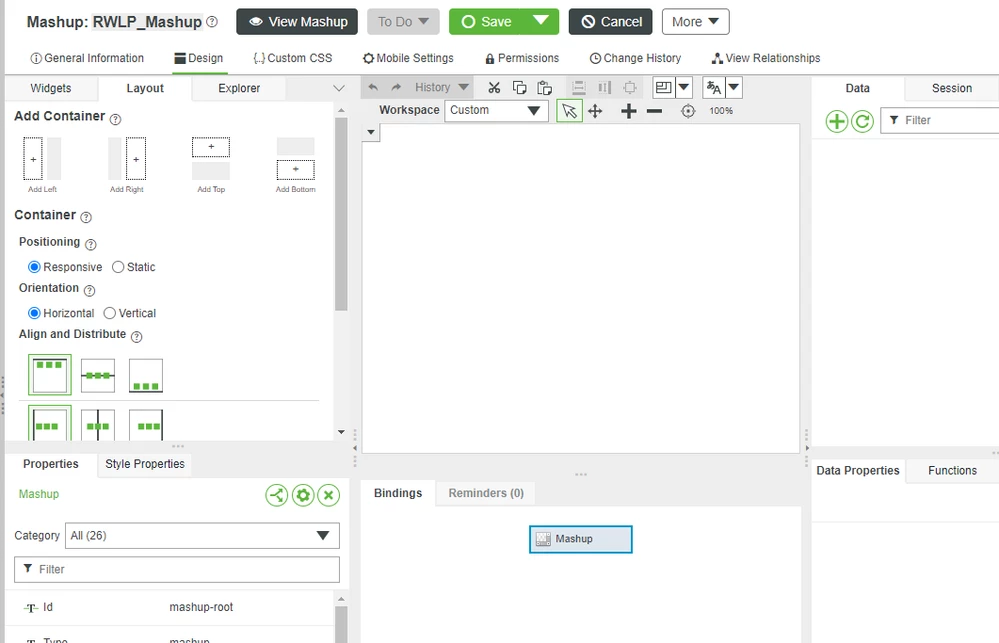
- Click The Widgets tab, then In the Filter field on the left, enter check.
- Drag-and-drop a Checkbox widget onto the central Canvas area.
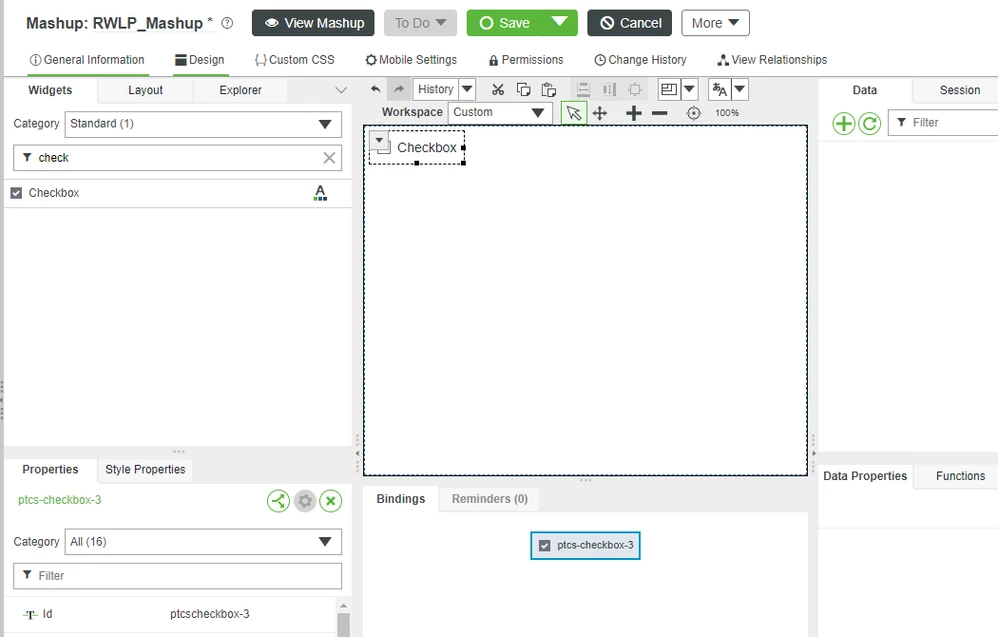
- Drag-and-drop a second Checkbox onto the Canvas.
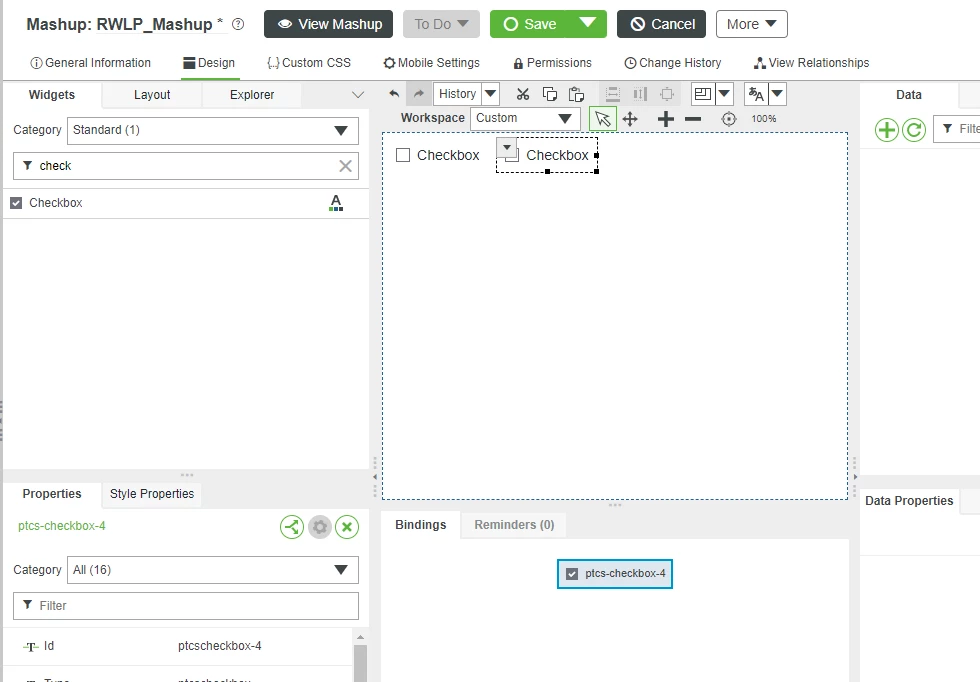
- At the top, click Save.
Step 4: Add Data
To have the Checkbox Widgets actually interact with the PLC, you need to bind them to the backend data.
To do so, you will make use of a Mashup Data Service from the previously-created PLCcoils Thing.
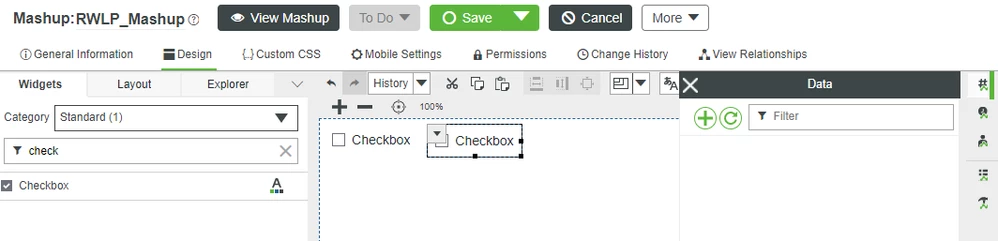
- At the top-right, click the Data tab, then click the + symbol.
- In the Add Data pop-up window, enter plc in the Entity Filter search box.
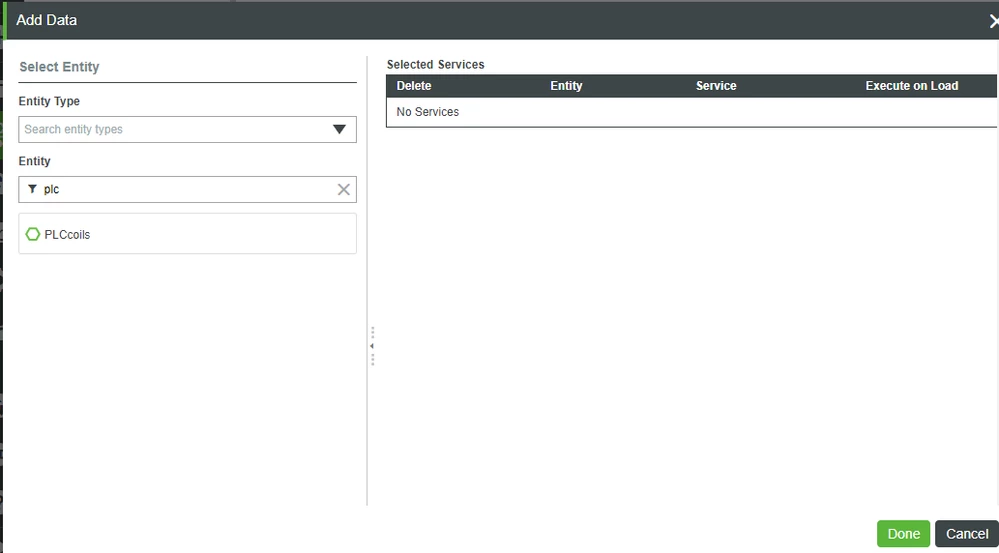
- Select the PLCcoils Thing.
- In the Services Filter search box, search for getprop.
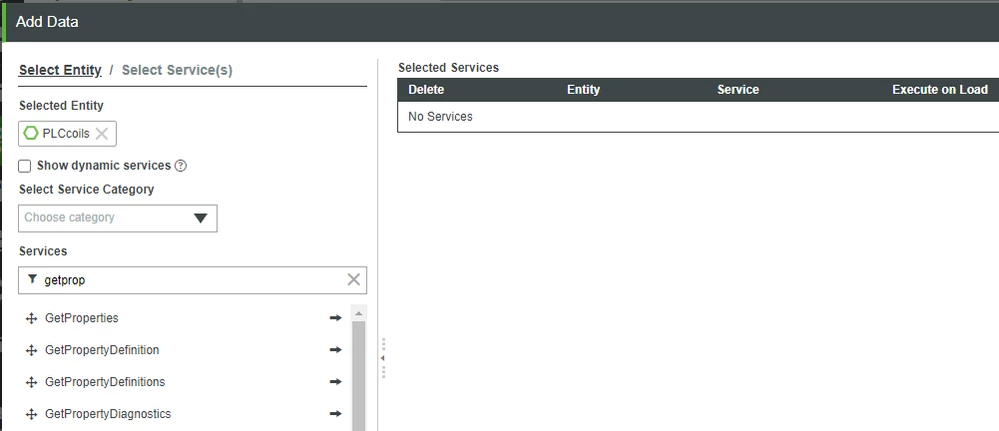
- Click the right arrow to select GetProperties.
- Check the box for Execute on Load under Selected Services.
- This causes the Service to be automatically executed upon the Mashup being loaded.
- This causes the Service to be automatically executed upon the Mashup being loaded.
- In the Services Filter search box, search for setprop.
Click the right arrow to select SetProperties.
- Note that you should keep Execute on Load un-checked for this Service, as we do NOT want it to automatically execute on Mashup load.
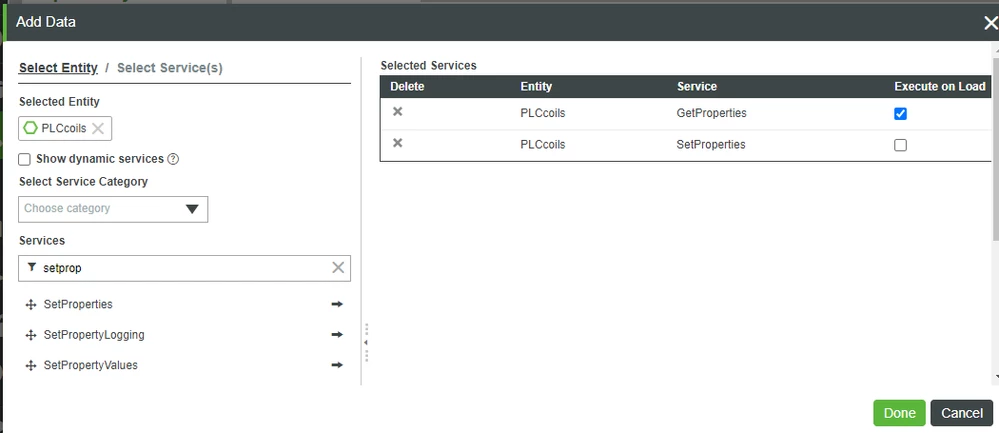
- Click Done, then click the > to expand both GetProperties and SetProperties.
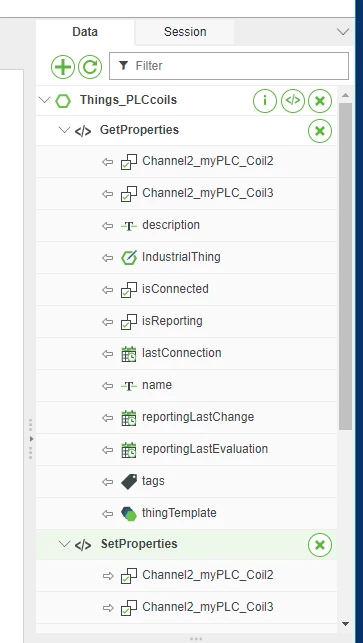
- At the top, click Save.
Click here to view Part 2 of this guide.