

Did You Know? How to Use Motion Skeletons to Quickly Design Mechanisms
In our new “Did You Know” series we’ve discussed how to create advanced round geometry and tips for fewer model failures with Intent References, both in PTC Creo Parametric. This week Moshe Baum, Product Manager at PTC, tells us how to use motion skeletons to quickly design mechanisms in the PTC Creo Parametric Advanced Assembly Extension.
In this example, we will be using the initial design skeleton for an elliptical exercise bike and bring it to life.
Step 1:
First, define the ground body by selecting the curves that define it. The selected entities are automatically copied to the skeleton body as an external copy geometry feature. You can add more skeleton bodies using the same process.
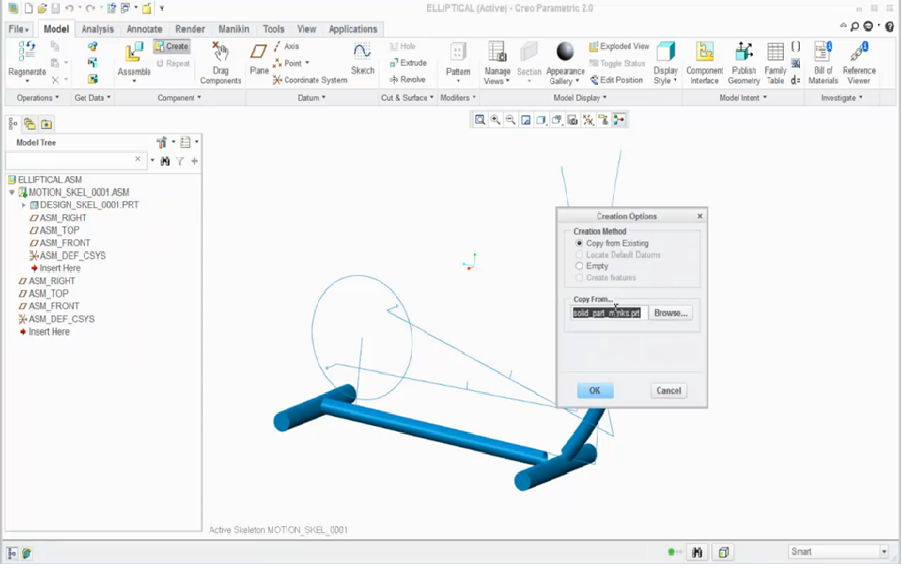
Adding skeleton bodies after defining the ground body by selecting its curves
Step 2:
Once again, select the entities that define the body. Click Update and the system automatically creates the potential connections according to the identified intersections of the curves that define the bodies. You can always change the definition of a switch to classic positioning mode. Let’s go ahead and define the rest of the bodies.
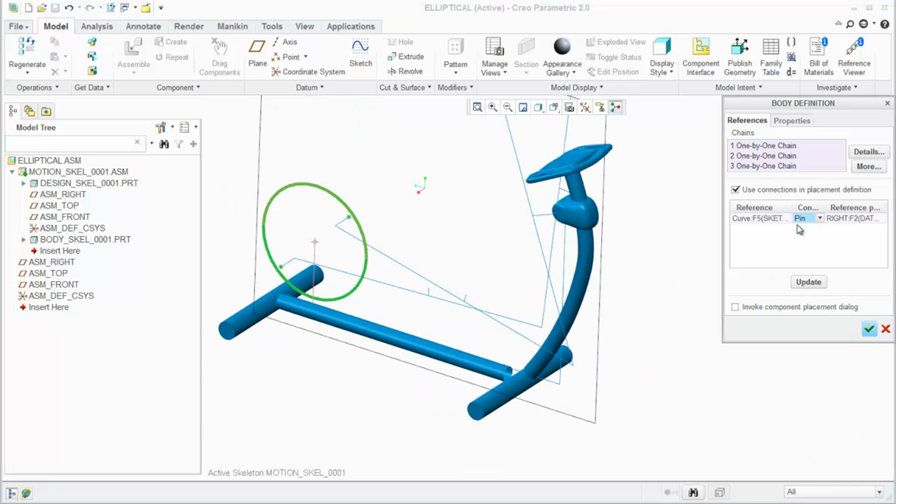
After clicking Update, the system automatically creates the connections
Step 3:
After we identify all the bodies and connections, the mechanism is now functional in the skeleton level. You can even perform a kinematic analysis in this early stage before designing a single part.
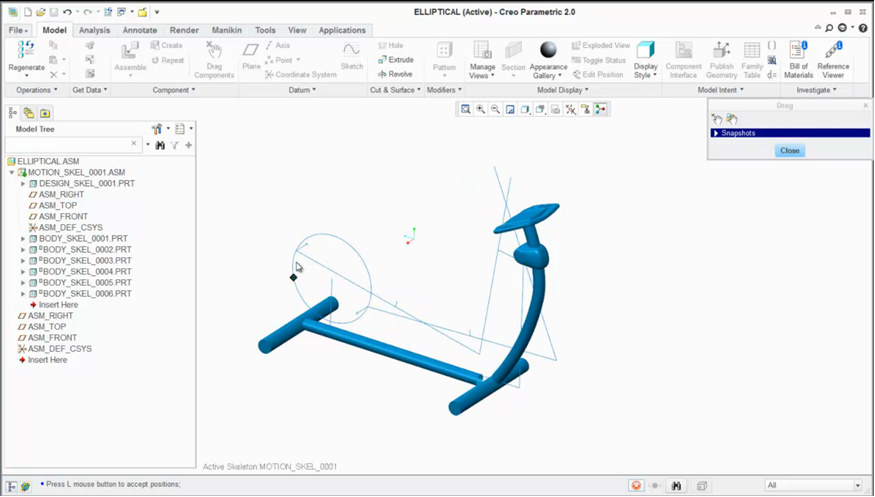
The functional mechanism at the skeleton level.
Step 4:
Time to start designing new assembly parts! When creating new parts, select Attached to Skeleton Body. This will place the new part on the same coordinate system of the selected body. It will also automatically populate the new part with a merge feature that contains the entire geometry of the selected body.
We can open parts and add detailed design around the entities that came from the top skeleton.
After a short while, we get a complete model that materializes the original design intent into a smart, fast, and automated top-down design.
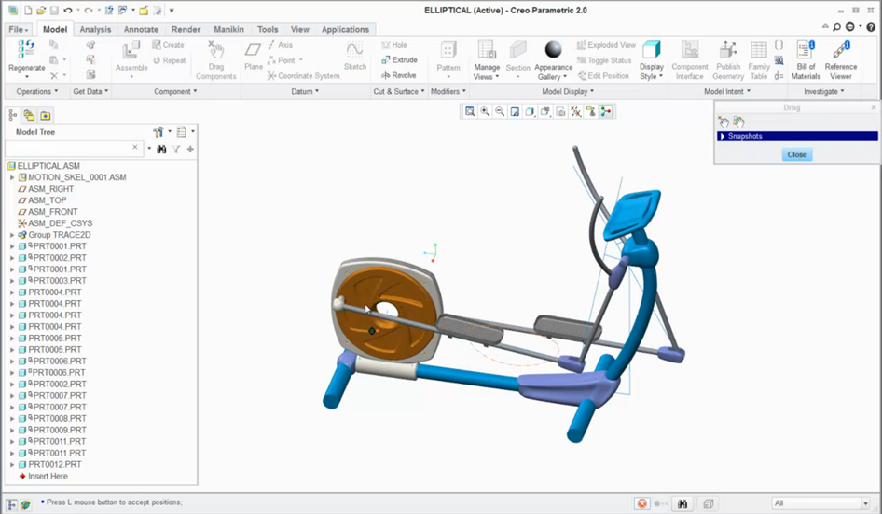
The final model: a smart, fast and automated top-down design.
Check out our video tutorial on the PTC University Learning Exchange (“Motion Skeletons”) to see this advice in action. We’d also love to hear your suggestions for working with motion skeletons below.
For more in-depth product feature explanations, visit our Tech Tips area.
Have some ideas about what PTC Creo product features you’d like to learn more about? Send me a message or leave a comment below and we’ll write up the best ideas from the community. Thanks for reading, looking forward to all of your feedback!