

Did You Know? PTC Creo Intelligent Fastener Extension
You don’t have to be an engineer to understand the headaches that come from putting together countless screws, bolts, nuts, washers, and dowels. Especially if you’re the type of consumer that always has one piece left over after self-assembly. For design engineers assembling fasteners has always been a labor intensive task, requiring manual checks for hole alignment and fastener length, after design changes. The good news is that with PTC Creo Intelligent Fastener Extension (IFX) the time it takes to assemble fasteners can be reduced by up to 90% and those lengthy, traditionally manual design validation checks are now highly automated, improving productivity. In this post, Jim Barrett-Smith explains how to pattern a screw connection where multiple parts need to be drilled using IFX:
To assemble a screw connection, begin by navigating to the Tools tab and clicking Screw. This will open a dialogue box where you can select your placement references. Next, in the Screw Fastener Definition dialogue box select a fastener, washers, and nuts from the comprehensive library. Based on your placement references IFX knows how long the fastener should be, and if a hole already exists then you can use IFX to measure the hole. Now that IFX has the hole diameter and the thickness of the material being fastened, it will automatically select a fastener from the library. And during the reference selection, if you have selected a patterned hole, datum axis or datum point, IFX will ask you if you would like to assemble a single fastener, pattern the fastener or assemble individual fastener on all instances of the pattern. Finally IFX will automatically be create the holes in the required parts.
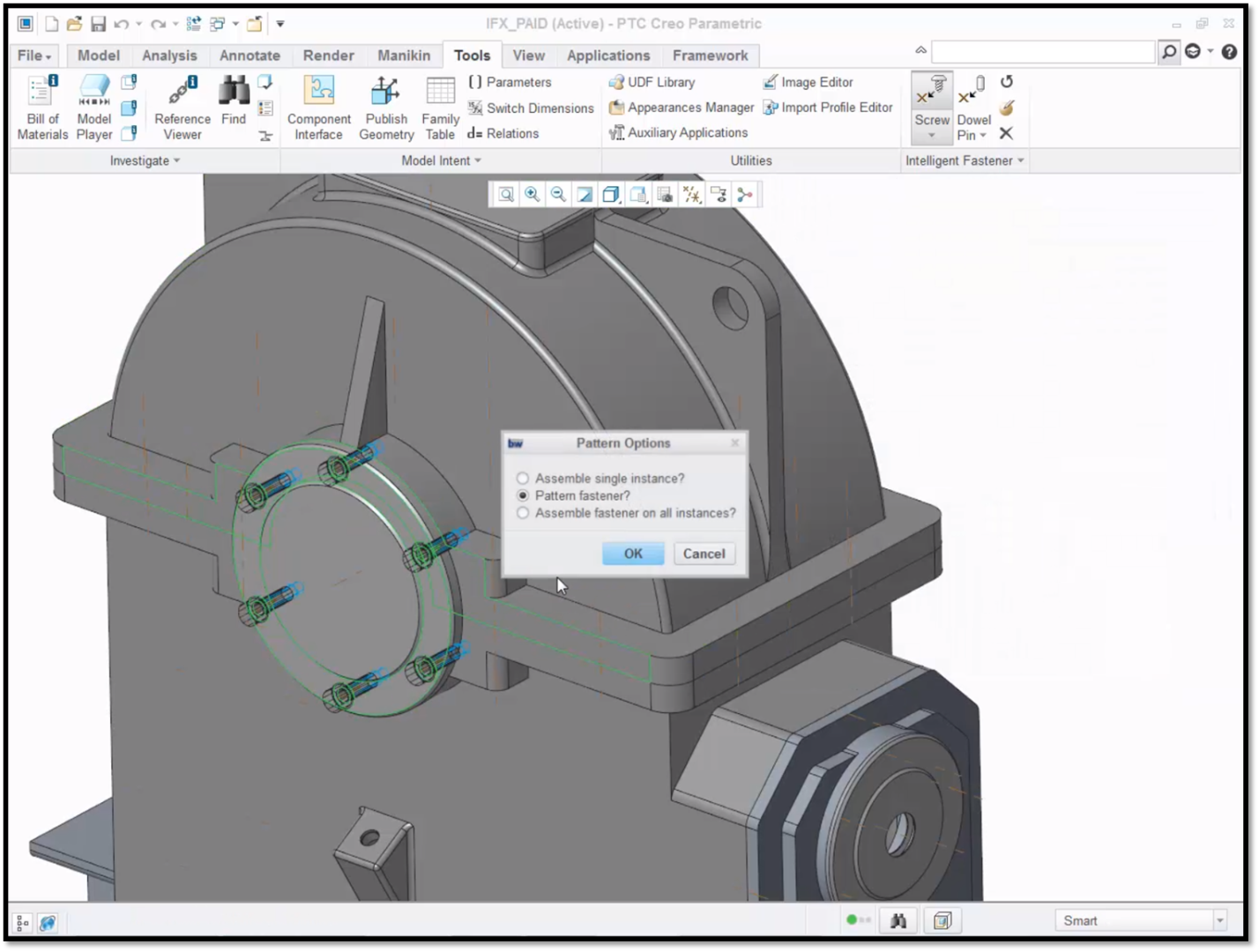
In this example, there are six fasteners to be assembled.
If you create a screw connection where one side of the placement surface is not parallel to the other, such as an i-beam, IFX provides you with the tools to keep the nut and bolt normal to a flat surface. You can do this by defining an Orientation in the Select References dialogue box.
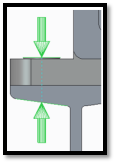
Here you can see two green arrows, which indicates that a reference orientation has been defined.
To finalize the placement, use the Screw Fastener Definition dialogue box to select a wedge washer from the out of the box library.
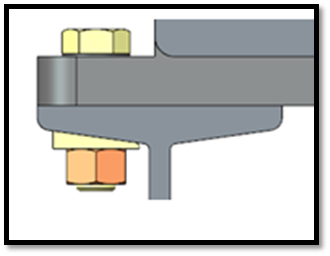
The Screw Fastener Definition dialogue box provides a 2D Preview of your selections.
Assembling dowel pins follows the same process as assembling screw connections. First, click Dowel Pin to open the Select References dialogue box. Next, select the location and the parting surface for the dowel pin. Using the Dowel Pin Fastener Definition dialogue box, select your standards and hole definitions and click OK to insert the dowels.
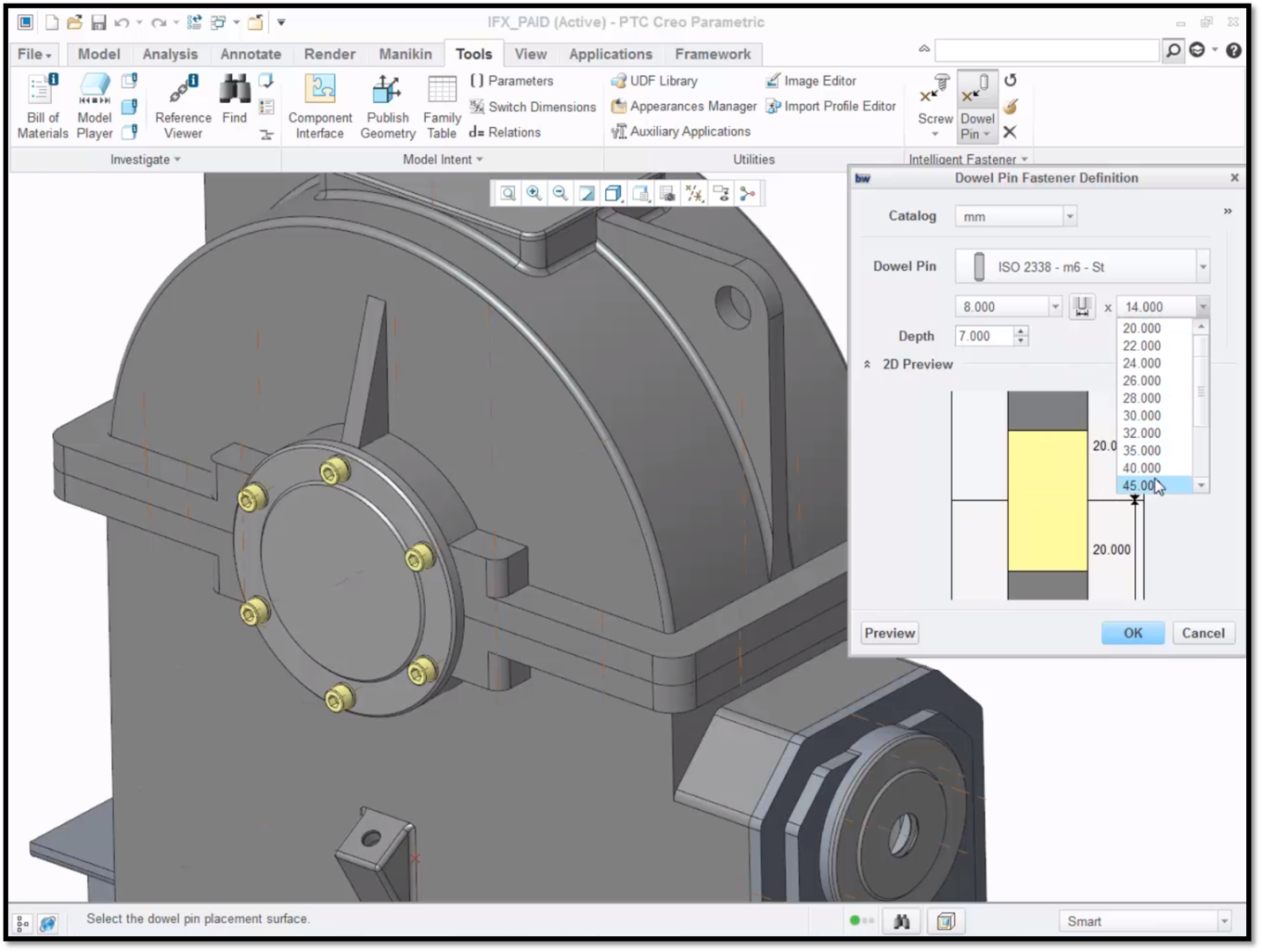
The Dowel Pin Fastener Definition dialogue box also provides a 2D Preview of your selections.
Designs often change. If your part changes thickness, you can make an update using the Check Screw Fasteners feature under Intelligent Fastener, within the Tools tab. IFX will check the length of all the fasteners and report back any fastener that is too short or too long. Using the report you can double click on any notification to open the Screw Fastener Definition dialogue box and update the screw length.
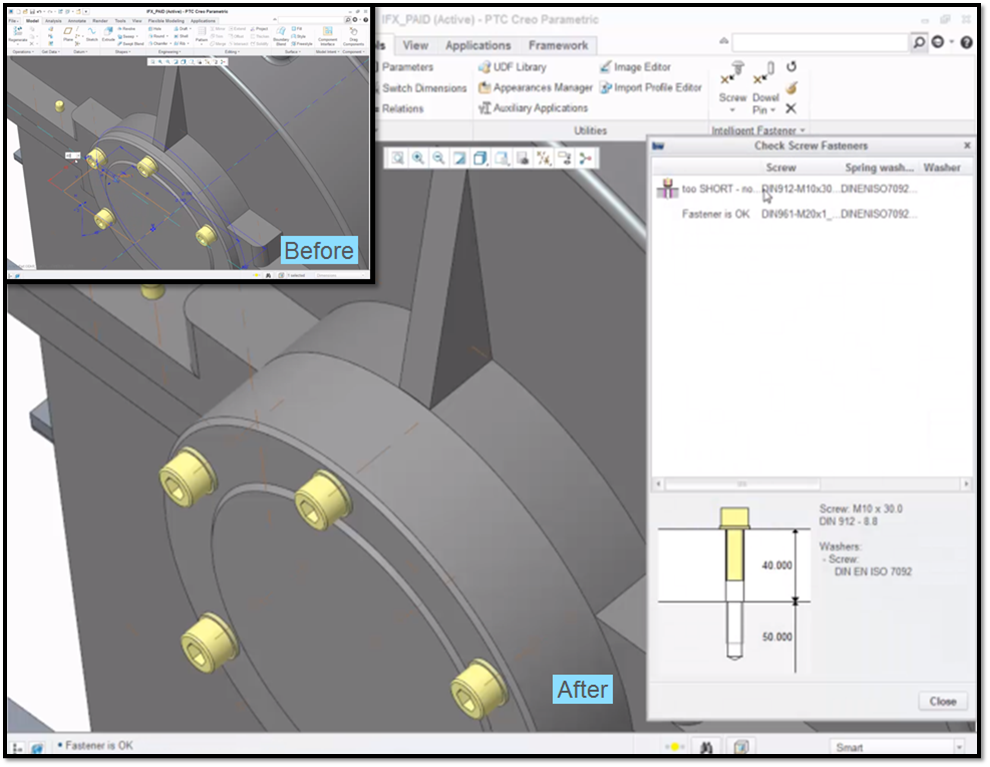
Here you can see that we changed the thickness of the cover from 10 to 40.
To learn more about the Intelligent Fastener Extension, check out our video tutorial (“Intelligent Fastener Extension”).
Stay tuned to our “Did You Know” blog series as we cover all of the exciting, new enhancements in PTC Creo 3.0.
For more in-depth product feature explanations, visit our Tech Tips area.
Have some ideas about what PTC Creo product features you’d like to learn more about? Send me a message or leave a comment below and we’ll write up the best ideas from the community. Thanks for reading, looking forward to all of your feedback!
In case you missed it, see what’s new and check out our recent Did You Know posts covering PTC Creo 3.0 enhancements:
- Did You Know? PTC Creo 3.0 Enhancements: Performing a Design Study in PTC Creo Simulate
- Did You Know? PTC Creo 3.0 Enhancements: Chamfer Support in PTC Creo Flexible Modeling Extension
- Fast Facts! Quick Tips for Using PTC Creo - Mechanism Part 2
This thread is inactive and closed by the PTC Community Management Team. If you would like to provide a reply and re-open this thread, please notify the moderator and reference the thread. You may also use "Start a topic" button to ask a new question. Please be sure to include what version of the PTC product you are using so another community member knowledgeable about your version may be able to assist.