Hi Sandy...
I've read through the thread but didn't have a chance to jump in. I can think of two or three ways to do what you're asking - but the most direct method would be to use flexibility. I realize you've tried that - but you are missing a critical piece of information. I am not making a judgment on whether or not you should use this technique. Most experienced users would question why you'd need to have one assembly with differing constraints. If you're trying to simulate something that moves - such as a hinge - a mechanism constraint would be much better. But, I'll leave those topics alone for the moment to provide an answer for your question.
The key is the parameter PTC_CONSTRAINT_SET which controls which constraint is "active" for any two items assembled together. This is an often forgotten parameter which is not typically displayed. The value of this parameter is a string containing the constraint set name.
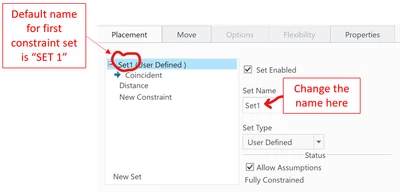
To explain, each constraint set has a name. You can see it on the Placement Tab during the operation to assemble a new component. You can change the name by typing a new one into the Set Name field as shown below.
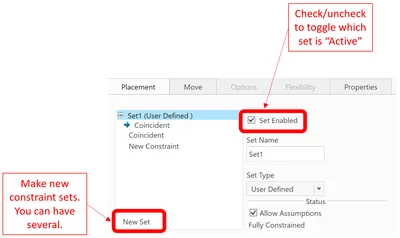
You can create more than one constraint set if you wish. You can name each differently and determine which one is "active" by checking/unchecking the Set Enabled option. See below for commands to add new sets and enable/disable:
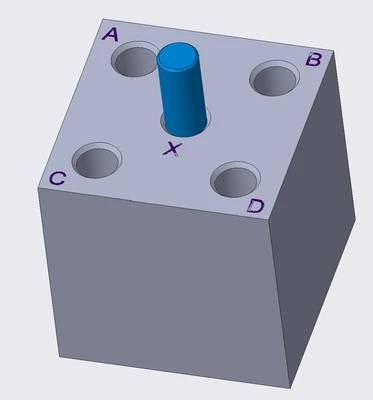
For my example, I am using the model shown below as my "static.asm". The default location for the pin in the cube will be location "X". I'm going to create separate constraints for the pin in all the other locations, too. Here's the model:
After creating and naming 5 sets of constraints (one for each pin location A, B, C, D, and X), the constraint screen looks like this:
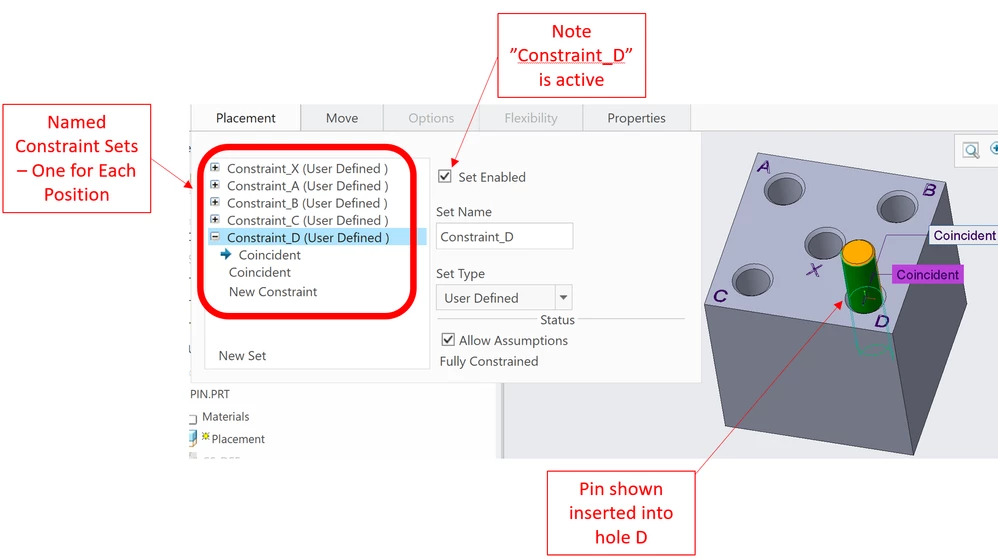
So now you have ONE assembly with 5 potential positions for the pin. You can now place this assembly within multiple other assemblies - and vary the pin position using Flexibility. There's a trick to it - but once you see it, it's very easy. There are a couple of ways to achieve the same result. I'm detailing just one method here.
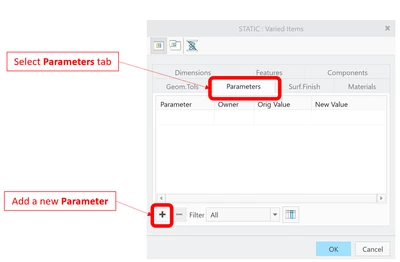
Assemble your static.asm into a higher assembly as you normally would. Right-click the model in the model tree and select Make Flexible. From the Varied Items screen, select the Parameters tab. Add a new parameter using the "+" as shown below:
Here's where the trick comes in - to see PTC_CONSTRAINT_SET, you must change the parameter filter from Default to Current and Sub Features as shown below:
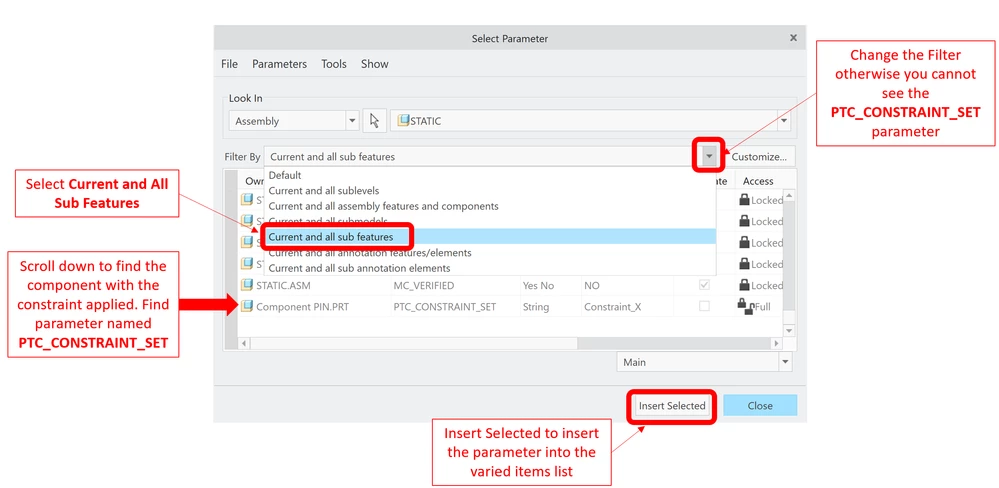
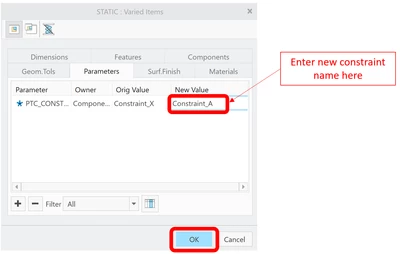
Find PTC_Constraint_Set and add it to the varied items list using the Insert Selected button. Change the New Value field to a different constraint name. It helps if you've named your constraints something memorable so they're easier to understand at this step.
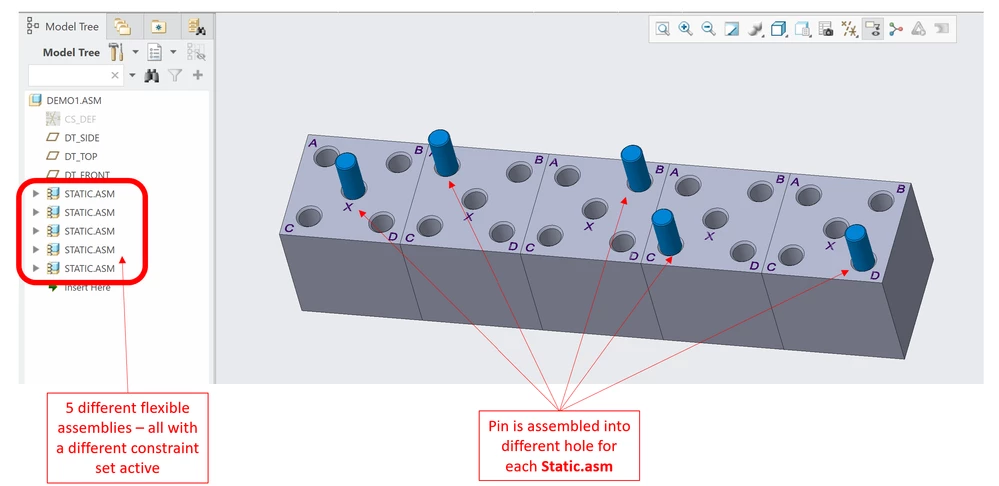
You can repeat this process as many times as you wish. For my example, I assembled 5 static.asm models and changed the constraint active for each. Here's the final result:
One final caveat - as with most things in Creo, there are many ways to achieve the same (or a similar) result. To become truly proficient, you'll need to learn the pros and cons of each option. Over time, you'll be able to evaluate the subtle trade-offs between each technique and choose the right one for your specific application.
Hopefully this gives you enough details to solve the problem. Good luck!!
Best regards,
-Brian

