

Create A Thing Shape
- 0 replies
- 1234 views
- Translate All
Use Thing Shapes to create groups of related Properties
Guide Concept
Save time and effort by modeling a solution in ThingWorx using Thing Shapes to group Properties.
A logical group of Properties can be applied to Things and Thing Templates.
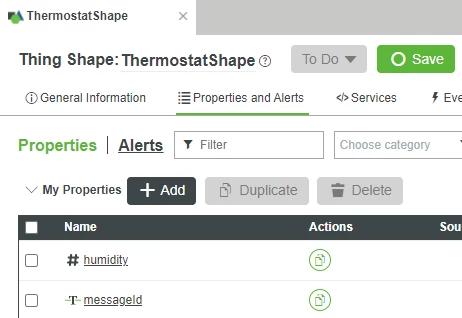
You'll learn how to
- Create a Thing Shape
- Add Properties to a Thing Shape
NOTE: This guide's content aligns with ThingWorx 9.3. The estimated time to complete this guide is 30 minutes
Step 1: Create Thing Shape
In this section you will create a Thing Shape for sensor properties of a MXChip development board.
Thing Shapes are components that contain Properties and Services. In Java programming terms, they are similar to an interface.
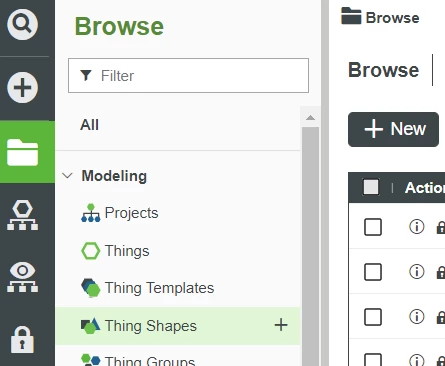
- Start on the Browse folder icon of ThingWorx Composer.
- Under the Modeling section of the left-hand navigation panel hover over Thing Shapes, then click the + button.
- Type ThermostatShape in the Name field.
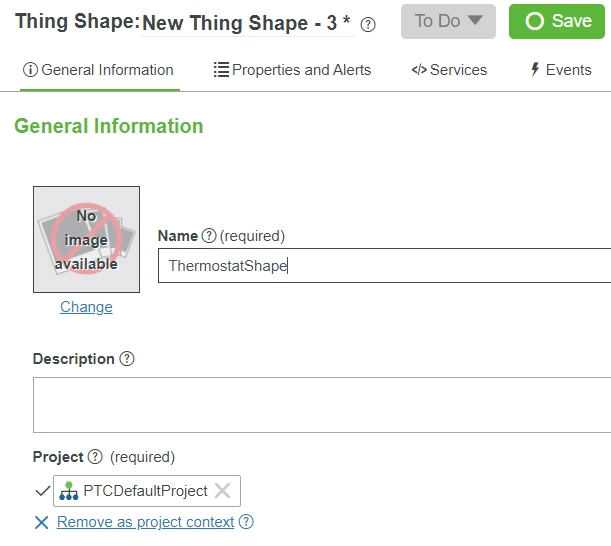
- If Project is not already set, click the + in the Project text box and select the PTCDefaultProject.
- Click Save.
Step 2: Add Properties to Thing Shape
- Click Properties and Alerts tab at the top of your Thing Shape.
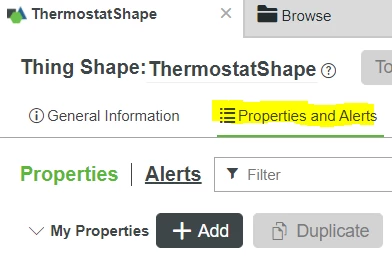
- Click + Add.
Enter the Property name in the Name field as shown in the table below.
Name Base Type Persistent? Logged?humidity NUMBER X messageId STRING X temperature NUMBER X - Select the appropriate Base Type from the drop-down menu.
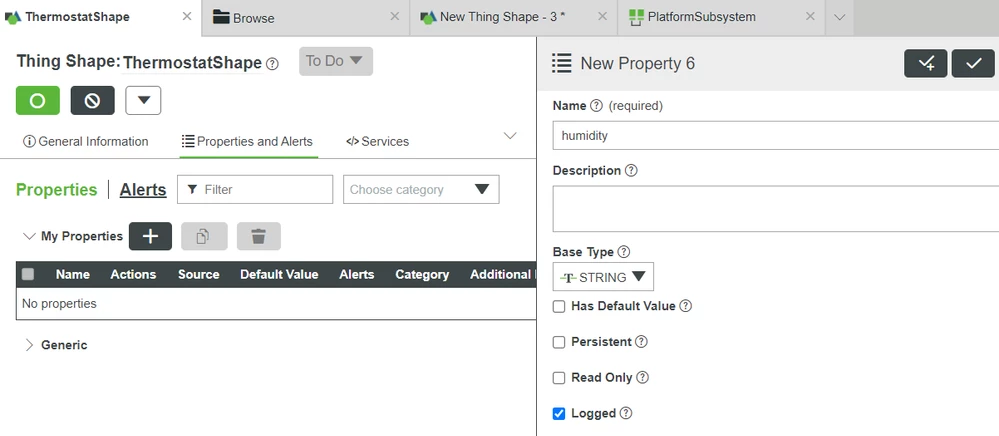
- Check Persistent and/or Logged according to the table.
NOTE: When Persistent is selected, the property value will be retained during a system restart. Properties that are not persisted will be reset to the default during a system restart. When Logged is selected, every property value change will be automatically logged to a specified Value Stream. - Click Check +.
TIP: When adding multiple properties at once, click Done and Add after each, once you've entered a Name, selected a Base Type and any other criteria. If adding a single property, click Done. - Repeat steps 4 through 6 for each of the properties in the rows of the table.
- Click the done Check. You'll see that these Properties have been created for the ThermostatShape.
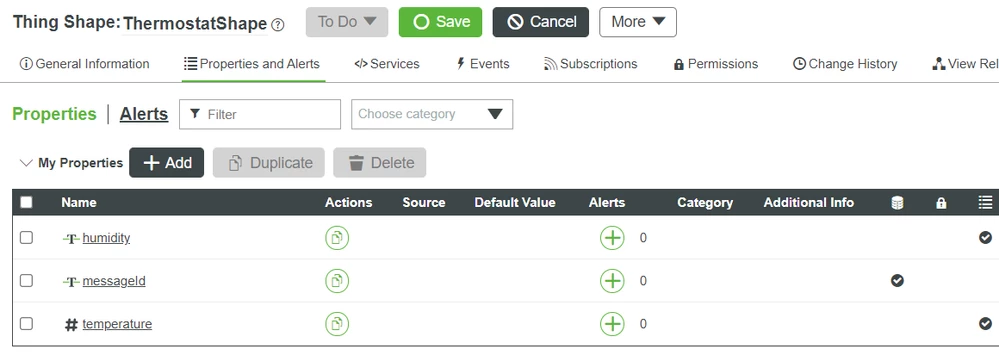
- Click Save.
Step 3: Next Steps
Congratulations! You've successfully completed the Create A Thing Shape, and learned how to:
- Create a new Thing Shape
Add Properties to the Thing Shape
This is the last guide in the Azure MXChip Development Kit Learning Path. If you wish to return to the Learning Path, click the link.
Learn More
The following resources continue your learning experience:
| Build | Data Model Introduction |
| Experience | Object-Oriented UI Design Tips |
Additional Resources
If you have questions, issues, or need additional information, refer to:
Resource Link
| Community | Developer Community Forum |
| Support | Thing Shape Support Help Center |