12-Amethyst
June 14, 2023
Solved

Invert/Mirror Decal Appearence

  • June 14, 2023
  • 1 reply
  • 2304 views

Hello.

Anyone knows why the button of edit decals are not available?

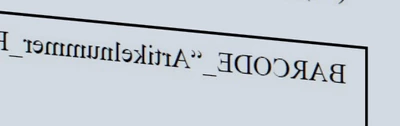
Inside my model, the decal is being mirrored and I can't edit to solve the problem.

Since it is an old part, I can't change the surface normal direction.


Old version inside YouTube video:
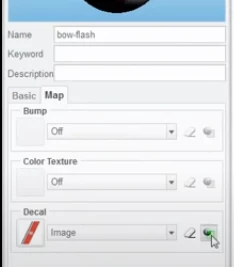
VR_9713318_0-1686765662003.png


My Creo 7.0

VR_9713318_1-1686765725342.png

VR_9713318_3-1686765773902.png


Best answer by Chris3

Sorry, its been a while and I gave you bad advice. Here is the correct information:


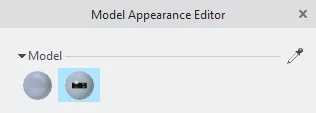
1. Click on appearances, and edit the appearance that contains the decal.

2. Click on the eye dropper

Capture.PNG

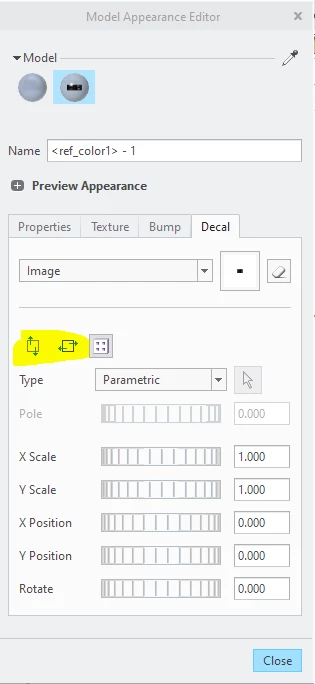
3. Select the surface that the appearance is applied to. After that, the dialog below will show up and then you can flip the decal as required:

Capture.PNG

1 reply

21-Topaz I
June 14, 2023

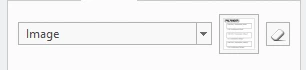
Right click on the button next to the image drop down that shows the preview of the image. It will say "preview texture". Up will pop an image editor that can you use to manipulate the image.

Capture.PNG

12-Amethyst
June 16, 2023

Hello, Chris.

I tried to edit like you suggested, using the mirror button, but it did not work.

The "save" option is disabled, so I can't guarantee that my changes are being applied.

Is this because I'm using an external image for that? The option to save the image inside the part is not activated.

Thanks.

12-Amethyst
June 21, 2023

Hello, Chris.

Makes sense now, the "eye dropper" to edit only one area of the decal, not the decal itself.

It worked perfectly.

Thanks a lot!