

Switching from Stroked Fonts to True Type Fonts - Drawings & Models - Observations & Questions
This is going to be a rather long post, so I’m going to start with the questions I have. Then I’ll get into the issues.
Questions:
- Are stroked fonts machine readable? It was stated to me by one of my compatriots, that for MBE the stroked fonts were not machine readable for downstream applications.
- I’m beginning to doubt this because I can export a pdf with Stroked and Searchable text.
- Also if you look at the stroked_symbol_asme.src file you see that each character has code numbers associated with it.
- Correct me if I’m wrong, but I believe codes are only required for special fonts, all the standard keyboard characters don’t have codes.
- When trying to convert an existing drawing to true type fonts, I can get all the symbols to update to the new font by modifying the parts and assembly files, except for the plus minus symbol.
- Does anyone have a method to update this symbol on an existing drawing?
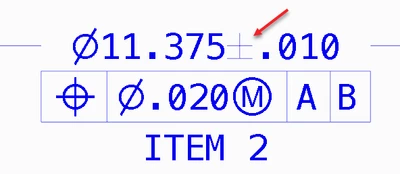
- The strange thing is, If you create a new drawing, then this symbol displays in the true type font.
- Obviously creating a new drawing is a non-starter when revising existing drawings!
- Does any one have the early PTC documentation on the stroked fonts and how to modify them? I’m talking early 90’s
- At that time they had an illustration in the printed books of the letter grid and talked about how the Move Draw format of the .src was used to draw the character, and how you could modify it and then recompile it.
- The current available docs barely cover this issue and without the illustration. Suggested Technique For Creating Custom Text Fonts
- I do know how to do this, and as you’ll see below I’ve recreated the illustration, but I’d like to review the old documentation to see if there is anything I’ve missed. I lost all my old PTC manuals in the Tubbs fire of 2017.
- Can anyone suggest good mono spaced True Type font?
- We have been considering two fonts:
- Meslo Font
- Consola that you will find here on your windows machine: C:\Windows\Fonts\Consolas
- I’m assuming unlike a stroked font, you can’t change the height to width ratio of a True Type Font. Is that true or not?
- There are times we change the width of some text on a drawing to fit within the title block or BOM cell.
Observations:
Let me start off with what I think my recommendation is going to be. It’s not worth the disruption that is going to be caused to existing drawings to move to move to true type fonts.
Background
We have ProEngineer and Creo models and drawings going back to early 1990 in our database. A huge amount of data. Almost 100% of that are drawings that may need to be revised or copied for a new design.
Issues with converting to a True Type Font
The problem is PTC didn’t think about this issue in a holistic framework. The conversion of a drawing to a True Type Font depends on not just the settings in the drawing detail setup file, but in the detail settings in the model.
For example I have an assy of two parts that is a weldment. All of these files have to change to use True Type Fonts in the drawing. I would have expected the change in the drawing would have been all that was necessary. That fact that the display in the drawing is linked to the display in the models is a problem. At least the way I think about this it's a problem.
If I go into the drawing detail setup file and modify the default_annotation_font to a .ttf font, and the symbol_font to asme, I get these results.
Notice that the,
- diameter symbols,
- the MMC modifier, and
- the plus minus are still stroked.

I have to open up the model that dimension was shown from, and modify the detail setup file to show the .ttf font and symbol_font as asme.
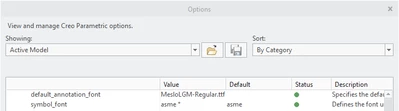
Which results in all but the plus minus symbol showing correctly in the drawing.
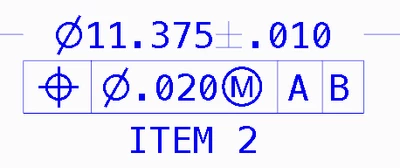
However if I look at a dimension that was shown from the other part in the weldment, it’s still messed up.
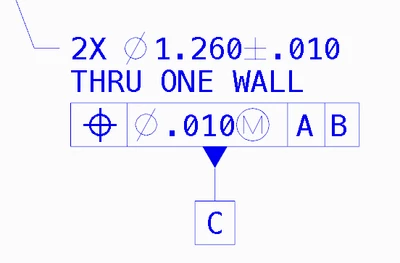
I have to go modify that part’s detail setup file also, after which I get this. But I know of no way to get the Plus Minus symbol to update to the True Type Font. GRRRRR!
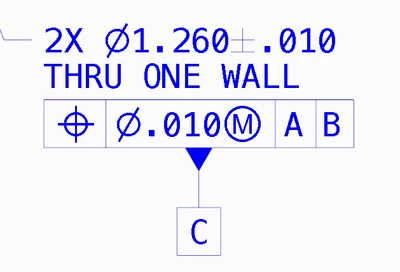
If I create a new drawing and show that dimension, then it shows the Plus Minus in the .ttf font.
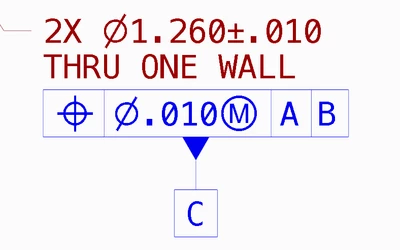
So instead of just changing the settings in the model, I have to change the settings, in this case. on 2 parts, 1 assy, and the drawing assuming there is a workaround for the Plus Minus Symbol. If not then I have to create a new the drawing in order to get that symbol to change to a True Type Font.
This may not be a huge issue when talking about a 2 part weldment. But considering we have some 30 page weldment drawings… this is a non-starter. The designers would run me out of town on a rail.
Other issues on the drawings with True Type Fonts
Font Width
The width and spacing of the characters isn’t the same as the default stroked font. Notes, Title Block, BOM table, BOM Balloons, Flag Notes, and stamps on the drawing, each of these has issues because the width of the new font. Words that fit in table cells before no longer fit. And because I can’t edit the width of the characters in the text properties, I can’t make them fit. Considering all the legacy drawings, this again is a non-starter.
Thickness of the font
The font is thicker in a print than the stroked font. We make drawing books to take out to our assembly facility during the assembly of experiments. An “E” size drawing on an “A” size page is still legible using the stroked font, This allows the techs and engineer to refer to the drawings while going through the steps of the assembly procedure. True Type Fonts are thicker by far when printed so that the legibility of the print is severely compromised. Again a non-starter unless a better True Type Font can be found.
MBE Considerations
My next consideration was why not change the MBE annotations to use the standard font instead of the default win_font.ndx, have it use font.ndx
So I change the default_annotation_font to font.ndx and the symbol_font to stroked_asme.
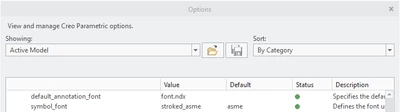
And that works. The model dimensions shown as annotations show in the same font as we’ve used for drawings all these years. To me this is a viable option that keeps the font the same in drawings and MBE.
So my question is…
- Will this font present a problem for down stream applications reading the model. Either with the native model, or a derivative step file.
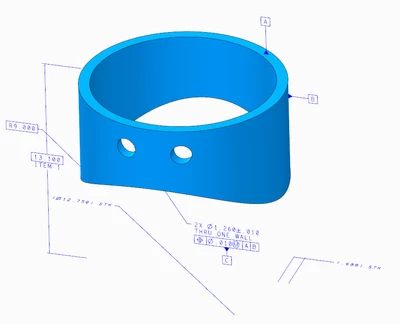
About the Default Font Shown Here
Some of you may have noticed that the default font shown here is slightly different than what ships with Creo. That because long ago we modified the source file to have slashes in the zero, tick marks top and bottom of the capital “EYE” and a tick marks on the number 1.
Changing this font has no negative affect on the drawing or model. There is nothing the designer has to do to in either the drawing or model for this change. All the admin has to do is make sure the modified font files are in the proper folders in the load point.
We have not had to modify this font for quit a long time, so I’m one of the few people that remembers how to do this. We have had a discussion lately regarding the slash in the zero.
As it is now, the slash extends beyond the outline of the zero.
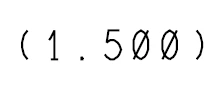
But since the True Type Fonts with the slash don’t extend past the out outline, that was one reason some folks wanted to dump this font for the True Type Fonts.
The thing is this is a simple modification.

If you look at the source file for standard font you will see that is defined as 16 x 16 with a base line at 4.
In our standard font, this is what the definition for the zero looks like on the 16x16 grid. I’m showing both the existing slash that extends beyond the outline, and a slash that stays inside the outline.
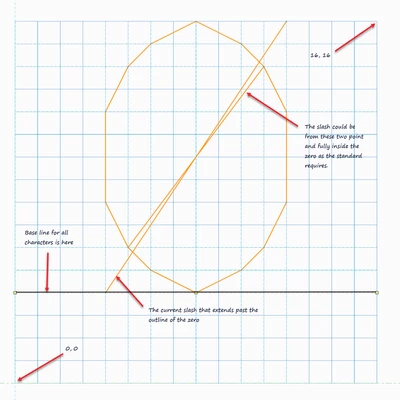
The font could easily be update by changing of these two lines in the source and then recompiling the source.
FYI,
- m=move, which means pick the pen up and move to the location.
- d=down or draw, which means put the pen down and draw from where the pen is… to the coordinates listed on that line.
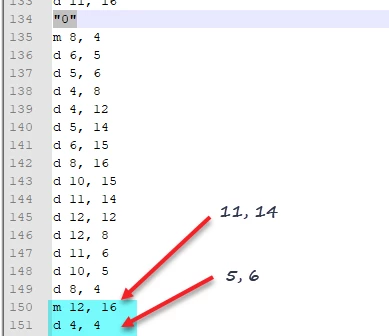

Modifying a stroked font
Placing files in the directory
- I copied our ascii.src file to a new directory.
- I went and found compile_font.exe and copied it to the same directory.
- C:\ptc\Creo 4.0\M090\Common Files\x86e_win64\obj\compile_font.exe
Editing the font file:
- Do a find in the editor, look for “0” This will find the character your looking for.
- Best if you map out the character points on graph paper or in Creo as shown above.
- Once you figure out what points to change in the definition as shown above, make those changes in the source file.
Compiling the font:
- Open up a command window and change the directory to the location of the modified source file
- Run this command:
- Compile_font ascii.scr ascii.fnt
Testing the font
The files go here: If you want backup the existing files someplace first, then overwrite the existing files.
C:\ptc\Creo 4.0\M090\Common Files\x86e_win64\text\usascii\ascii.fnt
C:\ptc\Creo 4.0\M090\Common Files\text\usascii\ascii.src
After the files are in place startup Creo and test that the mods are working as expected.
Standards – What they say about drawing fonts
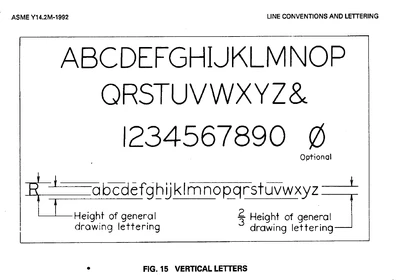
The following is what the standard have to say about fonts on drawings. The standard shows the Zero with the slash as extending past the outline of the zero. Which I’d forgotten when I created the graph image above.
However the true type fonts with the slash in the zero, keep the slash inside the outline.
I believe the slash inside is the better look, but if you want to be a stickler about the standard that is wrong unless there is an update to the standard I’m not aware of.
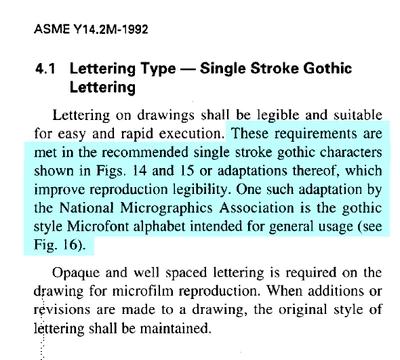
The two modified stroked fonts are attached. One with the slash inside and one with it outside. The other characters I and 1 are also modified.