12-Amethyst
March 3, 2023
Solved

Any way to show dimensions for multiple features or assembly members at the same time?

  • March 3, 2023
  • 4 replies
  • 9407 views

Often, when working on parts, especially in assemblies, I'd like to view dims from multiple features - at the same time.  Or both feature and assembly dims.  I can't find a way, so I'm hoping you know about another bit that PTC hid away.


Coming from an older version, this is maddening.  I feel like I am licenced to fly and F15 but only allowed in the Cessna 150.


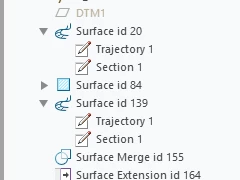
I have resorted to working with a pad of paper so I can write down dims from all the desired features and assembly positions, so I can at least be partially productive.  This is especially useful when looking for minor interferences when there is a stack up - and for making similar changes in many features or parts.  I don't even see a way to see all the dims from one feature with 2 sketches like a sweep.
ByDesign_0-1677801712073.png


Please tell me I'm missing the obvious.  Thanks.
Best answer by ByDesign

@TomU , You are BRILLIANT.  Thank you.


So, I tried it.  Here's the mapkey:   "  mapkey my #DONE;#MODIFY;#VALUE;  "

   -  (I made it "my" because it didn't conflict with any of my other mapkeys, but it can be any keyboard letter or combination.)


Just type the mapkey, then click on a feature or assembly.  Works for picking in the window, or picking from the model tree.  No more pick, hover, pick crap of the current UI.  AND  you can pick multiple features or combination of features and assembly elements.  !!!  I'm so excited I've been dancing around!


The #DONE; sets the stage.  It works with just #DONE;#MODIFY; most of the time because VALUE is the default.  Adding #VALUE; forces it (in my little tests) to work all the time.


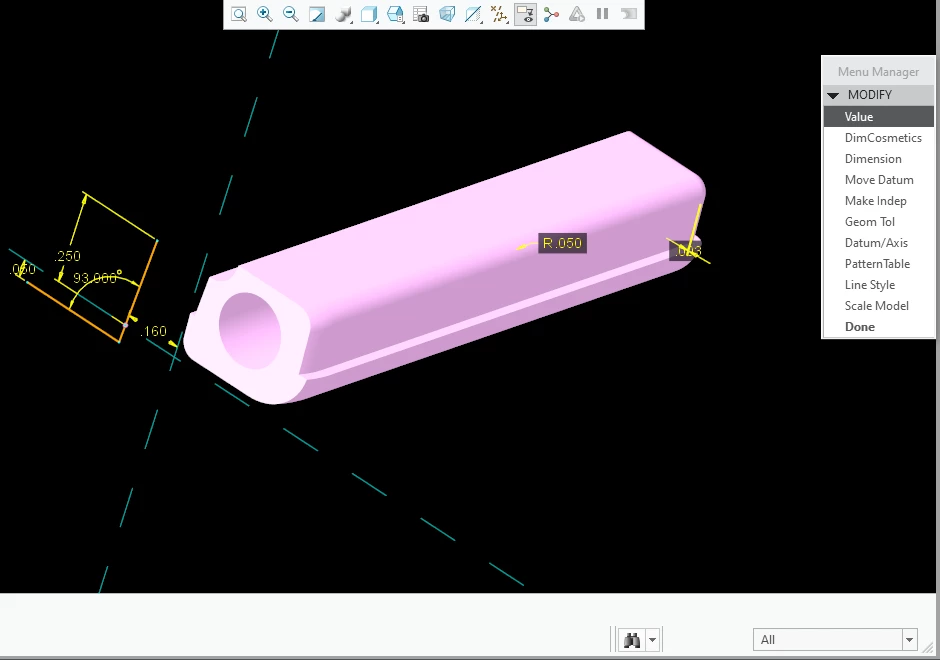
Here's an example in part mode.  You can see dims for a curve, a round, and an offset all on the screen at once!  Just click the dim you want and the box pops up to enter a value.


mapkey-mv-part.png


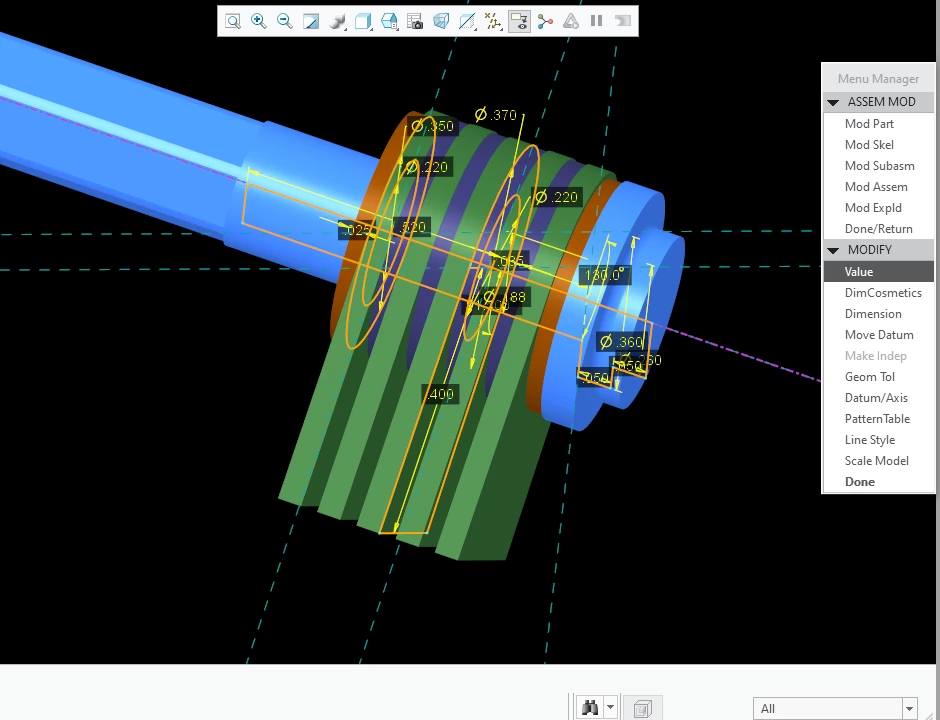
Here's an example with an assembly.  Works exactly the same as described above.  In this case it's showing dims of 3 different parts all at once.  Notice that the assembly version of the Menu is a little different.


mapkey-mv-assy.png


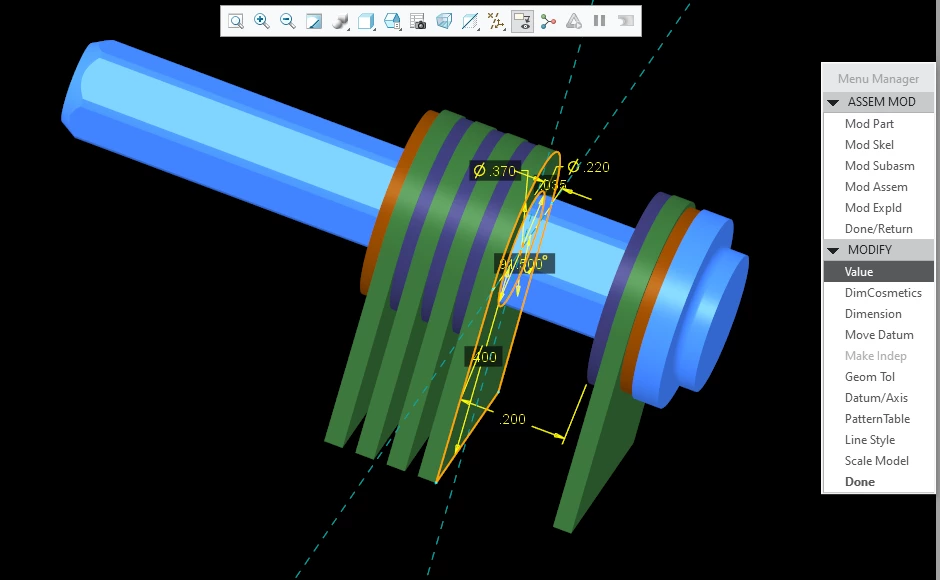
Here's the same assembly after a modification.  You can see the feature dims AND the part dims (0.200) at the same time, with one click.  No hover time, no selecting multiple things in the model tree, no setting filters so you can get both parts and features.  This is SSSSOOOOOOO much faster - and it's consistent for both parts, and assemblies.


mapkey-mv-assy2.png


Thank you @TomU .  Thank you very much for pointing me in the right direction.  This speeds things up a ton.  Probably saves 3-5 seconds every time I want to see or change a dimension.  10 - 15 seconds if I want to see a few dims -- AND -- I don't have to remember dims from one view to the next.  SSOOO Wonderful.  THANK YOU !!!

4 replies

24-Ruby III
March 3, 2023

Hi,

try Search Tool

MartinHanak_0-1677838249898.png


ByDesign12-AmethystAuthor
12-Amethyst
March 3, 2023

@MartinHanak Thank you for showing this.  It does show dims from multiple features.  Could not see how to choose only specific features in multiple models (unless they all happen to have the same feature number 🙂 .  Also, I don't see how to interact with the dims once they appear.  Can't modify a value, for instance.  The dims continue to show even when the tool is closed, but I can't interact with them.  I can see that this tool is valuable in some situations, so again, thank you for showing me.

tbraxton
22-Sapphire II
22-Sapphire II
March 3, 2023

The relation editor function can be used to do this.  To display the dimensions for multiple features from component models in assembly mode see the picture below with an example displaying feature dimensions from two components within an assembly.


tbraxton_0-1677847704939.png


ByDesign12-AmethystAuthor
12-Amethyst
March 3, 2023

@tbraxton  Thank you.  Yes, this also works to see dims from multiple features.  And, you can select only specific features in multiple models.  But, with limited interaction.  For fun, I picked dims, then assigned them a value in a relation, then regenerated, then went back in and deleted the relations.  It does work, but that's a terribly arduous workflow.


Why does Creo have this degraded function?  Are they just copying the low-end systems like Solidworks and Fusion?  OK, I can understand that a new or casual user might get confused, but why punish the customers that know enough to work with it?  MORE important, a customer can simply repaint between showing dims if we only want to see one, which is a heck of a lot easier!  Is there a config option that turns this on and off?  Seriously, I have been doing this for years and I find the "One at a time" paradigm very limiting and SSSSLLLLLOOOOOOOOOWWWWWWWWW.


Please help me out if I'm missing some obvious setting or config option.  Thanks.

tbraxton
22-Sapphire II
22-Sapphire II
March 3, 2023

Creo is not typically the limiting factor in workflows IME. It has limitations as all design tools do and understanding them is not intuitive in some cases. The approach required to exploit the power of a feature based parametric modeling system is different from a Boolean modeler for example. Creo now has a hybrid modeling space with the inclusion of flexible modeling functionality.


If you change your approach to controlling the models you may be able to build in automation by capturing the design intent.


I always approach these issues from a design intent perspective and outside of the CAD environment. If you can describe the design intent you are attempting to implement between the models then I am sure someone here will offer an approach that is superior to you manually manipulating dimensions one by one. Have you had any top down design training for Creo? 


tbraxton
22-Sapphire II
22-Sapphire II
March 6, 2023

While trying out different selection paradigms I came across the following in assembly mode:


If you select the section (sketch) of a feature and use the CTRL key, you can select more than one section in more than one component and modify the values in assembly mode. This is still not the equivalent of the Pro/E selection methods but is a narrow subset of it. There may be other ways to get equivalence to the mapkey but I haven't figured it out yet.

ByDesign12-AmethystAuthor
12-Amethyst
March 6, 2023

I don't use this method because it does not work consistently.


I just tried it again.  In one model, a shaft with length and diameter, and a chamfer at the end.  More features at the other end.  Selecting both extrude and chamfer with the ctrl key will show the chamfer dim and the shaft length, but not the diameter.  I tried it with the model tree and selecting on the model.  I got varying results where it shows all or some of the dims of various features.  Same for an assembly.  I didn't spend a lot of time because it's not consistent, and therefore not worth using.  Is it broken functionality, or "not as designed"?


I really wonder what the PTC folks would say about the intended functionality?  In other areas they teach us to use the ctrl key for multiple selections, but here it doesn't work.  Is it a bug?  Or is it yet another built in inconsistency?

tbraxton
22-Sapphire II
22-Sapphire II
March 21, 2023

After consulting with PTC about this "lost" functionality they came back with a solution. The functionality is not lost but it is somewhat veiled. There is a legacy mode in Creo that enables access to the menu manager UI. The interoperability of the ribbon and legacy is not seamless.


This does support the creation of mapkeys in Creo that exploit the menu manager UI functional elements.


Pay attention to the video about how to use the applications tab to exit legacy mode back into the ribbon UI. Note that the application tab does not support entering legacy mode.


Doumentation:

To Enter Legacy (ptc.com)


This is short video that demonstrates using the Creo UI to access legacy mode to modify multiple features across assembly components.


ByDesign12-AmethystAuthor
12-Amethyst
March 21, 2023

@tbraxton  you taught me something cool, again.  The Legacy Mode may come in very handy.  Thank you.


For this particular function, the mapkey is a hundred times faster and easier, so I'll keep using that.  However, I'm excited to see the ability to use some "legacy" functions.  There are a lot of things I can't find, so maybe this will reduce my blood pressure at times where PTC has not documented the changes they've made.


I'm laughing that PTC's "solution" is to drop back to the "OLD" menus.  It's an admission that they are trying to dumb down functionality.  For this particular one, I guess they think we're too stupid to figure out how to repaint if we get too many dimensions on the screen.  Oh well.


Again, Thank you.