7-Bedrock
April 14, 2022
Solved

Query Rules to create Interface to Geometry based on a Coordinate System

  • April 14, 2022
  • 3 replies
  • 8761 views

How do you create a component interface to Geometry feature that allow for automatic assembly (autoplace) of a component to an assembly based on a named coordinate system. We figured out how to do similar using the Interface to Interface capabilities, however that requires defining an interface in EVERY receiving assembly. We would like to do this WITHOUT adding an interface feature in every assembly.

E.g. Align a nut to an assembly purely based off a named coordinate system using query rules defined in the component interface?

We are using Creo4, however will be moving to Creo7 soon.

Best answer by LawrenceS

Thank you to everyone who helped on this.  We found a combination of methods that is working exactly how we want and am posting here as the solution and perhaps it will help someone else.  It is necessarily lengthy as I wanted to give the complete solution that I asked for in the original post and perhaps help someone else too.


@pausob, Thank you for your last solution. Although when I first saw it I dreaded the idea of creating and dreaded even more maintaining it, I realized that if I used a saved Query instead of mapkeying the query it will be shorter mapkeys, more stable, and easier to maintain/troubleshoot. We can now auto assemble a sub-assembly entirely except just the one surface we cannot define automatically but the user can then easily pick that surface to finish the full definition of assembly constraints.


I ended up using a combination of tools:

  • Mapkeys (5 unique simple mapkeys for different sub-asms call 1 slightly more complex mapkeys)
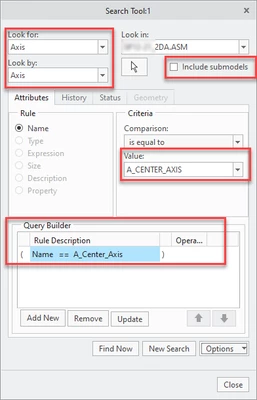
  • Saved/Retrieved Search Queries (only looking at top level datums!)
  • Interface to Geometry feature saved with the placing sub-assembly


Method:

  • The Interface to geometry fully saves the constraints for just the sub-asm.
  • Then the Mapkey retrieves 2 search queries to match them to 2 of the 3 interface constraints.
  • Then the user needs to pick just one surface to completely defined the assembly constraints.


Example Mapkeys (generalized for posting her):

  • mapkey ER1 @MAPKEY_NAMEP/N 43012.asm;@MAPKEY_LABELMy Asm1;\
    mapkey(continued) ~ Command `ProCmdCompAssem` ;\
    mapkey(continued) ~ Input `file_open` `Inputname` `43012.asm`;\
    mapkey(continued) ~ Activate `file_open` `Inputname`;\
    mapkey(continued) ~ Select `selintrfc` `IntrfcList` 1 `INTC8263`;%qer;
  • I then have 4 other similar mapkeys to above that are the same except the red text (e.g. ER2, ER3, ER4, ER5).  Each of them call teh QER mapkey shown below which simplifies them all tramendously!  Creo uses the Interface feature ID (8263) when assembling even though we picked the name.  Added a little more complexity but not much.
  • mapkey qer @MAPKEY_NAMEQuery Asm;;@MAPKEY_LABELAssists My Asm asms Mapkeys;\
    mapkey(continued) ~ Activate `selintrfc` `SingleBtn`;\
    mapkey(continued) ~ Activate `main_dlg_cur` `chkbn.ScrLayout.0` 1;\
    mapkey(continued) ~ Command `ProCmdMdlTreeSearch` ;~ Activate `selspecdlg0` `ReadQryFromFile`;\
    mapkey(continued) ~ Input `file_open` `Inputname` \
    mapkey(continued) `c:\\Queries\\QUERY_TOPLEV_AXIS.QRY`;\
    mapkey(continued) ~ Activate `file_open` `Inputname`;\
    mapkey(continued) ~ Activate `UI Message Dialog` `yes`;~ Activate `selspecdlg0` `SelectButton`;\
    mapkey(continued) ~ Select `ScrLayout.0.0` `PH.pop_constr_offset_type` 1 `Coincident`;\
    mapkey(continued) ~ Command `ProCmdMdlTreeSearch` ;~ Activate `selspecdlg0` `ReadQryFromFile`;\
    mapkey(continued) ~ Input `file_open` `Inputname` \
    mapkey(continued) `c:\\Queries\\\QUERY_TOPLEV_SKETCH.QRY`;\
    mapkey(continued) ~ Activate `file_open` `Inputname`;\
    mapkey(continued) ~ Activate `UI Message Dialog` `yes`;\
    mapkey(continued) ~ Activate `selspecdlg0` `SelectButton`;


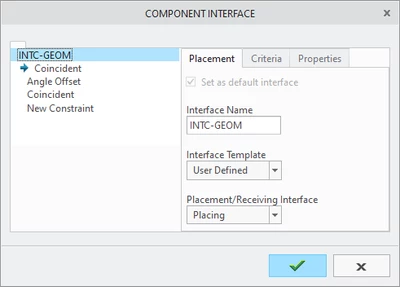
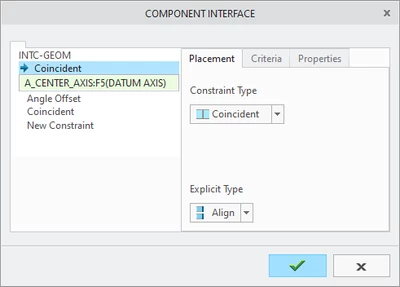
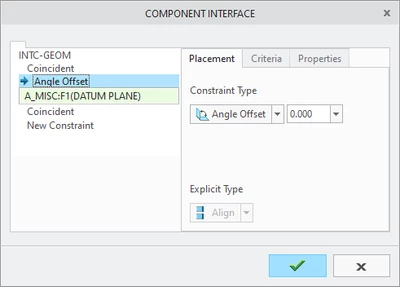
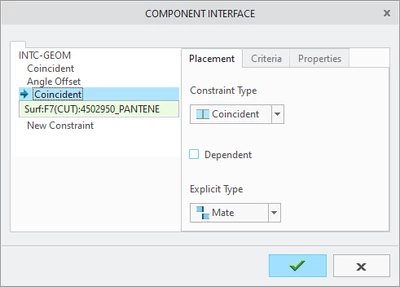
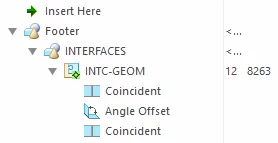
Example Interface to Geometry footer feature inside the placing component sub-asm:

  • We did not use the Criteria tab at all.
  • We had to use an angle offset of 0º because Creo was making a false assumption and rotating it by 90º even though we didn't want it to!  We still don't know why Creo was doing this.  Very odd.
LawrenceS_0-1652716012867.png

LawrenceS_4-1652717763744.png

LawrenceS_1-1652716274748.png

LawrenceS_2-1652716282829.png

LawrenceS_3-1652716292120.png

Example of a retrieved search query:
LawrenceS_5-1652717924477.png

3 replies

tbraxton
22-Sapphire II
22-Sapphire II
April 14, 2022

It is possible to enable automatic assembly using declared datums in a Notebook. No query rules or interface definitions are required to implement this using a Notebook.


Refer to this article for details and links to example models:

https://www.ptc.com/en/support/article/CS234134 

18-Opal
April 19, 2022

@tbraxton, I work with Dayal who posted this.  We have never used notebooks for anything and are totally unfamiliar with them so will have to look into them some more.  If you have any good material on using them please post if you have a moment.  

19-Tanzanite
April 16, 2022

This method worked for me:


1) define the interface in your component and attach a query to it:

pausob_2-1650107262406.png

2) upon assembling of this component, set it for multiple placement:

pausob_4-1650107505227.png -> 

pausob_6-1650107590153.png

Select the interface and click "Multiple" button.


3) Click on the Auto Place button:

pausob_7-1650107672305.png


4) In the Auto Place dialog box, define the search scope (screen point method did not work for me, but selecting the top level assembly as the item did), then "Find Now", then click in the locations found list, Ctrl+A to select all, click ">>" button to transfer to the selected list:

pausob_8-1650107833945.png

5) Close the Auto Place dialog box, click the green check-mark and it is done:

System auto-placed the fitting according to the criteria that the mating coordinate system is named PORT*System auto-placed the fitting according to the criteria that the mating coordinate system is named PORT*


Note: I needed to change few settings in the "Assembly" section of the Creo Parametric Options for the above dialog boxes and the "Auto Place" button to show up during the assembly process:

pausob_3-1650107402705.png


18-Opal
April 19, 2022

@pausob, To be clear, the method you are describing is for Interface to Geometry, not interface to interface, right?

19-Tanzanite
April 19, 2022

Hi @LawrenceS, I would say I showed a component with an interface being "semi-automatically" assembled to geometry in multiple places 😄.  Maybe with a clever mapkey it could become a 1-button operation.

16-Pearl
April 19, 2022

Hi @DP_9634838,


Please see the attached video for more information. Hope this helps. 


Thanks,

Vipul


18-Opal
April 21, 2022

@VipulT, Thank you very much for the video and explanation, as we have it working almost perfectly.


After further testing we have run into a problem where it is trying to assemble to coordinate systems within other sub-components.  As far as we can tell, the multiple locations autoplace doesn't distinguish between datums within sub-components and top-level datums, nor could we figure out how to specify this in the placing component Interface feature.


How do we specify to only use the named coordinates in the top-level assembly?

18-Opal
April 21, 2022

PS.

We already tried using the below methods and they don't seem to work on Creo4 (M140 and M150):

  1. Creo Option: Include sub-model interfaces as possible references for interface-to-interface placement
    • Unchecking the Creo option and hitting save does not stick.  When we go back into the Creo options to verify it is unchecked we find that it has rechecked itself.  It simply does NOT save.
  2. Config.pro: include_sub_model_interfaces no
    • setting the config.pro option and restarting Creo doesn't control the above checkbox, and it keeps trying to assembly to the sub-component constraints.

However, for this new process to work we really need to choose top level assembly references/coordinate system only.  Any ideas?