
10-Marble
December 9, 2016
Question

What's your computer setup, ram, rom, processors, cores?

  • December 9, 2016
  • 6 replies
  • 11447 views

Hey everyone, just started at a rather large company and have been having the crappiest time with Creo.. It's been running incredibly slow for all of us.. I just was upgraded to 48G of ram today in hopes that would speed it up but I'm hardly noticing a difference. For example, I have a pretty big drawing up and had to do a partial view for one of the isometric views I have on my first page. The outline for the view was instant like it should be but once I hit apply there was a 2-3 minute lag for Creo to complete the task. Just wondering what the ideal Creo setup is or what your computers are running at? Below is a pic of my System.
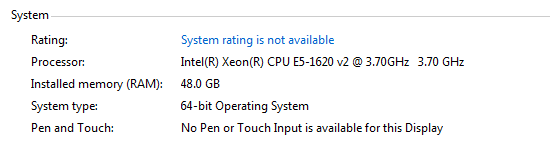
computerspecs.PNG

6 replies

kdirth
21-Topaz I
21-Topaz I
December 9, 2016

Sounds like your processor may be the issue.  CREO is basically running on one core at 1.923 GHz (an i7-7700K would run at 2.64).  I have 12GB and rarely use more than 4GB.  I have a Xeon X5677@ 3.47GHz (8 core).

The issue may also be the graphics card as CREO is graphics intensive.

There is always more to learn.
StevetS10-MarbleAuthor
10-Marble
December 10, 2016

This is what we were thinking too. Gonna have to fight for a while to get computers that are more directed towards Creo than overall performance machines. Thanks for your reply.

24-Ruby III
December 10, 2016

Hi,

just FYI.

Launch Task Manager, select xtop.exe process, press right mouse button and click Set Affinity... command.

Uncheck all processor cores, but one.

In Task Manager, watch graph of selected core. If it is running on the top of the area, then you know that mostly single-threaded Creo gets all processor power - this means that processor is bottleneck for current operation.

MH

StevetS10-MarbleAuthor
10-Marble
December 10, 2016

Is this a bypass for having 8 processors? Can I use this option every time I run Creo? Thank you very much for the info!

24-Ruby III
December 10, 2016

Hi,

Info no.1:

You have to set affinity for xtop.exe process every time you launch Creo. When the setting is finished, operating system stops switching xtop.exe execution between processor cores. This means that xtop.exe is executing on single core and you can see if this core is 100% busy (i.e. fully loaded).

Creo is mostly single-threaded, this means its xtop.exe process is not able to use all processor cores simultaneously.

Info no.2:

In BIOS hyper-threading is set to ON, by default. I prefer to toggle it to OFF. Then you can see real number of processor cores in Task Manager. Hyper-threading is software trick that doubles number of cores.

Info no.3:

If someone is selecting processor for Creo, then frequency height is important. Unfortunately processor makers are not able to enhance frequency dramatically. I think that all Creo user are looking forward to 10GHz processor at least ...

Info no.4:

I do not understand your question "Is this a bypass for having 8 processors?"

MH

23-Emerald III
December 13, 2016

And large assembly drawings are notoriously slow. Our models sometimes get up to 16gig+ of ram used and perform reasonably well but the drawing are a real pain.

Adding more RAM only helps if you are running out of RAM.

24-Ruby III
December 13, 2016

When working with large drawing, it is helpful to set selection filter properly to tell Creo, what entity you want to select. Also it is useful to erase views which are not needed at the moment. To prevent repeated manual view erasing, drawing representation can be created, saved and opened.

MH

23-Emerald III
December 13, 2016

I definitely agree that using the selection filter is a must when working on large assembly drawings. It makes a huge difference in the selection time and if you have prehighlight turned on, it saves the delays in trying to highlight all the geometry and detail items as you mouse moves over them. I personally dislike erasing/resuming views but it is a valid technique and drawing reps are helpful along the way.

1-Visitor
December 13, 2016

I had an odd experience that maybe someone can shed light on as well.  I was testing a new computer a few years back and wanted to see how each component added value.  I had ordered a basic computer but then also ordered a better CPU, RAM and Graphics card.

All went as expected for CPU and RAM but I ran into problems with the Graphics card.  After going from an NVidia 2000 to a NVidia 4000 my performance went into the toilet.  I was surprised by this change.  I could see that the card was showing up in the devices and working.  I upgraded the driver as I normally would but no matter what I did, I could not get my graphics performance to work.  I had worse performance with the 4000 than the 2000.

After a while I gave up.  I needed the computer so I did a complete rebuild by wiping the drive and then installing all over again.  I had the 4000 card in the computer during the rebuild.  When I was done, I thought that I would run the benchmark one more time and to my surprise I got wonderful performance.  The best I have ever seen.  I have had a few users who have added very expensive graphic cards but never saw any real increase in performance.

I have wondered if this is a Microsoft issue.  Even though the cards are installed and have the proper drivers, it seems that it is never really integrated.  I have not tested this theory on other computers but was wondering if anyone else has seen this.

I mention this since you are having issues and it may be related.

StevetS10-MarbleAuthor
10-Marble
December 13, 2016

Ron, hopefully someone replies to you! That definitely sounds like Microsoft was just having a brain fart and it didn't pick it up.. I know when installing the ram the tech guy mentioned we might have to turn the computer off a couple times to get it to register the change.

StevetS10-MarbleAuthor
10-Marble
December 16, 2016

Thought I would give a quick update. As several members stated the graphics card could have been the issue. My IT guy said it's probably not the answer but he still put on the latest graphics card driver onto my computer. It helped slightly but Creo is still crawling at a snails pace. We're narrowing it down and it's starting to look like it's not a hardware issue. Several of the Creo guys here have found out that someone decided it was a good idea to scan every part going in and out with McAfee I believe.. This could be a main driving factor. Also a majority of our work is done out of the same online EPDM working directory. This could also play a factor, as many of you know working on a local working directory doesn't affect speed much but working with a large WD online can slow results. I will post more updates as I discover them so people searching in the future with similar problems can have possible answers!

24-Ruby III
December 18, 2016

Hi,

if I understand you well, you are going to copy data to your local disk, turn off McAfee and run a test. It's easy test, if your IT is not blocking it.

MH

StevetS10-MarbleAuthor
10-Marble
December 19, 2016

That would be the ideal plan but like you mentioned IT will not let me turn off McAfee. There is someone here who has a little more persuasion power than I do so I think he will be able to get IT to disable the software for a bit for a trial run.

14-Alexandrite
January 20, 2017

could you be so kind and also share your experiance about graphics cards?

I reccomend this thread with option to vote :https://www.ptcusercommunity.com/polls/1438#comment-29196

Thanks in advance!