
1-Visitor
October 9, 2012
Solved

Adding "Dark Background" option to the config.pro file

  • October 9, 2012
  • 3 replies
  • 5324 views

Hi All,

What do I need to add to my config.pro file to make the "Dark Background" option be activated when I start the program? I know it's easy to go to options and all, but I'd like to get rid of that extra step.

If there isn't a way to do this, then how can I change the color for the dimensions (in both the sketch and when they appear on the 3D model) in the config.pro file? I have searched high and low and cannot figure out how to do this.

Thanks,

Sam


This thread is inactive and closed by the PTC Community Management Team. If you would like to provide a reply and re-open this thread, please notify the moderator and reference the thread. You may also use "Start a topic" button to ask a new question. Please be sure to include what version of the PTC product you are using so another community member knowledgeable about your version may be able to assist.
Best answer by BrianMartin

Hi Samuel...

You have multiple options:

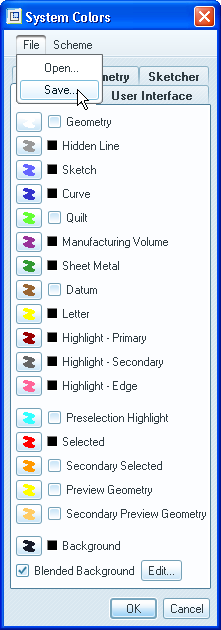
  • Set the value of system_colors_file in your config.pro to point to a file containing the settings you like. You can switch to the dark background settings and then save them out using the File->Save command on the System Colors menu (as shown below). Then load that file using the system_colors_file setting.

syscol1.png

  • Use a mapkey to reset the colors to the dark background settings
  • Use a trail file and a modified launch command to automatically execute the dark background settings. A full description on how to do this is found HERE

Any of these options will get you where you want to go. Write back if you get stuck.

Thanks!

-Brian

3 replies

13-Aquamarine
October 9, 2012

Hi Samuel...

You have multiple options:

  • Set the value of system_colors_file in your config.pro to point to a file containing the settings you like. You can switch to the dark background settings and then save them out using the File->Save command on the System Colors menu (as shown below). Then load that file using the system_colors_file setting.

syscol1.png

  • Use a mapkey to reset the colors to the dark background settings
  • Use a trail file and a modified launch command to automatically execute the dark background settings. A full description on how to do this is found HERE

Any of these options will get you where you want to go. Write back if you get stuck.

Thanks!

-Brian

1-Visitor
October 9, 2012

As many mapkeys as I already have, I don't know why I didn't think of that before. Thanks a bunch.

Sam

10-Marble
October 9, 2012

Or you can set the following in your config.pro:

system_background_color 0 0 0

1-Visitor
October 9, 2012

I did that, but then your dimensions are dark blue and a little difficult to see.

Patriot_1776
22-Sapphire II
October 9, 2012

Well, you know what they say: Once you go dark......

1-Visitor
October 9, 2012

It was helpful because it brightened my crap-sundae of a day. Thanks.