
14-Alexandrite
August 1, 2022
Solved

How can I create a diameter dimension in sketch mode?

  • August 1, 2022
  • 2 replies
  • 4772 views

I learned that you can create diameter dimensions in sketch mode by clicking back and forth between the symmetry line and the line that you want your dimension on for two times. However, in my case, it does not work, I get an error message:My sketchMy sketchThe error message that I get.The error message that I get.
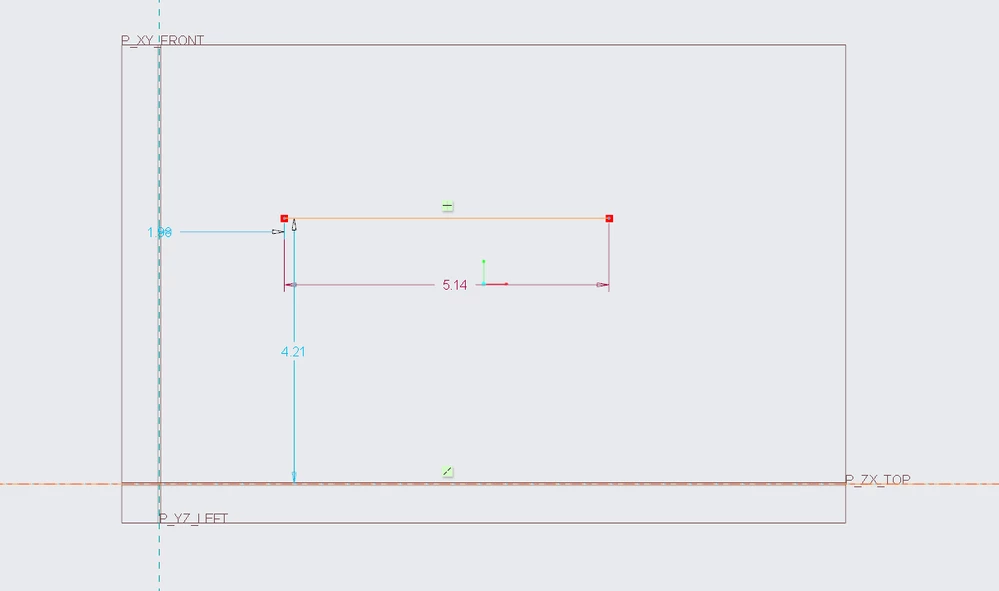
Does somebody maybe know what is wrong, why this situation occured or what can be done about it to avoid it? Thanks for any replies!

Best answer by StephenW

Make sure you are selecting the centerline and not the reference.

Selection has to be centerline - geometry line - center line

-or-

geometry line - centerline - geometry line

you can't pick the geometry line twice and the pick the centerline or pick the centerline twice and then pick the geometry line.

2 replies

23-Emerald III
August 1, 2022

What is your version and release of Creo?

It could be a release bug.

StephenW23-Emerald IIIAnswer
23-Emerald III
August 1, 2022

Make sure you are selecting the centerline and not the reference.

Selection has to be centerline - geometry line - center line

-or-

geometry line - centerline - geometry line

you can't pick the geometry line twice and the pick the centerline or pick the centerline twice and then pick the geometry line.

21-Topaz I
August 3, 2022

The mouse move has indeed to go back and forth between your first and second selections to be succesful like described in the documentation: https://support.ptc.com/help/creo/creo_pma/r9.0/usascii/#page/part_modeling/sketcher/To_Create_Diameter_Dimensions.html#
