
Solved
How can I make this dimension look like this?
When I use the dimension option in the annotations tab the dimension end up been like this (in the red circle):
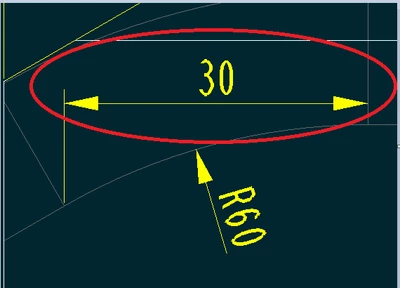
but I needed it to be like this (also in the red circle):
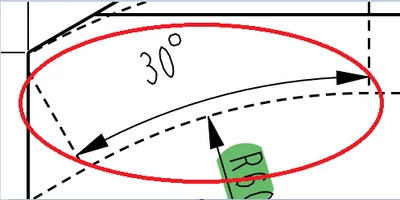
How can I do it?

When I use the dimension option in the annotations tab the dimension end up been like this (in the red circle):
but I needed it to be like this (also in the red circle):
How can I do it?
Make sure when you select, you are selecting the line and not the vertex (both places). Selecting 2 lines at an angle to each other will yield an angle dimension but if either selection is a point (vertex/endpoint/midpoint), the dimension will be a linear dimension (vertical/horizontal/slanted) based on your placement.
Enter your E-mail address. We'll send you an e-mail with instructions to reset your password.