4-Participant
August 21, 2024
Question

New to Creo, stuck with a file

  • August 21, 2024
  • 2 replies
  • 1996 views

Hello all,  would love some help on this if possible.


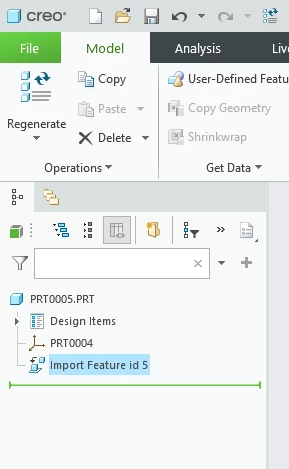
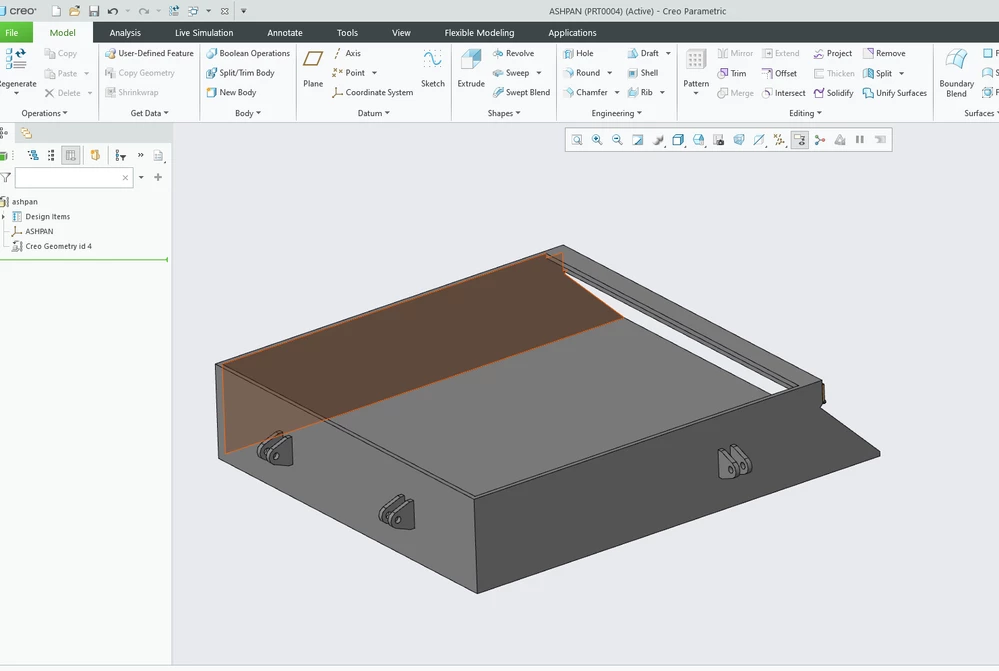
I am very new to Creo, done about 5/6 hours elearning but still stuck, i have been given a set of files which i want to dissect and get back to a possition where i can send parts off to be laser cut. as you can see from the attached file / photo the file is made up completely. I would like to get back to the sides, bottom etc. (if that makes sense).


I have access to the .prt files and the .pkg files. from the owner who designed this in creo a number of years ago.


Thank you in advance, i have tried a number of things but i am a bit out my depth here 🙂 
 

Screenshot 2024-08-21 194307.pngScreenshot 2024-08-21 194333.png

2 replies

23-Emerald III
August 21, 2024

You are showing that you are working with an imported model and not the native Creo files.

You will need the native files to create flat patterns to cut the parts on a laser.

4-Participant
August 21, 2024

Thank you Ben, what format will the files need to be sent to me in? Thanks again!

23-Emerald III
August 21, 2024

This statement "I have access to the .prt files ".

You want the *.prt native Creo CAD files.


tbraxton
22-Sapphire II
22-Sapphire II
August 22, 2024

Check out this document (download the PDF): Data Interoperability between Creo Elements/Direct and Creo

Data Interoperability between Creo Elements/Direct... - PTC Community


Not very encouraging but perhaps there have been improvements in this area since Creo 4.


The parts you are showing do not appear to be very complicated. If you are in a rush someone proficient in Creo should be able to rebuild those models for you as a worst-case scenario.


4-Participant
August 23, 2024

Thanks, although that part looks simple the rest isn't, as you can see here.


If i was to get Creo Elements would the files open and allow me to edit them (ready for cutting etc.)


Cheers Robwd2.jpg