
1-Visitor
October 1, 2015
Solved

Simplify a Assembly into a part

  • October 1, 2015
  • 5 replies
  • 88484 views

Hello All,

Just wondering how people go about creating simplified models of sub assemblies.

The specific thing I am working on is an assembly with several different bearings. While I want to keep the bearings in the assembly and it is nice they look like bearings when sectioned etc I would like to to simplify them. By simplify I mean ideally turn them into a single part. The bearings currently are as downloaded from the bearing supplier and each one has a dozen different parts. For this project I want to keep everything in a single folder and having lots of bearing parts is making it more difficult to see the other parts. Also I have to email assemblies and it would be better if the bearing was then just one part, instead of several.

I could remodel the, but this seems time consuming and unnecessary.

I also could Shrinkwrap them, but this creates external surfaces only.  

Any recommendations would be appreciated.

Thank you.
Best answer by cgorni

To close this community thread on the ability to Simplify a Assembly into a part.


Summary of the proposed solutions, also detailed in article CS29678 :

  • Convert the assembly to a Solid Shrinkwrap
    • Use the File > Save as > Save a Copy command to save the assembly with the Type Shrinkwrap
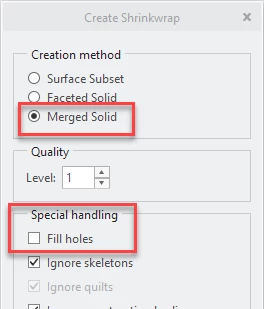
    • Then select the Merged Solid option.
    • You can increase the Quality and also uncheck the box to Fill holes if you want to keep some more details.

cgorni_0-1635160277040.png


Advanced Assembly Extension(AAX) or Pro/ASSEMBLY module or Assembly Performance Extension(APX) is required to save model as shrinkwrap model

See how to verify the modules included in your Creo license in article CS165589, and review Creo Design packages in CS298294

  • You can also export the assembly to another file format like STEP / IGES or Neutral and import it back as a part
    • Use the File > Save as > Save a Copy command to save the assembly with the Type of your choice
    • Then use the File > Open command to browse All Files Type to the retrieve the new created file
    • If selecting STEP file format you may need to set the hidden config.pro option intf3d_in_as_part to yes to avoid misplaced components, see article CS10021
  • Note that starting with Creo 8.0 Inseparable Assemblies with Embedded Components have been introduced

5 replies

23-Emerald III
October 1, 2015

Shrinkwrap is used to create solid geometry and depending on the quality level you choose, the part can be identical, internally and externally, to the original model. It is definitely the easiest method. If the option isnt' available, there is some problem with the original model such as it contains surface models or has some sort of geometry that can't be converted.

shrink.jpg

Other options are external merge/inheritance (may be an option not available to all), merge (creates a reference to the original model and a merge part in the original model) and using a step export and re-import with the option to make as a single part (there is an option to do this but it eludes my memory at the moment).

gnewman1-VisitorAuthor
1-Visitor
October 1, 2015

Hello Stephen, thanks for the quick response. Using shrinkwrap it is always fills the internals for me. I am selecting the Merged Solid option already.

I have tried putting the level to 10, and it makes no difference. Unless I unclick all the special handling boxes it justs gives me a single cylinder with rounded edges (So loses all the shield and race details.

Thanks

23-Emerald III
October 1, 2015

Can you upload the vendor bearing?

17-Peridot
October 2, 2015

I use the method of merging bodies into a single part.

First of all remember that merged bodies will join and you will not have all the crosshatching options that assemblies give you.

In the bearing assembly, designate a part, say the outer race, as the active part.  Now go to GetData and select merge.  You can then merge a solid into the part you have active.  You have to do this one at a time, but it does work.  A little playing with it and you can also make sure you clean up the merging bodies so not too much information is retained.

This is not foolproof.  Some merge operations fail.  Not much can be done about this other than to make sure appropriate clearances are maintained.

16-Pearl
October 5, 2015

Hello Gavin,

I've already done this because one of my customers was sending me electronic boards assemblies made of hundreds of parts and it was really putting down my computer.

I found a method to convert those assemblies into a single part.

I export the assembly as an iges file using the config shown bellow, then open the iges file as a part. You'll find attached the bearing made in a single part using this method.

gnewman1-VisitorAuthor
1-Visitor
February 25, 2016

Hello All,

I am trying to this again and my now default way of doing it, by exporting as an Iges keep crashing so instead I tried changing my option in Config .pro. (As suggested by Tom Uminn) But I don't appear to have the "intf3d_in_as_part " setting or anything that looks similar. Anyone got any idea if it has been renamed or moved? 

I can't post the file I am trying to simplify this time.

23-Emerald IV
February 25, 2016

It's a hidden option.  Just type it in.

cgorni16-PearlAnswer
16-Pearl
October 25, 2021

To close this community thread on the ability to Simplify a Assembly into a part.


Summary of the proposed solutions, also detailed in article CS29678 :

  • Convert the assembly to a Solid Shrinkwrap
    • Use the File > Save as > Save a Copy command to save the assembly with the Type Shrinkwrap
    • Then select the Merged Solid option.
    • You can increase the Quality and also uncheck the box to Fill holes if you want to keep some more details.

cgorni_0-1635160277040.png


Advanced Assembly Extension(AAX) or Pro/ASSEMBLY module or Assembly Performance Extension(APX) is required to save model as shrinkwrap model

See how to verify the modules included in your Creo license in article CS165589, and review Creo Design packages in CS298294

  • You can also export the assembly to another file format like STEP / IGES or Neutral and import it back as a part
    • Use the File > Save as > Save a Copy command to save the assembly with the Type of your choice
    • Then use the File > Open command to browse All Files Type to the retrieve the new created file
    • If selecting STEP file format you may need to set the hidden config.pro option intf3d_in_as_part to yes to avoid misplaced components, see article CS10021
  • Note that starting with Creo 8.0 Inseparable Assemblies with Embedded Components have been introduced
4-Participant
February 28, 2025

Exposrt as *.igs. Import back as *.prt