12-Amethyst
September 19, 2022
Solved

Style of lines changes after printing as pdf

  • September 19, 2022
  • 1 reply
  • 6130 views

Hello,
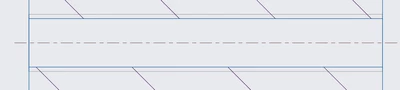
My central axes looks like this in Creo:

Screenshot 2022-09-19 182305.png

And that is also how i want it to look like.

But when i print it as a pdf file it looks like this in the pdf version:
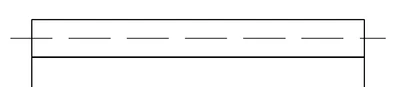
Screenshot 2022-09-19 182412.png


Same goes for cosmetic thread lines:

pic1.png

Unbenannt.png


No idea why that changed but is there an option to change it?


Greetings
Spedex

Best answer by MartinHanak

@Spedex wrote:

In the attachment you find now a file.zp file with the table and the config file.


I do not use the Save As Button, I use the Print option.


Edit: If I use the Save As option, the central axes actually looks like how it should look like, but every other line does not...


Hi,

I uploaded corrected files.

Please try Save a Copy command, too.

1 reply

24-Ruby III
September 19, 2022

@Spedex wrote:

Hello,
My central axes looks like this in Creo:

Screenshot 2022-09-19 182305.png

And that is also how i want it to look like.

But when i print it as a pdf file it looks like this in the pdf version:

Screenshot 2022-09-19 182412.png


Same goes for cosmetic thread lines:

pic1.png

Unbenannt.png


No idea why that changed but is there an option to change it?


Greetings
Spedex


Hi,

please next time upload your pentable and Creo data for testing purposes.

I guess axes are drawn by a pen whose definition contains a pattern specification. pattern specification overrides line font.

Spedex12-AmethystAuthor
12-Amethyst
September 19, 2022

Hello, i think my pentable is the following:

pdf_use_pentable yes

use_8_plotter_pens yes

pen_table_file path_to_file

pen table file - example

pen 1 thickness 0.015 cm; color 0.0 0.0 0.0; drawing_color

pen 2 thickness 0.01 cm; color 0.0 0.0 0.0; letter_color, datum_color

pen 3 pattern 0.5, 0.2 cm; thickness 0.03 cm; color 0.0 0.0 0.0; half_tone_color

pen 4 thickness 0.035 cm; color 0.0 0.0 0.0; edge_highlite_color

pen 7 thickness 0.015 cm; color 0.0 0.0 0.0; dimmed_col


i know that pen 2 changes the thickness of the central axes lines, but not sure where there should be any pattern...

24-Ruby III
September 20, 2022

@Spedex wrote:

Hello, i think my pentable is the following:

pdf_use_pentable yes

use_8_plotter_pens yes

pen_table_file path_to_file

pen table file - example

pen 1 thickness 0.015 cm; color 0.0 0.0 0.0; drawing_color

pen 2 thickness 0.01 cm; color 0.0 0.0 0.0; letter_color, datum_color

pen 3 pattern 0.5, 0.2 cm; thickness 0.03 cm; color 0.0 0.0 0.0; half_tone_color

pen 4 thickness 0.035 cm; color 0.0 0.0 0.0; edge_highlite_color

pen 7 thickness 0.015 cm; color 0.0 0.0 0.0; dimmed_col


i know that pen 2 changes the thickness of the central axes lines, but not sure where there should be any pattern...


Hi,

please provide more details. Use similar procedure as below.

---

I created testing data in Creo Parametric 4.0 M140. See attachment cyl.zip.


My config.pro contains following lines:

use_8_plotter_pens yes
pen_table_file E:\users\creo4_parametric\pentable.pnt
pdf_use_pentable YES


cyl.zip contains Creo prt+drw, pentable file and PDF file generated using Save As command.


Axis and hatching is displayed correctly in PDF file.