
23-Emerald III
July 19, 2016
Solved

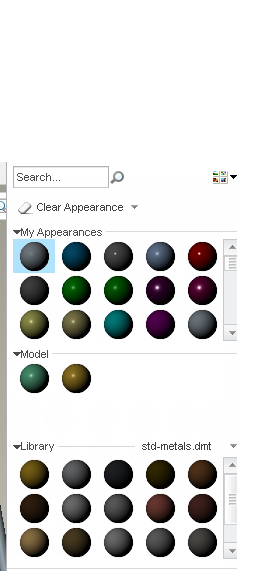
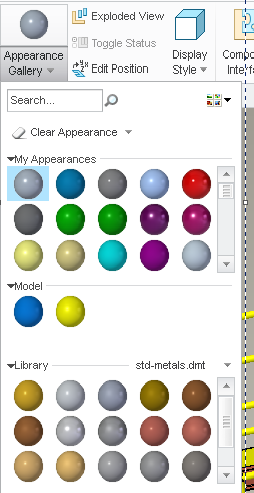
Why are all my appearances dark?

  • July 19, 2016
  • 8 replies
  • 10069 views

Why are all my colors extra dark? I believe this was the appearance.dmt from our internal cad support people when we moved to creo 3.

Best answer by StephenW

So my specific problem had to do with an option;

pro_texture_library

Once I removed that option, my colors all came back to reasonable.
8 replies

21-Topaz I
July 19, 2016

Stephen,

I actually have the opposite.  My Creo 2 was darker.

StephenW23-Emerald IIIAuthor
23-Emerald III
July 19, 2016

I noticed if I clicked the rendered samples, it's much better.

21-Topaz I
July 19, 2016

Not much of a difference for Creo 2.

24-Ruby III
July 19, 2016

Hi,

I had similar problem in CR3. I installed current version of graphics drivers and problem has gone...

MH

18-Opal
July 19, 2016

Hi Stephen,

I checked on mine and my colleague's machine.  The appearances appear brighter in Creo 3.0, than in Creo 2.0.  I also checked remotely on another machine, and saw that the appearances were darker in both releases.  I believe the graphics card may also be playing a role.

Thanks,

Amit

1-Visitor
July 19, 2016

Similar issue here since switching over to Creo3 M080 and mine are all black except one.  If I select rendered samples the colors appear, but are very dark.

AppDMT-1.jpg

StephenW23-Emerald IIIAuthor
23-Emerald III
July 19, 2016

Wow Gary, yours are EXTREME!!

StephenW23-Emerald IIIAuthor
23-Emerald III
July 19, 2016

Tomorrow morning I will try removing all my config files and see if it's something I have purposefully set for a different reason. If I don't find something there, I will try Martin and Amit's suggestion of updating the graphics drivers.

My card is an Quaddro 2000, around 2-3 years old now. I'm sure I've updated the drivers but probably not since the creo 3 installation so that's definitely a good possibility.

StephenW23-Emerald IIIAuthorAnswer
23-Emerald III
July 20, 2016

So my specific problem had to do with an option;

pro_texture_library

Once I removed that option, my colors all came back to reasonable.

1-Visitor
June 10, 2021

I have the same problem with Creo 6, but I don't see a "pro_texture_library" option anywhere.

StephenW23-Emerald IIIAuthor
23-Emerald III
June 10, 2021

Seems like that option was maybe replaced with texture_search_path

I'm not sure that's a true statement but you may want to look and see if you have that set and temporarily remove  it and restart Creo to see if it improves.

The way I solved this initially was to remove all my config.pro files and start Creo. When the problem was gone, that told me it was definitely a config setting.

Then I cut away 1/2 the config and I figured out which 1/2 had the problem setting. Then I cut that partial config in 1/2 again and again until I could tell which setting it was. It probably took less than an hour to do this.

1-Visitor
November 3, 2017

What helped for me was removing the 

GRAPHICS WIN32_GDI from my config.pro


After that everyhting became clear again.


1-Visitor
November 3, 2017

(CREO3 - M130) We have the same problem of color too dark and the menu of the render is very very slow to appear

In our config.pro we have : GRAPHICS opengl

Sans titre5.jpg


StephenW23-Emerald IIIAuthor
23-Emerald III
November 3, 2017

Did you try the posted solution?

Remove the config.pro option pro_texture_library and see if that helps.

Opengl is the prefered and default graphics option and normally gives you the best performance