
1-Visitor
September 23, 2020
Solved

Creo View 5.1 - How do i make models open with "Expand 3D Thumbnails to Full Details" by default?
  • September 23, 2020
  • 1 reply
  • 1759 views

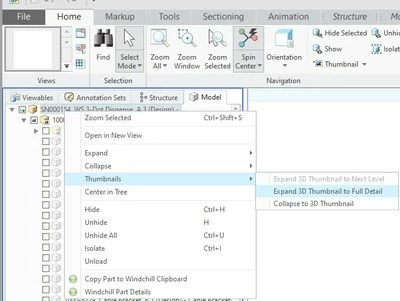
Expand 3D Thumbnail to Full Detail.jpg

Pretty much what the title says.

i've found the setting of how to turn a useless 'high-level'-3D thumbnail into something workable. Now how do i make it open my files like that by default?


While i'm here, how do i make Shaded with edges the default render mode?


Br, Jan-Willem
Best answer by romorrison

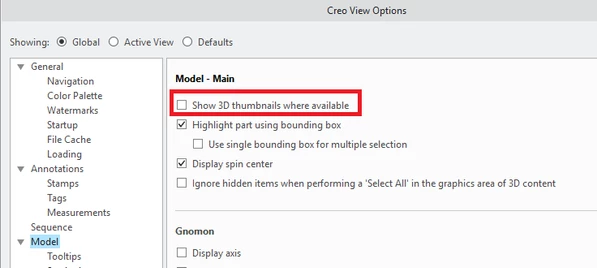
There is a setting to disable the use of 3D thumbnails while loading structures.  Here is a snapshot of the relevant setting (make sure it's unchecked).  Interestingly this is actually disabled by default so it seems that someone turned this on for you at some point.

romorrison_0-1600886435247.png


The ability to set a default render mode is actually being added in Creo View 7.1 which is planned to be released in December this year.


Hope that helps!


1 reply

14-Alexandrite
September 23, 2020

There is a setting to disable the use of 3D thumbnails while loading structures.  Here is a snapshot of the relevant setting (make sure it's unchecked).  Interestingly this is actually disabled by default so it seems that someone turned this on for you at some point.

romorrison_0-1600886435247.png


The ability to set a default render mode is actually being added in Creo View 7.1 which is planned to be released in December this year.


Hope that helps!


1-Visitor
September 24, 2020

Seems i had misunderstood what Creo means with a 3D Thumbnail.

The setting you suggested yielded the required result, thank you!.

I'm looking forward to Creo View 7.1.