cancel
Showing results for 
Search instead for 
Did you mean: 
cancel
Showing results for 
Search instead for 
Did you mean: 

Community Tip - Help us improve the PTC Community by taking this short Community Survey! X

Translate the entire conversation x

Arbortext DITA 2.0 and Windchill Files

JHollis
10-Marble

Arbortext DITA 2.0 and Windchill Files

My company is changing how we do manuals.  We are currently making them in Adobe InDesign and we are looking to go to Arbortext DITA2.0 utilizing a bookmap and ditafiles/images stored in folders in Windchill.

But, I can never seem to get the images to work right in Arbortext.  

The best that I can get is blue text that looks like a link, but not the actual image itself.

Our manuals have repeated use of safety icons, and hundreds of images.

Creating the manual outside of Windchill in a local environment works fine.


I assume it is something I am overlooking.


Thanks,

John
ACCEPTED SOLUTION

Accepted Solutions
JHollis
10-Marble
(To:JHollis)

We found the issue. 

When saving the images to Windchill, we followed what they did in the past (2016) when they tried this project originally.  They had previously saved the images to windchill as a "New Document".  So, WC was probably looking for this image to be a 'file', not an image.

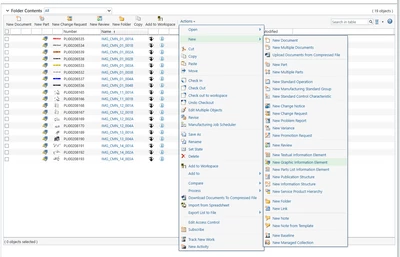
In the WC folder view, Under the Actions > New dropdown menu, we found New Graphic Information Element. 

JHollis_0-1765296491596.png


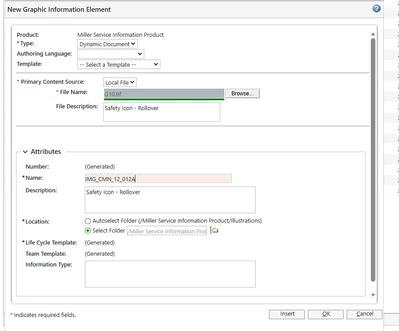
  Selecting New Graphic Information Element, followed by Type > Dynamic Document in the popup window.  This opens another popup window where the file can be searched for using Browse, or you can drag/drop the file from File Explorer, whichever is more convenient.

JHollis_3-1765297034883.png


We entered a local description and name and selected the location by checking the bubble for Select Folder

Clicking OK saves the image to the graphics folder.

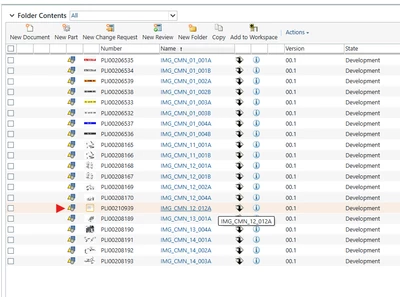
Once saved, a look in the graphics folder shows it is there as a dynamic document image saved as a PLIXXXXXXXX number.

JHollis_4-1765297243338.png

When inserting the image into Arbortext, it shows up in the preview and the link is listed as image href="x-wc://file=PLIXXXXXXXX.jpg".  

JHollis_5-1765297533989.png

Publishing it works like a charm.


John


View solution in original post

3 REPLIES 3
JHollis
10-Marble
(To:JHollis)

Update:  It must be a simple setting somewhere.  When trying to insert images/graphics, Arbortext defaults to the C://PTC folder looking for the graphics and will not let me select the Windchill server as the source.  

JHollis
10-Marble
(To:JHollis)

We found the issue. 

When saving the images to Windchill, we followed what they did in the past (2016) when they tried this project originally.  They had previously saved the images to windchill as a "New Document".  So, WC was probably looking for this image to be a 'file', not an image.

In the WC folder view, Under the Actions > New dropdown menu, we found New Graphic Information Element. 

JHollis_0-1765296491596.png


  Selecting New Graphic Information Element, followed by Type > Dynamic Document in the popup window.  This opens another popup window where the file can be searched for using Browse, or you can drag/drop the file from File Explorer, whichever is more convenient.

JHollis_3-1765297034883.png


We entered a local description and name and selected the location by checking the bubble for Select Folder

Clicking OK saves the image to the graphics folder.

Once saved, a look in the graphics folder shows it is there as a dynamic document image saved as a PLIXXXXXXXX number.

JHollis_4-1765297243338.png

When inserting the image into Arbortext, it shows up in the preview and the link is listed as image href="x-wc://file=PLIXXXXXXXX.jpg".  

JHollis_5-1765297533989.png

Publishing it works like a charm.


John


Thanks for the info John, Glad you figured it out.


Bryon

Announcements

Top Tags