
1-Visitor
January 23, 2017
Question

Startup problem: "...another directory for trail creation." - Huh?

  • January 23, 2017
  • 2 replies
  • 12237 views

Hi all,
I intended to try Creo Parametric (Trial) but on startup I get only the follwoing dialog complaining about no write access to "C:\win... \system32"

I really don't expect apps to fiddle in that directory but anyway, this isn't a very pleasant first experience with a trial software...
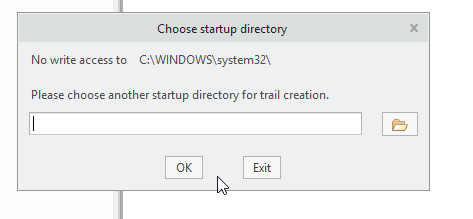
I have a Win 10 Pro desktop machine which should have no problems running std software.

I tried modifying the directory via the UI-dialog, but attempts to change can't be confirmed wit OK, and thus it doesn't stick, and I get this dialog everytime I strat Creo.

Any hints about how to get started with Creo?

// Rolf

2 replies

23-Emerald III
January 24, 2017

You need to edit the Start In location of your shortcut to point to a folder that you have RW access in.

By default it is going to the install folder.

18-Opal
January 24, 2017

Hi Rolf,

System32 is not typically a folder you would have write access to.  Select the icon you use to launch Creo > RMB > Properties and specify the Start in: location, as Ben mentioned.

Thanks,

Amit

1-Visitor
September 16, 2021

Hello Amit,

I have a similar issue. But firstly I do have write access in this location. And I do not understand why CREO is having this issue. 

Other than that if I try changing it to another location where I have "write access", I throw an error with AFX and IFX failed to load. And closes creo.


creo.PNG

Also, the startup location has to be where Creo was installed because that's where the file parametric.exe is located

I have a student licence. I was using creo before this and recently I faced this issue.

How can I start using creo again and resolve this issue? Can you please help me with this?


Regards

Ayush


12-Amethyst
September 24, 2021

Creo creates a trail file when it is running for trouble shooting problems. Go to your install directory and look for your "config.pro" file. Open it with a text editor and make sure it has a trail file location that you have access to. You want an entry labeled "trail_dir" with a directory. Mine looks like this, trail_dir h:\protrail if you don't have that enter it. (this is just a text file.)

Also, you want to make sure that for your shortcut your "Start in:" points to the directory that has you config file in it. Otherwise it will not read that value.