If you have a need to paste the Excel data into a Mathcad worksheet, then you could try using Mathcad's Excel Component.
You go to the Input/Output menu, insert an Excel Component, double-click on the component to open it, paste the data into the component, and close it. The Excel data is now available to you. Note: do not have the Excel application open when you use the Mathcad, otherwise the Mathcad Excel Component will squawk like a verbose parrot.
The Mathcad Excel Component makes its data available via the variable excel. Ranges of data are extracted using standard Excel range notation as excel's index.
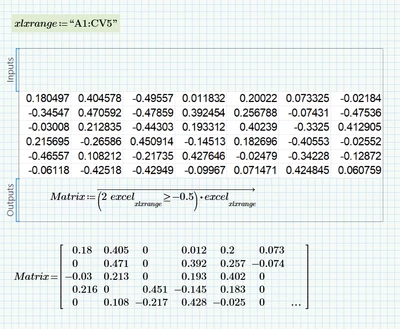
In this example, I did what I said above and pasted Excel data into the Excel Component, then retrieved it into a variable Matrix.
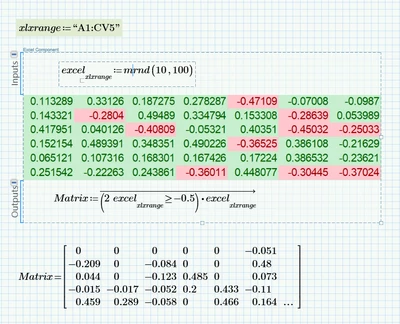
Here, I used the Excel Component as a means of formatting the Mathcad-generated data, and then performed some simple (and inefficient) processing on the data after getting it back from the Excel Component. I applied conditional formatting to the data to show numbers less than -0.25 in red and numbers above -0.25 in green. Changing the input numbers changes the cell values but doesn't affect the cell formatting, consequently the new values are displayed according to their cells' conditional formatting.
Stuart

