

CAD Data Management: How to View the Representations (Creo View) Info in Windchill
Windchill creates a published "representation" of Creo CAD files after successful check in. These representations are Creo View files and Creo View thumbnails that are viewed in Windchill with Creo View. By default, this information is not displayed in the project tabs, but you can easily create a representation tab with all the info.
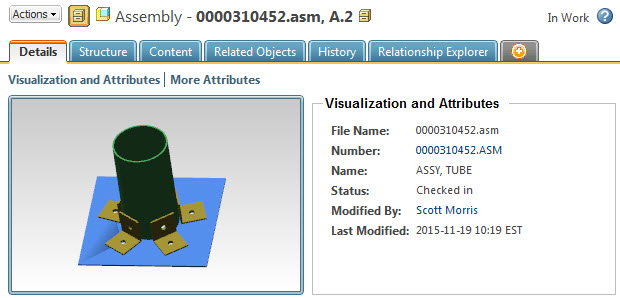
The default tabs for a CAD file are shown below.
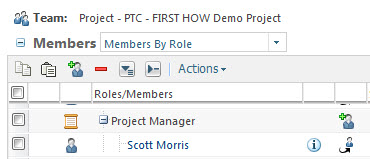
To create a new tab, you must be a member of the Project Manager role in your team's Windchill project.
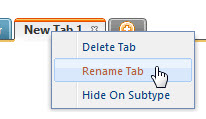
To create the new tab, select the + tab and name it accordingly.
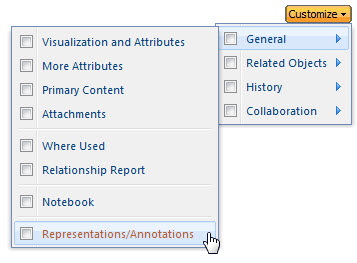
To add content to the tab, use the Customize button to add the Representations/Annotations panel.
The Representations/Annotations panel will look like this, but include information for the CAD file you are looking at.
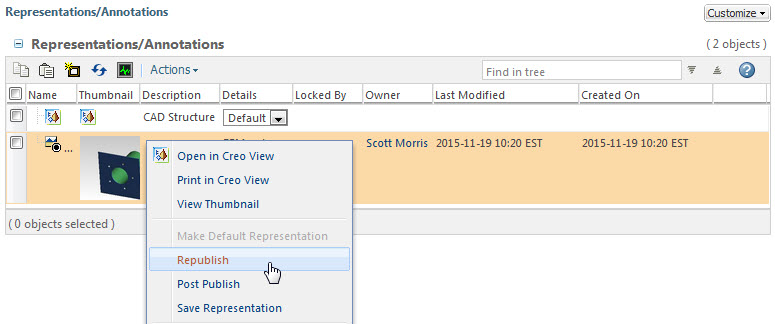
If for some reason your Creo View published representation is missing or out of date, you can use the Republish option to create a new one.
Note: The new tab will only be visible to the user creating the tab. New tabs cannot be shared with all team members, they can only be shared with the entire system and that action is limited to Windchill System Administrators only. If this is considered valuable for all users, I can certainly add it to the configuration so all users have access to this information.