3-Newcomer
March 21, 2024
Solved

How can we create a Raster from Creo Drawing?

  • March 21, 2024
  • 2 replies
  • 2148 views

I have an old drawing file and I opened it in Creo Drawing 8.0 and want to create a Raster of that file.
Can anyone please help me with how I can create it?

Best answer by Chris3

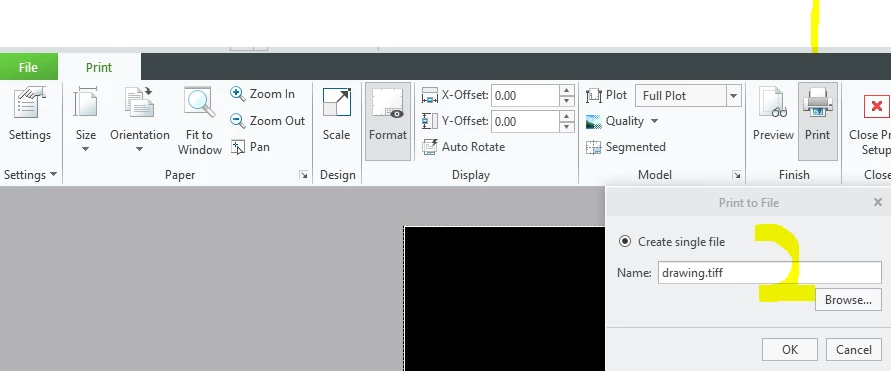
See image below. Once you have setup your TIFF printer, you should click on the print button and then there will be a dialog box where you can set the location and change the file extension.
 

Capture.PNG

2 replies

16-Pearl
March 21, 2024

To create a raster image from a Creo drawing file, you can use the 'Save As' functionality in Creo Parametric to export your drawing in a raster format such as JPEG or PNG.


Here's a step-by-step guide:

1. **Open Your Drawing**: First, make sure your drawing is open in Creo Parametric.

2. **Go to File Menu**: Click on the 'File' menu in the upper left corner of the Creo window.

3. **Select 'Save As'**: In the dropdown menu, look for the 'Save As' option. Click on it to open the save as dialog box.

4. **Choose the File Type**: In the save as dialog, you should see a list of file formats. Select a raster file format such as JPEG or PNG. These are standard formats for raster images and should be suitable for most needs.

5. **Set the Options**: Depending on the file format you choose, you may have some options to set, such as image quality or resolution. Adjust these settings according to your needs.

6. **Save the File**: After setting the options, select the location where you want to save the file, give it a name, and click 'Save'.

7. **Check the Output**: Once the file is saved, navigate to the saved location and open the file to ensure it meets your expectations.


This process will convert your Creo drawing into a standard image format that can be viewed and shared without needing Creo Parametric. Remember, raster images are pixel-based, so they might lose clarity if scaled up significantly.


~ CreoVerse

3-Newcomer
March 21, 2024

Hi,

Thanks for the quick response but I can not able to select the Option as it is greyed out.

AD_10391380_0-1711015421767.png


Thanks.
Akshay

21-Topaz I
March 21, 2024

File -> Print -> Print -> Settings -> + arrow down symbol to the right of the printer -> Add Printer Type -> Scroll to bottom and add TIFF -> Change destination to file -> Click Print Button -> Click Browse button and set the folder location -> change file extension to TIFF in the path -> Click OK

3-Newcomer
March 21, 2024

Hello,

Thanks for the reply.


I added TIFF in the Printer but the extension comes as  .plt and I can't change it.
There is no other option available in the dropdown.

AD_10391380_2-1711021418966.png


AD_10391380_0-1711021144177.png


Chris321-Topaz IAnswer
21-Topaz I
March 21, 2024

See image below. Once you have setup your TIFF printer, you should click on the print button and then there will be a dialog box where you can set the location and change the file extension.


Capture.PNG