
12-Amethyst
April 11, 2012
Solved

config.sup vs .pro

  • April 11, 2012
  • 5 replies
  • 20258 views

Alright so I am having some problems with my Mapkeys. I have recently inherited the role of ProE Admin and I have been working with Mapkeys on it for quite some time now. I thought I had them all nailed down and then ran in to a small issue.


I used to have all my mapkeys in the config.pro and it was working great. Well then someone decided to include mapkeys with the same name in their config.win and so it would over ride mine. Then they call and say the mapkeys aren't working right and its just getting old.


What I am trying to do is create a config.sup with some of the mapkeys that are company wide so that they don't get changed. Now the issue I am running into is when I take half the mapkeys out of the .pro and put them in the .sup... they are the only ones that will show when I start ProE. It's like it is completely ignoring anything that is in the config.pro now. If I remove the config.sup then all the mapkeys will show back up.


Can someone please help me with this issue? Any insight is much appreciated as I have limited knowledge about this.


On the attached picture the left box is without a config.sup.... The right box is with the attached config.sup


This thread is inactive and closed by the PTC Community Management Team. If you would like to provide a reply and re-open this thread, please notify the moderator and reference the thread. You may also use "Start a topic" button to ask a new question. Please be sure to include what version of the PTC product you are using so another community member knowledgeable about your version may be able to assist.
Best answer by BrianMartin

Okay... here's the definitive answer I promised using the trail file technique. I have verified that this technique works and will consistently enforce your standard mapkeys EVEN when the user attempts to overwrite them.

1) Save your company mapkeys to a standalone file. Your current config.sup file (the one you originally posted for us) will do just fine. However, you should rename it to use the ".pro" suffix. You can call it config.pro, mapkeys.pro, or what-ever-you-want.pro.

2) Place your mapkeys file somewhere everyone can read it... but no one can modify it (except an admin or trusted user). You can make this a network drive or a local folder locked down so users can't modify the contents. This prevents users from messing with your mapkeys.

3) Start a fresh session of Creo Elements/Pro (Wildfire 5). Know in advance where your trail files are written. Once the session starts, do nothing except the following:

  • Go to Tools->Options and select the Browse icon.
  • Browse to the network drive (or local folder) containing your mapkey file (the one you named in step 1)
  • Load the file and select OK to exit the options tool.
  • Close Creo Elements/Pro (Wildfire 5).
  • Browse to the location where your trail files are stored.
  • Open the last trail file created and remove the last few lines (where you closed and exited the application). If you don't understand which lines closed the application, I'll explain this later.
  • Save the modified trail file as "my_trailfile.txt" (or another reasonable name... but keep the .txt suffix)
  • Move the modified trail file to the same location as your mapkey file (network drive or local folder)

4) Modify your Pro/ENGINEER startup command by appending the full path name of the trailfile from step 3. Most people launch Pro/E from the proe.exe command. If your trail file was called my_trailfile.txt and it was located on a mapped network drive (for instance the "M" drive), the modified launch command might look similar to this:

proe.exe M:\company_standards\configs\my_trailfile.txt

5) Relaunch Creo Elements/Pro and test. When the application launches, it should immediately run the trail file you specified. If you're running Windchill or Pro/INTRALINK 9.x+ you'll have to log in to your server before the trail file will run... but this is normal. If you're paying attention carefully, you'll see the options menu pop open and load the mapkey file.

If any user has already set ANY of the mapkeys in your company-wide mapkey file, they will be overwritten thus enforcing your company standards.

Of course, an industrious user could always make a mapkey that would RELOAD their own custom mapkey file AFTER the trail file runs... thus overwriting yours. But at some point the user has to take responsibility if they're going to go to such lengths to circumvent your standards.

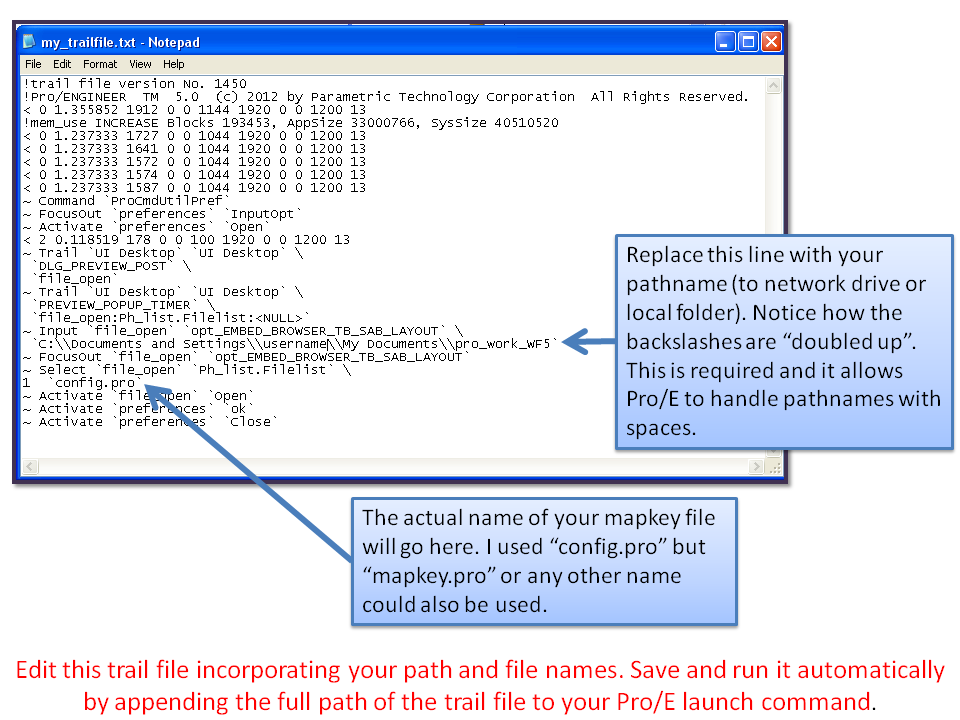
This should completely resolve your problem. The toughest parts are editing the trail file and removing the useless parts without destroying the necessary commands. I've attached my own trail file to show you what it should look like.

A brief explaination of the trail file is below... click the image for a larger, more readable version.

trailfile_help.png

I hope this helps! if you get stuck, write back!!

Thanks!

-Brian

5 replies

13-Aquamarine
April 11, 2012

Hi Erik...

Hmm... I don't think I've ever tried adding mapkeys to the .sup before. I'll check it out and see if I can replicate the problem. I'm assuming you're using WF5, is this correct?

Thanks!

-Brian

12-Amethyst
April 11, 2012

Yes we are on Wildfire 5 build M080.

I should have included that in my previous post. Thanks

13-Aquamarine
April 11, 2012

Wow Erik... I tried it on WF5 M130 (the latest) and that's the way it works.

It seems like an "error" but it's probably always been that way. Imagine that every keyword (or "token") in the config.pro and config.sup works the same way. If the token appears in the .sup, it's ignored in the .pro.

For example, if save_objects is set in the config.sup, it's completely ignored in the config.pro.

The "mapkey" keyword must be just like any other keyword. I guess I always just assumed it was somehow "special" but this proves it really isn't. I am certainly surprised but I guess I shouldn't be. This is always how the .sup has worked... perhaps I should have known better. Either way, I think this should be submitted as an enhancement request. I'll double check Creo 1.0 to see if it still works this way.

In the meantime, you still have a problem with users overwriting your mapkeys. I used to get around this by starting all my "company-wide" mapkeys with some oddball character like - or . but I see you've already tried this.

I do have an idea for you. I'm not 100% sure this will work and I usually don't post solutions without checking them first... but I'll make an exception. You can specify the name of a trail file to run when Pro/ENGINEER starts up. This is sometimes used in "batch mode" to execute commands without launching a graphical version of Pro/E. I believe you just append the trail file (full path) to the end of the Pro/E launch command. As soon as Pro/E loads, the trail file runs.

The idea would be to create a small trail file that loads your company's default config.pro or just the mapkeys saved off into a separate file. You could call it mapkey.pro or whatever. If this file were loaded LAST, it would override the users' config.pro settings. This would "undo" any changes they made... and they'd probably be perplexed at how you did it.

Like I said... I might be wrong but I think this will work. If I recall correctly, I used this technique to automatically overwrite some very annoying mapkeys one employer put in place. Of course, you can use it for the opposite purpose... to enforce company standard mapkeys and prevent users from overwriting them.

I hope that helped. Let me know if you have any troubles...

Thanks!

-Brian

1-Visitor
April 11, 2012

What do get when you look at the config.sup only in the configuration options dialog? When I view your config.sup that way I see half of your map keys being marked as invalid (red circle with a slash through it).

12-Amethyst
April 12, 2012

I am guessing that the reason they show invalid on yours is that most of them are for printers that I have set up and you have to click "More Printers" to get to them. They aren't there by default so it doesn't know where to go on yours.

Patriot_1776
22-Sapphire II
April 12, 2012

The best way to keep from stepping on mapkey's toes is to keep ALL mapkeys out of the company-wide config.pro at the initial loadpoint, and let the users have their own local config.pro that includes whatever they want. You can store a config.pro that contains nothing BUT mapkeys on a network drive, and tell people to use that and THEN customize it and have a local loadpoint for it.

12-Amethyst
April 12, 2012

Ok well then I will ask this... How do I edit a users config.win to get Mapkeys out of there that keep screwing everything up?

Patriot_1776
22-Sapphire II
April 12, 2012

Mapkey definitions are in the config.pro. The config.win is the screen's appearance. If user's have their own mapkeys, you'll have to monkey with their local config.pro files.

13-Aquamarine
April 12, 2012

Erik,

You are not the only one with this problem. These very topics have been raised multiple times in the Technical Committees. And we keep brining it up. I would strongly suggest that you start an Idea in the Community and we can all chime in on that.

We leave them in the system config.pro and just educate the users that they don't want to use the same shortcut keys as an existing mapkey. If they do it is their time to clean it up.

13-Aquamarine
April 13, 2012

Okay... here's the definitive answer I promised using the trail file technique. I have verified that this technique works and will consistently enforce your standard mapkeys EVEN when the user attempts to overwrite them.

1) Save your company mapkeys to a standalone file. Your current config.sup file (the one you originally posted for us) will do just fine. However, you should rename it to use the ".pro" suffix. You can call it config.pro, mapkeys.pro, or what-ever-you-want.pro.

2) Place your mapkeys file somewhere everyone can read it... but no one can modify it (except an admin or trusted user). You can make this a network drive or a local folder locked down so users can't modify the contents. This prevents users from messing with your mapkeys.

3) Start a fresh session of Creo Elements/Pro (Wildfire 5). Know in advance where your trail files are written. Once the session starts, do nothing except the following:

  • Go to Tools->Options and select the Browse icon.
  • Browse to the network drive (or local folder) containing your mapkey file (the one you named in step 1)
  • Load the file and select OK to exit the options tool.
  • Close Creo Elements/Pro (Wildfire 5).
  • Browse to the location where your trail files are stored.
  • Open the last trail file created and remove the last few lines (where you closed and exited the application). If you don't understand which lines closed the application, I'll explain this later.
  • Save the modified trail file as "my_trailfile.txt" (or another reasonable name... but keep the .txt suffix)
  • Move the modified trail file to the same location as your mapkey file (network drive or local folder)

4) Modify your Pro/ENGINEER startup command by appending the full path name of the trailfile from step 3. Most people launch Pro/E from the proe.exe command. If your trail file was called my_trailfile.txt and it was located on a mapped network drive (for instance the "M" drive), the modified launch command might look similar to this:

proe.exe M:\company_standards\configs\my_trailfile.txt

5) Relaunch Creo Elements/Pro and test. When the application launches, it should immediately run the trail file you specified. If you're running Windchill or Pro/INTRALINK 9.x+ you'll have to log in to your server before the trail file will run... but this is normal. If you're paying attention carefully, you'll see the options menu pop open and load the mapkey file.

If any user has already set ANY of the mapkeys in your company-wide mapkey file, they will be overwritten thus enforcing your company standards.

Of course, an industrious user could always make a mapkey that would RELOAD their own custom mapkey file AFTER the trail file runs... thus overwriting yours. But at some point the user has to take responsibility if they're going to go to such lengths to circumvent your standards.

This should completely resolve your problem. The toughest parts are editing the trail file and removing the useless parts without destroying the necessary commands. I've attached my own trail file to show you what it should look like.

A brief explaination of the trail file is below... click the image for a larger, more readable version.

trailfile_help.png

I hope this helps! if you get stuck, write back!!

Thanks!

-Brian

12-Amethyst
April 16, 2012

I believe that this is working perfectly for me! I have it implemented and in testing right now to make sure that it didn't mess up anything else.

I will report back in a couple days on what I see.

Thank you very much!!!

13-Aquamarine
April 16, 2012

Excellent! I'm glad this seems to be working for you.

Let us know if you need anything else!

Regards,

-Brian