

23-Emerald IV
September 17, 2015
Question

Creo View Adapter for SolidWorks Plots Upside Down

  • September 17, 2015
  • 2 replies
  • 7241 views

Curious if anyone has successfully implemented the Creo View Adapter for SolidWorks when outputting HPGL (.plt) files.  I've followed all the instructions and my plots are coming out upside down.  I'm at a complete loss...
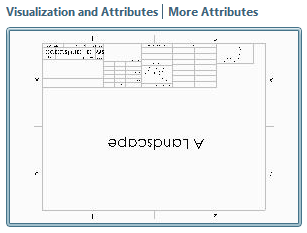
sw_a.PNG

CAD Worker

  • Windows 7 64-bit
  • SolidWorks 2015 64-bit w/SP4
  • Creo View Adapters 3.0 M032

Followed the instructions on page 432 of the Install Config Guide, worked through CS22286, and tried multiple Microsoft and HP printer drivers, all to no avail.

2 replies

22-Sapphire I
September 23, 2016

I'm currently configuring server-side watermarking for Edwards (like we had for years at Alcon).  Works perfectly for Creo, using default publish to .plt (HPGL).

Haven't yet taken a look at SW but need to.  Currently publish SW to PDF and watermarks don't seem to work.  Watermarks do work for SW using DWG - just tried.

Wondering if any one has made progress since this original post and if there is a reason to look at HPGL for SolidWorks drawings.

TomU23-Emerald IVAuthor
23-Emerald IV
September 26, 2016

I gave up and just switched to DWG output for SolidWorks.

15-Moonstone
January 16, 2025

Hi Tom,


Do you know if it's possible to have Solidworks save a DWG to windchill as a Creo View viewable?
Wee don't currently have a markup license for PDF's and Soildworks 2024 generates locally a pdf for the windchill viewable.


Thank you for any help you can provide,

Don A

12-Amethyst
March 22, 2017

I'm experimenting with a 3rd party HPGL driver / writer called WinLINE, from www.winline.com.  Its free to try, but it adds a watermark to all output until a license is purchased.  Cost $200 for single computer install.  Solidworks publishing on our Worker to PLT files is coming out right-side up.

TomU23-Emerald IVAuthor
23-Emerald IV
March 23, 2017

How exactly did you integrate this between SolidWorks and the Creo View Adapters?

12-Amethyst
March 23, 2017

Mike Lockwood has successfully set up Solidworks publishing with File Synchronization and DWG.  I'm piggy-backing off of his work.

Install the HPGL Printer / Writer:

  1. On the Solidworks Worker, install Winline, choose printer "WL HPGL Center".  I think it will ask to reboot after installation.
  2. In the Windows "Devices and Printers" control panel edit the Winline printer properties, set printer port to "file:"
  3. I have the Winline printer set as shared.  I didn't test if this makes a difference.
  4. In the Winline Printer Properties there are two tabs that effect the output, General>Properties, and Device Settings.
  5. In General>Properties there are some settings for Pen line widths (still experimenting here)
  6. In Device Settings, there are a couple of important settings:
    1. Under Job Control>Job Control Strings>PageBreak enter Command String PG.  This will allow creating multi-page PLT files.  Without it, Winline will print all drawing output on top of one another on a single page file!

    2. Under Lanuage Capabilites set Poly Mode=Yes.  This will allow output of true "filled" areas, instead of an area where the pen head goes back and forth to fill it with ink.  You can see the effect of this setting by printing the Windows Printer Test page and looking at a filled area such as text characters.

I'm still experimenting with the other settings to refine the output.  I'm still figuring out how to use "Pen Width" in combination with line thickness.  The "About/Help" tab has most of the information I used to discover this stuff.

Setup the Worker to use the HPGL Printer / Writer:

  1. Since we already have publishing to DWG set up successfully, I made a copy of the worker folder so I don't lose the successful setup.  Our Worker Folder (contains the recipe file) path is C:\ptc\creo_view_adapters\sw_setup_test.
  2. Open the recipe file in the recipe editor and go to the Advanced>Miscellaneous tab and set:
    1. Drawing output to HPGL
    2. SW Printer to <name of Winline Printer>  (Note: Must match exactly.  I renamed my printer to eliminate spaces in the name)
    3. We have Fail Publish unchecked because our Solidworks Models need improvement.
    4. Click Save.
    5. Restart the GS Worker Demon and then the Helper and Monitor from the Worker Agent Administration window.
    6. Select a Solidworks drawing to publish and see what happens.

I'm still trying to figure out how to get some lines to plot with 0 line width (letter characters and text) and other lines to have different thickness (object, annotations, format border).  I'm very interested if anyone has insight on the line widths output of Solidworks and how to map them to the pens in the Winline HPGL driver.