

Section view or Clipping of model display in Vuforia Studio
- July 25, 2019
- 11 replies
- 6214 views
Often, we need to display some sections, or we required to have a view of a x-section of the model.
This is in generally no part of the current functionality but there are some approaches which could be helpful.
In this article I want to mention 3 different approaches, which could be used but no one of them is really perfect:
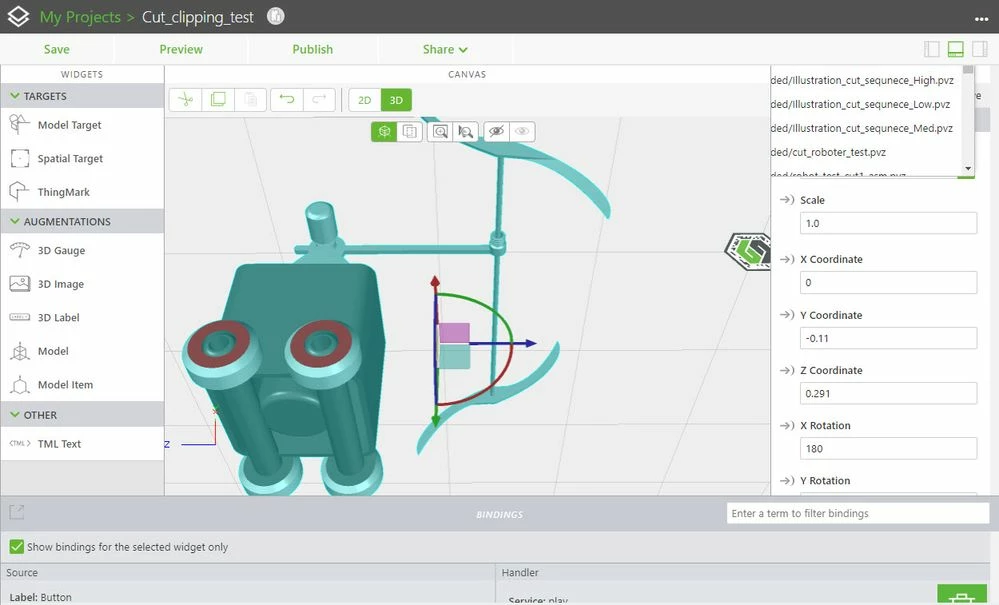
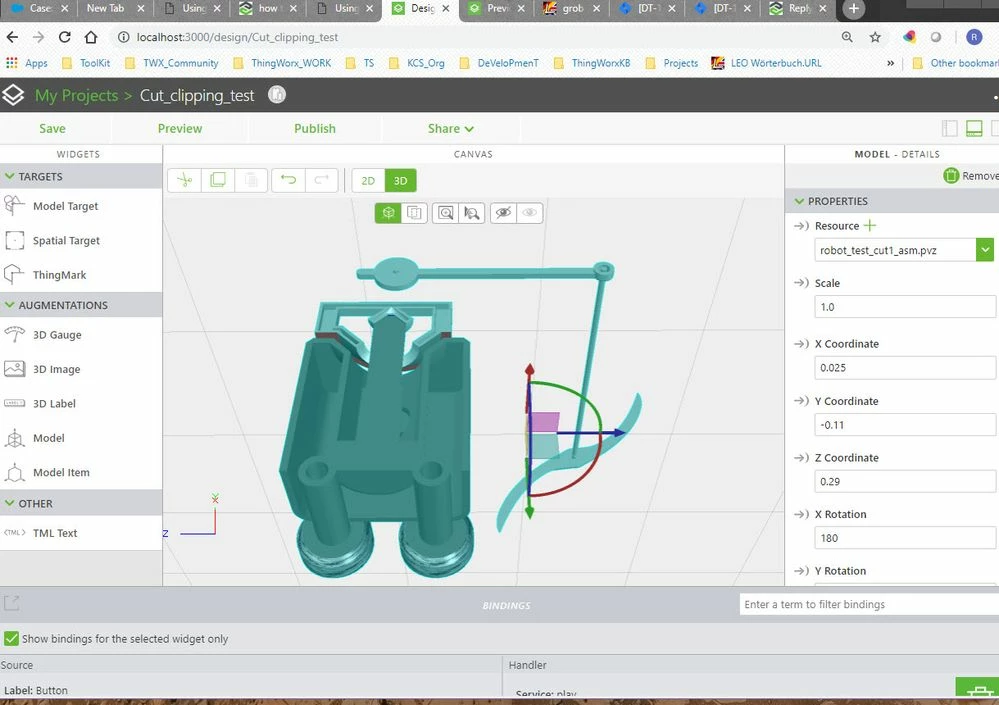
1.) uploading different models - so we can use an additional models for each cut and then we can change the model if you want to display a cut, it means you can make the one model not visible and the display the second model or vice versa. I tested with cuts created in Creo Illustrate 5.0 and Creo View 5.0 but it seems that Vuforia Studio could not display them /neither as part of sequence or as static to the current figure:
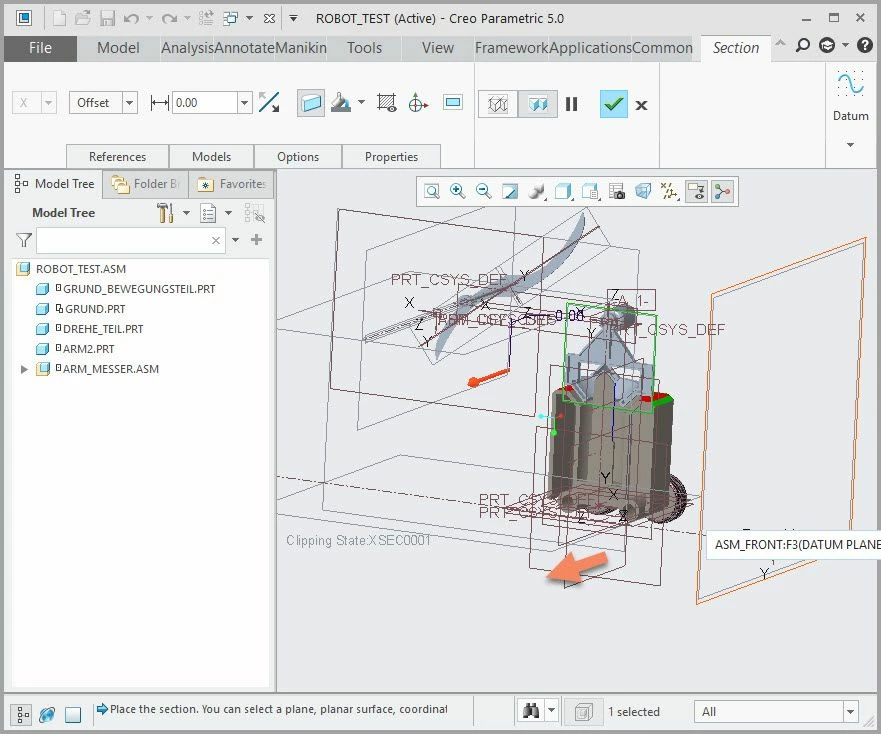
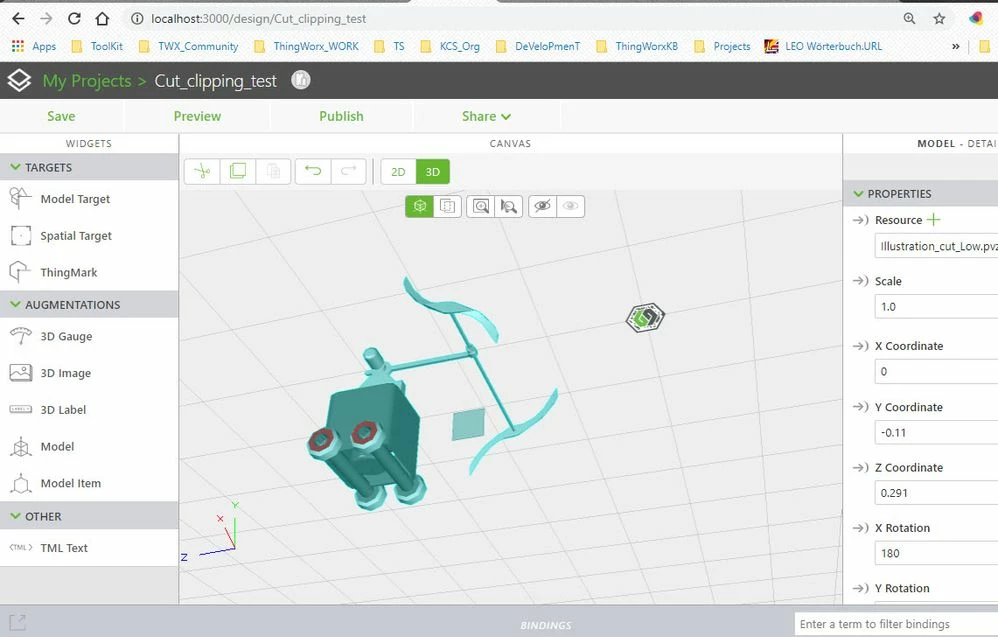
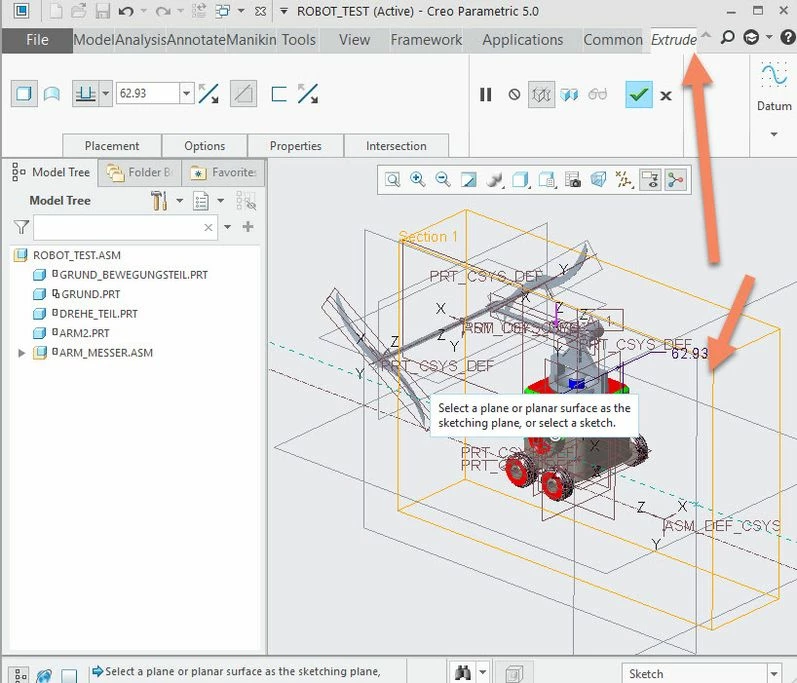
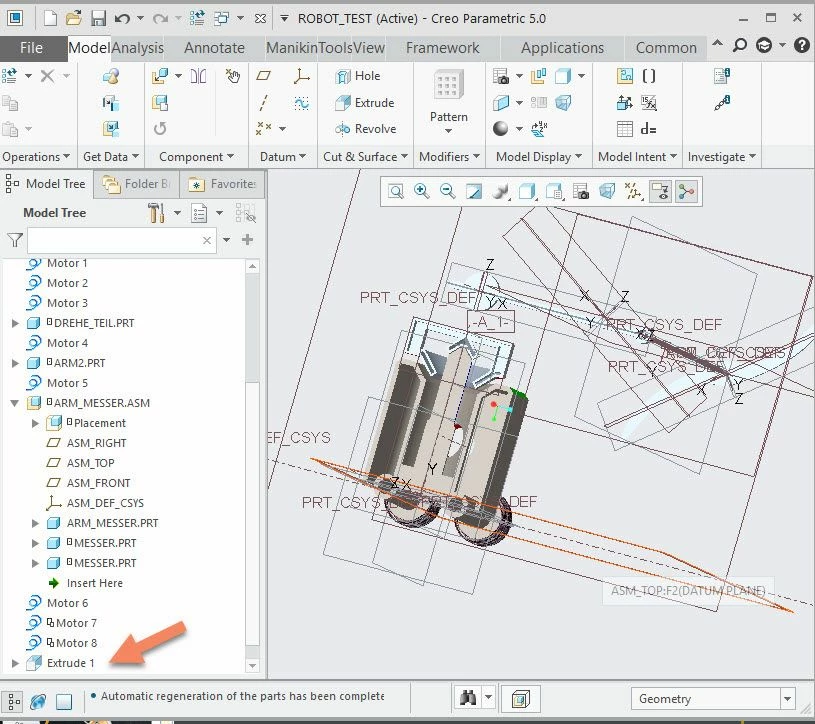
The only possible way in this example is to create in Creo an assembly cut /with option cut also on part level and then create from there a new .pvz model.
In this case this seems to work fine:
:
2.) the second approach is to remove components step by step, so to see the inner components when the outer components are blanked:
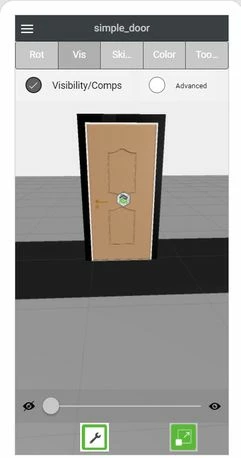
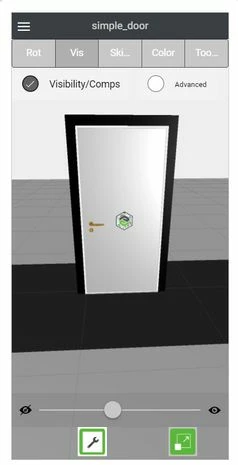
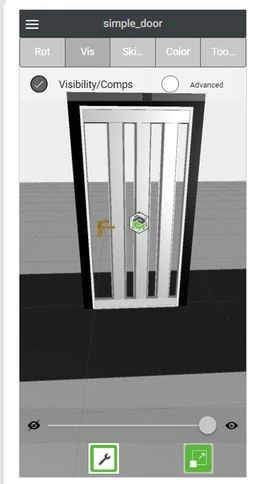
All different components, which should be displayed or blanked, need to be defined as modelItem where we can set the visible property to true or false
Is also possible to blank or display a list of components where the list is defined in json file. This could be done with JavaScript code. In this case we do not need to define a modelItem widgets. For more information you can check the post
3.)
The last most powerful option is to use a shader for the model Widget. So for example we can use some kind of clipping functionality of the model where we can set the x min and x max value or ymin and ymax or zmin and zmax value what should be displayed. This will create a clipping effect. So only the geometry which satisfy this criteria will be displayed.
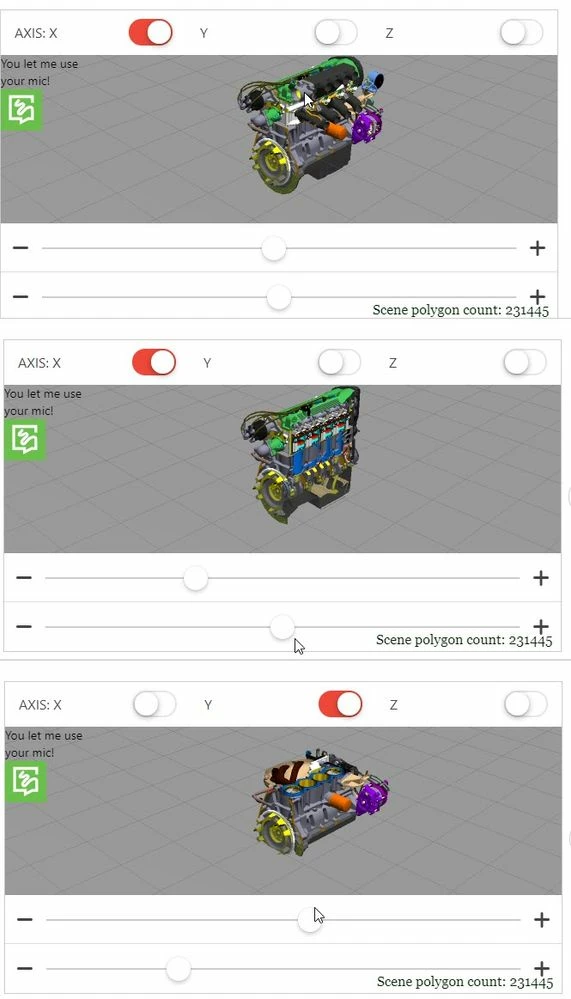
How to achieve a clipping functionality using a shader.
3.1) define a shader - this requires creating a tmlText widget where we can define the shader Code. The code should be inserted into the text property of the tml widget
For the clipping along x axis with planes which are parallel to the YZ plain we need to define the following javascript with GLSL:
<script name="slice_world_based_x" type="x-shader/x-vertex">

 attribute vec3 vertexPosition;
 attribute vec3 vertexNormal;

 varying vec3 N;
 varying vec4 vertexCoord;

 uniform mat4 modelMatrix;
 uniform mat4 modelViewProjectionMatrix;

 void main() {

 vec4 vp = vec4(vertexPosition, 1.0);
 gl_Position = modelViewProjectionMatrix * vp;
 vertexCoord = modelMatrix*vp;

 // the surface normal vector
 N = vec3(normalize(modelMatrix* vec4(vertexNormal,0.0)));
 }
</script>

<script name="slice_world_based_x" type="x-shader/x-fragment">

 // this setting is needed for a certain use of properties
 precision mediump float;

 // determine varying parameters
 varying vec3 N;
 varying vec4 vertexCoord;

 // determine shader input parameters
 uniform vec4 surfaceColor;
 uniform float slicex;
 uniform float slicewidth;

 const vec3 lightPos = vec3(1.0, 2.2, 0.5);
 const vec4 ambientColor = vec4(0.3, 0.3, 0.3, 1.0);

 void main() {

 // calc the dot product and clamp based on light position
 // 0 -> 1 rather than -1 -> 1

 // ensure everything is normalized
 vec3 lightDir = -(normalize(lightPos));
 vec3 NN = normalize(N);

 // calculate the dot product of the light to the vertex normal
 float dProd = max(0.0, dot(NN, -lightDir));

 // calculate current color of vertex, unless it is being clipped...
 // only geometry with coordinates which satisfy the condition below
 // will be displayed
 if ( vertexCoord.x > (slicex + slicewidth/2.0) ||
 vertexCoord.x < (slicex - slicewidth/2.0) )
 {
 discard;
 }
 else
 {
 // calculate the color based on light-source and shadows on model
 gl_FragColor = (ambientColor + vec4(dProd)) * surfaceColor;
 }
 }
</script>
Save the tml Text widget .
3.2) You can also define shaders for clipping along the Y and the Z axis. Here you can use the same shader javascript definition but you need to change the shader name and to modify the if check respectively to the Y or Z coordinate:
<script name="slice_world_based_y" type="x-shader/x-vertex">
...
 // calculate current color of vertex, unless it is being clipped...
 if ( vertexCoord.y > (slicex + slicewidth/2.0) ||
 vertexCoord.y < (slicex - slicewidth/2.0) )
 {
 discard;
 }
 else
...
To set the clipping values for different axes and to control it by sliders we can use some code like this:
$scope.DIR="y";
$scope.slice = function() {
 var slicexCur = ($scope.view.wdg['slider-1']['value']/100.0)-0.5;
 var slicewidthCur = ($scope.view.wdg['slider-2']['value']/100.0);
 $scope.view.wdg['modelx']['shader'] = "slice_world_based_"+$scope.DIR+";slicex f "+ slicexCur + ";slicewidth f " + slicewidthCur;
}

////////////////////////////////////////////
$scope.$on('$ionicView.afterEnter', function(){
 // Anything you can think of
 $scope.clickY()
 });
///////////////////////////////////////
$scope.clickX=function()
{
$scope.view.wdg['toggle-X']['value'] =true
$scope.view.wdg['toggle-Y']['value'] =false
$scope.view.wdg['toggle-Z']['value'] =false
 $scope.DIR="x"

}
$scope.clickY=function()
{
$scope.view.wdg['toggle-X']['value'] =false
$scope.view.wdg['toggle-Y']['value'] =true
$scope.view.wdg['toggle-Z']['value'] =false
$scope.DIR="y"
}

$scope.clickZ=function()
{
$scope.view.wdg['toggle-X']['value'] =false
$scope.view.wdg['toggle-Y']['value'] =false
$scope.view.wdg['toggle-Z']['value'] =true
 $scope.DIR="z"
}
///////////////////////////////////////
Here the slice() function is called in the slider change event (for the both slider widgets).
For better understanding of the functionality you can review the attached Vuforia Studio project
Here attached the improved version for HL. It is also approved by dev team. slice_example.zip
Another version (also for HL) attached here is the example slice_example_using_ABCD project – where the dev team demonstrates an efficient way showing how we can define a cutting plane via plane ABCD parameters (refer to plane geometry equations :
geometry https://en.wikipedia.org/wiki/Plane_(geometry)
To cover this functionality the dev team developed some studio extensions that PTC customers can use instead. That extensions widgets will handle reflections etc, and I it is recommend to use those extensions .:
- https://github.com/steveghee/OCTO_Studio_extensions
- https://github.com/steveghee/OCTO_effects_extensions