1-Visitor
September 10, 2012
Solved

Editing of imported geometry

  • September 10, 2012
  • 3 replies
  • 10730 views

hi,

I have a part imported in creo and I wants to remove some holes and will give them new location

As I mentioned this is a imported part I am unable to open its features

how can I edit that part in any way

thanks


This thread is inactive and closed by the PTC Community Management Team. If you would like to provide a reply and re-open this thread, please notify the moderator and reference the thread. You may also use "Start a topic" button to ask a new question. Please be sure to include what version of the PTC product you are using so another community member knowledgeable about your version may be able to assist.
Best answer by BrianMartin

Hi Raj...

The easiest way is, as Tom suggested, use Flexible Modeling to move the holes. If you don't have the FMX (Flexible Modeling Extension) to Creo, you'll have to go "old school" to remove the holes and then place them back in again at the desired location. ATB will be of no use for this problem.

Using the old school model editing methods, you will not be able to move the hole- you must delete it and make new ones. To get rid of the old holes, you'll need to enter the IDD (Import Data Doctor). To do this, edit definition on the imported feature. You'll see this set of icons appear on your menu... these are the icons used for the Import Data Doctor:
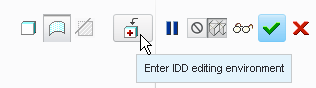
idd.png

Click the icon indicated above to enter the IDD Editing Environment. Your model tree will then change. Instead of seeing one feature for your imported geometry, you'll see a series of individual surfaces... like this:
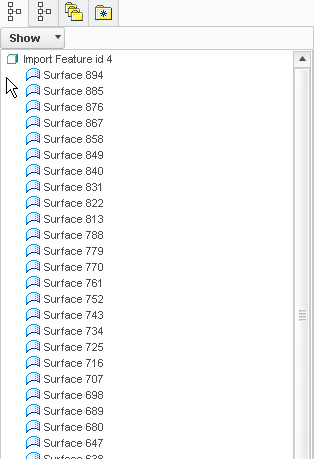
idd_surf.png

Once you're in this mode, you can select all the surfaces of the holes you wish to delete. In the image below, I've selected multiple surfaces. You can see from the model tree (below the model image) that the surfaces are being selected...
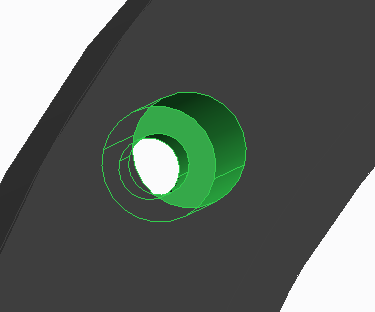
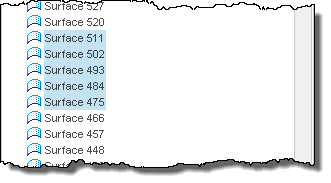
idd_hole1.png

idd_hole2.png

Right-click and select DELETE to remove these surfaces. You'll be left with open edges where the hole used to be. Next, you need to delete the profile/edges of the hole to complete the removal process. Note below, I've selected the open edges of the hole profile.
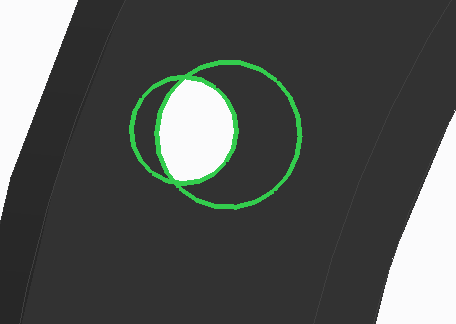
idd_hole3.png

Finally, right-click and select DELETE again to remove these open edges. The hole has been successfully removed. You can now select the green check mark to exit out of the IDD mode. Your imported model will now appear without the hole. You can place a new hole wherever you'd like.

Hope that helped! If I've left something out, just ask!

Thanks!

-Brian

3 replies

17-Peridot
September 10, 2012

Depending on software version, you should be able to fill in the hole and create new holes. If you have the flexible modeling extension, you can also move hole features.

You might also need to check to see if ATB is turned on. It will have a funny ICON (not the default "prt" icon) in front of the name in the tree. This may or may not restrict feature creation.

I am not sure when these capabilities were added, but I know in 2000i, it was nearly impossible to modify impported parts.

1-Visitor
September 10, 2012

Hi

I am using creo 1.0 and didnot find the flexible modeling

I have not idea about ATB

13-Aquamarine
September 10, 2012

Hi Raj...

The easiest way is, as Tom suggested, use Flexible Modeling to move the holes. If you don't have the FMX (Flexible Modeling Extension) to Creo, you'll have to go "old school" to remove the holes and then place them back in again at the desired location. ATB will be of no use for this problem.

Using the old school model editing methods, you will not be able to move the hole- you must delete it and make new ones. To get rid of the old holes, you'll need to enter the IDD (Import Data Doctor). To do this, edit definition on the imported feature. You'll see this set of icons appear on your menu... these are the icons used for the Import Data Doctor:

idd.png

Click the icon indicated above to enter the IDD Editing Environment. Your model tree will then change. Instead of seeing one feature for your imported geometry, you'll see a series of individual surfaces... like this:

idd_surf.png

Once you're in this mode, you can select all the surfaces of the holes you wish to delete. In the image below, I've selected multiple surfaces. You can see from the model tree (below the model image) that the surfaces are being selected...

idd_hole1.png

idd_hole2.png

Right-click and select DELETE to remove these surfaces. You'll be left with open edges where the hole used to be. Next, you need to delete the profile/edges of the hole to complete the removal process. Note below, I've selected the open edges of the hole profile.

idd_hole3.png

Finally, right-click and select DELETE again to remove these open edges. The hole has been successfully removed. You can now select the green check mark to exit out of the IDD mode. Your imported model will now appear without the hole. You can place a new hole wherever you'd like.

Hope that helped! If I've left something out, just ask!

Thanks!

-Brian

1-Visitor
September 10, 2012

thanks once again Brian

1-Visitor
September 10, 2012

but Brian how can I fill the gaps

I am able to del all the required surfaces but there are a empty space

may be boundry bend etc..??

15-Moonstone
September 11, 2012

Hi all,
the import data doctor offers yet another nice possibility (did this in WF4):
the surfaces to be moved are "devided" which will put them into a separate Component node under a Combine node.
Now when the hole surfaces are moved using the "Translate" command the boundries of the adjacent surfaces are recalculated as well.

However this only works if the moved surfaces and the adjacent surfaces with the according trim boundaries sit under the same Combine node.

After a "Collapse" you have a merged quilt.

Video Link : 3277

13-Aquamarine
September 11, 2012

Thanks Constantin...

Nice! I hadn't tried that before.