1-Visitor
July 8, 2025
Solved

Identify the parts in the assemblied

  • July 8, 2025
  • 4 replies
  • 2958 views
I am using Creo Parametric Release 6.0 and Datecode6.0.6.0

How to identify any part used in what are the assemblies?
Basically, need to know, in how many assemblies, the specific part been used.
    Best answer by MartinHanak

    @mamobono wrote:

    Thanks Martin
    Great, it works now.
    The only difference with the BAT version is that the txt file is overwritten and the previous search is lost.
    I think it's an excellent solution that could be useful for those who don't have a drawing management software.
    We'll have to evaluate how long the search through many files will take.


    Thanks Martin Hanák and also to Ken Farley, who started the process with his suggestion.


    One last thing: I don't know how to rate "solution accepted."


    Hi,

    to prevent result file overriding you have two choices.


    1.) using different result file names, eg.

    cscript//nologo whereused_MH3.vbs PARTNAME_01 > PARTNAME_01.txt

    cscript//nologo whereused_MH3.vbs PARTNAME_02 > PARTNAME_02.txt


    2.] using >>

    cscript//nologo whereused_MH3.vbs PARTNAME_01 >> result.txt

    cscript//nologo whereused_MH3.vbs PARTNAME_02 >> result.txt


    Note: I modified vbs file to insert the name of the searched part before the results. See attached whereused_MH3.vbs
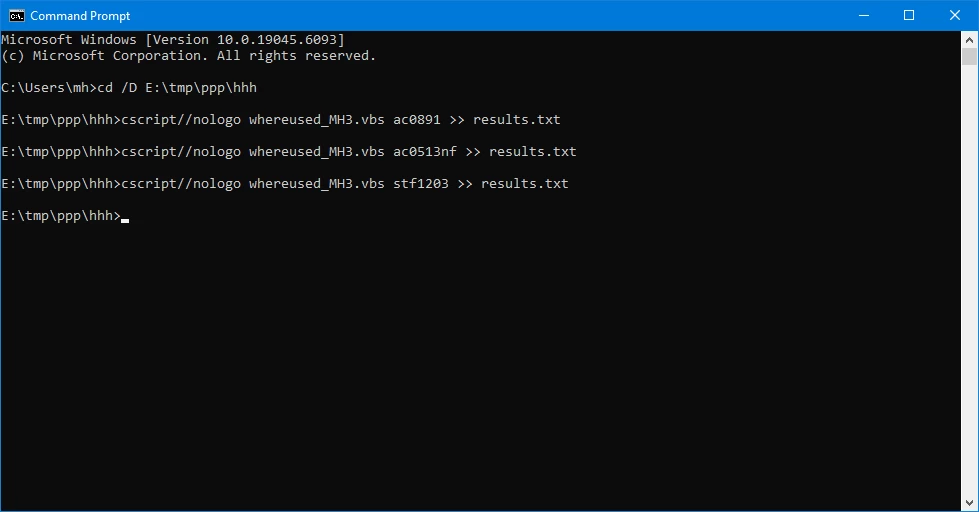
     

    MartinHanak_0-1752485039305.png


    4 replies

    kdirth
    21-Topaz I
    21-Topaz I
    July 8, 2025

    At the top of the model tree, enter text (part number) in the filter and the tree will be reduced to anything the matches with the assembly structure.

    kdirth_0-1751973916136.png


    There is always more to learn.
    21-Topaz II
    July 8, 2025

    Presumably you are not using Windchill. From what I understand this might be something that Windchill handles for you.

    If you're trying to find all the assemblies in a Windows directory (and its subdirectories) that use a particular part or assembly, you can take advantage of the fact that a part name is stored in the assembly file. I wrote a batch program to find these kinds of things a while ago. It's run in a command window. It's not very fast, but has helped me a lot.

    ::
    :: Builds a list in a file with the complete filenames of any assembly that
    :: contains the expression specified.
    ::
    :: Usage: whereused target [filename]
    :: target = the target string to search for
    :: filename = optional output file name. If no name is
    :: provided, the default "results.txt" will
    :: be used.
    ::
    :: Note: If the output file already exists, any new results are appended to
    :: the end of the file. In this way, a batch file could be used to find
    :: a number of parts and save all the results in a conglomerated report.
    ::
    :: Author: Kenneth J. Farley
    :: Date: 02 July 2015
    ::
    
    @ECHO OFF
    
    ::
    :: Check that at least one argument has been provided. If not, issue a
    :: "Usage" message and exit.
    ::
    
    if NOT "%~1"=="" (goto :doSearch)
    echo Usage: whereused target [filename]
    echo target = the target string to search for
    echo filename = optional output file name
    exit /b
    
    ::
    :: Do the initial setup stuff for the run.
    :: * Save the input string to a variable.
    :: * Write the search string and some delimiter characters to the results file.
    :: * Trigger a search of all subdirectories.
    ::
    
    :doSearch
    set strSrch=%1
    set "fileRes=%CD%\results.txt"
    if NOT "%~2"=="" (set "fileRes=%CD%\%2")
    echo Saving to "%fileRes%"
    if NOT exist %fileRes% echo. > "%fileRes%"
    echo ------ %strSrch% ---------------- >> "%fileRes%"
    echo. >> "%fileRes%"
    for /r /d %%d in ("*") do call :doDir "%%d"
    echo. >> "%fileRes%"
    exit /b
    
    ::
    :: Using the directory stack, changes to the target directory. Checks to see
    :: if there are any assembly files and if so, processes them. Once done,
    :: "pops" back to the original directory.
    ::
    
    :doDir
    pushd %1
    set dirName=%1
    if exist *.asm.* (call :doCheck)
    popd
    exit /b
    
    ::
    :: Performs the searching operation and outputs any positive results to the
    :: output file.
    ::
    
    :doCheck
    echo Checking %dirName%
    for /f %%a in ('findstr /I /M %strSrch% *.asm.*') do echo %dirName% : %%a >> "%fileRes%"
    exit /b

    Hopefully it'll be useful.

    10-Marble
    July 8, 2025

    good morning KenFarley,

    Let me understand, is your batch file able to identify the assemblies in which a certain prt file is present?

    if I have a windows folder where there are all my assemblies, (while the parts are in another folder and with the search path "creo" it connects them) and inside this folder I launch your batch file indicating a certain prt file, will a txt file be returned where the asm files that contain it are written?

    is that so, can you confirm it for me?

    If so, it's brilliant.


    bye

    21-Topaz II
    July 8, 2025

    How it works is I copy the batch file to the top directory of where I want to search. I run it with the necessary arguments: a "target" or string that will be searched for in the assemblies, and optionally a filename to store the results.

    As it executes, it will look in the directory you started in, then all the subdirectories of that directory. The results file will list the full path to any assemblies it finds the "target" in. This can take a long time if you have a lot of directories. Also, I usually try to do a "purge" on all the directories so there's only one version of each assembly.

    23-Emerald III
    July 8, 2025

    Creo part files do not contain any information about what assemblies they are used in. I suppose the exception to this is if a part has some sort of reference to the assembly (parent-child type reference).

    Windchill keeps full track of where parts are used, if you are using it. 

    Dale_Rosema
    23-Emerald III
    23-Emerald III
    July 8, 2025

    This is how I find them, but I get some false positives:


    Dale_Rosema_0-1752006583737.png


    I click on the cmd window and then type:


    whereused partnamehere (where partnamehere is the file name that you are checking - i.e. 1201_1003 for 1201_1003.prt or .asm


    Dale_Rosema_2-1752006690838.png


    At the end it opens up a .txt file and I check each file to verify where the part is used in the file. This bring in all upper level assemblies all the way to the top level.


    Tedious, but has helped me a lot. Especially when obsoleting a part.


    No windchill.


    10-Marble
    July 9, 2025

    Thanks for the replies.

    KenFarley
    Dale_Rosema

    So it works within "creo" and you have to launch the .bach file in the cmd window, which is placed in the folder containing the asm files.
    From your example,
    whereused is the name of the batch file, and after the > sign is the name of the prt file to search for.

    The batch uses the CAD program to read the existing components within the asm files. Now I understand why you say it could be a long process.

    Final question: does it work on all versions of "creo" or "wildfire"?
    Hi

    21-Topaz II
    July 9, 2025

    It's a batch file. It has nothing to do with any versions of Creo or Pro/Engineer or anything. It just searches files to find if they contain a string, which in the case of this particular situation, happens to be the name of a part or assembly.

    False positives happen if in some instance in the past the target part/assembly was used in the assembly being looked at. The Creo file maintains a history of what was used in the past and so the file, though it is no longer using that particular component, still has text within it referring to the no longer used part/assembly.
