5-Regular Member
October 28, 2025
Solved

Surface to Solid Tube
  • October 28, 2025
  • 2 replies
  • 1341 views

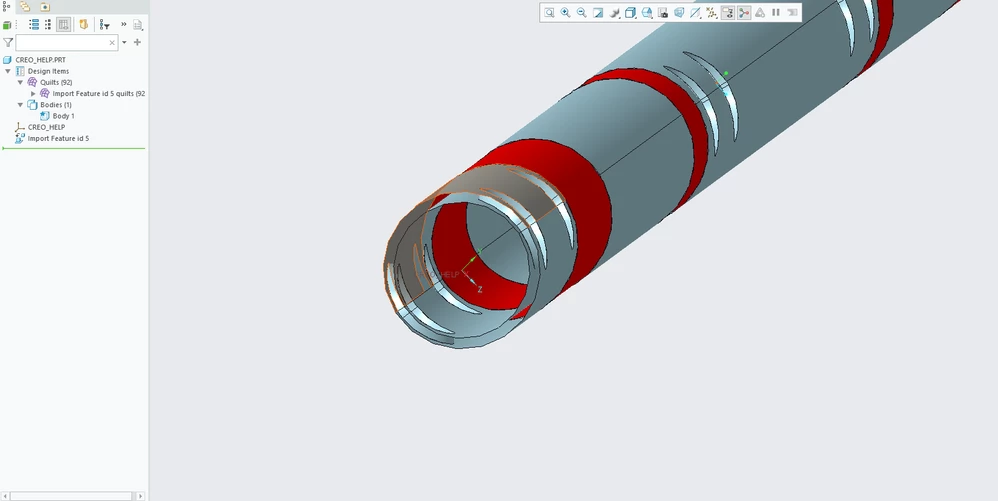
hollowish tubehollowish tubeI use this software called TubeWorks to unbend tubes with features in them for laser cutting. The problem is the step file TubeWorks creates is mostly hollow, has no ends, and has several quilts. (see attached picture)


I've tried merging the quilts and solidifying but it still comes out with multiple surfaces. Any ideas on how to turn this part into one solid piece without losing the holes? I'm using creo version 9.0.5.0.
Best answer by aputman

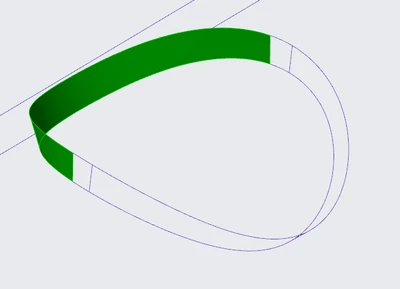
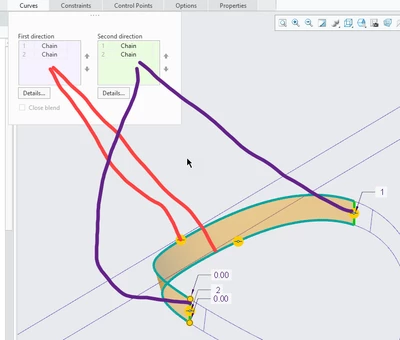
Some of the holes have pink edges, which means the surfaces are not joined at those edges.  I would solve this by deleting the surface and recreating it with the boundary blend tool, same as above. 

  • Delete the highlighted surface that contains a pink edge.
  • aputman_3-1761686824448.png
  • Use the merge curves command to ensure that each of the 4 edges that make up this surface are composed of a single curve each. 
  • Activate the boundary blend tool and create a new surface as shown.

aputman_4-1761687056463.png

  • Drag the newly created surface into the quilt.  Repeat for any other hole geometry that has a pink edge.
  • The small triangular hole is missing inside surfaces.  Use the process above to create 3 individual boundary blends (after merging curves) and drag those surfaces into the quilt. 
  • Same thing applies to the endcap surfaces.  Create separate boundary blends between two semi-circle edges (after merging curves) and drag those into quilt.
  • aputman_5-1761687483938.png


2 replies

tbraxton
22-Sapphire II
22-Sapphire II
October 28, 2025

Options to consider:

Research the import export profiles for the source to see if there are suggested settings/methods to export solids. In this context you need to keep in mind that Creo splits a cylinder into two surfaces, this is unavoidable within Creo so you need to know how to deal with imports of cylindrical geometry.


Use the IDD functionality in Creo to repair/clean up the import data in Creo.

About Import DataDoctor in Creo

Creo Parametric - Import Data Doctor (IDD) Tutorial


Create a solid model of the tube in Creo and then use the import geometry to add the cutouts. If TubeWorks is capable of exporting a body representative of the inside of the tube and the cutouts then you could potentially use this in a Boolean subtract operation to get the solid geometry in Creo quickly. You can of course use manual methods to add the holes by referencing the import data if that effort is warranted.


5-Regular Member
October 28, 2025

I tried the IDD and boolean cut methods but still end up with multiple surfaces. I'll dig into these methods further though.

tbraxton
22-Sapphire II
22-Sapphire II
October 28, 2025

Post the STEP model here (put it in a .zip file) by uploading. Then we can look at what you are actually dealing with.

13-Aquamarine
October 28, 2025

It's difficult to explain how to use IDD in this format but here goes.  The goal in IDD mode is to convert all of the pink edges into purple ones by creating surfaces and joining edges.  Once they are all purple, you'll end up with a solid after closing IDD mode.

  • Open IDD. In the feature tree, move all of the surfaces into a single quilt.
  • Delete the red surfaces in your picture above.
  • Merge the curves that make up the ends of the two different cylinder surfaces. Currently, cylinder edges are divided into two or three curves.  Select the curves and click Merge Curves.  Repeat this process for all cylinder surface edges. 
  • aputman_0-1761684927199.png
  • Use boundary blend tool to create new red surfaces between opposing cylinder edges. This step will be much more difficult if you don't merge the curves beforehand. 
  • aputman_1-1761685275236.png
  • In the feature tree, drag the newly created surfaces into the quilt.
  • aputman_2-1761685370157.png


    This will get you started.   I'll add more in a separate reply. 
5-Regular Member
October 28, 2025

Awesome, Thank you!