
1-Visitor
October 28, 2024
Solved

Contact Interfaces ignored during analyses at random

  • October 28, 2024
  • 1 reply
  • 2660 views

I am using Creo Simulate in Creo 9.0.3.0

I am having an issue during analysis of structural components using frictionless contact interfaces. The issue is that the defined contact interfaces are occasionally ignored during the analysis process. I have started 2 analyses at the same time with the same mesh and had this issue in only one of them. I have been having this issue in multiple, completely unrelated models.
Best answer by ToddKraft

DK_9562724,


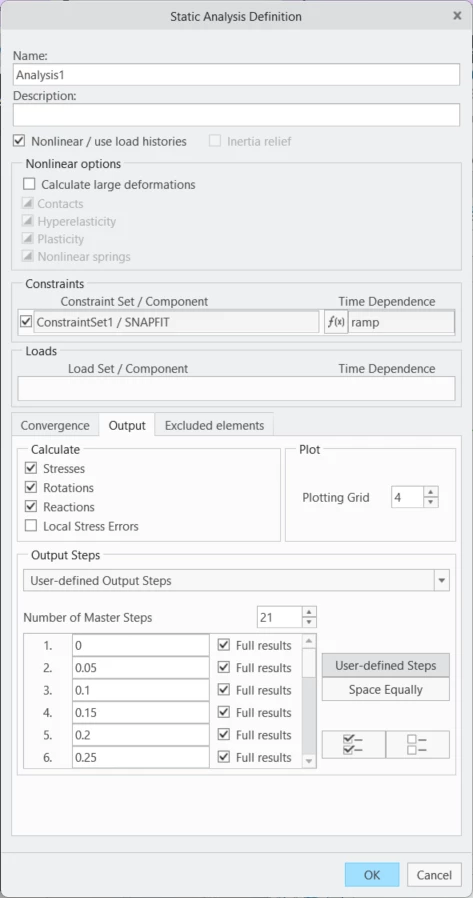
For issues like this, it is helpful to manually define the output steps.  This gives a higher success rate for the surfaces to connect.  Also putting the surfaces fairly close to each other at the start of the simulation helps.  For troubleshooting, start with Quick Check convergence to ensure the parts come in contact, so you don't have to wait for converged results.  


image.png


Regards,
Todd Kraft

Creo Product Manager

1 reply

12-Amethyst
October 29, 2024

Check that the contacts are well defined. Do they have interpenetration? Are the pairs well defined - remember that Creo can be tricky when it comes to selecting surfaces due to the way parts are modelled... Also, a picture or scheme will help the community to give you a better idea...

1-Visitor
October 29, 2024

The contact pairs are well defined surface to surface and they do not have interpenetrations. Here are images the best I can without too much model detail. 

Image with multiple interfaces failing:

DK_9562724_1-1730216556769.png

Image of the definition of those interfaces:

DK_9562724_2-1730216685742.png

It is worth reiterating that the issue is random. Sometimes these interfaces work correctly and other ones fail instead, so I don't see how it could be a problem with interface definition.

ToddKraft16-PearlAnswer
16-Pearl
October 29, 2024

DK_9562724,


For issues like this, it is helpful to manually define the output steps.  This gives a higher success rate for the surfaces to connect.  Also putting the surfaces fairly close to each other at the start of the simulation helps.  For troubleshooting, start with Quick Check convergence to ensure the parts come in contact, so you don't have to wait for converged results.  


image.png


Regards,
Todd Kraft

Creo Product Manager