
1-Visitor
September 12, 2013
Solved

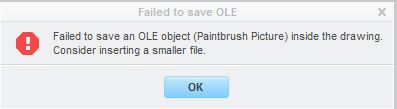
! failed to save an OLE object (Painbrush picture)
  • September 12, 2013
  • 3 replies
  • 15799 views

warning.JPG


I am trying to insert an object onto my Creo drawing and get the above warning.

In todays world a 8MP file is common and reducing the file will reduce clarity.


My question is what is the largest file CREO can handle?


This thread is inactive and closed by the PTC Community Management Team. If you would like to provide a reply and re-open this thread, please notify the moderator and reference the thread. You may also use "Start a topic" button to ask a new question. Please be sure to include what version of the PTC product you are using so another community member knowledgeable about your version may be able to assist.
Best answer by TomD.inPDX

http://www.zamzar.com/convert/pdf-to-bmp/

Search Google for "PDF to BMP" and you will get more options.

OLE objects require specific drivers in Windows. I don't know how they work but I know that several listed are not supported by default OS and Creo installs.

3 replies

17-Peridot
September 12, 2013

Higher resolution images mean little as an imported OLE object in Creo. Their resolution will be limited regardless. You could reduce the image to 10% (10x smaller) and it will likely look exactly the same inside Creo.

I didn't know there was a limit, but now we do I am guessing the file is about 24 megs in size?

As a reference, the highest resolution you can obtain in a drawing of an added OLE image is 600 DPI; 150 DPI is default. I am not certain what the resolution is for images in 3D space. I haven't found a setting that changes this.

1-Visitor
September 12, 2013

part.JPGUsing the following method.....

Insert -> Object -> paintbrush picture -> then cutting and pasting my file....

The largest file I have been able to paste is 500K!

17-Peridot
September 12, 2013

I can import a 1.5mb PNG file without issue. See attached.

seatpic.PNG

1-Visitor
September 12, 2013

Antonius, You are still in the part mode. (look in your lower left hand of the image above)

Please open a drawing and insert a bitmap into a .drw and tell me what you find..

17-Peridot
September 12, 2013

Trust me, that is the drawing file. The note on the bottom just says what part is active in the drawing. See the SHEET 1 stuff?

17-Peridot
September 12, 2013

For the sake of completeness, I took the bitmap image up to nearly 8 megs. The imported image and the drawing size have little to do with each other. In this case, a D-size drawing and an 11x17 120DPI color image (I know, it only has two colors!) is twice the size of the drawing. In case the drawing is only 11x17, again, the image was twice the size of the drawing. Go figure. I also find it difficult to maintain the aspect ratio when you have to resize these.

Regardless, I was able to import the 7.8mb image and save the drawing file.

However, these images can become unstable. I have had them disappear to never come back although they still exist as outlines and objects. I don't know what causes this but it happens. This method is not known as a robust achieve of method for historical drawing.

Enjoy

Video Link : 4341