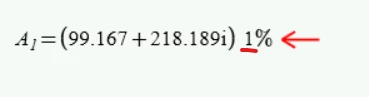
I agree that this display is nasty as is the display if the imaginary unit showing the leading "1" in an expression like this
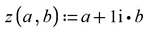
There is not much you can do against the converter producing this display, but there are some workarounds if you are willing to manually edit each affected expression.
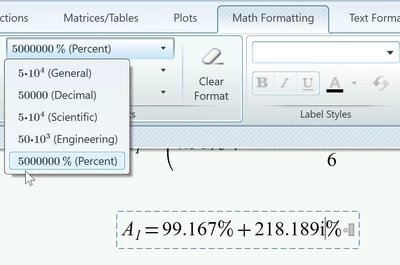
- delete the scaling factor and use Primes menu to display the result using percentages. You will get a "%" for real and imaginary part that way
- With a little more work you can get a display very similar to the one in MC15. You have to define your own variable (you may label it as constant or unit if you like) with the name % and use it in the unit place holder as scaling factor. It looks different than the "normal" % character - maybe this can be fixed by using a different font/style - haven't tried.
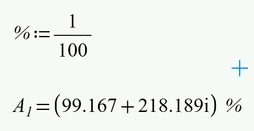
The definition of the variable % could be placed in a collapsed region at the top of the sheet, but the creation of this variable is a bit tricky as you can't just type along starting with the % character.
First you have to type double quotes followed by the % character. So far you have created a text string like "%". Now press DEL to delete the quotes and you have created a valid variable name you can use by following it with the definition :1/100
This procedure is necessary whenever you want to use this variable name, so you probably are better off by using copy & paste.
Prime 9 worksheet attached.