
1-Visitor
December 29, 2011
Solved

Drawing Issues - Line Weights and Images in Tables

  • December 29, 2011
  • 1 reply
  • 22147 views

Hi all,

New Creo Parametric user here, with about a year and a half of experience on Pro-E Wildfire. My company prints most of it's drawings on regular 8.5"x11" paper, and that means there really isn't much room for the thick lines that seem to be the default when printing a drawing. I've tried to find my way into the config file to edit the pen width, but so far I've had no luck.

Also, I'm trying to insert my company's logo into the table that I'm using for title block. Is there any way to insert an image into a table?


This thread is inactive and closed by the PTC Community Management Team. If you would like to provide a reply and re-open this thread, please notify the moderator and reference the thread. You may also use "Start a topic" button to ask a new question. Please be sure to include what version of the PTC product you are using so another community member knowledgeable about your version may be able to assist.
Best answer by BrianMartin

Hi Sean...

The best way to "thin out" the lines is using a pen table file. There's another thread that covers some of the basics of using and configuring this file. The link to that thread is here:

If you read this and still have questions... ask them here and I'll do my best to answer.

Also, unfortunately there is no good way to add an image to a table. But I always have to hedge my bets telling someone "no" when it comes to Creo. There's USUALLY a way to do what you're asking... it's just not always the best way or the most straightforward way.

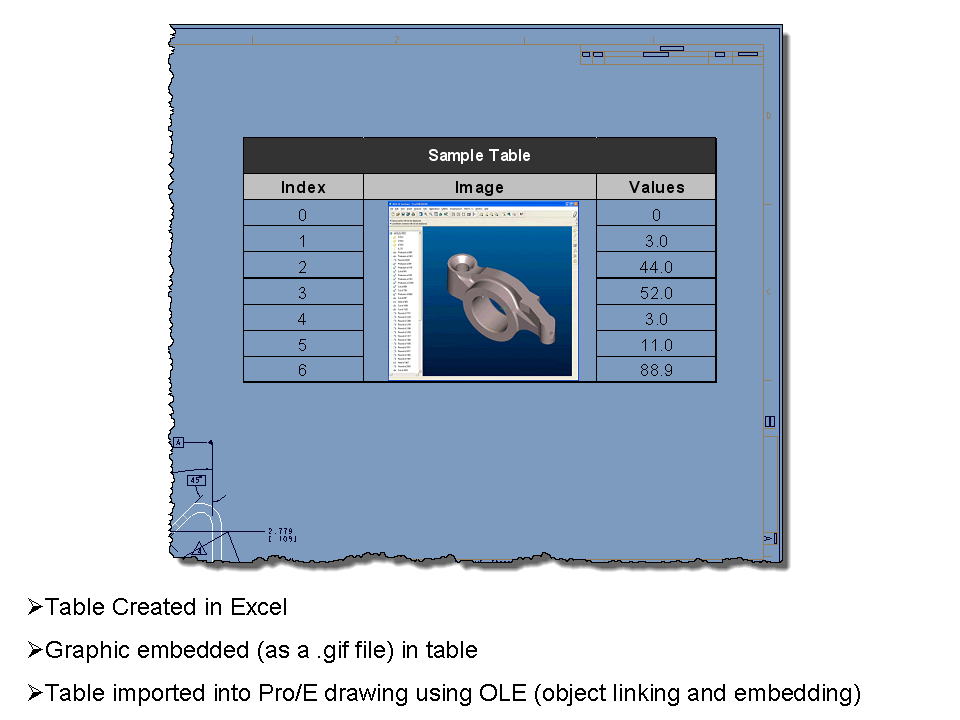
To be truthful, you can add an image onto your drawings and formats. Under the Layout tab, go to the Object command (in the Insert subtab). This inserts an OLE (object linking and embedding) item into the drawing Here you can import many types of graphics and other file types into your Pro/E drawings. Be warned that this feature can be a bit wonky. However, as you can see below, you CAN import a graphic this way. Most people opt to import their company logo and re-create it (or copy it) to a Pro/E symbol. This can be added to a format or table cell much more directly than by using OLE.

Just FYI, here's a quick graphic showing an Excel spreadsheet with a GIF graphic being imported to a Pro/E drawing. Click the image for a larger view if necessary.

ole_sample.png

Hope this helps.

Thanks!

-Brian

1 reply

13-Aquamarine
December 29, 2011

Hi Sean...

The best way to "thin out" the lines is using a pen table file. There's another thread that covers some of the basics of using and configuring this file. The link to that thread is here:

If you read this and still have questions... ask them here and I'll do my best to answer.

Also, unfortunately there is no good way to add an image to a table. But I always have to hedge my bets telling someone "no" when it comes to Creo. There's USUALLY a way to do what you're asking... it's just not always the best way or the most straightforward way.

To be truthful, you can add an image onto your drawings and formats. Under the Layout tab, go to the Object command (in the Insert subtab). This inserts an OLE (object linking and embedding) item into the drawing Here you can import many types of graphics and other file types into your Pro/E drawings. Be warned that this feature can be a bit wonky. However, as you can see below, you CAN import a graphic this way. Most people opt to import their company logo and re-create it (or copy it) to a Pro/E symbol. This can be added to a format or table cell much more directly than by using OLE.

Just FYI, here's a quick graphic showing an Excel spreadsheet with a GIF graphic being imported to a Pro/E drawing. Click the image for a larger view if necessary.

ole_sample.png

Hope this helps.

Thanks!

-Brian

1-Visitor
December 30, 2011

Brian, thank you very much for your help. However, I don't think the link pasted into your reply - leastways, I can't see it using Chrome or IE.

13-Aquamarine
December 31, 2011

Hi Sean...

I meant to insert a link... I must have forgotten it. There are several threads on this site which mention how to use a pen table file. None of the threads is really all-encompassing. You have to dig for the data and research a bit. If you do a search for "pen_table_file", this will pull up most of those threads. "Pen_table_file" is the config.pro option used to re-load special pen mappings to control thickness so it's a term often found in threads discussing methods of tweaking print lines.

I have a comprehensive document I've developed explaining how pen tables work and how to modify line thicknesses. It has some proprietary data in it... so I have to strip that out before I can repost it here. I'll edit the document and repost it this weekend. In the meantime, definitely review the other threads to get some background. If you have any questions after reading, just ask.

Thanks!

-Brian