4-Participant
October 17, 2023
Solved

Revolve result is not smooth

  • October 17, 2023
  • 3 replies
  • 4141 views

Hello guys.


I'm sorry to ask such a dumb question, but I'm absolutely stumped on it. And it's REALLY dumb.


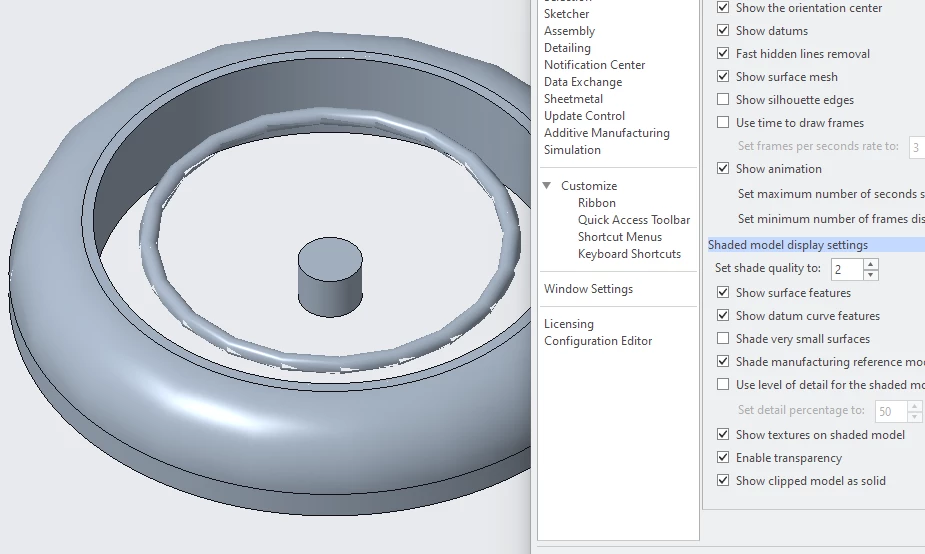
The attached model is a simple revolve of a 25 mm wide tire profile with a 700 mm radius out to the rim. (Yes, it's not realistic, but this problem happens even if I reduce the radius to 400 or 50 or whatever.)


The revolve feature ends up all chunky, instead of smooth. If I reduce the radius to 50 mm, the inside of the feature ends up all chunky instead.


I have changed the model accuracy both up and down and nothing ever changes.
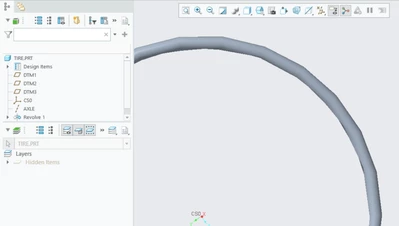
 

JA_10341562_0-1697557359632.png

Thank you for advice on how to get back to the regular, smooth revolves that I know and love.


Edited to add:

OK, I think I see what's happening. Tourus-shaped revolves have this, but cylinder shaped ones do not. With this sketch:
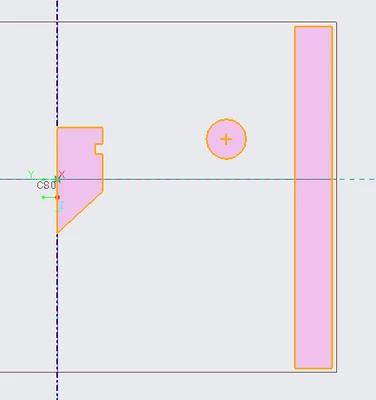
JA_10341562_1-1697559031099.png


I get this revolve, showing both the nice smooth edges I was expected, and the blocky edge (on the torus in the middle).
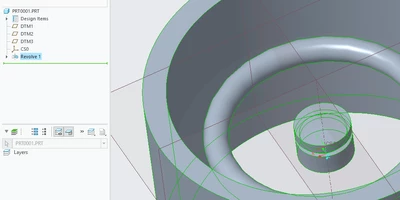
 

JA_10341562_0-1697558975225.png


Best answer by Constantin

Hi,
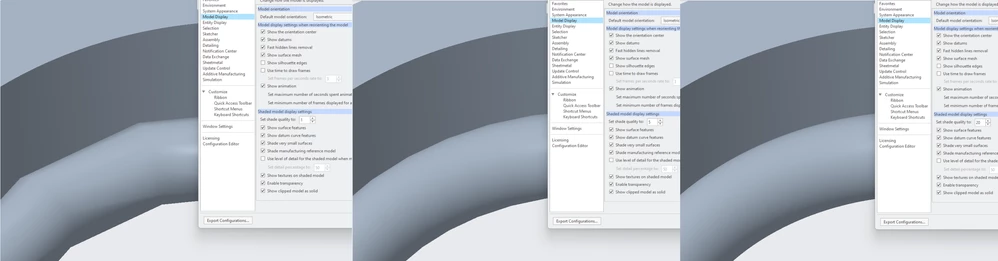
this is definitely shading quality related (set to 1, 5 and 20 in the screenshots)


Shading quality.png

Why the shading quality setting only seems to apply to non ruled surface types, I do not know.

Shading quality2.png

3 replies

22-Sapphire II
October 17, 2023

Try setting the edge display to high or very high and report back on the results of doing this.


File->Options


tbraxton_0-1697557606515.png


4-Participant
October 17, 2023

That did not fix it. (Mine was on medium.)


That reminded me that I use a config.pro full of defaults shared by my whole team. I set the startup directory of my Creo shortcut to use a directory with no config.pro, in order to get the defaults straight "out of the box" from PTC, and I still have the problem. I also created a new part not using our company default template, and still the same problem.


I also happen to have Creo 9 still installed, and it is doing the same thing.


I feel like I'm losing my mind, and that it's always been like this. But when I look at tutorials about adjusting precision, etc, I see beautiful smooth revolves that I can no longer get my Creo to draw. Argh!

22-Sapphire II
October 17, 2023

Try increasing the shade quality if you have not done that before. It is most likely a display issue. Post the model if this does not work, so it can be checked in a different environment.

21-Topaz I
October 17, 2023

Sorry to say, but that looks like a normal representation of a revolved circle in Creo.  It is only a rendering aberration.

15-Moonstone
October 20, 2023

Hi,
this is definitely shading quality related (set to 1, 5 and 20 in the screenshots)


Shading quality.png

Why the shading quality setting only seems to apply to non ruled surface types, I do not know.

Shading quality2.png