19-Tanzanite
February 11, 2020
Solved

Azure AD and Thingworx SSO configuration

  • February 11, 2020
  • 2 replies
  • 3980 views

Hi all,


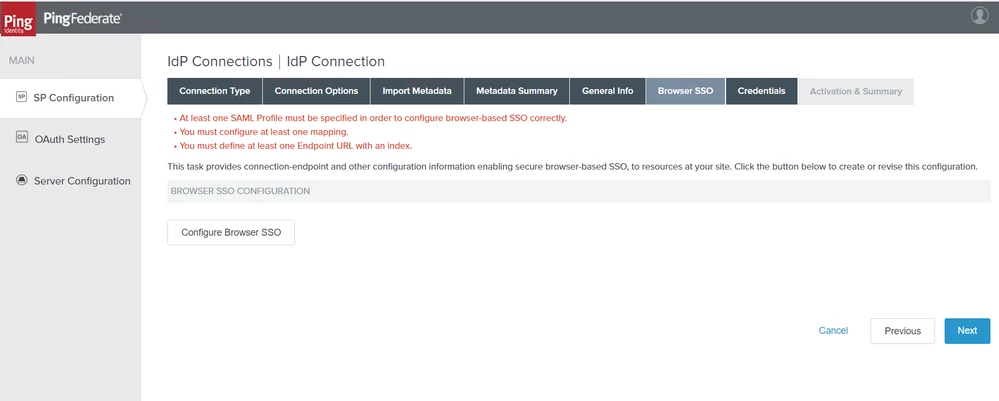
I'm trying to configure SSO for Thingworx, I followed this link, I got stuck at 'Browser SSO' configuration. (PFB PNG for reference)


SSO.PNG


Could any one help me with this.


Thanks in advance


/VR

Best answer by raluca_edu

Hi,


Steps to create a self-signed Application Layer certificate for PingFederate

  1. On the Digital Signature Settings, click on Manage Certificates
    1. On the Manage Digital Signing Certificate click on Create New
      1. Fill in the mandatory fields like
        1. Common Name = PingFederate
        2. Organization = your organization
  • Country = your country
  1. Validity = 3650
  1. Leave rest values as default and click Next
  2. Click Done on the Summary page
  1. Click Save on the Manage Digital Signing Certificate Page
  1. You will be now back to Digital Signature Settings Page


  1. Click on the checkbox “INCLUDE THE CERTIFICATE IN THE SIGNATURE <KEYINFO> ELEMENT.”
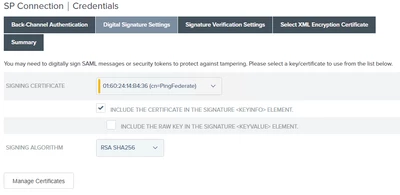
raluca_edu_0-1582115406517.png


  1. Click Next on the Digital Signature Settings Page
  2. On the Signature Verification Settings tab, click on Manage Signature Verification Settings
    1. On the Trust Model, select “UNANCHORED
    2. On the Signature Verification Certificate, select the Thingworx SP Signing Certificate and click Next.


When you visit this tab for the first time, there will be no certificate in the dropdown list. You can import the public part of the Thingworx signing certificate and choose it as Signature Verification Certificate


  • Click Done on the Summary page

2 replies

17-Peridot
February 11, 2020

Hi,


Follow these steps:


  1. In the PingFederate GUI navigate to the IDP Configuration page and locate the SP Connections section and click Create New.
  2. On the Connection Type tab, select the Browser SSO Profiles option to specify SAML 2.0 protocol.
  3. On the Connection Options tab, confirm Browser SSO is selected and click Next.
  4. On the Import Metadata tab, None should be selected. Click Next to accept this default.
  5. On the General Info tab, perform the following:
    1. Set Partner’s Entity ID (Connection ID) to a unique value. Make a note of this ID because you will use it when configuring the ThingWorx ssosettings.json file.
    2. Provide a descriptive name for the Connection Name This is the name that will be displayed in the PingFederate SP Connection list.
    3. Set Base URL to the URL where your web application (ThingWorx) service provider is hosted.

Example: http://<hostname>:8080

  1. On the Browser SSO tab, click Configure Browser SSO and perform the following instructions:
    1. On the SAML Profiles tab, select IDP-INITIATED SSO and SP-INITIATED SSO. Do not select any options in the Single Logout (SLO) Profiles column.
    2. On the Assertion Lifetime tab, specify:
      1. Minutes Before: 60
      2. Minutes After: 480

.......


Hope it helps,

Raluca Edu

Velkumar19-TanzaniteAuthor
19-Tanzanite
February 12, 2020

Hi @raluca_edu 


Thanks for your response.


I followed your procedure, I have imported federation.xml file from Azure AD. While configuring, I got stuck in this page.


Velkumar_0-1581480184463.png


/VR


17-Peridot
February 12, 2020

Hi,


Click Configure User-Session Creation and set it up.

After that configuration, always click next and you will be guided in the next step in PingFederate.


Best regards,

Raluca Edu


Community Manager
February 21, 2020

Hi @Velkumar.


If one of the previous responses answered your question, please mark the appropriate one as the Accepted Solution for the benefit of others with the same question.


Regards.


--Sharon