1-Visitor
February 15, 2018
Solved

Is it possible to redefine default coordinate system and change orientation in Creo Parametric

  • February 15, 2018
  • 4 replies
  • 45639 views
  • Is it possible to redefine default coordinate system
  • Inability to redefine default coordinate system and change orientation
Best answer by sully7

There are two types of coordinate system features in Creo - the normal "Coordinate System", and the "Default Coordinate System".  Creo reserves this internal "Default Coordinate System" - that always set the same orientation.


Basically, Creo always needs something to use as a reference. So, the first feature in your tree can either be:

  • a "default" csys
  • three datum planes


If the first feature in your model (or your "start part") is a coordinate system - it will actually create a "Default Coordinate System", because there is nothing else in the part to use as a reference.
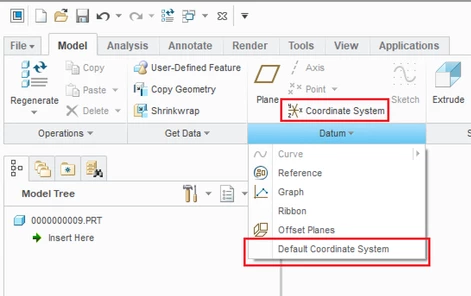
Untitled.png


If you want your start part to use a coordinate system with a different orientation, you can define your datum planes first, then create a regular coordinate system to orient  it differently.

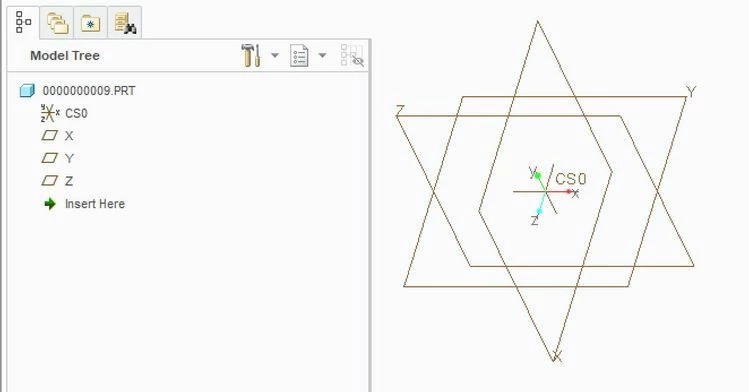
aka - if you create your "coordinate system" (and then three datum planes), you will get this:Capture.JPG


If you create your datum planes first, and THEN your coordinate system, you can create something like this as you desire.rotated.JPG
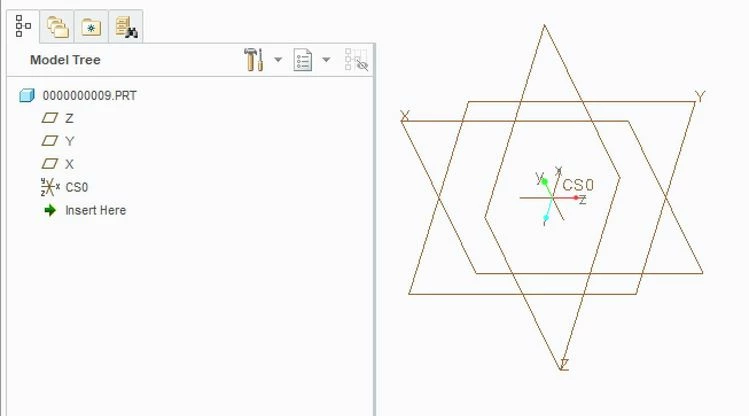
 

Note how the blue-green-red are matched to different axes than in the first example, and I've simply renamed the datum planes. 


However, a VERY important thing to note: even if you create your "first" coordinate system as I showed in the second example.... if you create a "Default Coordinate System" now, it will ALWAYS create it with the same orientation as in example 1, and you will not be able to edit it's definition. 


If you ever want to "change" the orientation of the part... one thing you can do is to create a NEW coordinate system rotated from the "Default". Then you can use "Replace Reference" to  change all of your features to use the new coordinate system/orientation instead of the old default one (then maybe hide or delete the default... of course, depending on your company standards, etc).

Hope this helps!

James Sullivan

4 replies

sully714-AlexandriteAnswer
14-Alexandrite
February 15, 2018

There are two types of coordinate system features in Creo - the normal "Coordinate System", and the "Default Coordinate System".  Creo reserves this internal "Default Coordinate System" - that always set the same orientation.


Basically, Creo always needs something to use as a reference. So, the first feature in your tree can either be:

  • a "default" csys
  • three datum planes


If the first feature in your model (or your "start part") is a coordinate system - it will actually create a "Default Coordinate System", because there is nothing else in the part to use as a reference.

Untitled.png


If you want your start part to use a coordinate system with a different orientation, you can define your datum planes first, then create a regular coordinate system to orient  it differently.

aka - if you create your "coordinate system" (and then three datum planes), you will get this:Capture.JPG


If you create your datum planes first, and THEN your coordinate system, you can create something like this as you desire.rotated.JPG


Note how the blue-green-red are matched to different axes than in the first example, and I've simply renamed the datum planes. 


However, a VERY important thing to note: even if you create your "first" coordinate system as I showed in the second example.... if you create a "Default Coordinate System" now, it will ALWAYS create it with the same orientation as in example 1, and you will not be able to edit it's definition. 


If you ever want to "change" the orientation of the part... one thing you can do is to create a NEW coordinate system rotated from the "Default". Then you can use "Replace Reference" to  change all of your features to use the new coordinate system/orientation instead of the old default one (then maybe hide or delete the default... of course, depending on your company standards, etc).

Hope this helps!

James Sullivan

dg-21-VisitorAuthor
1-Visitor
March 1, 2018

thank you.

i have to match Assembly default position for my vehicle coredinate system which is i have.

its xyz orentation is different from the default.

1-Visitor
May 11, 2021

Hi @all,


is it possible to change the CSYS in Creo View as well somehow? (pls. see here)


Thank you

kdirth
21-Topaz I
21-Topaz I
May 11, 2021

Many years ago, using WF2 we had a program or map key that we used on a part or sub assembly in an assembly to move the part relative to its def csys so that it defaulted to the correct placement in the assembly.  I don't have that anymore but something may be available somewhere.


Currently, when I want a part to match the default csys, I create a csys offset from the default and redefine the default planes to the new csys.

  • Activate the model in the assembly.
  • Select the part Default csys and select the csys tool.
  • Select the assy default csys to create the offset values and complete the csys.
  • Edit reference on the new csys and select the part csys.
  • Move the new csys above the default planes.
  • Edit reference for the default planes using the new csys.
  • Edit reference for any other feature that uses the default csys replacing it with the new csys.
  • Now you can redefine the assembly of the part to default.
There is always more to learn.
1-Visitor
May 11, 2021

I'm not sure if you are referring to Creo or Creo View, but regarding Creo View (MCAD, that is), the matter has since been resolved in the other thread:


Change the Dragger's position

12-Amethyst
October 28, 2025

It is critical to understand that however you create or alter the start part, there is always an "origin" in the model that cannot be changed.
The Default Coordinate System is simply a feature representation of the origin.
Because 3D CAD evolved from 2D CAD which evolved from a paper world where X was always to the right and Y was always up, the Z direction always "comes out of the page" toward you.  You cannot change this "under the hood".
Any coordinate system created in a part that is oriented differently from the origin is a secondary feature and will not change the origin of the model.
This is critical if you perform mass properties (center of gravity and moments of inertia), export any file including PVZ, measure between CSYS, and perform other analysis (simulation).  If you do not specifically select the newly created CSYS in the process of performing of any of these tasks, the default will always be the origin and may create confusion throughout your digital thread.

12-Amethyst
November 19, 2025

@gtwalker wrote:

.. If you do not specifically select the newly created CSYS in the process of performing of any of these tasks, the default will always be the origin and may create confusion throughout your digital thread.


Unfortunately, this selection isn't possible in many cases.