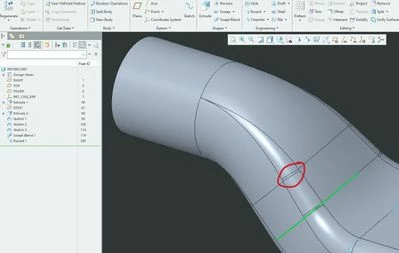
These small surfaces are super common and result from the underlying geometry as @tbraxton says. In general they don't hurt anything, but if they get very small or if you get a lot of them in a local area, then it can pay to revisit earlier model features.
In the shape you show above, creating it with distinct curves and lines will give the large surface divisions. Here is another example. You can see the "Sliver" segments like above.
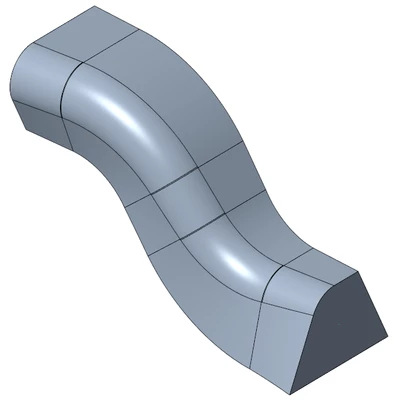
To get rid of them, try using continuous construction techniques like a "spline" or a "continuous curve" imposed over an original sketch, then it won't have the large surface divisions, which will eliminate the extra small sliver surfaces when you put a round on it. Here is the same model done with a composite curve. The "Round" feature does not create the slivers because the main geometry does not have the surface segments.
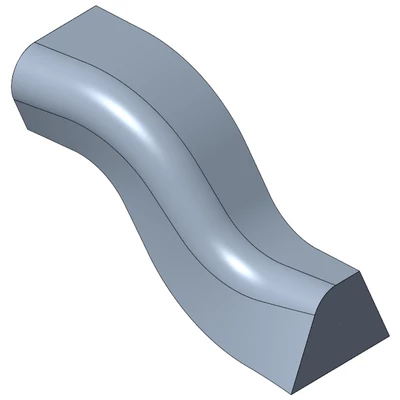
Obviously this is not exactly the same as your example, and the ability to do it depends on the geometry you are trying to achieve. However, when appropriate, the techniques do help.
The down side is the features take a little more work, especially if you ever need to change them.
You can find the composite curve function in the Copy / Paste using the "Approximate" setting -- https://www.youtube.com/watch?v=bMiX43fSNUY shows it. -- I can't think of a more stupid or unintuitive place to put this useful functionality, but PTC has so many HUGE, silly UI/UX failures in Creo. Perhaps especially as they bury great functionality like this in order to dumb down the software. Anyway, hopefully this helps.