

Part II Enhancements on Windows Explorer Integration for Windchill Desktop Integration 10.2
In my last blog post Productivity Enhancements on Windows Explorer Integration for Windchill Desktop Integration 10.2, Part I I discussed the possibilities and enhancements around the Windchill Documents system folder in the Windows Explorer.
This blog will show you how easy it is to display Windchill Meta data information in the Windows Explorer Integration.
I will also discuss the integrated Windchill search and how leverage the Windchill Index Search functionality.
View Windchill Information
Windchill metadata information of your documents can be displayed in the Windows Explorer without opening a browser to access the Windchill web application. Even applying filters is possible.
To do so, you have to navigate from the Windchill Documents node to the context that you are interested. On the right hand pane you will see the stored documents.
You may add or remove attributes by right-clicking a Windows Explorer column heading to see a drop down menu of additional columns available.
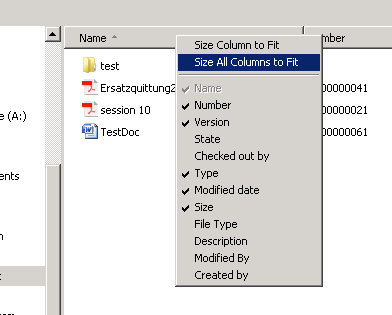
Is the attribute still not available in the out of the box list?
No problem, since Windchill 10.2 F000 you can select Windchill folder views to add columns that appear in the list. With Windchill 10.2 M010 even the filters on these views will affect the data displayed in the object list.
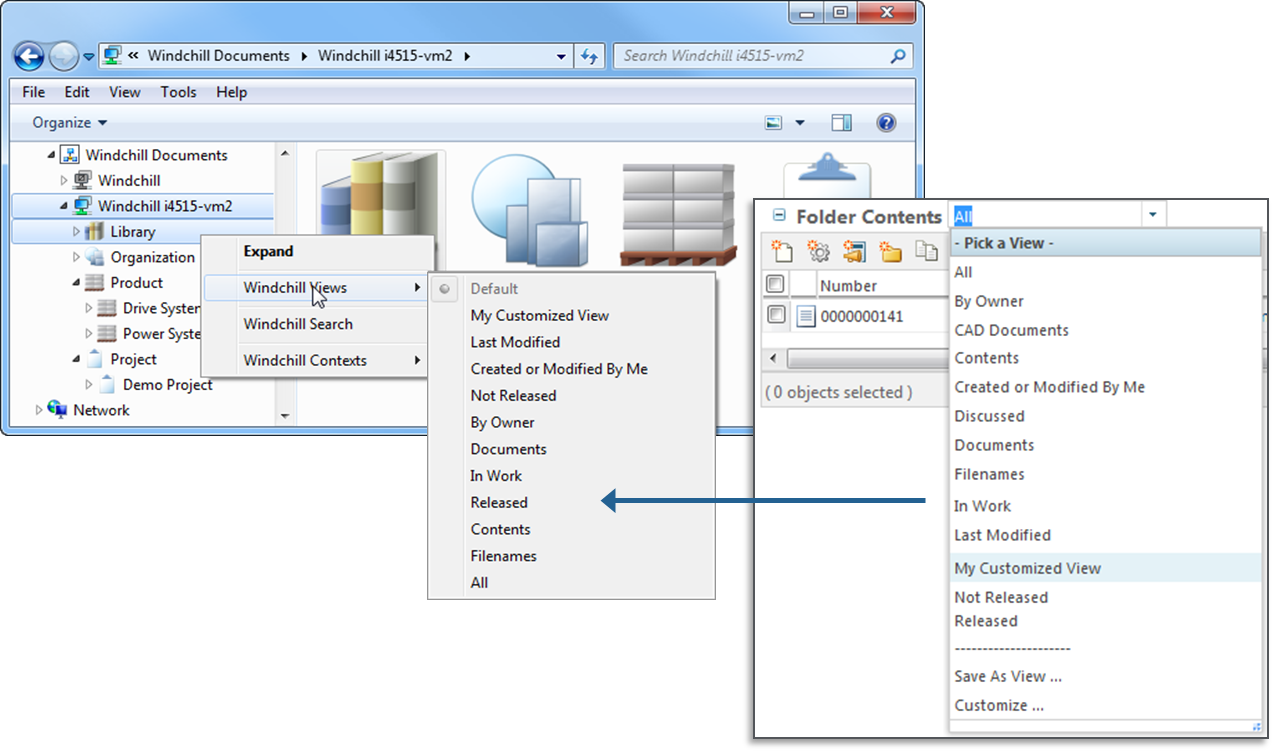
This allows you to configure which documents will be show in the folder. E.g. if you only want to display the latest document version, then apply filter settings on the Windchill table view (in the Set Filter step select Revision and Version attributes and set them to Latest).
Folder Search for Windows Explorer
All the features that I showed until now required that you exactly know where the documents are located in your Windchill system but this unfortunately is not always the case. While manual navigating through the folder structure is cumbersome and annoying to find a document, there is a simpler way to find your documents.
Starting in Windchill PDM Link 10.2 F000 you can search for any Windchill document using the Windchill Search action. This is a quick and easy way to search for your documents inside of the Windows Explorer Integration without the need to open the Windchill web application.
The search can be initiated from context, container or folder level within the Windchill Documents node. This will allow you to search by Name or Number on this context level and all sub-contexts.
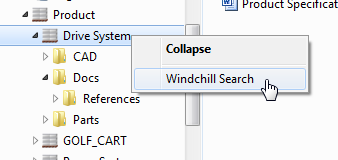
Please note that the search is case-insensitive and wildcards are allowed. Add asterisk (*) as a wildcard character to indicate that one or more characters can appear in that position.
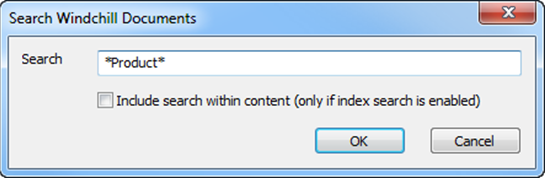
For Windchill systems with Index Search enabled, even document content will be taken into account when calculating the results if the option “Include search within content (only if index search is enabled)” is selected.
The native Windows Explorer search field (in the top right corner of the Windows Explorer) can also be used to perform a search but this will yield slightly different results. The search will only be performed on the current folder / context and not on any sub-context.
In case you are also interested in the location of document in the folder structure, you can use the right mouse button menu to select “Open File Location”. This will open the Windchill context or folder in which the object is stored.
Conclusion
This was the last part of my post about productivity enhancements on Windows Explorer Integration.
I hope that you liked this brief tour on the Windows Explorer Integration if you are interested in more details, you’ll find further information in the Windchill Help Center.
Thank you also for your many comments on part I.
As always let me and the community here about your thoughts and questions:
-
What do you like about the Windows Explorer Integration and what do you think is missing?
-
In which scenarios you are using the Windchill Explorer Integration?
-
…