
12-Amethyst
August 24, 2015

Productivity Enhancements on Windows Explorer Integration for Windchill Desktop Integration 10.2, Part I

  • August 24, 2015
  • 27 replies
  • 14469 views

In Windchill 10.2 a lot of effort has been made to enhance and simplify the user experience when working with WTDocuments from your Microsoft Windows Desktop.

In this blog I will show you some of the enhancements and how they can significantly simplify your interaction with documents stored in your company’s Windchill system.


Windows Explorer Integration


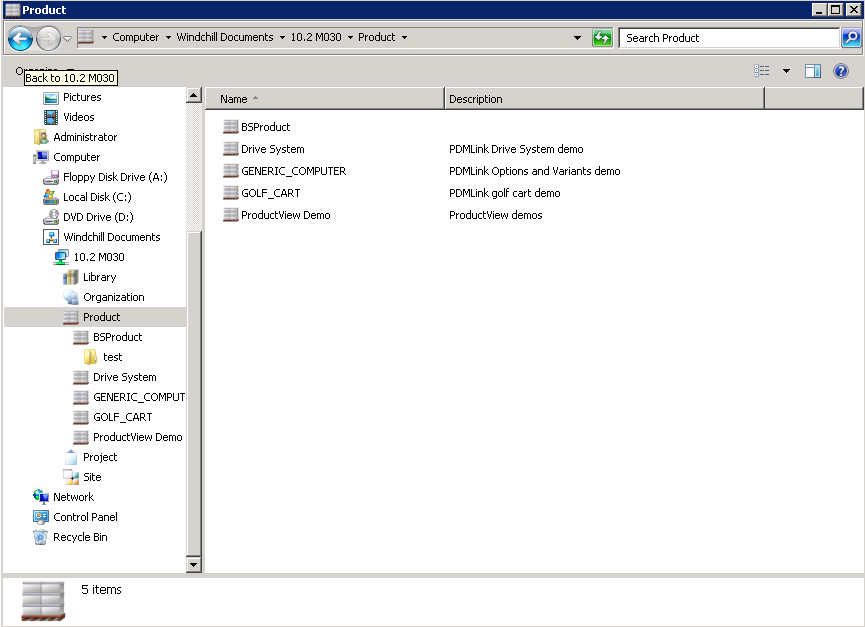
The PTC Windchill Desktop Integration plugin adds the Windchill Documents system folder to your local environment. You can you use that Windows Explorer Integration to find, open, access and download Windchill documents without the need to open the Windchill web application in a browser.
 

DTI.png

This will give you a variety of ways to easily access and interact with documents just like they had been stored on your local system:


  • by double clicking on a file in the Windows Explorer
  • by using the context (right mouse button) menu on the Windchill node, any context folder or document in the Windows Explorer
  • by the File > Open dialog of any local application (like Microsoft Word, Adobe Acrobat…)
  • ...


But I do not want to miss the (in my opinion) most natural way of interacting with documents in Windows – Drag and Drop.

As working with the Explorer Integration should just feel natural, Drag and Drop capabilities have been integrated and with Windchill 10.2 M010 these have even been enhanced.

Dragging a document file from your local system to a context folder under the Windchill Documents node will trigger one of the following actions (depending on the area where you drop the document):


  • New Document / New Multiple Documents
  • Check In
  • Replace Content


The other direction is supported as well:

Grabbing a document from a Windchill context folder and dragging it to your local system or another Windchill context will trigger corresponding actions depending if modifier keys (Shift and / or Ctrl) are applying and the target the document is dropped (possible actions are copy, move, create shortcut…).


Access to Windchill Functionality


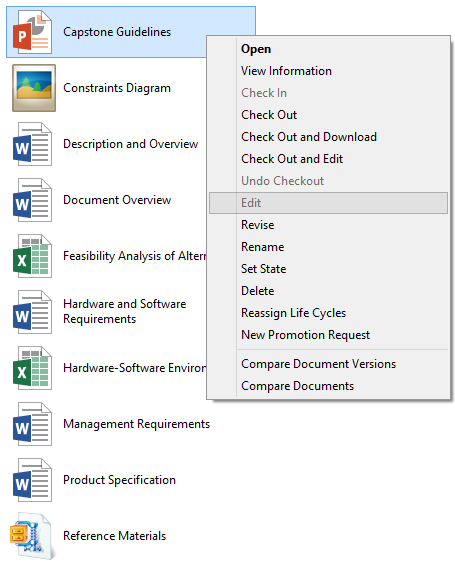
Starting with Windchill 10.2 F000, the right-click menu in Windows Explorer includes a wider range of Windchill actions. While in previous releases only actions such as Open and View Information were available, this expanded to the most commonly used actions on the Windchill web application (even multiselect for Check in, Set State… have been implemented in 10.2 M030).

The right mouse button menu is context sensitive and the actions availability will change depending on the object you open it on. Additional restrictions like access permissions, preferences and so on can have impact on the availability of actions.
WCUpgradeCFTR_DIChangesWindchillActionsAddedtotheRightClickMenu.png

My personal highlight is the introduction of the Compare Document functionality in the Windows Explorer integration with Windchill 10.2 F000.


Compare Documents


Starting Windchill 10.2 F000 (and enhanced in 10.2 M010) the Desktop integration added compare capabilities. But different to the compare functionality available in the Windchill web application this will concentrate less on comparing metadata but more on comparing the content of the documents.

Out of the box Windchill supports Microsoft Word 2007 and 2010 files and had been extended to Microsoft Excel and Microsoft PowerPoint in Windchill 10.2 M010 (dedicated support matrix below).


Office Version Microsoft Excel Microsoft Word Microsoft PowerPoint
2007 No Yes No
2010 No Yes Yes
2013 Yes Yes Yes


Additional file compare tools can be registered based on the file extension in the Windchill Desktop Integration Configuration menu.


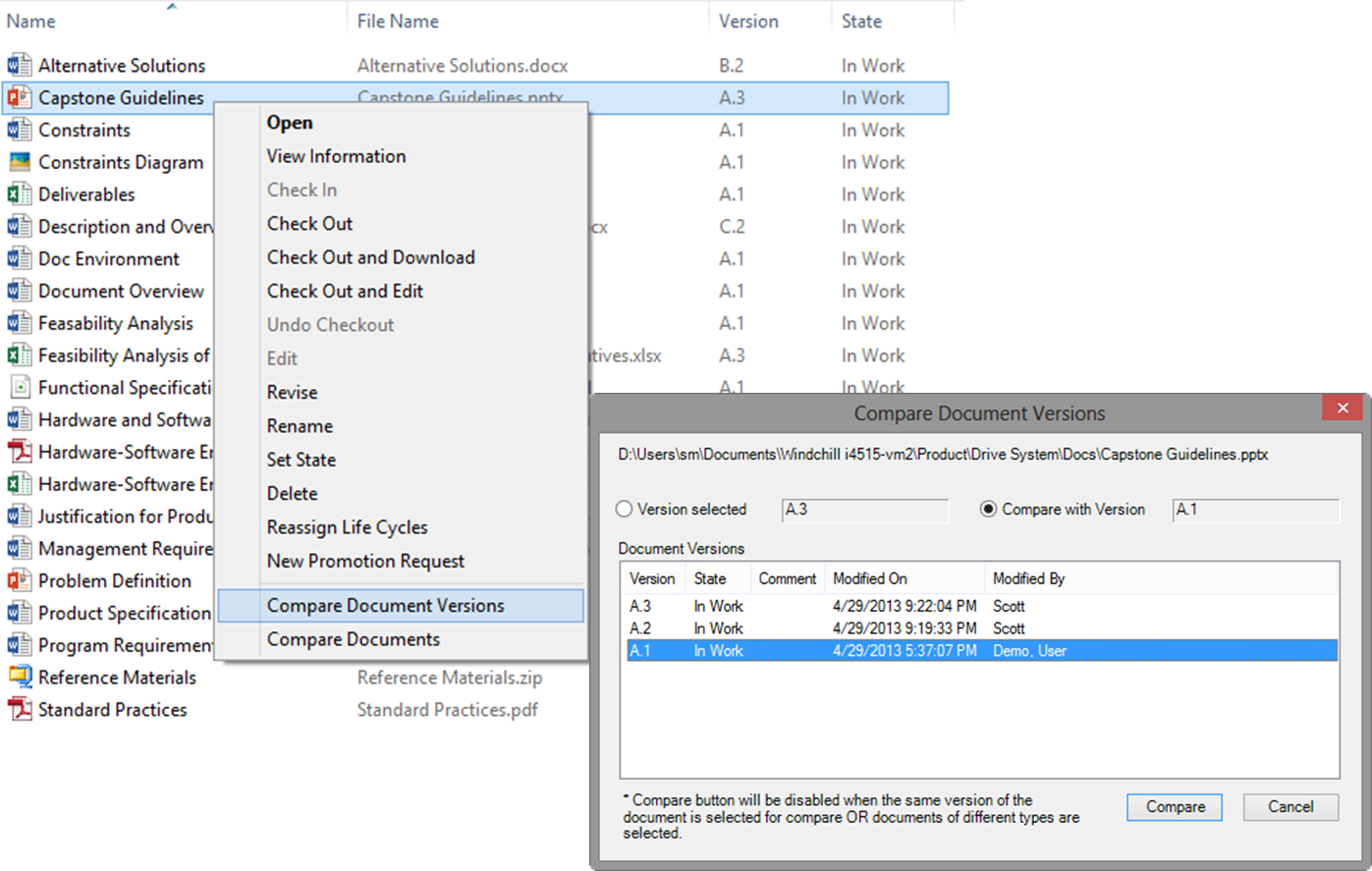
There are two different compare actions available:


  • Compare Document Versions

This will allow you to compare the file content of two different versions of the same document (see screenshot)

  • Compare Documents

This will allow you to compare the content of two different objects, which need to be of the same file type.
 

WCUpgradeCFTR_DIEnhancementsDocumentComparisonActionsandOptions.png


Going forward


This was the first part of my post about productivity enhancements on Windows Explorer Integration.

In the second part I will show you how easy it is to access Windchill Meta data in the Windows Explorer, how this can be adjusted to your needs and how simple it is to find any document with the integrated Windchill search.


If you are in the meantime interested in additional details on the Windchill Explorer Integration, you’ll find further information in the Windchill Help Center.


And as always any questions and comments are appreciated but I definitely would be very interested in your ideas:


  • What do you think about the enhanced functionality? Which functionality you like best?
  • For which things do you use the Windows Explorer integration?


Please let me and the community know about it.

27 replies

1-Visitor
September 2, 2015

Windchill DTI creates a top level folder under My Documents based on the name of your server connection. From there, it will create a folder structure that replicates the container and folder structure in Windchill. They structure is built dynamically, as you access different areas of Windchill. As documents are accessed and opened they are downloaded to their respective folder in the local cache.

What's important to note here, Windchill is NOT replicating all the folders and all the documents in the local cache like common file sharing tools; Google, OneDrive, Dropbox. It is only replicating the files a user accesses. So even though Windchill has thousands of files in the system, I may only have 5-10 in my local cache based on the frequency in which I am accessing and modifying documents with DTI using the Windows Explorer interface.

Users should not need to manage the files in the local cache. Windchill DTI understands how to compare the local files to the server files and always asks the user what to do if a conflict occurs. The local cache is a convenient way to store locally modified files that are still WIP and not checked in. Its also a quick way to access commonly used files.

Regarding disk space, check the properties of your local cache folder. Unless you are a heavy document user, or you are working with very large document files,  I would not expect the local cache to be very big at all. If it is an issue, this folder can be removed at any time, but there is a potential to lose unsaved (checked in) documents.

18-Opal
September 2, 2015

That last point you mentioned about no identifier of WIP is a significant problem.

I just checked and one user who uses the folder structure, and its current state in just 1-2 months of use (it was requested the all users delete everything in these folders and start clean again) is:1580 folders, 267 files and 237MB.  I agree that this is not much space, but files are buried in a haystack.  how do you know which ones have files that are WIP, or even which folders are actively being used?  A single perfect duplication, or maybe no duplication but live accessing PDMLink via Windows explorer, would seem easier to stay organized don't you think?  Or am I missing something?

In addition to being able to find WIP easier than the needle in the haystack, it would also be nice if folders with no files displayed differently..

bsaupp12-AmethystAuthor
12-Amethyst
September 8, 2015

Hello all,

I am back from my holiday and I am very happy to see so much interest and to read so many comments on my blog.

Thank you for taking your time to post your comments and thoughts. I will answer to them during the next few days.

Later today I will also post Part 2 of this blog. I am also very keen to hear your thoughts on Part 2.

Kind regards,

Björn

bsaupp12-AmethystAuthor
12-Amethyst
September 8, 2015

Hello Chris,

thank you for sharing all your experience and thoughts on Document Management and the Explorer Integration.

I fully agree that Document Management is so much more than just saving, accessing and loading a (content) file and yes the Explorer Integration can give the impression that "the power of a document" (as you named it) is reduced to a simple file managed in a folder.

But I think this is just one side of the coin. I see great benefits in the Explorer Integration in multiple ways:

  1. For users that only need to make changes to the primary content of a document i see great benefits.
    For them Document Management is reduced to something they are more familiar with. They get access to the most common functionality they need without "threatening" them with accessing the Windchill web application with a User Interface these users are most of the time not familiar, much more and powerful functionality that they do not need and often intimidates them.
    This way they get an access point to the world of Document Management and when they get familiar with the concepts these users can progress and grow to using the web application that will give access to document structures and the more advanced features.
  2. For the advanced and experienced users I also see benefit in the Explorer Integration.
    It gives them fast and easy access to the most common functionality. In case they have to make some change to primary content from Microsoft Word. It is much faster and feels natural to just open primary content from File > Open in Word instead or by double clicking on the file in Windows Explorer instead of opening the the internet browser, accessing Windchill, navigating to the context, downloading the primary content, opening it with Word...
    So for them I see the Explorer Integration as a shortcut to common functionality while they still have the Web application for the complete Document Management functionality.
  3. ...

And I definitely want to hear about the progress you made by promoting Windchill for Document Management in your new company.

Kind regards,

Björn

1-Visitor
September 8, 2015

Hi Björn

I hope you had a good vacation.

We agree. The Explorer is for a slow introduction to document management (If people are afraid of the Windchill Interface, then I doubt they are proficient in Change Management to make changes to their doc/files. However, when a doc is released and they can t check it out, they need some understanding of what is going on. At least when they are in a new interface they are out of their comfort and are more alert to new concept.

For the proficient users, well they should know what they are doing. I personally, find it much quicker to download the content from the web interface.

I have no idea what your part 2 will talk about and if it has been influenced by what we are talking about but I look forward to read it

I also understand that PTC has also no other choice than to provide such functionality (Explorer Integration) as more or less all your competitors have something similar. Please let me re confirm, It is needed and needs continuous improvement.

It will be with pleasure to tell you and community about how I progress such concept in my company but it will take a good year to see measurable results.

Hope you are patient

What is supposed to be 3....

Bye now

Best regards

bsaupp12-AmethystAuthor
12-Amethyst
September 10, 2015

Hello Chris,

be assured... I am a patient man

Kind regards,

Björn

bsaupp12-AmethystAuthor
12-Amethyst
September 10, 2015

Hello Lawrence,

thank you for all your interest and questions; because of the length of my answer to them I will be sending you an individual message.

About your comments on the UI. I am not in the position to provide you an update on the UI matters, but be assured that I will pass along your comments.

Kind regards,

Björn