

Setup a Raspberry Pi as an IoT Device Part 4
- 0 replies
- 698 views
- Translate All
Step 8: Verify Connectivity
The EMS is now attempting to talk to ThingWorx Foundation.
However, ThingWorx does not have detailed information about the Edge device that is attempting to connect to it, so it will show up in the Unbound category of Remote Things.
- Open ThingWorx Composer.
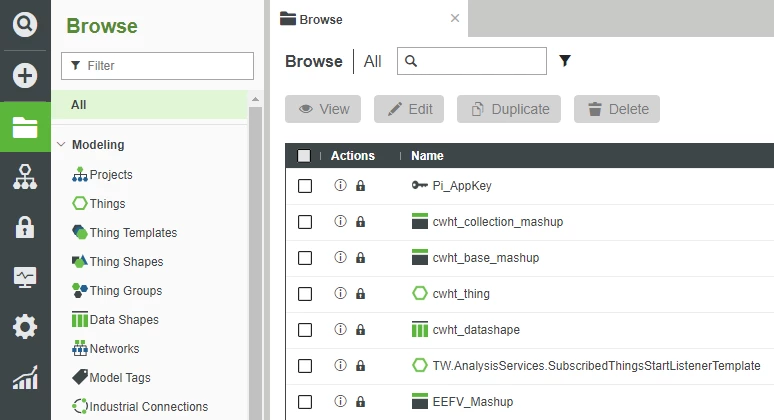
- On the left, click Monitoring.
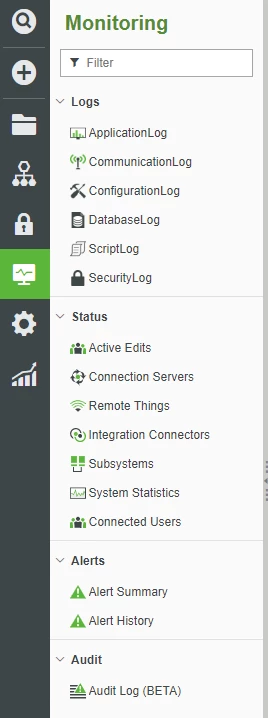
- Click Status -> Remote Things.
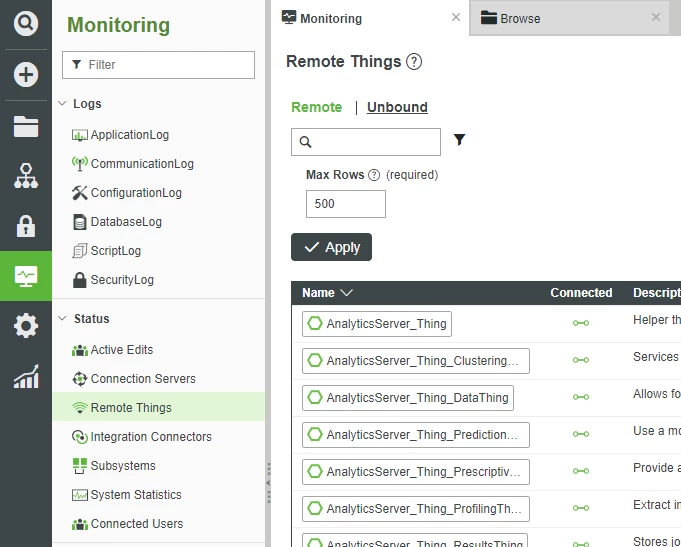
- Click Unbound.
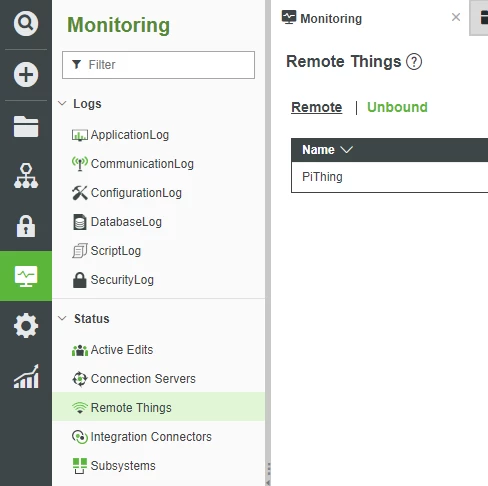
- Confirm that you see the PiThing listed in the Unbound section.
NOTE: The name PiThing comes from the config.lua script. PiThing is simply the name that is in that script, hence the name that you see in ThingWorx. To change the name of the device, you could stop both wsems and luaScriptResource, edit config.lua to use a different Thing name other than PiThing, and then restart both of the EMS programs. At that point, the Thing showing up in Remote Things -> Unbound would be whatever name you changed to in config.lua.
Create a Remote Thing
Now that the EMS is communicating with ThingWorx Foundation, let's create a Remote Thing to which Foundation can tie said connection.
- In ThingWorx Composer, click Browse > Modeling > Things.
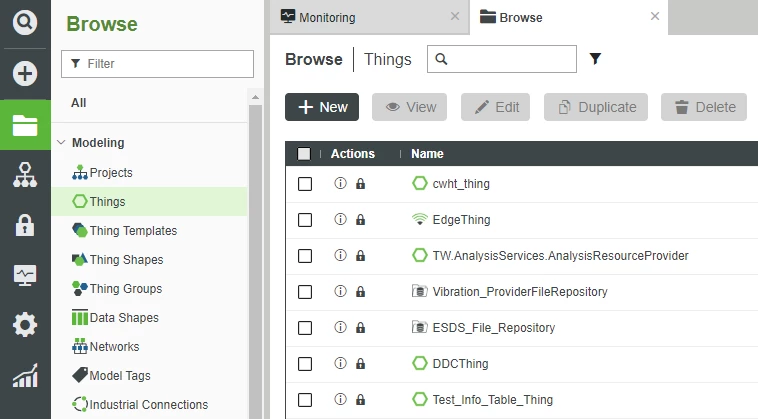
- At the top-left, click + New.
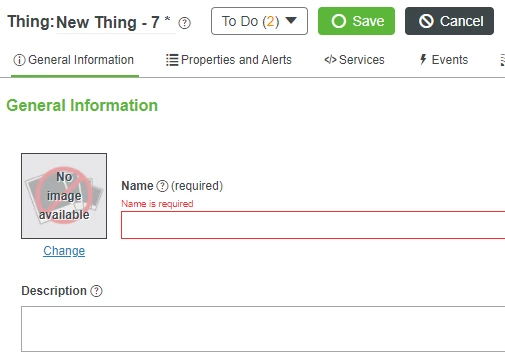
In the Name field, enter PiThing.
- Note that the name must match the spelling and capitalization of the Thing's name that you entered in the EMS's config.lua for it to auto-connect.
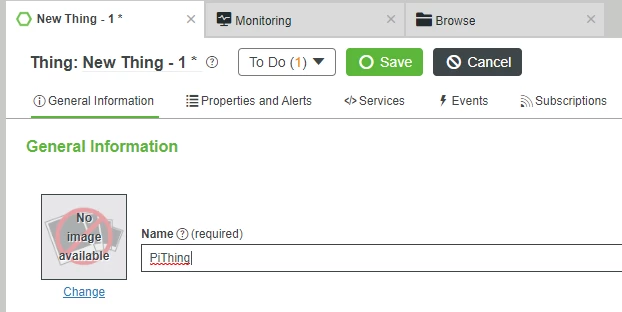
- Note that the name must match the spelling and capitalization of the Thing's name that you entered in the EMS's config.lua for it to auto-connect.
- If Project is not already set, search for and select PTCDefaultProject.
- In the Base Thing Template field, search for remotethingwith.
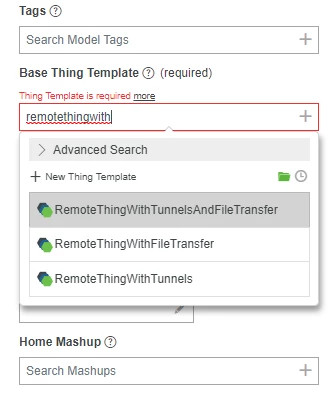
- Select RemoteThingWithTunnelsAndFileTransfer.
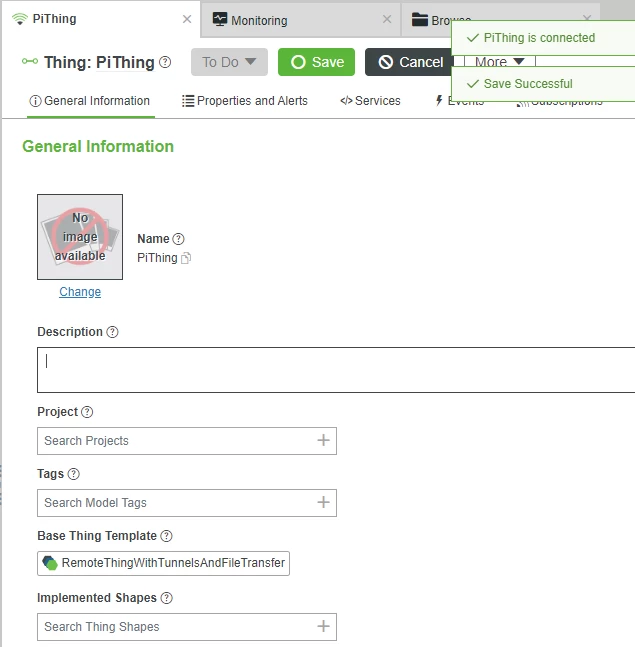
At the top, Click Save.
- Note the status-indication pop-up indicating that PiThing is now connected.
Use Services to Explore EMS Files
Now that your Remote Thing is Saved and Connected, we can use some of the built-in Services to explore the EMS folders and files which we previously created for testing purposes.
- At the top of PiThing, click Services.
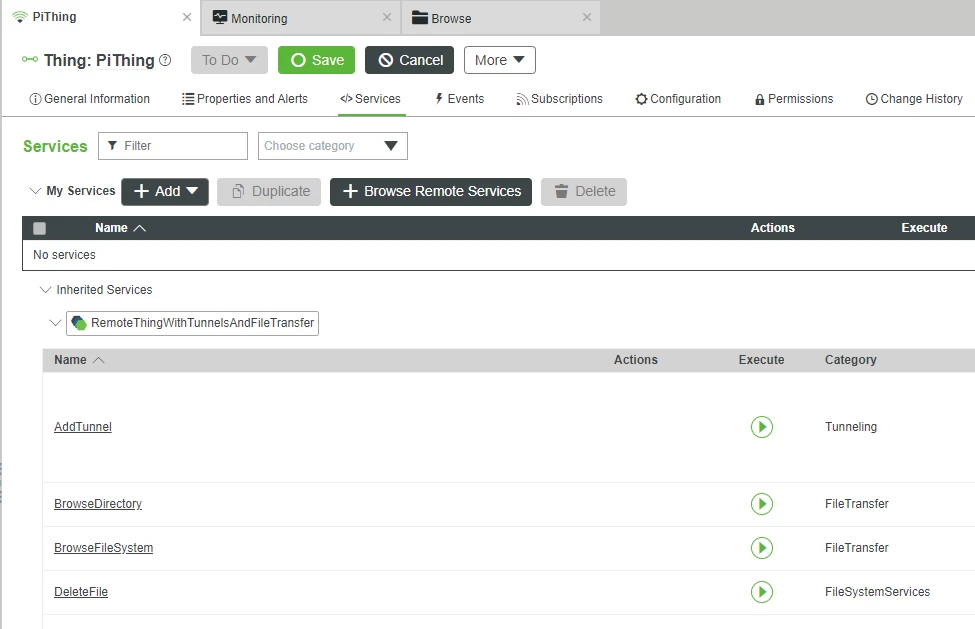
- Under the Execute column, click the Play Symbol for BrowseDirectory.
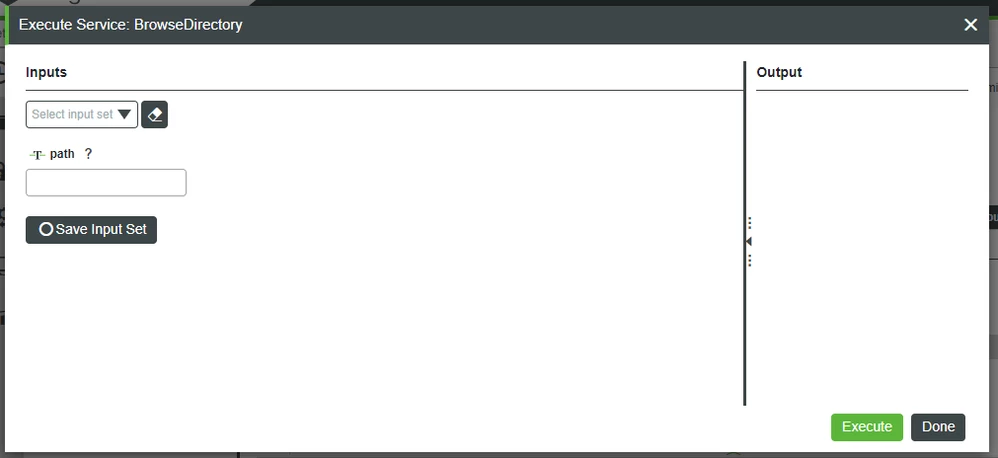
In the top-left path field, type / and click the bottom-right Execute button.
- Note the other and tw folders which we previously created for testing.
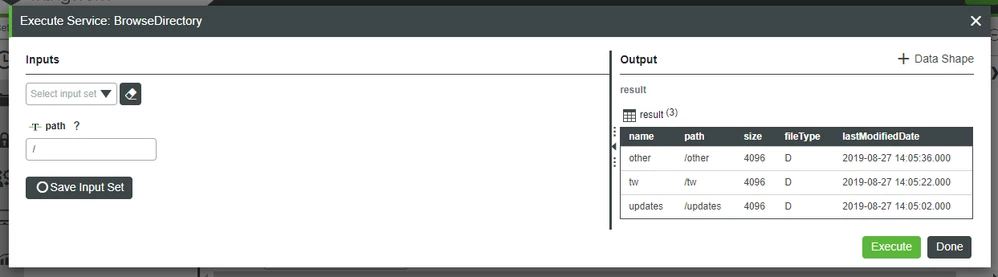
- Note the other and tw folders which we previously created for testing.
In the top-left path field, type /tw and click the bottom-right Execute button.
- Note the tw_test_01.txt file which we previously created for testing.
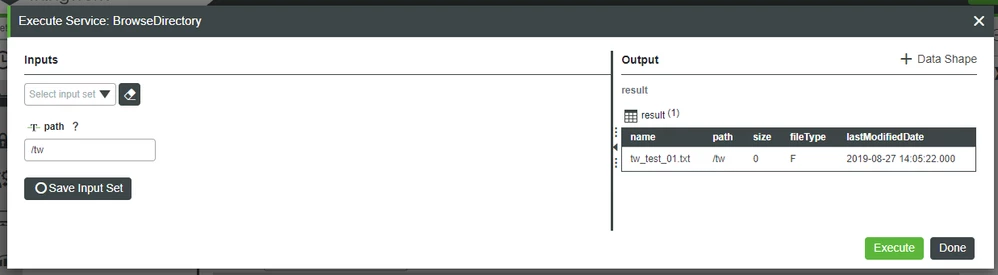
- Note the tw_test_01.txt file which we previously created for testing.
As the tw_test_01.txt file (and its parent folder) were items which we custom-created for this guide, you should now be 100% convinced that connectivity between Foundation and the EMS is dynamically working.
If so desired, you could explore into other folders (or even add additional files to these folders), run the BrowseDirectory Service again, and confirm that Foundation is now aware of the EMS and actively communicating.
Step 9: Next Steps
Congratulations! You've successfully completed the Setup a Raspberry Pi as an IoT Device guide, and learned how to:
- Set up Raspberry Pi
- Install, configure, and launch the EMS
- Connect a remote device to ThingWorx
The next guide in the Medical Device Service learning path is Medical Data Storage and Display.
Learn More
We recommend the following resources to continue your learning experience:
| Capability | Guide |
| Manage | Data Model Introduction |
| Connect | Connect Industrial Devices and Systems |
Additional Resources
If you have questions, issues, or need additional information, refer to:
| Resource | Link |
| Community | Developer Community Forum |
| Support | ThingWorx Edge MicroServer (EMS) Help Center |
| External | Raspberry Pi Documentation |